
Troubleshoot Signal: Fix Common Problems Step by Step
Published: October 7, 2026 · Updated: October 8, 2026
This section holds 60 guides in ten groups. Notifications (8 guides) is the biggest group because it is the biggest real-world problem. Late or missing notifications are almost always the phone's battery management, not Signal. Calls (6), messages (4), and registration and verification (7) cover the communication basics. Crashes, install, and updates (7) fix the app itself. Storage, battery, and data (5) fix resource problems. Contacts and chats (12) fix everything from missing contacts to sticker downloads. Devices and sync (4), account and PIN (4), and connection and network (3) cover the rest: linked devices, lockouts, firewalls, and VPNs.
Before you dive in, run the five-minute basics. They fix a surprising share of everything:
- Restart the phone.
- Update Signal to the latest version.
- Check that the phone's date and time are set automatically.
- Turn Wi-Fi off and on (or try mobile data).
- Check that Signal has its permissions: notifications, microphone, camera, contacts.
If the problem survives all five, then pick your symptom group. Troubleshooting in the wrong order wastes your evening; the basics first, then the specific guide.
The single most common root cause deserves its own paragraph. Android phone makers (Xiaomi's MIUI, Samsung's One UI, Oppo/Vivo/Realme's ColorOS, Huawei's EMUI) aggressively kill background apps to save battery, and Signal needs to run in the background to receive messages and calls. The fix is always the same shape: exempt Signal from battery optimization, allow autostart, and lock it in the recent-apps list so the system does not sweep it away. Each brand hides these settings in a different place, which is why there is a dedicated guide per brand. If your notifications arrive late, in bursts, or only when you open the app, start with your brand's guide. That is your problem.
The second most common cause is the absence of Google Play Services. On Huawei phones without Google, on GrapheneOS, and on other de-Googled setups, there is no Google push channel, so Signal keeps its own background connection instead. That works, but it is more sensitive to battery optimization and network restrictions. That is why the no-Google notification guides and the battery guides are companions, not alternatives. Read both if your phone has no Google services.
A word on when to start over: reinstalling fixes corrupted installs, but it deletes your local data, so the backup comes first. Always. The backup-before-reinstall guide is linked from every guide where a reinstall is on the table. Never delete the app "to see if it helps" before backing up. And never factory-reset a phone to fix one app; that is never the proportionate fix.
How to choose the right troubleshooting guide
Match your symptom to a row.
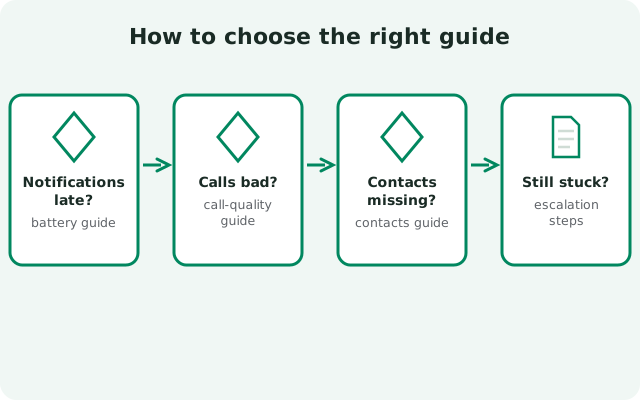
| Your symptom | Start here |
|---|---|
| No notifications at all | Notifications master guide |
| Notifications arrive late or in bursts | Delayed notifications: then your brand's guide |
| Xiaomi / Samsung / Oppo / Huawei phone | The brand guide in the Notifications group |
| Calls drop, echo, or sound bad | Call quality and relay calls |
| Messages will not send, or never arrive | Messages not sending |
| Verification SMS never arrives | SMS code not received |
| "Too many attempts" or rate limited | Registration failed / rate limited |
| App crashes or freezes | Crashing or freezes |
| "App not installed" or parse error | App not installed / parse error |
| Update will not install | Update failed |
| Storage full, battery draining, data hogging | The Storage, battery & data group |
| Contacts missing or wrong | Contacts not showing |
| Linked device or desktop will not sync | Linked device not syncing |
| Forgot PIN or locked out | Forgot PIN / locked out |
| Signal will not connect on some network | The Connection & network group |
If your exact symptom is not listed, start with the master guide of the closest group. Each one links to its narrower guides and covers the shared causes first.
from Signal's official site — file hosted by Signal, not by us
Notifications
Calls
Messages
Registration & verification
Crashes, install & updates
Storage, battery & data
Contacts & chats
Devices & sync
Account & PIN
Connection & network
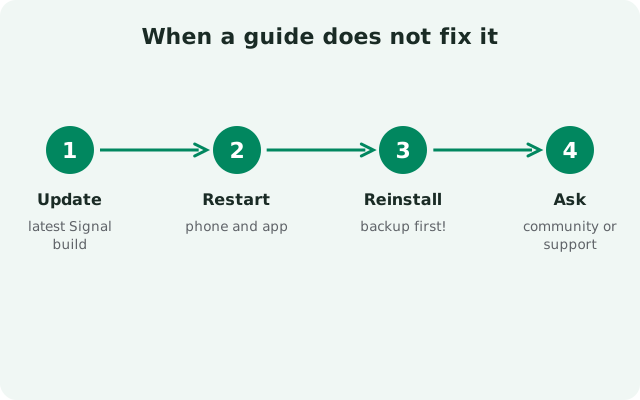
When a guide does not fix it
Some problems are on Signal's side (a server outage, a broken release), and no setting on your phone will fix those. If a problem appears suddenly across every network, check whether others report the same issue before you keep changing settings. And if you find a fix that a guide missed, the contact page is the way to tell us: these guides get better every time a real fix gets reported back. What does not help is reinstalling repeatedly without a backup, toggling every setting at random, or installing a "fixed" APK from a stranger. All three make things worse.
Frequently asked questions
Why am I not getting Signal notifications?
Almost always aggressive battery optimization by the phone maker. Exempt Signal from battery optimization, allow autostart, and lock it in recent apps. Start with the notifications master guide.
Signal worked yesterday and broke today — what changed?
Usually a phone update reset battery settings, a Signal update stalled, or the phone's clock drifted. Run the five-minute basics at the top of this page, then pick your symptom group.
Should I reinstall Signal to fix a problem?
Only with a backup first. Reinstalling deletes local data. See backup before reinstalling. Many problems have simpler fixes; check your symptom guide before reinstalling.
Signal will not connect on my office or school Wi-Fi — why?
Some networks block messaging apps. See the blocked Wi-Fi and VPN guides in the connection group.
Why does the Signal APK say "App not installed"?
Four usual causes: your phone is out of storage, installs from this source are not allowed, the download is damaged or incomplete, or you are installing an older version over a newer one. Free up space, allow installs from the source, re-download the full file from signal.org/android/apk, and never install a downgrade.
What does "package appears to be invalid" mean?
Android could not parse the file. With Signal this usually means a half-finished download or a signature clash with a test or beta build already on the phone. Re-download the complete APK from signal.org/android/apk, remove any other Signal build first, then install.
Other guide sections: Safety guides · Comparison guides · Backup & transfer guides · Version guides
Sources
Official references we check against: