
Signal storage full? Free space without losing your chats
Published: October 7, 2026 · Updated: October 8, 2026
"Storage full" in Signal doesn't have to cost you a single message. The space hogs are almost always the same three things: auto-downloaded media piling up in chats, a bloated app cache, and the phone itself running out of room. Work the cleanup in the safe order: clear cache first, trim media with Signal's own tools, archive old chats. Never delete backup files blindly. Here's the full playbook.
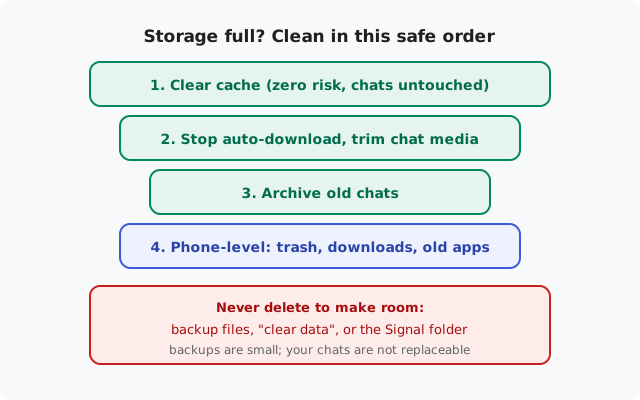
What's actually eating the space
Before deleting anything, know what you're looking at. Signal's footprint on your phone comes from a few distinct buckets:
- Chat media: photos, videos, voice notes, and files sent and received. Videos are the heavyweights. A few group chats sharing clips can eat gigabytes. Media auto-downloads by default, so it accumulates silently.
- App cache: temporary data Signal builds up during normal use. Safe to clear, rebuilds itself, never touches messages.
- Message database: the text history itself. Usually modest in size compared to media, but years of history add up.
- Backups: Secure Backup files stored on the phone. These are your lifeline. Treat them as untouchable unless you know exactly what you're doing.
- Everything else on the phone: often the real culprit. Signal gets blamed for "storage full" when the phone itself is at zero free space because of other apps, downloads, and photos.
Check where you stand first: Settings → Apps → Signal → Storage shows Signal's own usage, and your phone's Settings → Storage shows the whole picture. If the phone is at zero free space overall, Signal is a symptom, not the disease. Start with the phone-level cleanup at the bottom of this guide.
| Symptom | What's full | Safe fix |
|---|---|---|
| Signal warns about storage, phone has free space | Signal's own data, usually media and cache | Clear cache, then trim chat media with Signal's storage tools |
| Whole phone at ~0 free space, every app complains | Phone-level storage, not Signal specifically | Delete downloads, clear other apps' caches, empty gallery trash, move photos off the phone |
| Signal suddenly huge after joining active groups | Auto-downloaded group media | Turn off auto-download, delete media from the heaviest chats |
| Can't install the Signal update | No working room for the updater | Free a few hundred MB via cache + downloads, then retry. See the update-failure guide |
| Backup failing with storage errors | Not enough room to write the backup file | Free space first, then re-run the backup; never delete the old backup to make room |
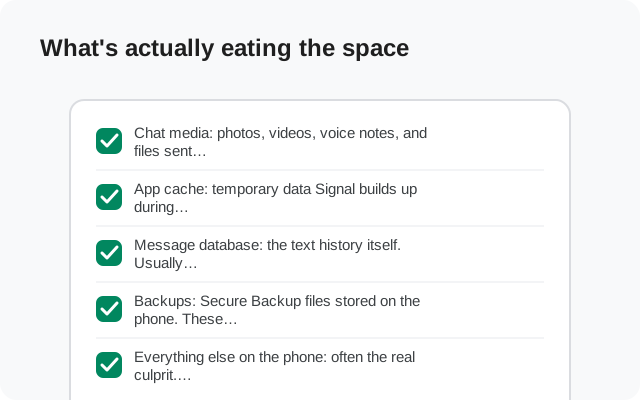
The safe cleanup order
Do these in sequence. Each step is safe on its own, and most people never need to go past step 3.
Step 1: Clear the cache (zero risk)
Settings → Apps → Signal → Storage → Clear cache. This deletes temporary files only. No messages, no media, no settings. It's the first move because it costs nothing and often frees a surprising amount. Do the same for other heavy apps (browsers, social apps) while you're there; their caches are fair game too.
Step 2: Tame auto-download
Stop the bleeding before mopping the floor. In Signal Settings → Data and storage, review the auto-download settings: turn off auto-download for videos and large files on mobile data, and consider limiting it on Wi-Fi too. From now on, media only downloads when you tap it. That means it only takes space when you actually want it.
Step 3: Trim chat media with Signal's own tools
Signal lets you manage per-conversation storage. Open a heavy chat, look at its media/files overview, and delete what you don't need: old memes, duplicate videos, files you've already saved elsewhere. Work from the biggest chats down: a handful of active group chats usually hold the majority of the media weight. Delete media, not the conversation: removing the attachments frees the space while the text history stays. If you're unsure whether you'll miss something, save the handful of keepers to your gallery first, then clear the rest without hesitation.
Step 4: Archive or clean up old chats
Chats you never open still occupy database space. Archive dormant conversations (they're hidden, not deleted) or delete dead ones outright, like the group for last year's trip that nobody's posted in since. Be deliberate: deleting a chat is permanent without a backup covering it.
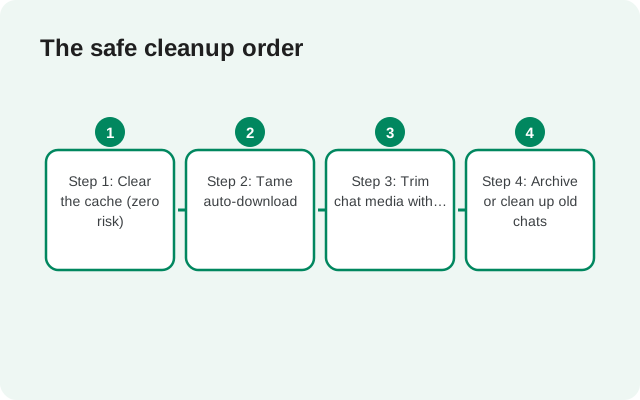
What NOT to delete
This is the section that saves people from themselves:
- Never delete backup files to "make room." Signal's backup files are small compared to media, and deleting your only backup to free a few megabytes is trading your safety net for pocket change. If backups are failing for space reasons, free space elsewhere first.
- Never use "Clear data" as a cleanup tool. Clear data is not a bigger version of clear cache. It wipes the app back to fresh-install state. That's the nuclear option from the won't-open recovery guide, not a storage fix.
- Don't delete the Signal folder from a file manager blindly. You might nuke backups, media, or the database in one tap. Use Signal's own settings and the app-info screen instead.
- Don't uninstall Signal "temporarily" to free space. Uninstalling wipes your message history. If you must reinstall for any reason, the backup-first rule applies: confirmed Secure Backup plus the 64-character recovery key, or don't do it.
Freeing phone-level space
When the whole phone is full, Signal-specific cleanup won't be enough. The big wins, in order of safety:
- Empty the trash. Gallery and file-manager trash folders hold "deleted" files indefinitely on many phones. Empty them. This alone can free gigabytes.
- Clear other apps' caches. Browsers, social media, and streaming apps accumulate enormous caches. Clear cache (never clear data) on the worst offenders.
- Move photos and videos off the phone. Back them up to a computer or cloud storage, verify the backup, then delete the local copies.
- Delete the Downloads folder contents. Old APKs, PDFs, and installers pile up here. If you've already installed Signal, you don't need the old APK file sitting around. Keep the current one until you're sure you won't need to reinstall, though.
- Uninstall apps you don't use. Sort by size and be honest about the bottom half of the list.
The backup warning, one more time
Storage pressure tempts people into destructive shortcuts. Every shortcut here has the same precondition. Before any uninstall, any clear-data, any "I'll just reinstall": confirm Secure Backups are on, confirm the backup is recent, and confirm you have the 64-character recovery key written down somewhere safe. (The 30-digit key is the retired legacy format. If that's what you're holding, refresh the backup first.) The Android backup guide and the backup troubleshooting hub cover the details. A full phone with your chats intact beats an empty phone with them gone.
Keeping it from filling up again
- Leave auto-download for videos off. Tap-to-download is the single best long-term habit.
- Do a media pass through your heaviest group chats every few months.
- Keep the phone itself above 10–15% free space; Android gets cranky well before zero.
- Keep backups running on schedule so cleanup never feels risky.
from Signal's official site, file hosted by Signal, not by us
Frequently asked questions
Will clearing Signal's cache delete my messages?
No. Clear cache removes temporary files only. Chats, media, and settings are untouched. It's the safest storage fix there is, which is why it's step one.
What's the biggest space hog in Signal?
Auto-downloaded chat media, especially videos in active group chats. A few busy groups can hold gigabytes. Turn off auto-download for videos and trim media from your heaviest chats. That's where the real space is.
Can I delete old Signal backups to free space?
Don't. Backups are small next to media, and they're your only recovery path if anything goes wrong. Free space anywhere else first: caches, downloads, gallery trash, other apps.
Signal says storage is full but my phone shows free space. Why?
Signal's own data allocation is full, usually media and cache, even though the phone has room elsewhere. Clear Signal's cache and trim chat media; that targets the actual full bucket.
Will deleting a chat's media delete the conversation?
No, if you delete just the attachments. The text history stays. Deleting the whole conversation is the permanent option. Only do that for chats you're sure you don't need, ideally with a backup behind you.
My backup keeps failing with a storage error. What do I do?
Free phone-level space first, empty the trash, clear other apps' caches, move photos off, then re-run the backup. Never delete the existing backup file to make room for the new one.
Related: the full troubleshooting hub, when Signal updates fail, fixing "App Not Installed", Signal won't open after an update, the Android backup guide, how Secure Backups work, moving Signal to a new phone, and download problems and fixes.