
Signal messages arriving late? Fix delayed notifications for good
Published: October 7, 2026 · Updated: October 8, 2026
If your Signal messages arrive minutes late, or only show up when you open the app, battery optimization is almost certainly the cause. Android puts idle apps to sleep to save power, and every phone brand adds its own stricter battery saver on top. The fix is to exempt Signal from all of them. Below is the fix for every major brand, plus a 10-minute test that proves it's working.
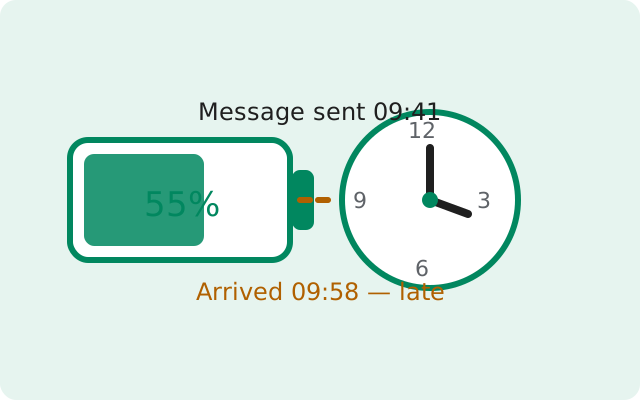
Why Signal notifications get delayed
To receive a message instantly, Signal must keep a live connection to its servers running in the background. Android's Doze mode and app standby deliberately throttle background connections for apps you haven't opened recently. That's the "delayed by a few minutes" pattern. On top of that, Samsung, Xiaomi, Huawei, Oppo, Vivo, and OnePlus each ship their own background-app killers that are stricter than stock Android, which is why the same Signal version behaves differently on different phones. The independent project dontkillmyapp.com ranks these manufacturers by how aggressively they kill background apps. It's worth a look if you want the full picture.
The tell-tale sign: messages arrive instantly while you're using the phone but late (or never) when the screen has been off for a while. That pattern rules out network and account problems and points straight at battery settings.
The universal fix (try this first)
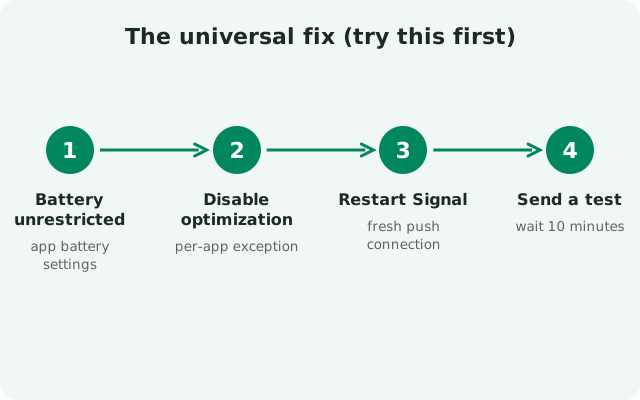
On most phones, one setting solves it:
-
Open Signal's battery settings
Go to Settings → Apps → Signal → Battery (labeled App battery usage on some phones).
-
Choose Unrestricted
Select Unrestricted (or Allow background activity). This tells Android never to put Signal to sleep. On older Android versions, go to Settings → Battery → Battery optimization, switch the list to All apps, find Signal, and choose Don't optimize.
-
Turn off Adaptive Battery for Signal if your phone offers it
Settings → Battery → Adaptive Battery learns your habits and restricts apps it thinks you don't use. If Signal appears in its restricted list, remove it.
If delays persist after this, your brand's extra battery saver is still killing Signal. Continue to your brand below. That's the step most guides skip, and it's the one that actually fixes the stubborn cases.
Brand-by-brand battery settings
Find your phone brand. Do both the universal fix above and your brand's steps. They are separate systems and both must allow Signal.
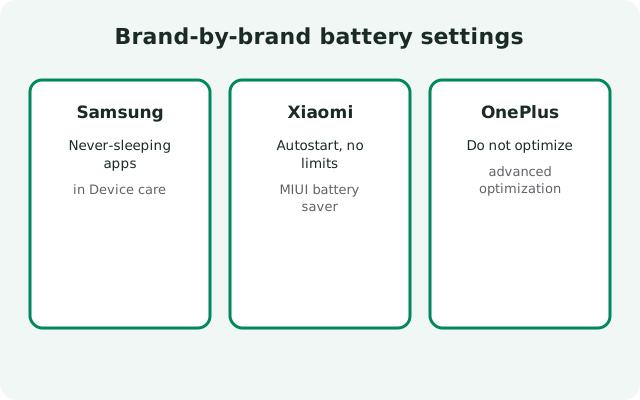
| Brand | Where the extra killer hides | What to set for Signal |
|---|---|---|
| Samsung (One UI) | Settings → Battery → Background usage limits | Add Signal to Never sleeping apps; turn off "Put unused apps to sleep" for it |
| Xiaomi / Redmi / POCO (MIUI / HyperOS) | Settings → Apps → Manage apps → Signal → Battery saver; plus Autostart | Battery saver → No restrictions; enable Autostart |
| Huawei / Honor (EMUI / HarmonyOS) | Settings → Battery → App launch | Turn off "Manage automatically"; enable all three manual toggles (auto-launch, secondary launch, run in background) |
| Oppo / Realme (ColorOS) | Settings → Battery → App battery management | Signal → Allow background activity; enable Auto-launch |
| Vivo / iQOO (Funtouch OS) | Settings → Battery → Background power consumption management | Signal → Allow; also enable Autostart in Apps settings |
| OnePlus (OxygenOS) | Settings → Battery → Battery optimization; App info → Battery | Don't optimize; allow background activity |
| Pixel / stock Android | Settings → Apps → Signal → App battery usage | Unrestricted; check Adaptive Battery list |
Samsung (One UI) in detail
Samsung's "sleeping apps" system is the most common culprit on Galaxy phones. Go to Settings → Battery → Background usage limits. You'll see three lists: Sleeping apps, Deep sleeping apps, and Never sleeping apps. If Signal is in either of the first two, remove it and add it to Never sleeping apps. Also check Settings → Apps → Signal → Battery and set it to Unrestricted. Samsung re-sorts these lists after updates, so re-check after every One UI update.
Xiaomi, Redmi, and POCO (MIUI / HyperOS) in detail
MIUI is famously aggressive. Open Settings → Apps → Manage apps → Signal. Tap Battery saver and choose No restrictions. Then enable Autostart on the same screen. On HyperOS the path is nearly identical. Two extra MIUI traps: the Security app's Battery → App battery saver can override your choice (set Signal to No restrictions there too), and MIUI's "Clear cache when device is locked" setting in Developer options-adjacent menus can nuke background apps. Leave it off.
Huawei and Honor (EMUI / HarmonyOS) in detail
Go to Settings → Battery → App launch, find Signal, turn off Manage automatically, and enable all three manual switches: Auto-launch, Secondary launch, and Run in background. Then go to Settings → Apps → Signal → Battery usage and allow background activity. On phones without Google services this matters doubly, because Signal's website build keeps its own connection alive instead of using Google's push network. Our Huawei notification guide covers that setup end to end.
Oppo, Realme, Vivo, and OnePlus in detail
These brands (all BBK siblings plus OnePlus) use similar systems with different names. On Oppo/Realme (ColorOS): Settings → Battery → App battery management → Signal → Allow background activity, and enable auto-launch. On Vivo/iQOO (Funtouch OS): Settings → Battery → Background power consumption management → Signal → Allow. On OnePlus (OxygenOS): Settings → Battery → Battery optimization → Signal → Don't optimize. On all of them, also confirm the generic Apps → Signal → Battery → Unrestricted setting.
The 10-minute test that proves it's fixed
Don't trust it until you've tested it. This takes ten minutes and gives you a real answer:
-
Close Signal completely
Swipe it away from the recent-apps screen. (Don't force-stop it from App info. That's a different, harsher action.)
-
Lock the phone and wait
Put the phone down, screen off, for 10 full minutes. Don't plug it in. Charging changes Doze behavior and can give a false pass.
-
Send a test message from another device
At the 10-minute mark, send yourself a message from a second phone or Signal Desktop.
-
Check the arrival time
The notification should appear within seconds. If it's still minutes late, one of the brand-specific killers above is still active. Go back and double-check every toggle, including the Security-app battery screen on Xiaomi.
Still delayed? Deeper causes
- Data Saver: Settings → Network & internet → Data Saver → Unrestricted data: allow Signal. Data Saver throttles background connections exactly like a battery saver does.
- VPNs and private DNS: some VPN apps delay or batch background connections. Disable the VPN for ten minutes and re-run the test.
- Work profiles: if Signal runs inside a work profile, the profile's admin policies can restrict background activity beyond your control. Check with your IT admin.
- Third-party "booster" apps: cleaner and RAM-booster apps kill background apps constantly. Uninstall them; Android manages memory fine on its own.
- Dual SIM / dual apps: cloned "Dual Messenger" or "Dual apps" copies of Signal can conflict with the original. Use one copy only.
from Signal's official site — file hosted by Signal, not by us
Frequently asked questions
Why are my Signal messages delayed but WhatsApp is instant?
Different apps get different treatment. Some manufacturers whitelist popular apps from their battery killers while restricting everything else. Exempting Signal manually (the steps above) puts it on equal footing. This is also why "it works for my other apps" doesn't rule out battery optimization.
Will "Unrestricted" battery drain my battery faster?
Barely. Signal's background connection is tiny: a persistent connection sipping occasional keep-alive packets. The battery cost is negligible compared to the screen, and it's the price of instant messages. Your phone's battery stats will confirm Signal stays near the bottom of usage.
Do I need to redo these settings after an update?
Sometimes, yes. Major OS updates (new One UI, MIUI/HyperOS, EMUI versions) are known to reset battery exemptions. If delays return after an update, re-check your brand's settings first. It takes a minute.
Does the website APK build have worse delays than the Play Store build?
It can, on aggressive phones. The Play build uses Google's push network (which the system keeps alive anyway), while the website build (8.29.3) maintains its own connection that battery savers target. With Signal set to Unrestricted, both are effectively instant. Without it, the website build suffers more.
Is there a "don't kill my apps" setting that covers everything at once?
No single switch covers every layer. Android's own optimization and your brand's extra saver are independent systems, so both need the exemption. The table above lists both for each brand.
Related fixes: our master notification diagnosis guide if messages never arrive at all, the sound restoration guide if they arrive silently, and the Huawei no-Google guide for phones without Play Services. Full list in the troubleshooting hub.