
Signal using too much mobile data? Controls that actually work
Published: October 7, 2026
Signal is one of the lighter messaging apps on data. But the wrong settings can still burn through your plan. In almost every case of high data use, the culprit is media auto-download: photos and videos arriving automatically over mobile data, especially in busy group chats. This guide shows you how to measure exactly what Signal uses, which settings save the most data, and how features like call relaying and the website build's self-updates affect your usage.
Step 1: Measure what Signal actually uses
Before changing anything, get the real number. Guessing leads to disabling things you didn't need to disable.
-
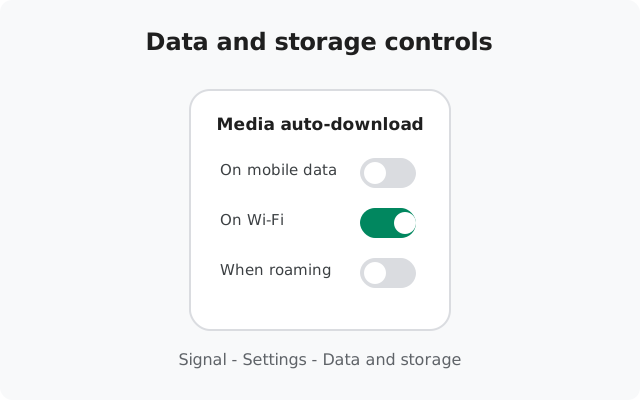
Check per-app mobile data
Go to Settings → Network & internet → SIMs → App data usage (on Samsung: Settings → Connections → Data usage → Mobile data usage; on Xiaomi: Settings → SIM cards & mobile networks → Data usage). Find Signal in the list and tap it.
-
Look at the billing cycle view
Make sure the dates match your carrier's billing cycle, not just "last 30 days." Note two numbers: foreground (you actively using the app) and background (downloads happening while the app is closed).
-
Check Wi-Fi usage too
On the same screen you can usually switch to Wi-Fi data. If Signal's Wi-Fi number is huge and mobile is small, your settings are already fine. The app is just doing its heavy work where it's free.
-
Compare with your other apps
Is Signal actually the problem, or does everything look big next to a small data plan? A messaging app using a few hundred MB a month is normal; several GB needs the fixes below.
The biggest data hogs, ranked
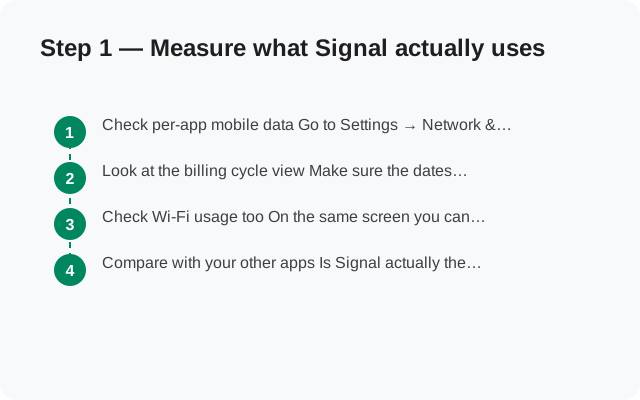
From biggest to smallest, what actually consumes data in Signal:
- Video calls: by far the largest consumer. A long video call can use hundreds of MB per hour.
- Auto-downloaded media: photos and especially videos arriving automatically in chats and groups, over mobile data.
- Photos and videos you send: high-quality uploads add up fast.
- Voice calls: much lighter than video, roughly on par with streaming low-bitrate audio.
- Text messages: negligible. You could send thousands a day and barely notice.
- Chat backups: Signal's backups stay on your phone, not in the cloud, so they use no mobile data at all.
Step 2: Tame media auto-download
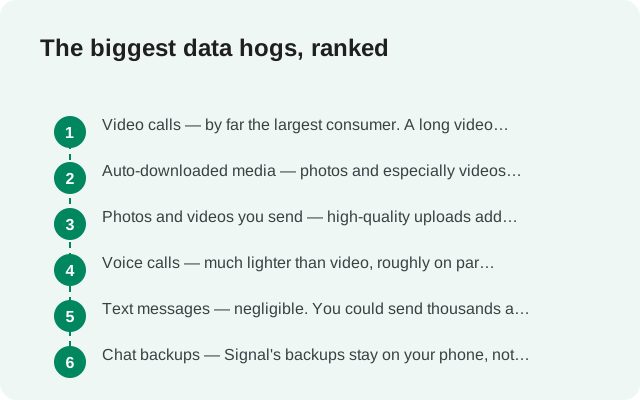
This is the single biggest lever. Open Signal, tap your profile icon, and go to Settings → Data and storage → Media auto-download. You'll see separate controls for mobile data, Wi-Fi, and roaming:
-
Set mobile data to Wi-Fi only (or off)
Uncheck images, videos, and documents under When using mobile data. Media will then arrive as thumbnails you tap to download, only the ones you actually want.
-
Keep Wi-Fi generous
Leave auto-download on under When using Wi-Fi. Data on Wi-Fi is usually free and unlimited, so there's no reason to restrict it.
-
Turn off roaming auto-download
Roaming data is the most expensive kind. Make sure When roaming downloads nothing automatically.
-
Lower your sent photo quality
On the same Data and storage screen, set media quality to Standard instead of High. Standard photos look fine on phone screens and are dramatically smaller to upload.
Step 3: voice vs video, and relay mode
- Prefer voice calls on mobile data. A voice call uses a small fraction of what video uses. Save video calls for Wi-Fi.
- Check "Always relay calls." In Settings → Privacy, the Always relay calls option routes every call through Signal's servers to hide your IP address. It's good for privacy, but relayed calls use more data than direct peer-to-peer calls. If data is tight and you don't need the IP hiding, turn it off.
- Keep calls short on metered connections, or move them to Wi-Fi. There's no magic low-data call mode; the honest lever is voice-instead-of-video.
Step 4: Android Data Saver and Signal
Android's Data Saver (Settings → Network & internet → Data Saver) restricts background data for all apps. It does reduce Signal's data use, but with a side effect you should know about:
- With Data Saver on: Signal can't download anything in the background. Messages still arrive (text is tiny), but media and sometimes message delivery can stall until you open the app.
- The middle ground: leave Data Saver on, but tap Unrestricted data and allow Signal. You keep system-wide savings while Signal stays reliable. Combine this with the auto-download settings above and you get the best of both: low data and working messages.
- If messages arrive late on mobile data: Data Saver blocking background data is a prime suspect. See our delayed messages guide.
Watch out: the website build's self-updates
The website build of Signal (from signal.org/android/apk, currently v8.29.3) updates itself. It downloads the full new APK directly, without the Play Store. Each update is a large download, and if it happens over mobile data, it can spike your usage for the month.
When Signal notifies you of an update while you're on mobile data, wait until you're on Wi-Fi to install it. The Play Store build updates through the Play Store instead, which respects your Play Store auto-update settings (Wi-Fi only, if you set it that way). Either way, app updates are a legitimate chunk of "Signal data usage" that has nothing to do with chatting.
Roaming and travel: the expensive-data playbook
Roaming data can cost 10–50x your home rate, so a trip abroad is where Signal settings matter most. Before you fly:
- Set roaming auto-download to nothing. In Settings → Data and storage → Media auto-download → When roaming, uncheck everything. One group video thread on roaming can cost more than the flight's Wi-Fi.
- Download offline what you need before leaving. If you're expecting documents or tickets over Signal, ask senders to send them while you're still on home Wi-Fi.
- Use voice, not video, on roaming. If you must call, a voice call over roaming is merely expensive; a video call is ruinous.
- Consider a local SIM or eSIM for data. Signal works fine on any data connection. Your account is tied to your registered number, not the SIM providing data. Swap the data SIM and keep chatting; verification codes only matter if you re-register.
When you return home, revisit the auto-download screen. People often leave roaming restrictions on and then wonder why media won't download weeks later.
from Signal's official site — file hosted by Signal, not by us
Settings comparison: what saves the most data
| Setting | Data saved | Downside |
|---|---|---|
| Media auto-download: Wi-Fi only | Very high: stops unwanted group media | Tap to download media on mobile data |
| Voice calls instead of video on mobile data | Very high per call | No video on metered connections |
| Sent photo quality: Standard | Medium: smaller uploads | Slightly less detail on sent photos |
| "Always relay calls" off | Medium on calls | Your IP visible to call peer (direct connection) |
| Website-build updates over Wi-Fi only | Medium: one big download per update | Wait for Wi-Fi to update |
| Android Data Saver on | Medium across all apps | Can delay media/messages; allow Signal as unrestricted |
| Disabling read receipts / typing indicators | Negligible | Not worth it for data alone |
Frequently asked questions
Why is Signal using so much mobile data in the background?
Almost always media auto-download: photos and videos arriving in chats and groups download themselves while the app is closed. Set Signal → Settings → Data and storage → Media auto-download to Wi-Fi only for mobile data, and background usage drops sharply.
How much data does a Signal video call use?
Video calls are Signal's heaviest data use by far. A long call can consume hundreds of megabytes. Voice calls use a small fraction of that. If you're on a limited plan, make video calls on Wi-Fi and use voice on mobile data.
Does "Always relay calls" use more data?
Yes. Relaying routes your call through Signal's servers instead of directly to the other person, which adds overhead. It exists to hide your IP address, a real privacy benefit. But if data is tight, turn it off in Settings → Privacy.
Will Data Saver break my Signal messages?
Text messages usually still arrive, but media downloads and sometimes message delivery can stall until you open the app. The fix: keep Data Saver on, but add Signal under "Unrestricted data" so it stays reliable while everything else stays restricted.
Do Signal backups use mobile data?
No. Signal's chat backups are stored locally on your phone, not uploaded to a cloud. Creating or restoring a backup uses no mobile data (restoring after reinstall happens over whatever connection you use to re-download, but the backup file itself is local).
Related guides: battery drain diagnosis, freeing up storage, media won't send or download, or the full troubleshooting hub.