
Xiaomi Keeps Killing Signal Notifications. Here’s the Fix.
Published: October 7, 2026 · Updated: October 8, 2026
from Signal's official site — file hosted by Signal, not by us
If Signal works fine while you are staring at it but messages arrive minutes late (or never) the moment the screen goes off, your Xiaomi is the problem, not Signal. Xiaomi’s MIUI (and its successor HyperOS) is famous for killing background apps to save battery, and Signal needs to stay alive in the background to deliver notifications on time. This guide explains why it happens and gives you the fix in the order that actually works.
Why MIUI kills Signal notifications
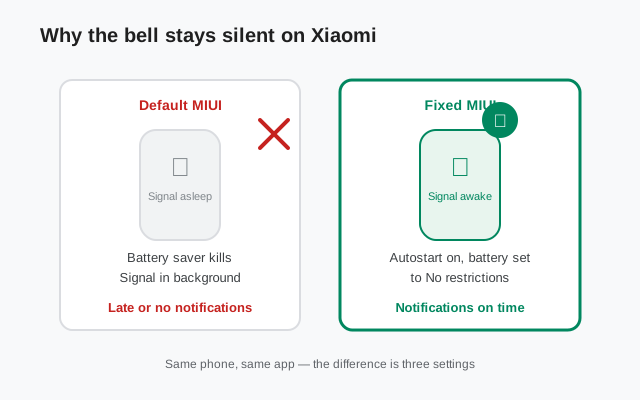
On most Android phones, an app like Signal sits quietly in the background and wakes up the moment a message arrives. On Xiaomi phones, MIUI’s battery optimization does not trust apps to do that. It freezes or kills background apps to stretch battery life, and Signal is a frequent victim. The result: notifications arrive only when you open the app (which wakes it up), or they arrive minutes late in a burst.
This is not a Signal bug and it is not a broken install. It is MIUI doing exactly what it was designed to do, applied to an app that needs to stay awake. The same behavior hits other messaging apps too. The good news: you do not need to root the phone or install anything. You just need to tell MIUI to leave Signal alone, using settings that Xiaomi ships on every phone.
The fix, in the right order
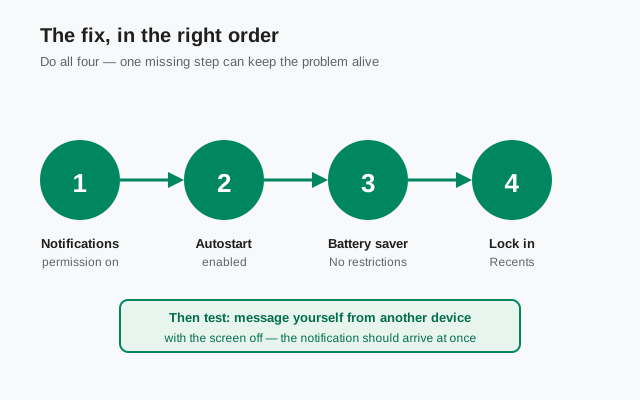
Order matters here. People often change one setting, see no improvement, and give up. Do all four steps:
- Notifications permission. Go to Settings > Apps > Manage apps > Signal > Notifications and make sure notifications are switched on. Obvious, but check it first. A denied permission looks exactly like the battery problem.
- Autostart. On the same Signal app-info screen, open Autostart and enable it. This lets Signal start itself after a reboot or after MIUI kills it, instead of staying dead until you open it.
- Battery saver: No restrictions. On the Signal app-info screen, open Battery saver (sometimes called Battery optimization) and choose No restrictions. This is the big one: it tells MIUI not to freeze Signal in the background.
- Lock Signal in Recents. Open the Recents screen (the square navigation button or swipe-up-and-hold), find the Signal card, long-press it or tap its menu, and tap the lock icon. A locked app cannot be swiped away or auto-cleared, so MIUI’s memory cleaner cannot kill it by accident.
One more thing worth checking: make sure you are not in a system-wide power mode like Battery saver or Ultra battery saver while testing. Those modes override per-app settings and will keep delaying notifications no matter what you set for Signal.
Exactly which settings to touch
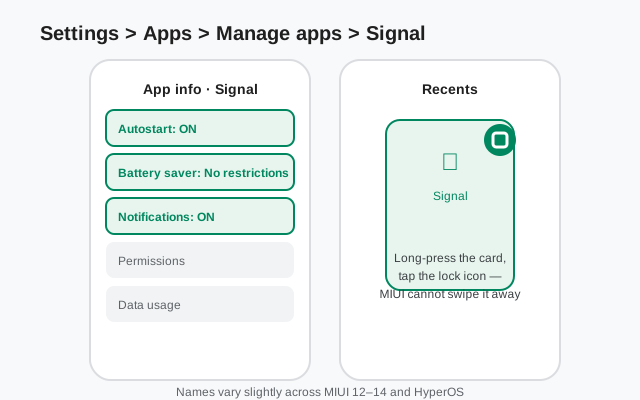
Everything lives on one screen: Settings > Apps > Manage apps > Signal. From there:
- Autostart: toggle it on.
- Battery saver: set to No restrictions (not “Battery saver” or “Restrict background activity”).
- Notifications: on, with the categories you care about (message notifications at minimum).
- Permissions: while you are here, confirm nothing Signal needs is denied.
Then lock Signal in Recents as described above. The annotated mockup below shows the screen layout you are looking for.
What is wrong? Diagnose by symptom
Not every notification problem on Xiaomi is the battery killer. Match your symptom to the likely cause before you change anything:
| Symptom | Likely cause | Fix |
|---|---|---|
| Notifications arrive only when you open Signal | MIUI froze Signal in the background | Battery saver → No restrictions, plus Autostart |
| Notifications arrive minutes late in bursts | MIUI wakes Signal on its own schedule, not on message arrival | Same as above, then lock Signal in Recents |
| No notifications at all, ever | Notifications permission denied, or Do Not Disturb is on | Check the Notifications toggle; check DND and per-app DND exceptions |
| Everything worked, then stopped after an update | MIUI update reset per-app battery settings | Re-apply all four steps: updates silently revert them |
| Notifications work on Wi-Fi but not on mobile data | Background data restricted for Signal | On the app-info screen, allow background data usage |
| No sound, but the notification appears | Notification sound or category muted | Check notification categories and sound, not the battery settings |
The fourth row catches a lot of people: a MIUI or HyperOS update can quietly reset your per-app battery choices back to the aggressive defaults. If notifications break “for no reason” after an update, re-apply the four steps before assuming anything else.
A note on HyperOS and MIUI versions
Xiaomi is replacing MIUI with HyperOS, and the settings names move around between versions. MIUI 12, 13, and 14 do not all label things the same way, and HyperOS renames a few menus. The concepts are the same on all of them: somewhere there is an Autostart switch, a per-app battery restriction choice, and a way to lock apps in Recents. If a name in this guide does not match your phone exactly, search your Settings for “Autostart” or “battery” and you will find the right screen.
One caveat: you may see advice online to turn off “MIUI optimization” in Developer options. That toggle changes a lot of system behavior at once. It can reset app permissions and change how apps behave in ways that are hard to undo cleanly. The four steps above fix Signal notifications without touching it, so leave MIUI optimization alone unless you know exactly what you are doing.
If your other messaging apps also have late notifications, that is a strong sign the battery settings are the cause. Apply the same fix to them. Our troubleshooting guides cover the general cases: delayed notifications, notifications not working at all, and battery drain if you are worried the fix will cost you battery (it barely moves the needle for one messaging app).
Test that the fix worked
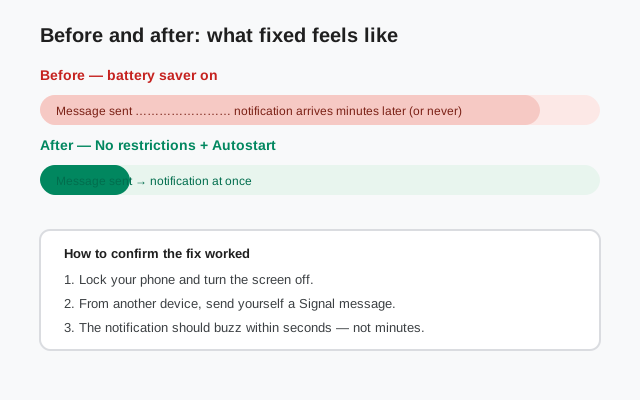
Do not trust the fix until you have tested it. The reliable test:
- Lock your phone and leave the screen off for a minute.
- From another device (a friend’s phone, your desktop, anything), send yourself a Signal message.
- The notification should buzz within seconds, not minutes.
If it is still late, go back through the four steps and check the one people skip. The battery saver mode must be off at the system level too, and Signal must actually be locked in Recents (open Recents and confirm the lock icon is showing). Also confirm Do Not Disturb is off while testing.
FAQ
Why do Signal notifications work for a while, then stop?
MIUI kills Signal again after some time: after a reboot, after a system update, or when its memory cleaner runs. Re-apply the four steps: Autostart, No restrictions, lock in Recents. If it keeps recurring, an OS update probably reset your per-app settings.
Do I need to turn off battery saver for the whole phone?
No. You only change the setting for Signal (No restrictions on Signal’s app-info screen). The rest of the phone keeps its normal battery behavior.
Will “No restrictions” drain my battery?
Barely. Signal is a lightweight messaging app; letting it stay awake in the background uses a small amount of battery. If you are seeing serious drain, check our battery drain guide: the cause is usually something else.
Does this work on HyperOS too?
Yes. HyperOS keeps the same ideas (Autostart, per-app battery restrictions, locking apps in Recents), though some menu names differ. Search Settings for “Autostart” or “battery” to find the right screens.
I get notifications but no sound on my Xiaomi. Is this the same fix?
Probably not. If the notification appears silently, the problem is the notification sound or a muted notification category, not the battery killer. Check Signal’s notification settings and the per-category sound settings.
Should I turn off MIUI optimization in Developer options?
We do not recommend it for this. That toggle changes broad system behavior and can reset permissions. The four steps in this guide fix Signal notifications without it.
Keep reading
- Fixing delayed notifications generally: when it is not just a Xiaomi thing
- When notifications do not work at all: the full checklist
- Signal battery drain, explained: if you are worried about the fix
- Lock-screen notifications not showing: a related Xiaomi classic