
Your linked Signal device isn’t syncing messages: here’s the fix
Published: October 7, 2026 · Updated: October 8, 2026
A linked phone, tablet, or Signal Desktop only receives messages sent after linking: old history never syncs. A Desktop with nothing from last year is not broken. But if messages sent minutes ago are missing from a device that worked yesterday, you have a real sync problem: usually a stale connection, an outdated app, or a link that expired.
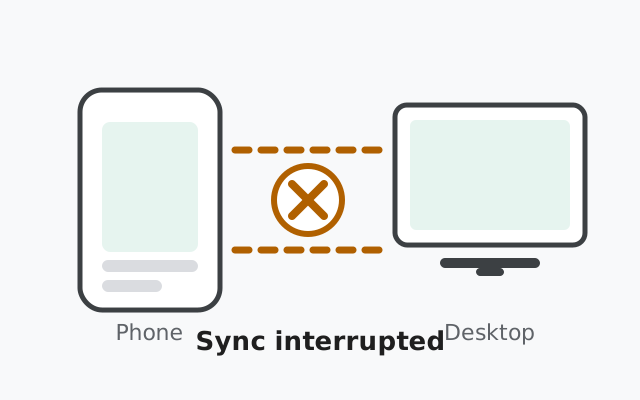
What syncs and what never will
Before you change anything, check your expectation against this honest box. Half of all “my linked device won’t sync” complaints turn out to be normal behavior:
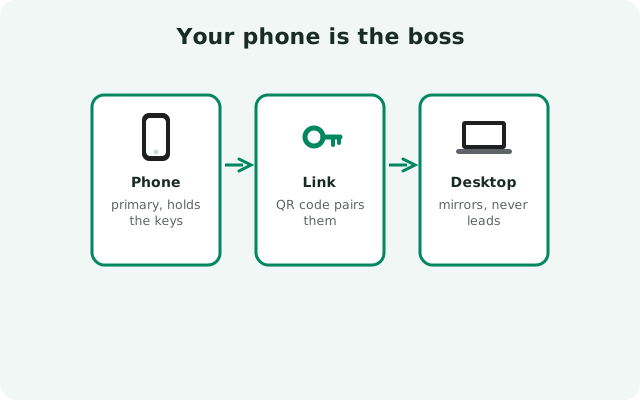
Your phone is the boss (why that matters)
Here is the part people miss: your phone is the primary device, and everything else, Desktop, tablet, a second phone, is a linked device that depends on it. Linked devices are mirrors, not equals. That means:
- If your phone is dead, switched off, or has no internet for a long time, linked devices degrade too.
- Your primary phone must come online at least once every 30 days, or its linked devices get disconnected.
- A linked device that sits unused for about 45 days is automatically unlinked by Signal.
- One account supports at most 5 linked devices. Trying to add a sixth fails silently or errors.
So the first diagnostic question is always: is my phone itself working and online right now? If your phone gets messages fine, the problem is the linked device. If your phone is also struggling, fix the phone first. See the guide for messages not arriving.
Symptom → cause → fix
| Symptom | Likely cause | Fix |
|---|---|---|
| New messages missing on Desktop, phone is fine | Desktop offline or stale session | Restart Signal Desktop; check the PC’s network |
| Linked phone/tablet shows nothing at all, was fine weeks ago | Auto-unlinked after ~45 days idle | Unlink and link it again |
| Everything on the linked device stopped at once | Primary phone offline or dead | Bring the phone online; sync resumes |
| Old chats missing on a freshly linked device | History transfer was skipped | Reinstall on that device and relink with transfer |
| Some messages arrive, others don’t | Outdated app on one side | Update both to the latest version |
| A new device refuses to link at all | 5-device limit reached | Unlink an old device from the phone, then link |
| Messages from months ago missing, new ones fine | Working as designed | Nothing to fix: pre-link history needs the transfer option |
The fix walkthrough
Work through these in order. Stop as soon as sync resumes:
Confirm both devices are online
Open the linked device and make sure it has internet (load a web page). Then check your phone: if your phone isn’t receiving Signal messages right now, that is the real problem, not the link.
Update both apps
On the phone, grab the latest website build from signal.org/android/apk (currently 8.29.3). On Desktop, check for updates from its menu or reinstall from signal.org/download. Sync bugs from version mismatches are common after big releases.
Restart both apps
Fully quit Signal on the linked device (not just minimize) and reopen it. A stale connection is the most common “worked yesterday” cause.
Send a test message from the linked device
Signal’s own support docs suggest this: send a message from the linked device. This forces a fresh session handshake and often kicks sync back to life.
Check the linked-devices list on your phone
Go to Settings → Linked devices. If the device is missing, it was auto-unlinked. Link it again. If it’s listed but dead, unlink it and relink fresh (below).
Unlink and relink properly
If nothing above worked, the clean fix is a fresh link:
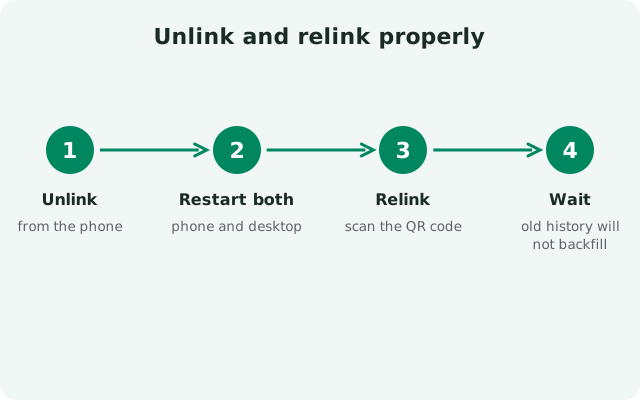
Unlink the broken device
On your phone: Settings → Linked devices → tap the device → Unlink. This only disconnects that device. It does not touch anything on your phone.
Start a fresh link
Open Signal on the device and begin the link flow (for Desktop, see the step-by-step linking walkthrough). Scan the QR code with your phone.
Decide about history transfer now
You’ll be offered Transfer message history. If you want old chats on this device, choose it now. There is no later. The transfer covers full history plus media from the last 45 days and stays end-to-end encrypted.
Wait for the first sync
Contacts and groups can take several minutes to populate after linking. Don’t panic if the device looks empty for a bit. New messages arriving is the sign it worked.
When you move your primary to a new phone
This deserves its own section because it confuses everyone: moving your primary phone to a new device breaks all your linked devices. Your linked Desktop, tablet, or second phone was linked to the old primary’s session. When you transfer your account or re-register on a new phone, that session is gone. Every linked device goes dead at once. This is normal, not a bug.
The fix is straightforward but tedious. After the new primary is working and receiving messages, go through your linked devices one by one: unlink each from the old list if it’s still shown, then link it fresh to the new phone. Do the history transfer on any device where you want old chats. Budget ten minutes, not two, and do it over decent Wi-Fi: several simultaneous history transfers on a slow connection will feel stuck when they’re just slow.
If nothing works: last resorts
If a device still won’t sync after a clean relink, you’re down to environment problems:
Try a different network on the linked device
Switch the PC or tablet to your phone’s hotspot. If sync suddenly works, the usual network is filtering Signal’s traffic. Check the firewall, VPN, antivirus, and any corporate proxy.
Clear the linked app’s data and start over
On the linked device (not your phone), clear Signal’s app data or reinstall it, then link fresh. This wipes that device’s local copy, which is safe, because your phone holds the full account. Never do this step on the primary phone without a backup.
Check whether Signal itself is down
Rare, but real: during a Signal outage, sync stalls everywhere at once. If both phones and Desktop all stopped together, check Signal’s status before reinstalling anything.
from Signal's official site — file hosted by Signal, not by us
Frequently asked questions
Why is my linked Signal Desktop not receiving new messages?
Most often the Desktop app has a stale connection or is outdated. Restart it fully, check the PC’s internet, update to the latest Desktop version, and send a test message from Desktop to force a fresh session.
Do linked devices get old messages?
No. Sync only carries messages sent after linking. Old history appears only if you chose the history transfer option at link time (full history plus media from the last 45 days).
My linked tablet stopped working after a month of no use. Why?
Signal automatically unlinks devices that stay offline for about 45 days. Just link it again from your phone’s Linked devices settings.
Can I have more than 5 linked devices?
No. 5 is the limit per account. Unlink a device you no longer use (Settings → Linked devices on your phone) before adding a new one.
Does my phone need to be online for linked devices to work?
Your primary phone holds the account, so it must come online at least once every 30 days to keep links alive. Day-to-day, new messages reach linked devices directly. But a long-dead phone degrades everything.
I skipped the history transfer when linking. Can I get it now?
Not through sync. You’ll need to uninstall Signal on that linked device and link it again, choosing the transfer option this time.
Keep reading
- Desktop QR won’t scan: every fix for QR linking failures
- Transfer chats to a linked device: how the link-time history transfer works
- Link your phone to Desktop: the full QR linking walkthrough
- Troubleshooting hub: every Signal fix guide in one place