
Is a wrong date or time breaking Signal? Fix it here
Published: October 7, 2026 · Updated: October 8, 2026
Yes. A wrong date or time on your phone can stop Signal from working. Signal's connections are encrypted, and that encryption only works when your phone knows the correct time. If the clock is off by days, months, or years, the app cannot verify its secure connections, so it refuses to connect instead of risking your messages on an unverified link. The fix is quick: open Settings → System → Date & time and turn on Set time automatically. Then restart Signal and test. This page explains why a wrong clock breaks the app, how to confirm the clock is really the cause, and what to watch for when travel or a manual timezone change is behind it.
What the date/time problem looks like
A clock problem rarely announces itself as a clock problem. Signal will not pop up a message saying "your date is wrong." Instead you get the ordinary symptoms of a connection failure, which is why this cause gets missed. Here is the pattern to recognize:
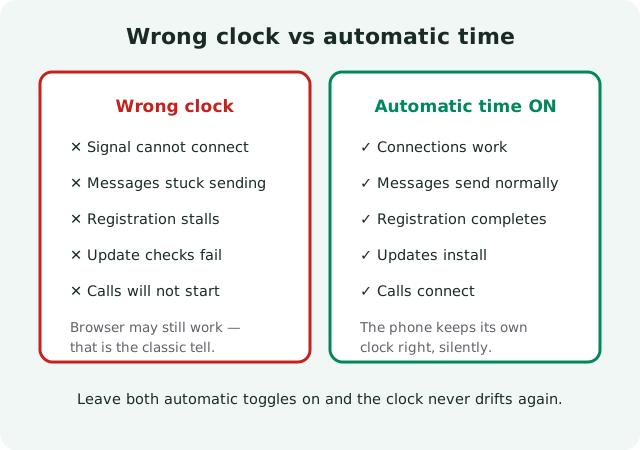
- Messages get stuck sending. They sit with the sending indicator and never deliver, even though your connection looks fine.
- Signal cannot connect at all. The app acts like it has no internet, while everything else on the phone works.
- Registration stalls. The SMS code arrives, you enter it, and setup never finishes.
- Calls will not start, and update checks fail silently in the background.
The classic tell is the split: your browser loads pages, WhatsApp or Telegram works, the Play Store opens. But Signal alone refuses to connect. When one app fails and everything else is fine, the problem is usually something that app checks and the others do not. For Signal, the clock is high on that list.
This also tends to appear suddenly. Signal worked yesterday and does not work today. Ask yourself what changed: a flight, a manual time change, a phone battery that died completely, a factory reset, a new SIM card. Clock problems almost always follow an event like one of those.
Why a wrong clock breaks Signal
How the certificate check uses your phone's clock
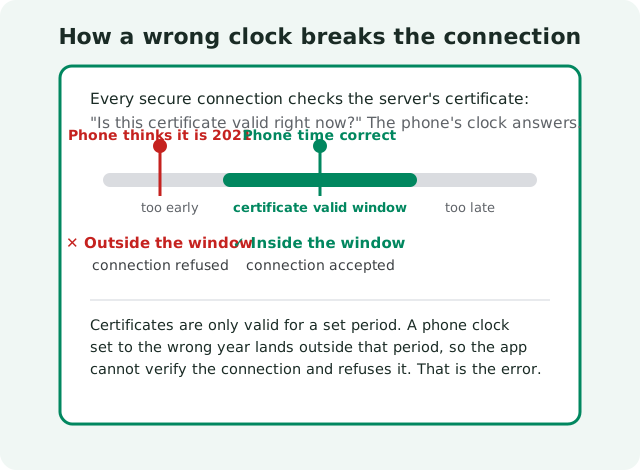
Every connection Signal makes to its servers is encrypted. Before any message moves, the app and the server prove to each other that the connection is genuine. A big part of that proof is the server's security certificate, and every certificate carries a validity window: a "valid from" date and a "valid until" date. The app asks a simple question (is this certificate valid right now?), and the only clock it has to answer with is your phone's.
What a wrong clock makes Signal do
If your phone thinks it is 2021, a certificate that became valid in 2024 looks like it does not exist yet. If your phone thinks it is 2030, a certificate that expires in 2027 looks long dead. Either way the check fails, and the app does the safe thing: it refuses the connection. It will not send your messages over a link it cannot verify. That failure is by design. A messenger that connected anyway, with broken time checks, would be a messenger you could not trust.
Two honest qualifications
Two honest qualifications. First, small drifts do not matter. A clock that is five minutes fast will not break anything; certificates are built with enough slack for normal life. It is the big skews, days, months, years, that cause failures. Second, this is not unique to Signal. Banks, email apps, and browsers all do the same check. Signal just happens to be strict about it, which is what you want from a private messenger.
The fix: turn on automatic date & time
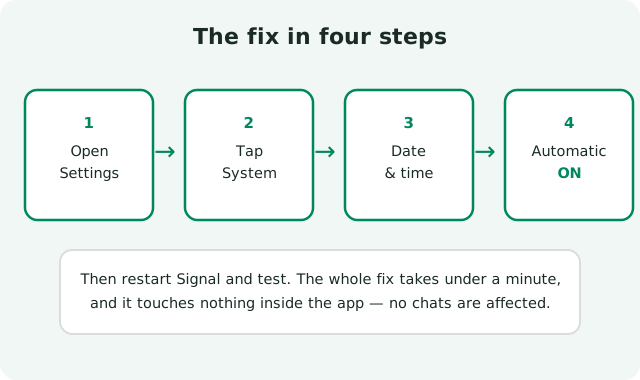
The permanent fix is to let the phone keep its own time. On stock Android the path is:
Open Settings
The gear icon in your app drawer or notification shade.
Tap System
On some phones this is at the very bottom of the Settings list.
Tap Date & time
You will see the current date, time, and time zone, plus the automatic toggles.
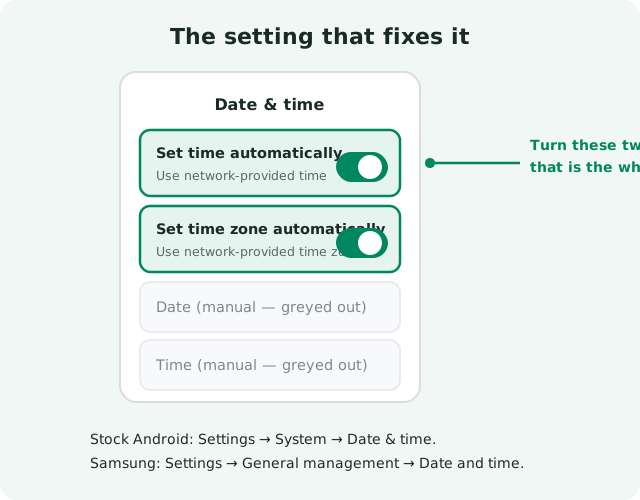
Turn on "Set time automatically"
The phone will now take the time from the mobile network or the internet.
Turn on "Set time zone automatically"
This one matters after travel. It keeps the zone right when you move.
Restart Signal and test
Fully close the app (or restart the phone), open Signal, and send a test message.
Manufacturer skins rename the menus slightly. On Samsung phones the path is Settings → General management → Date and time. On Huawei and Honor phones running EMUI or HarmonyOS it is Settings → System & updates → Date & time. The toggles have the same names everywhere: automatic date/time and automatic time zone.
How to confirm the clock is really the cause
Before you go changing other settings, run these three checks. They take two minutes and they settle the question.
Check 1: fix it and watch. Turn on automatic date and time, fully close Signal (swipe it away from recent apps) or restart the phone, then open Signal and send a message. If everything suddenly works, the clock was the cause. This is the most reliable test there is. A fix that works is proof.
Check 2: look at the date, not just the time. The classic mistake is a phone showing the right time of day but the wrong date: the right hour, the wrong year. People glance at the clock, see a plausible time, and move on. Open the Date & time screen and read the full date line carefully. Also check AM/PM: a phone set to 3:00 AM when it is 3:00 PM is twelve hours off, and that can be enough on its own.
Check 3: think about what changed. Clock problems follow events. Did you just land from a flight? Did someone set the time manually to "fix" something? Did the battery die completely? Did you swap SIM cards, especially in a dual-SIM phone? A yes to any of these makes the clock the prime suspect.
Travel, timezones, and dual-SIM notes
Most clock problems in the real world come from travel, so here are the situations worth knowing.
After a flight
Phones in airplane mode cannot reach the network time, and if the time was set manually before the flight, it stays wrong after landing. Turn airplane mode off, wait a minute for the phone to find the network, and check that both automatic toggles are on. If Signal still misbehaves right after landing, the clock is the first thing to check, before the hotel Wi-Fi, before reinstalling anything.
Manual time zone stuck on the old city
Some travelers set the time manually at their destination and forget to switch it back. Then the time looks right at a glance but the zone is wrong, and date math goes subtly sideways. The automatic time zone toggle exists exactly for this. Leave it on.
Dual-SIM phones
A phone with two SIMs can pick up time from either carrier, and occasionally it picks the wrong one, especially near borders or with a foreign SIM in the second slot. If your time jumps around on its own, this is likely why. Automatic time usually sorts it out; if a carrier is feeding bad time, that is the carrier's fault, and setting the time manually (correctly) is a fine temporary stopgap.
Daylight-saving changes
The twice-a-year clock change breaks a small number of phones every year, usually ones with manual time. Automatic time handles it silently. One more reason to leave the toggles on permanently.
The honest summary: manual time is a maintenance burden you do not need. Automatic time is free, silent, and correct. There is no real downside to leaving it on.
When it is not the clock
If the clock is right and Signal still will not connect, move on. The clock was a suspect, not the verdict. The next most common blockers:
- A VPN or proxy interfering with the connection. Try with it off.
- A restricted network: some countries and corporate networks block Signal's servers. The connection guide for restricted regions covers this.
- An outdated Signal build that can no longer talk to current servers. The update-failure guide walks through fixing updates.
- A full phone storage, which breaks apps in strange ways. The storage guide shows what to clear safely.
- Registration-specific trouble beyond the clock: wrong number format, SMS interception issues. The registration guide covers those.
Work through them one at a time. And if messages specifically will not send while everything else works, the messages-not-sending guide is the right next page.
Quick diagnosis table
| Symptom | Clock-related? | What to do |
|---|---|---|
| Signal cannot connect, but the browser works fine | Likely | Turn on automatic date & time, restart Signal |
| Registration code arrives but setup never finishes | Possible | Check the full date (not just the time), then retry registration |
| Everything broke right after a flight | Likely | Turn on automatic time and time zone, wait a minute, restart Signal |
| Problems started after someone set the time manually | Very likely | Turn automatic back on. Manual time is the usual culprit. |
| Time looks right but the year or AM/PM is wrong | Very likely | Read the full date line in Date & time settings and correct it |
| Nothing connects. Not even the browser. | Probably not the clock | Check Wi-Fi, mobile data, VPN, or airplane mode instead |
Date/time fix checklist
- Open Settings → System → Date & time (Samsung: General management → Date and time).
- Turn on "Set time automatically" and "Set time zone automatically."
- Read the full date line: confirm the day, month, year, and AM/PM are all correct.
- Fully close Signal or restart the phone.
- Send a test message. If it delivers, the clock was the cause.
- Leave both toggles on permanently so it never happens again.
If nothing helps: a clean reinstall
When the clock is right, the network is fine, and Signal still misbehaves, a clean reinstall of the official build is the reasonable next step. Back up your chats first. The backup-before-reinstall guide shows how, because reinstalling without a backup loses message history. Then get a fresh copy from the only source that counts:
from Signal's official site, file hosted by Signal, not by us
Frequently asked questions
How far off does the clock have to be to break Signal?
Minutes do not matter. Certificates have enough slack for normal drift. The failures start with big skews: days, months, or years off. A phone showing the right time but the wrong year is the most common version of this.
My time looks right but Signal still will not connect. What now?
Check the date, not just the time. Open Settings → System → Date & time and read the full date line: day, month, year, and AM/PM. A correct-looking clock with the wrong year or a flipped AM/PM is the classic missed case. If the full date is right too, the clock is not your problem. Work through the other causes above.
Does a wrong clock affect calls as well as messages?
Yes. Calls use the same encrypted connections, so they fail for the same reason. If calls will not start and messages will not send at the same time, that pattern actually strengthens the clock theory.
Will fixing the clock delete my messages or log me out?
No. Changing the date and time touches nothing inside the app. Your chats, contacts, and registration stay exactly as they are. It is one of the safest fixes you can make.
Why does automatic time fix it permanently?
With automatic time on, the phone regularly syncs its clock with the mobile network or the internet, so it can never drift far enough to break certificate checks. You never have to think about it again, including across flights and daylight-saving changes.
I travel constantly. Should I just leave automatic on forever?
Yes. That is exactly what it is for. Leave both "set time automatically" and "set time zone automatically" on permanently. After landing, give the phone a minute on the network to pick up the local time before judging whether Signal works.
Related: the full troubleshooting hub, messages stuck sending, registration failures, failed updates, the official APK download page, and the main install guide.