
Why you're not getting Signal notifications, and how to fix it
Published: October 7, 2026 · Updated: October 8, 2026
If Signal notifications stopped working, the app is almost never broken. Your phone is silencing it. In our experience, nearly every case comes down to one of four things:
- Do Not Disturb is on.
- Battery optimization is killing Signal in the background.
- An Android notification channel got switched off.
- Notifications are off inside Signal's own settings.
This guide runs them in diagnosis order, from 10-second checks to deeper fixes, including the no-Google case on Huawei phones. Work from top to bottom and test after each step.
The 30-second check
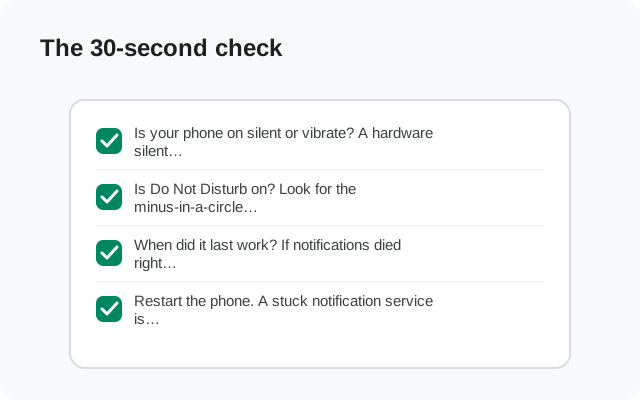
Before touching any settings, rule out the silly stuff. It saves more time than you'd think:
- Is your phone on silent or vibrate? A hardware silent switch or a muted media/notification volume kills sounds but still shows banners. Check the volume panel first.
- Is Do Not Disturb on? Look for the minus-in-a-circle icon in the status bar.
- When did it last work? If notifications died right after a system update, the update probably re-enabled battery optimization for Signal. That happens a lot.
- Restart the phone. A stuck notification service is rare, but a reboot is free and rules it out.
Now send yourself a test message from another device or ask a friend to message you. If it arrives, you're done. If not, continue.
Step 1: Check Do Not Disturb
Do Not Disturb (DND) silences notifications by design, and it turns itself on more often than people realize: bedtime schedules, focus modes, and "turn on automatically" rules all do it quietly.
-
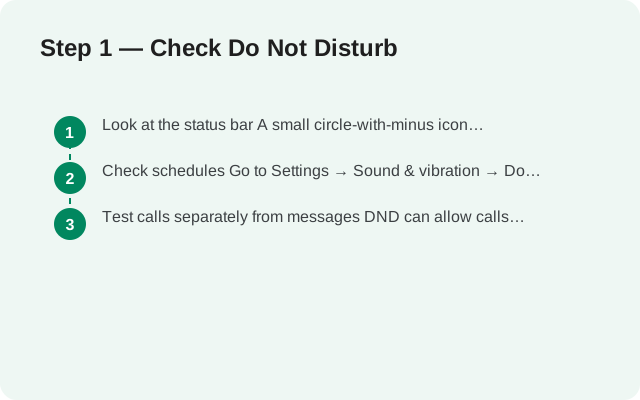
Look at the status bar
A small circle-with-minus icon means DND is active. Swipe down the quick-settings panel and tap it off.
-
Check schedules
Go to Settings → Sound & vibration → Do Not Disturb → Schedules (the exact names vary by brand). Bedtime mode and work focus schedules re-enable DND every day. Turn off the ones you don't want, or add Signal under Apps → Add apps so its notifications are allowed through.
-
Test calls separately from messages
DND can allow calls while blocking message notifications. If calls ring but messages stay silent, DND is a prime suspect. See our call troubleshooting guide for the call-specific side.
Step 2: Check Android's notification channels
Since Android 8, every app's notifications are split into channels. Signal has separate ones for messages, calls, and other alerts. Each channel has its own on/off switch, sound, and vibration. If the Messages channel is off while everything else is on, you get exactly the classic symptom: calls ring, messages never appear.
-
Open Signal's app info
Long-press the Signal icon and tap App info (or go to Settings → Apps → Signal).
-
Open Notifications
Make sure the master Show notifications toggle is on. Then tap into the categories: Messages, Calls, and any others listed.
-
Check each category
Every category should be on, with a sound selected (not "Silent" or "None") if you want sound. If you're chasing a sound problem specifically, our notification sound guide goes deeper on this screen.
Step 3: Stop battery optimization from killing Signal
This is the number-one cause of missing and late notifications on Android. To save battery, Android puts unused apps to sleep. Every phone brand adds its own, more aggressive killer on top. If your notifications arrive only when you open Signal, this is your problem.
-
Set Signal's battery usage to Unrestricted
Go to Settings → Apps → Signal → Battery (on some phones: App battery usage) and choose Unrestricted. On older Android versions the path is Settings → Battery → Battery optimization → Signal → Don't optimize.
-
Check your brand's extra battery saver
Samsung, Xiaomi, Huawei, Oppo, Vivo, and OnePlus each add their own background killers with different names and different menus. We keep the full brand-by-brand list on our delayed-notifications page: if the generic step above didn't fix it, your brand's extra saver is the next place to look.
-
Test with the screen off
Lock the phone, wait two minutes, and have someone send you a message. If it arrives promptly now, the battery setting was the cause.
Step 4: Check Signal's own notification settings
Even with every Android setting correct, Signal can silence itself. Open Signal, tap your profile picture, and go to Settings → Notifications:
- Message notifications must be on. If you turned them off during a busy week and forgot, nothing from Android's side can override that.
- Sound: pick a tone. If it says "Silent" or "None," that's your missing sound.
- Vibrate and LED: set these to your preference; they don't affect whether the notification appears, only how it announces itself.
- Notification privacy: this controls how much shows on the lock screen (name and message, name only, or nothing). If your lock screen looks empty, this is usually why. See our lock-screen guide.
- Per-chat settings: open any chat, tap the contact or group name, and check Notifications. Individual chats can be muted or given custom sounds that override the global settings.
Step 5: Check Data Saver and background data
Notifications need data. If Data Saver is on, Android blocks background data for apps. Signal can't receive anything while it's closed.
-
Check Data Saver
Go to Settings → Network & internet → Data Saver. If it's on, either turn it off or tap Unrestricted data and allow Signal.
-
Confirm background data is allowed
In Settings → Apps → Signal → Mobile data & Wi-Fi, make sure Background data is on.
-
Note the Wi-Fi vs mobile pattern
If notifications work on Wi-Fi but not on mobile data (or the reverse), Data Saver or a carrier-level restriction is almost certainly the cause. This step fixes it.
A VPN can also interfere in rare cases: if notifications started failing the day you installed a VPN app, try disabling it for ten minutes and re-testing.
Step 6: No Google services on your phone?
On phones without Google Play Services, Huawei devices, de-Googled phones, some custom ROMs, you should be running Signal's website build (current version 8.29.3, from signal.org/android/apk), not the Play Store build. The website build doesn't use Google's push network; it keeps its own connection to Signal's servers alive in the background.
That connection is exactly what battery optimization loves to kill, so Step 3 matters twice as much here: set Signal to Unrestricted, don't force-stop it, and keep its background data allowed. The full no-Google checklist lives on our Huawei notification page: the steps apply to any phone without Google services.
Diagnosis table: match your symptom to the cause
Skip straight to your symptom:
| Symptom | Most likely cause | Check first |
|---|---|---|
| No notifications at all, ever | Do Not Disturb on, or master notification toggle off | Quick-settings DND tile; App info → Notifications |
| Calls ring, messages never notify | Messages notification channel is off | App info → Notifications → Messages category |
| Messages notify, calls don't ring | Calls channel off or DND blocking calls | Calls channel; DND call exceptions |
| Notifications only arrive when I open the app | Battery optimization killing Signal | Apps → Signal → Battery → Unrestricted |
| Messages arrive minutes late | Doze or brand battery saver delaying the connection | Delayed-notifications battery fixes |
| Banner shows, but no sound | Channel sound set to Silent, or volume muted | Notification sound guide |
| Nothing shows on the lock screen | Lock-screen visibility or Signal privacy setting | Lock-screen guide |
| Works on Wi-Fi, not on mobile data | Data Saver blocking background data | Data Saver → Unrestricted data → Signal |
| Stopped working after a system update | Update re-enabled battery optimization | Redo Step 3 from scratch |
| No notifications on a Huawei / no-Google phone | Background connection being killed | Huawei no-Google guide |
When to reinstall (and when not to)
Reinstalling is the last resort, not the first step: it won't fix a settings problem, and you'll need a backup to keep your chats. Only reinstall if notifications fail after every step above and the problem started right after a Signal update. If you do reinstall, back up first (Signal → Settings → Chats → Chat backups), then install the official build from signal.org/android/apk (website build 8.29.3) or the Play Store. Never a "modded" or "plus" APK, which are scams and can steal your account.
from Signal's official site — file hosted by Signal, not by us
Frequently asked questions
Why did my Signal notifications suddenly stop working?
The most common trigger is a system update: updates often reset battery-optimization exemptions, so Signal gets put back to sleep. Redo the battery step (Apps → Signal → Battery → Unrestricted) and re-test. The second most common trigger is accidentally enabling a Do Not Disturb schedule.
Do I need Google Play Services for Signal notifications?
No. The Play Store build uses Google's push network, but the website build from signal.org/android/apk keeps its own connection and notifies without Google. Either way, the phone must let Signal run in the background. That's the part people miss.
Why do I only get notifications when I open Signal?
That's the textbook sign of battery optimization killing the app. Android suspends Signal, so it can't listen for incoming messages until you open it and wake it up. Setting battery usage to Unrestricted fixes it in nearly all cases.
Will reinstalling Signal delete my chats?
It can, if you skip the backup. Turn on Chat backups first (Signal → Settings → Chats → Chat backups) and note the backup passphrase, then reinstall and restore. Never reinstall from an unofficial APK site.
An app called "Signal Plus" promises better notifications. Is it real?
No. There is no official Plus, Pro, or unlocked edition of Signal. Those are scam or malware repackagings. The genuine app is Signal Private Messenger by Signal Foundation, version 8.29.3 on the website build.
Still stuck after all six steps? Work through the specialist guides: delayed notifications, missing notification sounds, lock-screen visibility, and Huawei / no-Google phones: or browse the full troubleshooting hub.