
Signal Voice Messages Won't Record or Play? Fix It
Published: October 7, 2026 Updated: October 8, 2026
You hold the mic button, talk, let go. Nothing sends. Or a voice note arrives and plays silence. Signal voice messages not working splits cleanly into two different problems: recording (your microphone, permissions, other apps) and playback (speaker routing, volume, Bluetooth). They have different causes and different fixes, so this guide treats them separately. Figure out which half is broken first, then follow that section.
from Signal's official site file hosted by Signal, not by us
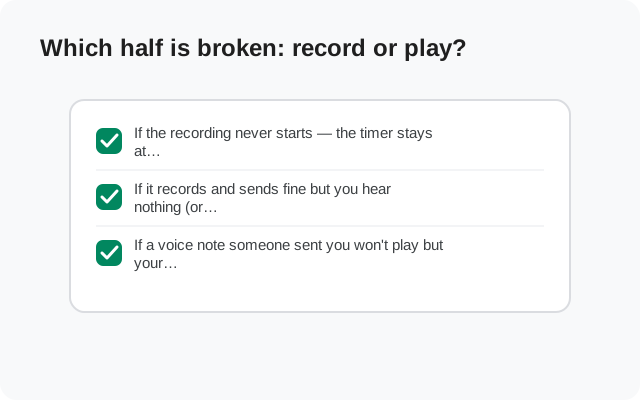
Which half is broken: record or play?
Do this thirty-second test before anything else. Open any chat and try to record a voice note:
- If the recording never starts (the timer stays at 0:00, or you get an error the moment you press the mic button), your problem is on the recording side. Skip to the recording sections.
- If it records and sends fine but you hear nothing (or almost nothing) when you play it back. Your problem is on the playback side. Skip to the playback sections.
- If a voice note someone sent you won't play but your own recordings play fine. The file may have arrived damaged. Skip to the corrupt-file section.
Mixing the two halves up is why people waste an hour on the wrong fix: checking Bluetooth when the mic permission was revoked, or reinstalling the app when the volume was down. Diagnose first, fix second.
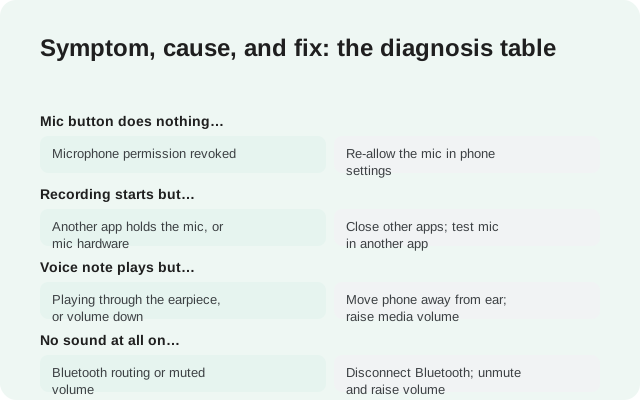
Symptom, cause, and fix: the diagnosis table
| What you see | Likely cause | Fix |
|---|---|---|
| Mic button does nothing / error on press | Microphone permission revoked | Re-allow the mic in phone settings |
| Recording starts but captures silence | Another app holds the mic, or mic hardware | Close other apps; test mic in another app |
| Voice note plays but very quietly | Playing through the earpiece, or volume down | Move phone away from ear; raise media volume |
| No sound at all on playback | Bluetooth routing or muted volume | Disconnect Bluetooth; unmute and raise volume |
| Your recordings play, theirs don't | Their file arrived damaged | Ask them to re-record and resend |
| Playback stops when screen locks | Aggressive battery optimization | Exempt Signal from battery optimization |
| Worked yesterday, broken today | App update or OS update changed something | Restart phone; check permissions again |
Voice notes won't record
Recording failures are permission problems far more often than they are Signal problems. Android guards the microphone closely, and a permission that was fine last month can get revoked by an OS update, a "privacy cleanup" feature, or an accidental tap. Work through these in order.
The microphone permission check
This is the cause more than half the time, and it takes twenty seconds to rule out:
Open your phone's Settings
Go to Apps (or Applications), find Signal in the list, and open it.
Open Permissions
Tap Permissions and look at the Microphone entry.
Set it to Allow
If it says Denied or "Ask every time," change it to Allow. "Ask every time" sounds harmless but it interrupts recording at the worst moment. Allow it outright.
Test immediately
Go back to Signal and try recording. If it works now, that was the whole problem.
One subtlety: some phones have a system-wide microphone kill switch: a quick-settings tile or a privacy dashboard toggle that mutes the mic for every app. If Signal's permission says Allow and recording still fails, check your quick settings for a mic-off toggle. The same applies to camera-and-mic indicator dots: if you see the mic indicator light up in another app's shape, something else is using it.
If microphone trouble also hits your calls, the call microphone guide covers the call-specific side of the same problem.
Another app is holding your microphone
On Android, generally one app holds the microphone at a time. If something else grabbed it first, Signal's recording fails or captures silence. The usual suspects:
- An ongoing call: a phone call, a WhatsApp call, a meeting app running in the background. End it or close the app.
- A voice recorder left recording, or a recorder app that did not release the mic properly. Force-close it.
- A voice assistant stuck listening. Dismiss it fully.
- Another messaging app's voice note: if you just recorded in another app, make sure it released the mic.
Close the suspects, then force-close Signal too. A Signal session that failed to grab the mic sometimes needs a restart before it tries again cleanly. Then test.
Rule out a hardware problem
If permissions are fine and no app is hogging the mic, test the microphone itself:
- Record in another app. Open your phone's built-in voice recorder and record ten seconds. If that is silent too, the problem is the microphone, not Signal.
- Check for blockages. A case pressing on the mic hole, lint in the mic port, or a screen protector overlapping it: all common, all invisible until you look.
- Try speakerphone on a test call. If the mic works on speakerphone but not otherwise (or vice versa), one of the phone's multiple mics has failed.
- Restart the phone. A full restart resets the audio hardware state. It fixes a surprising share of "mic suddenly dead" cases.
If the built-in recorder is silent after a restart, with the case off and the port clean, that is a hardware repair question. No app setting will fix it. If the recorder works and Signal does not, the problem is back in Signal's court: reinstall territory, covered at the end.
Voice notes record but won't play
Playback problems feel like the file is broken, but the file is usually fine. The audio is just going somewhere you are not listening. Signal, like most messaging apps, makes routing decisions for you, and every one of them can surprise you.
Earpiece vs speaker: how Signal routes audio
This is the single most misunderstood behavior, so here it is plainly: when you hold the phone to your ear, Signal plays the voice note through the earpiece (quiet, private, like a phone call). When the phone is away from your ear, it plays through the speaker (loud). Signal decides using the proximity sensor near the top of your screen.
That design explains the three classic complaints:
- "It plays but I can barely hear it." The phone thinks it is at your ear (maybe your hand or a case is covering the proximity sensor), so it whispers through the earpiece. Move the phone away from your face and uncover the top edge.
- "It blasts out loud in public." The reverse: the sensor thinks the phone is away from your ear, so it uses the speaker. Hold it to your ear before pressing play.
- "It switches mid-message." You moved the phone during playback and the sensor flipped the route. It is working as designed; hold still or replay it.
A dirty or covered proximity sensor causes most of the confusion here. Screen protectors that overlap the sensor area and bulky cases are repeat offenders. And note the volume nuance: earpiece volume and speaker/media volume are separate. Raising the volume while it plays through the earpiece raises the earpiece, not the speaker.
Bluetooth steals your audio
If playback produces total silence, Bluetooth is suspect number one. Your phone happily routes Signal's audio to:
- Wireless earbuds sitting in their case (still connected)
- A car system from this morning's drive
- A smartwatch or speaker you forgot about
The test is instant: turn Bluetooth off entirely and play the voice note. If sound appears, you found it. The long-term fix is to disconnect the forgotten device, not to leave Bluetooth off forever. Also check: some Bluetooth devices have their own volume, independent of the phone. The phone can be at full volume while the earbuds sit at zero.
While you are at it, check the obvious: media volume up, phone not on silent or Do Not Disturb with media muted. Voice notes use the media volume stream, not the ringtone stream. The volume buttons adjust whichever stream is active, so press play first, then raise the volume.
The file itself is broken
Sometimes it really is the file. A voice note that arrived over a dying connection can be truncated or corrupted. It shows a normal-looking bubble but plays silence or cuts off mid-sentence. The honest signs:
- Your own recordings play fine, but this one specific message does not.
- It fails identically on Wi-Fi, on data, and after a restart.
- The waveform looks wrong: flat where it should vary, or the duration seems off.
The fix is social, not technical: ask the sender to listen to it on their phone. If it sounds fine there, ask them to re-record and resend. A fresh send over a good connection replaces the damaged copy. If it sounds broken on their phone too, the recording itself failed and only a new recording helps. There is no repair tool for a corrupted voice note; anyone selling you one is selling nothing.
One related case: very old voice notes that will not play anymore. Voice messages live on devices, not on a cloud you can re-download from forever. If the local copy degraded and the sender no longer has it, it may be unrecoverable. The attachment download guide covers the same expiry reality for media files.
One-tap play quirks worth knowing
A few behaviors that look like bugs but are not:
- Tap once to play, tap again to pause. There is no separate pause button: the same tap toggles. Double-tapping rapidly can look like "it won't play" when you actually played and paused it in half a second.
- Playback stops when you leave the chat on some versions and phones. If a long voice note keeps dying when you switch apps, that is the cause. Stay in the chat, or check whether battery optimization is killing Signal in the background and exempt it.
- Playback speed. If a voice note sounds like chipmunks, check the playback speed control. It is easy to bump it to 1.5x or 2x accidentally, and easy to miss that you did.
- Lock-screen playback. With the screen off, playback should continue, but aggressive battery savers on some phones kill it. The battery optimization guide covers exempting Signal properly.
If you have worked through both halves (recording and playback) and voice notes still fail, the last resort is a clean reinstall:
- Back up first (write down your 64-character recovery key; the old 30-digit passphrase is retired).
- Uninstall, then reinstall from Signal's official APK page.
- Restore.
That is a fifteen-minute job that fixes the rare truly-corrupt install. The Android backup guide walks through it safely.
FAQ
Why won't Signal record my voice message?
The microphone permission is the cause most of the time. Check it in your phone's Settings under Apps, then Signal, then Permissions, and set the microphone to Allow. Also close any other app holding the mic: a call, a recorder, a voice assistant.
Why is my Signal voice note so quiet?
It is playing through the earpiece instead of the speaker. The phone thinks it is at your ear. Move it away from your face, uncover the proximity sensor at the top edge, and raise the media volume while it plays.
Why is there no sound when I play a voice message?
Check Bluetooth first. Audio is probably routing to forgotten earbuds or a car system. Turn Bluetooth off and replay. Then check that media volume is up and the phone is not muted.
A voice note someone sent me won't play. Is it my phone?
If your own recordings play fine, the file likely arrived damaged over a bad connection. Ask the sender to re-record and resend it on a good connection. There is no way to repair a corrupted voice note.
Why does playback stop when I leave the chat?
Some phones and aggressive battery savers kill Signal's background audio. Stay in the chat during long messages, or exempt Signal from battery optimization so playback survives in the background.
Do I need to reinstall Signal to fix voice messages?
Almost never. Permission, routing, Bluetooth, and volume cover nearly every case. Reinstall only as a last resort, and back up first with your 64-character recovery key.
Keep reading
- microphone trouble on voice and video calls: call microphone fixes
- getting the most out of voice notes: voice notes feature guide
- when notification audio misbehaves: notification sound fixes
- when media files won't download: attachment download fixes