
Signal Desktop’s QR code won’t scan: every fix that actually works
Published: October 7, 2026
The scan has to happen inside Signal on your phone, not in your camera app. Go to Settings → Linked devices → Link a new device, which opens Signal’s own scanner, then point it at the code on your computer screen. If that still fails, the cause is almost always one of these: the phone’s camera permission is denied, the QR code expired, one of the apps is outdated, or the network is blocking the link. Work through the checklist below in order.
The correct linking flow (30 seconds)
Half of all “QR won’t scan” cases are just the wrong flow. Do it exactly like this:
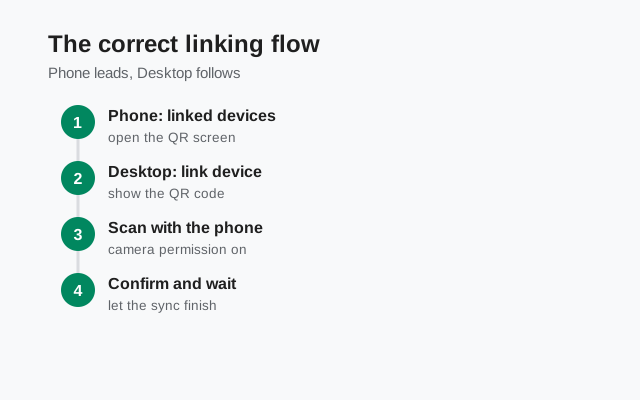
Open Signal Desktop and show the QR code
Launch Signal Desktop on your computer. If you already linked it before, you’ll see your chats instead of a code. No code needed. A fresh install shows the QR code automatically.
On your phone: Settings → Linked devices → Link a new device
Do not use your phone’s camera app or a random QR scanner. Signal’s built-in scanner is the only one that can process the linking code. The app may ask for your biometrics or device unlock first. That’s normal.
Point the in-app scanner at the code
Hold the phone 15–30 cm from the screen, keep it steady, and let it focus. When it reads the code you’ll get the history-transfer choice.
The 7-cause fix checklist
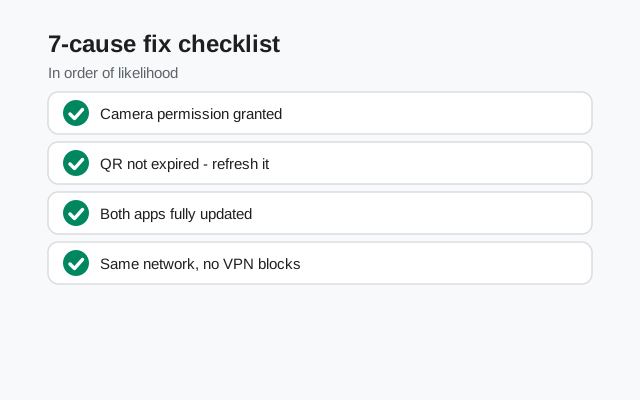
| Cause | Symptom | Fix |
|---|---|---|
| Camera permission denied | Scanner opens black, or the app asks every time | Grant camera permission to Signal in Android settings |
| QR code expired | Sat open for minutes; “connection closed” errors | Quit and reopen Signal Desktop for a fresh code, scan promptly |
| Outdated apps | Code never reads, or linking crashes | Update Desktop and the phone app to the latest versions |
| Blocked network | “Cannot link this device using your current network” | Leave the corporate network; check VPN, firewall, antivirus |
| QR won’t load | “The QR code couldn’t load. Check your connection” | Reconnect Wi-Fi on the PC, quit and relaunch Desktop |
| Screen problems | Scanner hunts but never locks on | Raise brightness, wipe glare, zoom the Desktop window, scan straight-on |
| Device limit | Everything looks right but linking fails | Unlink an old device: max 5 linked devices per account |
Camera permission: the #1 cause
If the scanner view is black, frozen, or instantly closes, Android is blocking Signal’s camera. Fix it at the system level:
Open Android Settings → Apps → Signal → Permissions
Set Camera to Allow. “Ask every time” breaks the scanner mid-flow on some phones.
Retry from inside Signal
Go back to Settings → Linked devices → Link a new device. The scanner should now show a live preview.
On some phones (especially Huawei/Honor without Google services), a denied-then-regranted permission needs an app restart to take effect. Close Signal fully and reopen it.
Expired and glitchy QR codes
The linking code is short-lived for security. Signal refreshes it roughly every minute, and a code that has been sitting on screen for several minutes will fail with a “connection closed” type error. So:
- Open the code and scan promptly. Don’t open it, go make tea, then scan.
- If scanning fails, quit Signal Desktop completely and reopen it for a brand-new code, then scan immediately.
- If the QR code won’t even render (“the QR code couldn’t load”), that’s a network problem on the PC side, not a camera problem (see below).
Version mismatch: update both sides
Linking breaks when one side is far behind the other, especially after major releases that change the link-and-sync system. Update both:
- Phone: latest build from signal.org/android/apk (currently 8.29.3). Old builds may not understand the newest linking flow.
- Desktop: latest from signal.org/download, or use the in-app update check. Signal’s own support docs list “running an old Desktop version” as a first-line fix.
Network, VPN, and firewall blocks
Two distinct errors here, both from Signal’s own troubleshooting docs:
- “Signal cannot link this device using your current network.”: You’re on a network that interferes: corporate/office networks are the classic case. Log out of the corporate network, try a phone hotspot, and check that no VPN, firewall, antivirus, or proxy on the PC is blocking Signal’s servers.
- “The QR code couldn’t load. Check your connection and try again.”: The PC can’t reach Signal’s servers at all. Disconnect and reconnect Wi-Fi, then quit and relaunch Signal Desktop.
The phone and the computer do not need to be on the same Wi-Fi network. They just each need working internet to Signal’s servers. So don’t waste time toggling that.
Two quieter network culprits are worth checking too. Private DNS / ad-blocking DNS on the phone (Settings → Network → Private DNS) can silently break the provisioning handshake. Switch it to Off or Automatic while linking, then restore it. And on the PC, aggressive ad-blockers with system-wide filtering (not just browser extensions) have been known to interfere; pause them for the two minutes linking takes.
It scanned, but linking never finishes
The frustrating middle case: the scanner accepted the code, the spinner started, and then… nothing. The handshake after the scan needs a stable connection on both sides for a minute or two, and it’s fragile:
- Don’t let either screen sleep. If the phone locks mid-handshake, the provisioning can die. Tap the phone screen every 20 seconds until linking completes.
- Don’t switch apps on the phone. Stay in Signal until you see the history-transfer choice.
- Watch for the transfer choice hiding. Sometimes linking did succeed and the transfer prompt is sitting behind the spinner on the PC. Look at the Desktop window before retrying.
- If it fails twice in a row, start completely over: quit Desktop, reopen for a fresh code, and scan immediately. Re-scanning an old code replays a dead handshake.
The 5-device limit and other edge cases
- 5-device ceiling: one account supports at most 5 linked devices. Old phones and tablets you forgot about still count. On your phone, go to Settings → Linked devices, remove anything you don’t use, and try again.
- Screen issues: low brightness, heavy glare, privacy screen protectors, and scanning at a sharp angle all defeat the scanner. Max out the PC’s brightness, clean the glare, hold the phone straight, and enlarge the Desktop window.
- Wrong scanner: third-party QR apps and the system camera can’t process Signal’s linking code. They’ll show garbage or nothing. Always scan from Settings → Linked devices → Link a new device.
- After a successful scan: you’ll be asked whether to transfer message history. Choose now: full history plus media from the last 45 days, end-to-end encrypted. Skipping it means no old chats on Desktop, ever, unless you reinstall and link again.
from Signal's official site — file hosted by Signal, not by us
Frequently asked questions
Why won’t the Signal Desktop QR code scan with my phone?
The most common causes: scanning with the camera app instead of Signal’s built-in scanner, denied camera permission, an expired code, or outdated apps. Use Settings → Linked devices → Link a new device, grant camera permission, and scan a fresh code promptly.
Do my phone and computer need to be on the same Wi-Fi?
No. Both just need working internet to reach Signal’s servers. A phone hotspot for the PC is a perfectly valid test if your main network blocks linking.
What does ‘cannot link this device using your current network’ mean?
Your network is interfering, typically a corporate network, VPN, firewall, antivirus, or proxy. Try a different network and disable filtering software, then scan again.
The QR code itself won’t load on my computer. What now?
That’s the PC failing to reach Signal’s servers. Disconnect and reconnect Wi-Fi, quit Signal Desktop completely, and relaunch it for a fresh code.
Can I link Signal Desktop if I already have 5 devices?
No. 5 linked devices is the limit per account. Unlink an old device from your phone’s Linked devices settings first, then link the new one.
I linked Desktop but my old messages aren’t there. Is that normal?
Yes, if you skipped the history transfer at link time. Sync only carries messages from after linking. To get old chats, uninstall Desktop and link again, choosing the transfer option.
Keep reading
- Link your phone to Desktop: the full step-by-step QR linking walkthrough
- Linked device not syncing: when the link works but messages don’t arrive
- Signal Desktop for Windows: installing the Desktop app itself
- Troubleshooting hub: every Signal fix guide in one place