
"App Not Installed" when installing the Signal APK? Here's how to fix it
Published: October 7, 2026 · Updated: October 8, 2026
"App Not Installed" means the install package failed Android's checks. The most common cause with Signal is a signature conflict: the website build and the Play Store build are signed with different keys, so Android refuses to install one over the other. Remove the conflicting copy first (after confirming your backup), then install the APK from Signal's official download page.
Why "App Not Installed" happens
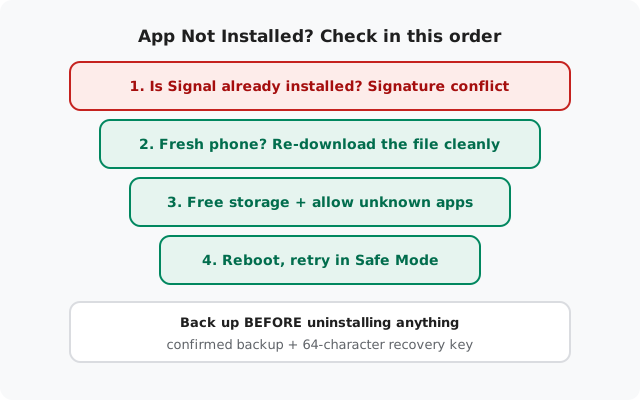
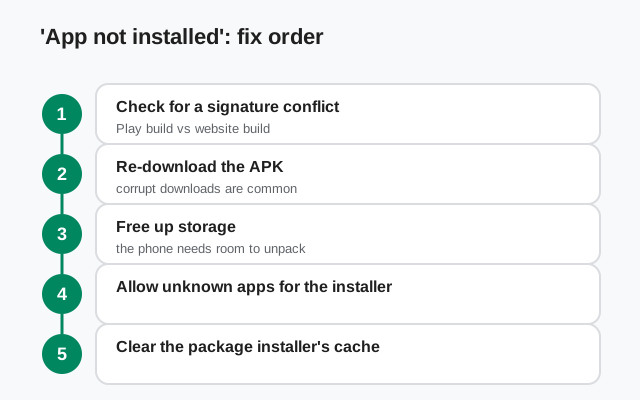
Android runs a checklist every time you tap an APK file: is the package valid, is there room, and do you have permission? Crucially, if an app with the same package name (org.thoughtcrime.securesms) is already installed, does the new file's signature match? If any check fails, you get the same generic message: "App Not Installed." The message never tells you which check failed, so you work through the causes in order.
For Signal specifically, the order matters because one cause dwarfs all the others. Most people hitting this error aren't dealing with a broken phone or a bad file. They're dealing with two Signal builds that Android treats as different apps.
Cause 1: The signature conflict (check this first)
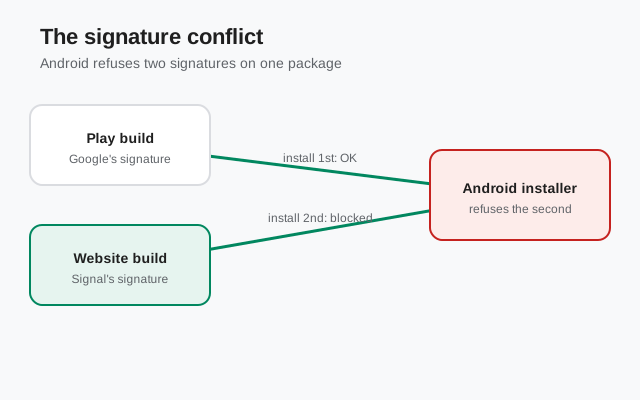
Signal ships two Android builds: the website build (from signal.org/android/apk, currently 8.29.3) and the Play Store build. Both are genuine Signal, but they are signed with different keys, and Android will not let you install one over the other. The moment you try, you get "App Not Installed." This is real, common, and the number-one reason people see this error with Signal.
It catches people in predictable ways:
- You had Signal from the Play Store, then downloaded the APK and tried to install it "on top" to move off Play.
- You had the website build, then installed the Play version (or the reverse), and the old copy is still on the phone.
- A work profile or "dual apps" feature has its own copy installed under a separate profile.
The fix: uninstall the existing copy first, then install the one you want. And this is exactly where the backup rule is non-negotiable: uninstalling Signal wipes the message history on the phone. Before you tap uninstall:
- Open Signal and confirm Secure Backups are on: how Secure Backups work.
- Write down your 64-character recovery key somewhere you can't lose. (The old 30-digit key is retired. If that's all you have, refresh your backup first.)
- Check the backup date in settings and make sure it's recent.
- Uninstall the existing Signal, then install the fresh APK from Signal's official page.
- Restore with the recovery key during setup.
| Symptom | Likely cause | Fix |
|---|---|---|
| "App Not Installed" with Signal already on the phone | Signature conflict between website build and Play Store build (different signing keys) | Back up (64-char key), uninstall existing copy, install fresh from Signal's official page |
| "App Not Installed" on a fresh phone, no Signal installed | Corrupt or incomplete APK download | Delete the file, re-download from signal.org/android/apk on Wi-Fi, install from the file manager |
| Error right after tapping the APK, phone nearly full | Insufficient storage for unpack and install | Free a few hundred MB (clear caches, delete big downloads), then retry |
| Nothing happens, or "can't open file," when tapping the APK | "Install unknown apps" not granted to your browser or file manager | Settings → grant the permission to your browser and file manager, tap the file again |
| Error on a very old Android version | APK signature format the old OS can't parse | Update Android if possible; see the parse error guide otherwise |
| Error right after a failed update attempt | Interrupted install left a broken package state | Restart the phone, then install the same build's fresh APK over the top: data survives |
Cause 2: Corrupt or incomplete download
If there's no Signal on the phone at all and you still get the error, the file itself is the prime suspect. Downloads get cut off by flaky connections, download managers pause them silently, and some browsers save partial files without warning you. A half-downloaded APK fails Android's package check instantly.
Don't just retry blindly. Do it properly:
- Delete the old file completely. Never install over a suspect download.
- Get a fresh copy from Signal's own download page, not from a mirror or "APK site." The fake-APK warning explains why third-party copies are dangerous.
- Download on a stable connection, Wi-Fi, and let it finish before tapping.
- Open the file from your file manager's Downloads folder, not the browser's download tray, which sometimes hands off incomplete files.
To be thorough, compare the file's signing fingerprint against the one published on Signal's download page before installing. The sideloading safety guide covers it. It takes a minute and rules out tampered copies for good.
Cause 3: Not enough storage
Installing an app needs more free space than the APK's own size: Android unpacks the package, verifies it, and needs working room during the process. On phones hovering near zero free space, the install dies with "App Not Installed" instead of a helpful storage warning.
Free a comfortable margin before retrying: a few hundred megabytes at minimum. The storage-full guide walks through what's safe to delete and what isn't. Quick wins: clear cached data on heavy apps, delete downloaded videos and files you don't need, and empty the trash in your gallery or file manager (deleted files often still occupy space until the trash is emptied).
Cause 4: "Install unknown apps" is blocked
Since Android 8, sideloading permission is granted per app: your browser and your file manager each need explicit permission to install unknown apps. Without it, tapping the APK does nothing useful, and on some phones the failure surfaces as a failed install.
Go to Settings → Apps → Special app access → Install unknown apps, select the app you downloaded Signal with (your browser) and the file manager you open it with, and toggle Allow from this source for both. Then tap the APK again. You can revoke the permission afterward. Signal doesn't need it again until the next manual install.
Cause 5: Stuck or "staged" installs
Sometimes a previous attempt died halfway and left the package manager in a bad state. Symptoms: the install button spins forever, or every retry fails instantly even with a known-good file. The fix is boring but effective: restart the phone. A reboot clears stuck package sessions. If it persists after a reboot, boot into Safe Mode (hold power, long-press "Power off," tap OK on most phones), which blocks third-party apps from interfering with the installer, and try once more.
Cause 6: Very old Android versions
Newer APKs are signed in ways that very old Android versions can't parse. The phone doesn't say "I can't read this signature." It says "App Not Installed." If you're on an ancient OS with no updates available, the newest website build may simply be out of reach. The parse error guide covers your options. Resist the urge to hunt down an old APK version from a mirror site. Outdated builds miss security fixes, and third-party copies are a classic malware vector. If the phone can't run a current Signal, the phone is the problem, not the app.
The fix order, in one pass
- Is Signal already installed? It's the signature conflict. Back up (64-char key), uninstall, install fresh from Signal's official page.
- No Signal on the phone? Delete the file, re-download on Wi-Fi from Signal's official page, install from the file manager.
- Still failing? Free storage, grant install-unknown-apps permission to your browser and file manager, reboot.
- Very old phone? Check the OS against the parse-error guide before assuming the file is bad.
- Nothing works? Try Safe Mode once. Then check Signal's support pages with your Android version, which build you're installing (website 8.29.3 vs Play), and the exact point where it fails.
from Signal's official site, file hosted by Signal, not by us
Frequently asked questions
Why won't Signal install when I already have it from the Play Store?
The website APK and the Play Store version are signed with different keys, and Android refuses to install one over the other. Uninstall the Play version first, after confirming a fresh backup with your 64-character recovery key, then install the website build.
I deleted the old Signal to fix the install and my chats are gone. Can I get them back?
Only through a backup: reinstall Signal and restore from a Secure Backup using your 64-character recovery key. Without a backup and the key, deleted Signal history can't be recovered, which is why every fix guide here starts with "back up first."
The APK downloaded fine on my computer but fails on my phone. Why?
Either the transfer corrupted the file, or the "install unknown apps" permission isn't granted to the file manager opening it. Re-download the APK directly on the phone over Wi-Fi from Signal's official page and install it from the Downloads folder.
Do I need to keep "install unknown apps" enabled forever?
No. Grant it to your browser and file manager for the install, then revoke it. You'll re-grant it next time you install an APK manually. The website build handles its own in-app updates without this permission.
Can I install the APK if my phone has almost no free space?
Only after freeing room: the installer needs working space well beyond the APK's size. Clear caches and big downloads first, then retry. The storage guide linked below covers freeing space without touching your chats.
I also have Signal in a work profile. Does that cause conflicts?
It can. Each profile is a separate install space, but mismatched builds across profiles and dual-app clones cause confusion and sometimes failed installs. Keep one consistent build per profile and remove copies you aren't using.
Related: the full troubleshooting hub, fixing parse errors, when Signal updates fail, freeing space without losing chats, download problems and fixes, spotting fake Signal APKs, how Secure Backups work, and the main install guide.