
Is Signal draining your battery? How to diagnose and fix it
Published: October 7, 2026 · Updated: October 8, 2026
Signal normally uses very little battery: low single-digit percentages over a full day of typical use. If your battery stats show Signal near the top of the list, something specific is wrong: a stuck background connection, heavy media downloads, an old buggy version, or your phone's aggressive power saving fighting the app.
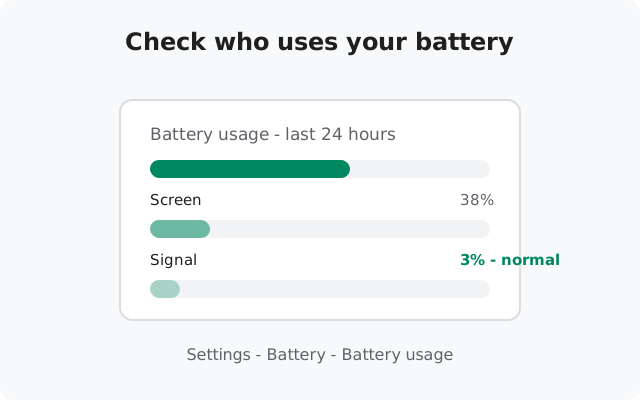
Step 1: read your battery stats properly
Don't guess. Android keeps per-app battery records:
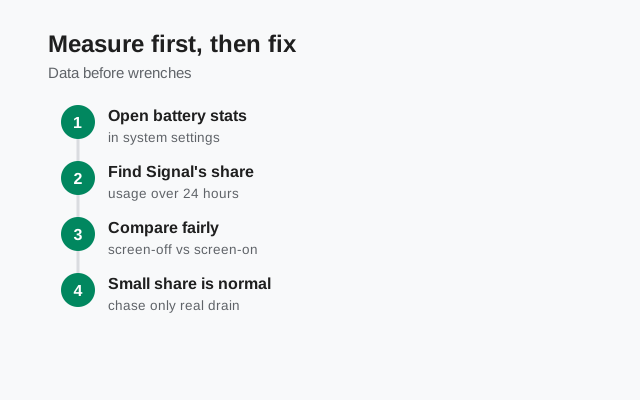
-
Open battery usage
Go to Settings → Battery → Battery usage (on Samsung: Settings → Battery and device care → Battery). This shows each app's share of battery used since the last full charge.
-
Check the timeframe
Make sure you're looking at a full day, not the last hour. An app that used 8% over 24 hours is fine; an app that used 8% in the last 30 minutes while the screen was off is not.
-
Separate screen-on from background
Tap Signal in the list. Android shows how much was used with the screen on (you actively using the app, video calls especially) versus in the background. Background drain while you barely touched the phone is the red flag.
-
Compare against your actual use
If you spent an hour on Signal video calls today, high usage is expected and healthy. If you opened Signal twice and it's at 15%, something is stuck.
What's normal and what's not
- Normal: Signal at 1–4% over a full day of messaging, a few percent more on heavy call days. The app idles on a quiet connection and wakes briefly for each message.
- Normal but looks scary: high usage on a day with long video calls, or right after installing an update (the phone re-indexes and the app re-syncs once).
- Not normal: Signal in the top 3 battery users on a day you barely opened it, the phone warm while idle, or steady background drain overnight.
Why Signal uses battery at all (the connection)
To receive messages instantly, Signal keeps a connection to its servers alive in the background. The Play Store build uses Google's push network for this; the website build (the one from signal.org/android/apk, currently v8.29.3) keeps its own websocket-based connection instead, with no Google services involved.
Either way, a healthy connection sips battery. It mostly sleeps and wakes for milliseconds per message. Drain happens when the connection can't stay healthy: it drops, reconnects, drops again, and each reconnect costs power. That's why battery problems and delayed notifications so often appear together: one root cause, two symptoms. Fix the connection and you usually fix both.
Diagnosis checklist: work through it in order
Check these from top to bottom. Stop at the first one that matches. It's probably your answer.
| Check | What you're looking for | Fix |
|---|---|---|
| Screen-on time in Signal | Long video/voice calls today | Expected use, not a bug. Use Wi-Fi for long calls. |
| Signal version | Old version with a known battery bug | Update to the latest build (website build: 8.29.3) |
| Media auto-download | Auto-download on mobile data, big group chats | Signal → Settings → Data and storage → Wi-Fi only |
| Call relaying | "Always relay calls" on in Privacy settings | Turn it off unless you need the IP privacy |
| Background restriction fights | Phone killing and restarting Signal repeatedly | Set battery to Unrestricted (see Step 3) |
| Third-party "boosters" | Cleaner / optimizer / antivirus apps installed | Uninstall them. They cause reconnect loops. |
| Notification access | Messages arriving late + drain together | Fix the connection per the notification guide |
| One bad day | Drain started today, after an update | Restart the phone; re-check tomorrow |
Step 2: the in-app settings that matter
Open Signal, tap your profile icon, and check these:
- Media auto-download (Settings → Data and storage → Media auto-download): if this is set to download everything on mobile data while you're in active group chats, your radio wakes constantly. Set mobile data to Wi-Fi only, or turn off auto-download for videos.
- Sent photo quality (Settings → Data and storage): high quality means bigger uploads. "Standard" is fine for everyday photos and uses less power to send.
- Always relay calls (Settings → Privacy): this routes every call through Signal's servers to hide your IP address. Good for privacy, but it keeps a busier connection during calls. If you don't need the IP hiding, leave it off.
- Read receipts and typing indicators: these add tiny amounts of traffic per message. Not worth disabling for battery alone. The savings are negligible.
Step 3: the Android settings that matter
This part surprises people: the phone's own power saving can cause drain instead of preventing it.
-
Stop the kill-restart loop
If Android (or your brand's extra battery saver) keeps force-closing Signal, the app restarts, reconnects, and gets killed again. Every cycle costs battery. Go to Settings → Apps → Signal → Battery and set it to Unrestricted. Counterintuitive, but a stable app uses less power than one that's constantly being killed and revived.
-
Check brand-specific battery savers
Samsung, Xiaomi, Huawei, Oppo, and Vivo add their own background killers with different names. Our delayed-notifications page lists the brand-by-brand menus. The same settings fix both delayed messages and the drain they cause.
-
Remove third-party "optimizers"
Cleaner, booster, and battery-saver apps from the Play Store are the worst offenders. They kill Signal aggressively, the connection breaks, and the phone works harder overall. Uninstall them; Android's built-in tools are enough.
-
Keep background data allowed
In Settings → Apps → Signal → Mobile data & Wi-Fi, background data should be on. Blocking it forces the app into the same unhealthy reconnect cycle.
What NOT to do
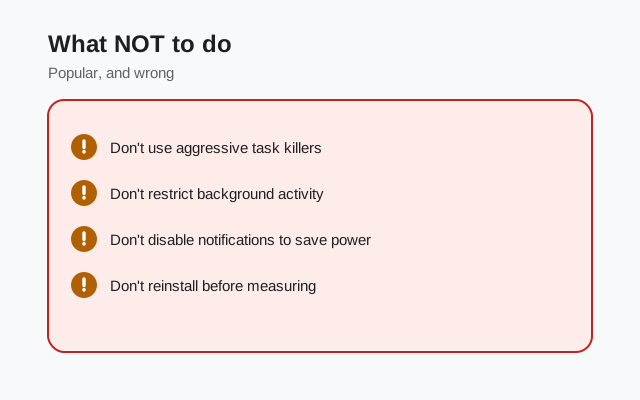
- Don't install aggressive battery optimizers to "fix" Signal. They break notifications (see our notification fix guide) and usually increase total drain through kill-restart loops.
- Don't force-stop Signal repeatedly. It doesn't save meaningful battery, and you'll miss messages until the app restarts itself.
- Don't turn off all notifications to save battery. Notifications cost almost nothing; the connection underneath costs the same whether it notifies you or not. You'd lose messages for zero gain.
- Don't downgrade to an old APK from a random site. Old builds can have worse battery bugs, and unofficial APKs can be malware. Only Signal's own download page.
Still draining? Last resorts
If the checklist found nothing and Signal still eats battery on idle days:
-
Restart the phone
A stuck system service can pin the radio awake. One reboot rules it out.
-
Update Signal
Battery bugs do ship in some versions and get fixed in the next. Check you're on the current website build (8.29.3) via our version page.
-
Reinstall (with a backup first)
A corrupted install can drain in strange ways. Turn on Settings → Chats → Chat backups, save your 64-character recovery key, then reinstall from the official page and restore. Full walkthrough in our restore guide.
from Signal's official site — file hosted by Signal, not by us
Frequently asked questions
Why is Signal using so much battery in the background?
Usually a stuck connection: the app keeps dropping and reconnecting to Signal's servers, and each reconnect costs power. The fix is a stable background connection, not more restrictions: battery set to Unrestricted, background data allowed, no third-party killers.
Does the website build use more battery than the Play Store build?
It can use slightly more in theory, because it keeps its own websocket connection alive instead of sharing Google's push network. In practice the difference is small on a healthy phone. If you see big drain on the website build, the cause is almost always one of the checklist items above, not the build itself.
Will restricting Signal's background activity save battery?
It looks like it should, but it usually backfires: Android kills the app, the connection breaks, the app restarts and reconnects, gets killed again. The loop uses more battery than a stable idle connection. It also delays or kills your notifications.
Do Signal calls drain a lot of battery?
Voice and especially video calls use real power: screen on, microphone, speaker, radio transmitting. That's normal and expected. If calls are your main use, plug in for long ones and prefer Wi-Fi; it won't change the laws of physics, but it saves your mobile data too.
Can a battery saver app fix Signal's drain?
No. Third-party booster and cleaner apps are a common cause of Signal battery drain, not a cure. They force-close the app, which triggers the reconnect loop described above and breaks notifications. Uninstall them.
Related guides: notifications not working, too much mobile data, storage getting full, or the full troubleshooting hub.