
Signal freezes during calls? Fix it step by step
Published: October 7, 2026 · Updated: October 8, 2026
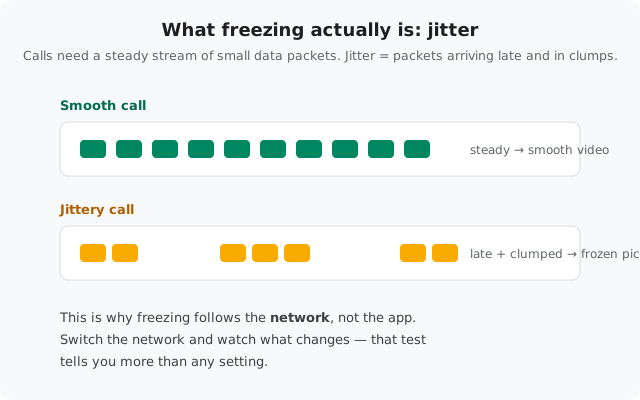
If Signal freezes during calls, start with the network: switch between Wi-Fi and mobile data and see whether the freezing follows the network. It usually does. Freezing is almost always connection jitter. The call is alive, but voice and video packets arrive late and in clumps, so the picture locks up and voices stutter. This guide works through the fix order: network first, then background apps, then cache (never data), then, only as a last resort, a clean reinstall with a chat backup. It also covers the honest case where the phone itself is the limit. Written for the official Signal build (Play Store or the website APK, current version 8.29.3, package org.thoughtcrime.securesms).
What call freezing actually is
A Signal call is a real-time stream of tiny data packets: voice and video chopped into pieces and sent dozens of times per second. For the call to feel smooth, those packets have to arrive in a steady rhythm. When they don't (when packets arrive late, in bursts, or out of order), the picture locks up and the voice stutters. That's jitter, and it's a network property, not a Signal bug.
Two things people mix up with freezing:
- Freezing vs dropping. A frozen call is still alive. The connection exists, but the data is just arriving badly. A dropped call ended. If your calls end, read our calls-not-working guide instead.
- Freezing vs lag. Lag is a constant delay (you hear everything, just late). Freezing is stop-start. The picture locks, then jumps. Both come from the network, but freezing is specifically jitter, and the fix order below targets it.
Keep this mental model while you work: if the freezing changes when the network changes, the network is the cause. That's why step 1 is a test, not just a fix.
Read the freeze pattern
Before changing anything, notice when the freezing happens. The pattern points straight at the cause:
| Freeze pattern | Most likely cause | Step |
|---|---|---|
| Freezes only on video calls; voice calls are fine | Bandwidth or CPU: video needs far more of both | Steps 1 and 4 |
| Freezes on Wi-Fi but works on mobile data | That Wi-Fi network: congestion or throttling | Step 1 |
| Freezes on both Wi-Fi and mobile data | Your phone's side: apps, memory, or the phone itself | Steps 2–4 |
| Freezes with one contact but not others | Their network or phone, not yours | Ask them to read this guide |
| The whole app locks up, not just the call | App or phone overload | Steps 2–3 |
| Call freezes, then drops after a while | Weak, unstable connection degrading | Step 1 |
| Freezing started after an update | App or system glitch | Steps 3–5 |
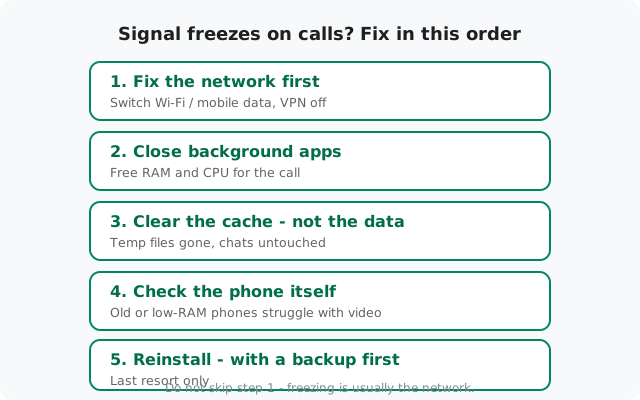
Step 1: fix the network first
Do this before anything else. Most freezing dies right here:
-
Switch networks and compare
If you're on Wi-Fi, turn it off and try the call on mobile data, or do the reverse. If the freezing follows one network, that network is the problem: congestion, a weak signal, or throttling of real-time traffic. This single test tells you more than any setting.
-
Get closer to the signal source
On Wi-Fi, move nearer the router and away from thick walls. On mobile data, move near a window or step outside. Real-time calls are far less forgiving of a weak signal than web browsing. A page loads eventually; a call packet that arrives late is useless.
-
Turn off the VPN temporarily
VPNs add latency and reroute your packets through extra servers, which is a classic jitter source. Disable the VPN and test a call. If freezing stops, the VPN was the cause. Try a closer server or exclude Signal if your VPN app allows per-app rules.
-
Check data saver and private DNS
Data saver (Settings → Network → Data saver) can throttle real-time traffic. Add Signal to its unrestricted list. A private DNS provider with aggressive filtering can also interfere; test a call with it turned off.
-
Rule out the other person's side
Call a different contact. If calls to one person always freeze but others are smooth, their network or phone is the cause, not yours. Ask them to work through this same guide on their phone.
About relay mode: you'll see it suggested for call problems, and it genuinely helps on strict networks that block direct connections (offices, campuses). But relay mode changes the path, not the quality. It won't fix jitter, and routing through an extra server can add a little latency. Try it only if your network blocks calls outright; for pure freezing, the steps above matter more. Our calls-not-working guide covers relay mode in detail.
Step 2: close background apps
A video call is one of the heaviest things a phone does: camera, video encoding, network, and display all running at once. Anything competing for CPU and memory makes freezing more likely:
-
Clear heavy apps from Recents
Open Recents and swipe away games, browsers with many tabs, music or video streaming apps, and anything doing downloads. You don't need a task killer. Just close the heavy ones before important calls.
-
Pause downloads and uploads
A big download or cloud backup running in the background steals exactly the bandwidth your call needs. Pause it for the duration of the call.
-
Try the call with battery saver off
Battery saver throttles the CPU to save power, and a throttled CPU encodes video more slowly, which looks exactly like freezing. If battery saver is on, turn it off and test a call.
If closing background apps fixes the freezing, you've learned something useful: your phone is near its limit during video calls. The permanent fix is habit (close things before calls) rather than any Signal setting.
Step 3: clear the cache (never the data)
If the network is fine and the phone isn't overloaded, the next suspect is stuck state inside Signal itself: a wedged call session or corrupted temporary files. The fix is clearing the cache:
-
Open Signal's storage screen
Go to Settings → Apps → Signal → Storage.
-
Tap "Clear cache" (and only that)
Clear cache removes temporary files: safe, instant, no backup needed. Your chats, media, and login are untouched. Open Signal and test a call.
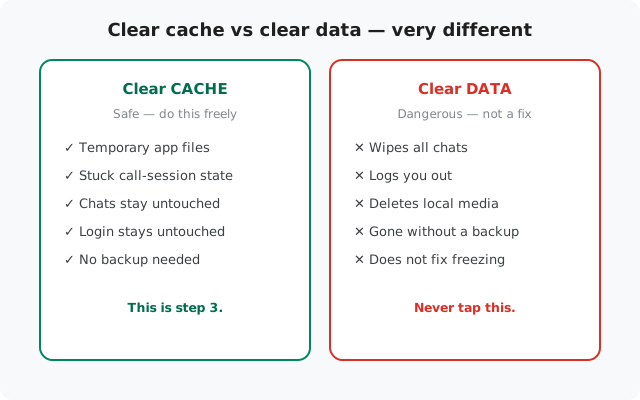
If clearing the cache helps but the freezing creeps back after a few days, repeat it. Some phones accumulate stuck state faster than others. That's annoying honest phone check
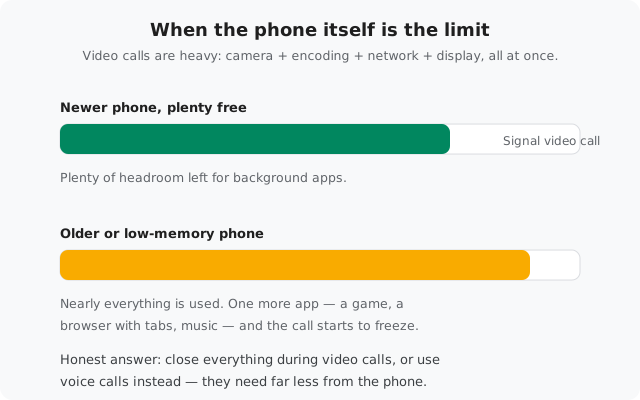
Here's the part most guides skip: sometimes the phone itself can't keep up, and no setting changes that. Video calls are demanding, and older or low-memory phones genuinely struggle. The CPU can't encode video fast enough, or memory runs out with a few apps open, and the visible symptom is freezing.
How to tell if this is you:
- Freezing happens on both Wi-Fi and mobile data (rules out one bad network).
- Freezing happens on video calls but voice calls are fine (video is the heavy part).
- The phone feels slow generally: apps reload, the camera app stutters, the phone gets hot.
- Closing every background app helps, but the freezing returns the moment you multitask.
If that matches, be honest with yourself: the phone is the ceiling. What actually helps: close everything before video calls, prefer voice calls (they need far less from the phone), and keep the phone's software updated. Makers do ship performance fixes. What doesn't help: reinstalling Signal repeatedly, or toggling random settings. And if you're deciding whether a newer phone is worth it, this (smooth video calls) is one of the legitimate reasons.
Last resort: reinstall with a backup
If the network is fine on multiple networks, the phone isn't overloaded, the cache is clear, and calls still freeze, a corrupted install is the remaining suspect. Reinstall, but only with a backup done first:
-
Back up your chats
Reinstalling without a backup deletes your message history permanently. Follow our backup-before-reinstall checklist and confirm the backup actually completed before you uninstall anything.
-
Uninstall, then reinstall from Signal's own page
Uninstall Signal, then get the fresh build from signal.org/android/apk (currently 8.29.3). Never from a random APK mirror, and never a "mod" or "plus" build (those don't exist legitimately and often carry malware).
-
Test a call before restoring everything
After reinstalling, make a test video call before restoring the backup. If the fresh install is smooth, restore your chats. If it still freezes on a fresh install, the cause is outside the app (network or phone), and reinstalling again won't change that.
If it still freezes
At this point you've ruled out the network, background apps, stuck app state, and a bad install. The honest remaining candidates:
- Your internet connection itself. Run a speed test during a freeze. Real-time video needs stable upload speed, not just download. Many connections are fine downloading but weak uploading, and calls need both.
- The other person's side. If it only ever happens with one contact, it's their network or phone. Send them this guide.
- The phone's limits (Step 4 above): the fix is a newer phone or voice-only calls, not more troubleshooting.
- A genuine app bug. Check you're on the latest build (currently 8.29.3; see Signal's APK page). If a new version just came out and freezing started with it, waiting for the next update is a legitimate strategy.
If none of that fits, Signal's own support at support.signal.org is the right next step. Describe the freeze pattern from the table above ("video only, both networks, started last week"), because that pattern is exactly what they need to help you.
from Signal's official site, file hosted by Signal, not by us
Frequently asked questions
Why does Signal freeze on calls but my messages still send fine?
Messages are tiny and forgiving. They arrive whenever the network gets around to them. Calls need a steady, real-time stream of packets, so the same connection that sends texts fine can still freeze a call. Different demands, different symptoms.
Will clearing data fix the freezing?
No: it deletes your chats and logs you out without a backup. Clear the cache only (Settings → Apps → Signal → Storage → Clear cache). That removes stuck call state safely; clearing data just adds data loss on top of freezing.
Does relay mode fix call freezing?
Not really. Relay mode changes the network path for strict networks that block direct connections. It doesn't make a jittery connection steady, and the extra hop can add latency. For freezing, fix the network itself (Step 1).
Signal freezes on video calls but voice calls are fine. Phone or network?
Could be either. Video needs more bandwidth and more CPU. Test on both Wi-Fi and mobile data: if freezing follows one network, it's the network (Step 1). If it happens everywhere but only on video, suspect the phone's limits (Step 4).
Can my VPN cause Signal calls to freeze?
Yes, easily. VPNs add latency and route your call packets through extra servers, which is a classic source of jitter. Turn the VPN off and test a call. If the freezing stops, you've found it.
My phone is old. Will a new phone actually fix the freezing?
If everything else checks out (freezing on all networks, only on video, phone generally slow), then yes, very likely. Video calls are heavy, and a phone that can't keep up will freeze no matter what you tweak. Voice calls are the free workaround in the meantime.
Related: calls not connecting at all, improving choppy call quality, microphone problems on calls, clearing the cache safely, app crashing fixes, and the troubleshooting hub