
Signal notifications missing on the lock screen? Fix visibility
Published: October 7, 2026 · Updated: October 8, 2026
If Signal notifies fine when your phone is unlocked but shows nothing on the lock screen, two switches control it: Android's lock-screen notification visibility, and Signal's own privacy setting. Both must allow it. This guide fixes both, then walks through the privacy trade-off so you can choose how much of each message appears.
Fix 1: Android's lock-screen notification setting
Android can hide all lock-screen notifications globally, or hide them per app. Check the global switch first:
-
Check the global lock-screen setting
Go to Settings → Notifications → Notifications on lock screen (on some phones: Settings → Display → Lock screen → Notifications). Make sure it's set to show notifications: options are usually "Show alerting and silent notifications" or "Show all notification content." If it's set to hide, no app can show anything on your lock screen, Signal included.
-
Check Signal's per-app lock-screen permission
Go to Settings → Apps → Signal → Notifications. On many phones each notification category (Messages, Calls) has its own lock-screen visibility. Tap into the category and confirm lock-screen display is allowed, not hidden.
-
Wake the screen on notification (optional)
Some phones offer "Wake screen for notifications" under lock-screen settings. Without it, the notification is on the lock screen but the screen stays dark. You only see it when you press the power button. Enable it if you want the screen to light up on arrival.
Fix 2: Signal's notification privacy setting
Signal has its own privacy control that overrides how much appears on the lock screen, and many people set it to maximum privacy, then wonder why the lock screen looks empty. That's it working as designed.
-
Open Signal's notification settings
In Signal, tap your profile picture → Settings → Notifications.
-
Find the privacy / visibility option
Look for the setting controlling what notifications display (labeled along the lines of notification privacy). It offers three levels: see the table below to pick yours.
-
Lock the phone and test
Send yourself a test message from another device and check the lock screen without unlocking. Adjust the level until it matches what you want.
Brand-specific lock-screen paths
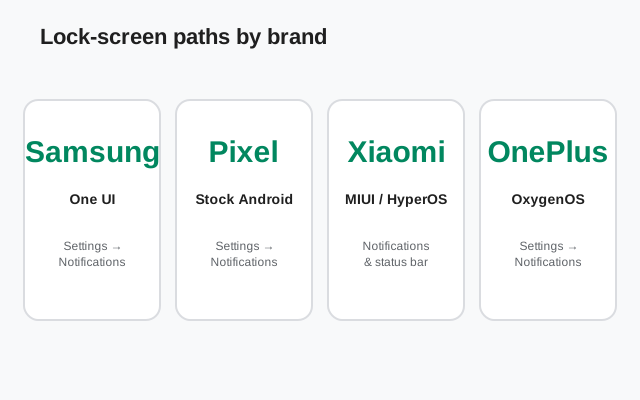
| Brand | Where to look |
|---|---|
| Samsung (One UI) | Settings → Lock screen and AOD → Notifications → toggle on; choose "Show content" vs "Hide content"; style (icons vs cards) |
| Xiaomi (MIUI / HyperOS) | Settings → Notifications & status bar → Show on Lock screen (per-app list); also "Wake lock screen for notifications" |
| Huawei / Honor (EMUI / HarmonyOS) | Settings → Notifications → Lock screen notifications → Show; per-app in Apps → Signal → Notifications |
| Oppo / Realme (ColorOS) | Settings → Notifications & status bar → Manage notifications on lock screen |
| Vivo (Funtouch OS) | Settings → Notifications → LockScreen notifications → enable per app |
| OnePlus / Pixel | Settings → Display → Lock screen → Privacy (show all / show sensitive only when unlocked) |
Samsung deserves a special note: One UI splits this into show/hide content and a separate notification style (brief icons vs detailed cards). If you see only a tiny Signal icon on the lock screen, change the style to detailed.
Privacy vs visibility: choose your level
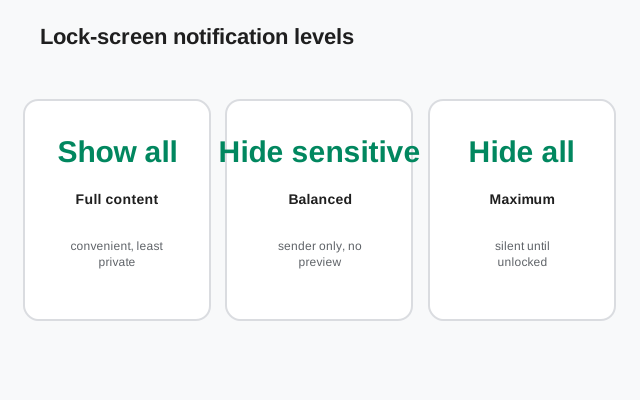
This is the real decision. A lock screen that shows everything is convenient, and readable by anyone glancing at your phone. Here's the trade-off, plainly:
| If you want… | Set Android to… | Set Signal privacy to… |
|---|---|---|
| Full preview: who + message text | Show all notification content | Show name and message |
| Know who wrote, hide what they said | Show all notification content | Show name only |
| Just "you have a message", nothing else | Show all notification content | No name or message |
| Nothing Signal on the lock screen at all | Hide Signal (per-app), or hide all | Any (nothing to show) |
Our honest take: "name only" is the sweet spot for most people. You know which conversation needs you without broadcasting message contents to everyone near your desk. Full previews are fine on a personal phone you keep on you; on a work phone or a shared family tablet, hide the content. There's no wrong answer. Just a conscious one.
Still nothing on the lock screen?
- Check Do Not Disturb: DND can hide lock-screen notifications while letting them through when unlocked. Look for the DND icon and any bedtime/focus schedules.
- Check battery optimization: if the notification never fires while the screen is off, the problem isn't visibility. It's delivery. See our delayed-notifications guide.
- Always-on Display (AOD): on Samsung and others, AOD shows notification icons, not full cards. That's normal. Full cards appear on the actual lock screen when you wake it.
- Secure lock screen required: some phones hide notification content until you've set a PIN/pattern. "Swipe to unlock" with no security can behave differently. Set a real screen lock.
- Third-party lock screens: custom lock-screen apps and some launcher overlays intercept or hide system notifications. Switch back to the system lock screen to test.
Incoming calls on the lock screen
Calls are a special case: an incoming Signal call should take over the lock screen with answer/decline buttons, not appear as a small banner. If calls only show as a quiet notification:
-
Raise the Calls channel importance
Go to Settings → Apps → Signal → Notifications → Calls and set its importance/behavior to the highest level (Urgent or Make sound and pop up, wording varies). Android reserves the full-screen incoming-call UI for high-importance notifications. A demoted channel gets a banner instead.
-
Check Signal's in-app call settings
In Signal → Settings → Notifications, confirm call notifications are enabled with a ringtone set.
-
Test with the phone locked
Have someone call you while the phone is locked. You should get the full-screen answer UI without unlocking first. If you only get it sometimes, Do Not Disturb or a focus schedule is interfering (see our call troubleshooting guide).
Focus modes and profiles that hide lock-screen content
Several phone features hide lock-screen notifications on purpose. Check you're not fighting one of them:
- Bedtime / Sleep mode: dims the screen and hides notifications at night. If the problem only happens overnight, this is it. Adjust its schedule or add Signal as an exception.
- Work focus / personal focus: focus modes can hide work-profile or personal notifications on the lock screen depending on which is active.
- Work profiles: notifications from the work profile obey the employer's policy, which may force-hide content on the lock screen regardless of your settings.
- "Hide sensitive content" quick settings: some phones have a quick tile that toggles content hiding globally. Easy to tap accidentally.
from Signal's official site — file hosted by Signal, not by us
Frequently asked questions
Why do Signal notifications show when unlocked but not on the lock screen?
Because lock-screen visibility is a separate permission from notifications themselves. Check Settings → Notifications → Notifications on lock screen (global), then Apps → Signal → Notifications (per-app), then Signal's own notification privacy setting. One of the three is hiding them.
How do I hide message text on the lock screen but still get notified?
In Signal → profile → Settings → Notifications, set the privacy option to show name only (or nothing at all). You still get the alert, sound, and vibration, just without readable content on the lock screen.
Can I show Signal on the lock screen but hide other apps?
Yes. Lock-screen visibility is per app. In Settings → Apps → [each app] → Notifications you can hide specific apps while leaving Signal visible. Useful for banking or work apps you don't want previewing.
My lock screen shows a Signal icon but no message. Is that a bug?
No. That's either Samsung's "brief" notification style (change it to detailed under Lock screen settings) or Signal's privacy set to name-only/nothing. Both are settings, not bugs.
Does hiding lock-screen previews make Signal more secure?
It protects against shoulder-surfing: people reading your messages off your lock screen. It doesn't change encryption, which is end-to-end regardless. Think of it as curtains, not a vault.
Notifications appear on the lock screen but vanish when I glance at them. Why?
That's usually "notification history" cleanup by an aggressive battery saver, or a third-party lock-screen app dismissing them. More commonly, it's Face Unlock waking the phone and a "hide content when unlocked" style rule kicking in. Check your lock-screen style settings.
Can someone reply to my Signal messages from the lock screen?
Only if your phone's lock-screen settings allow inline replies. Android lets you disable "suggestions and replies" on the lock screen separately. If you want maximum privacy, turn off lock-screen quick replies in Settings → Notifications while keeping the notification itself visible.
Related: master notification diagnosis, delayed notifications, missing sounds, and the troubleshooting hub.