
Signal update failed or stuck? Fixing website-build updates
Published: October 7, 2026 · Updated: October 8, 2026
If your Signal update fails or gets stuck, the cause is almost always mundane: a dropped connection, not enough free space, or the phone killing the update in the background. The website build updates itself in-app straight from Signal's servers, and it retries on its own. So give it a stable connection and room to work first. If the in-app update won't finish, the reliable fallback is a manual install of the fresh APK from Signal's official download page right over your existing copy, which keeps all your data.
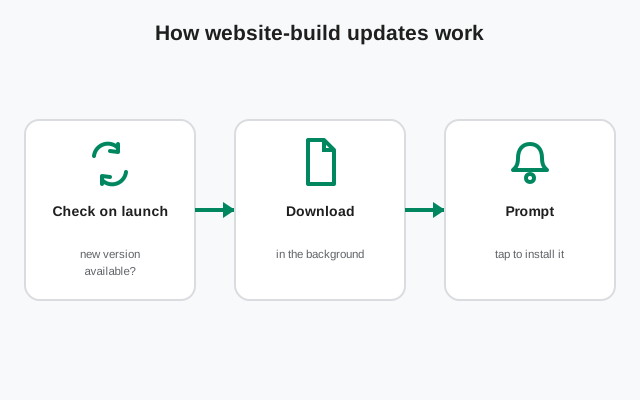
How the website build updates itself
Quick background, because it shapes every fix below. The website build of Signal doesn't use the Play Store at all: it checks for updates itself, downloads them from Signal's own servers, and installs them in place. Your chats, settings, and registration stay exactly as they are. An update is not a reinstall.
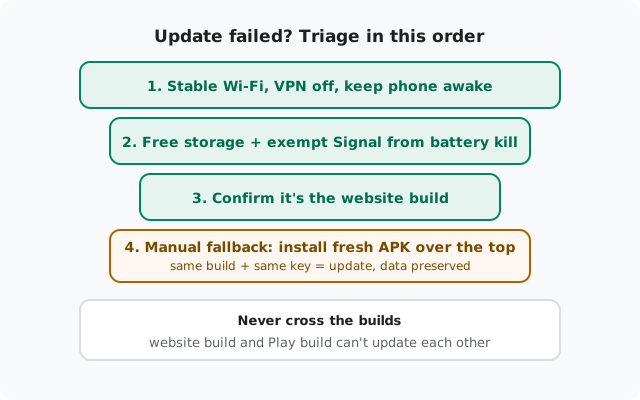
One important constraint: the website build can only be updated by the website build. The Play Store build is signed with a different key, so the two can't update each other. If you're seeing update failures, first confirm which build you're actually running. Mixing them up is the start of half the problems in this guide.
Cause 1: Connection interruptions
Update downloads are large, and a connection that drops mid-download leaves the updater with a partial file it has to discard and restart. Mobile data that flaps between towers, public Wi-Fi with a captive portal, or a VPN that disconnects mid-transfer are the usual suspects.
- Move to stable Wi-Fi and keep the phone awake while the update downloads. Don't let the screen lock kill the network.
- Pause the VPN for the update, or switch it off and retry. Some VPN endpoints throttle or interrupt large downloads.
- If the download keeps stalling at the same point, toggle airplane mode on and off to reset the radio, then retry.
Cause 2: Not enough free space
The updater needs room for the new package plus working space. Phones near zero free space fail updates silently or get stuck "installing" forever. Free a few hundred megabytes: clear app caches, delete downloaded files you don't need, empty the gallery trash, then retry. The storage guide covers how to do this without touching your chats.
| Symptom | Likely cause | Fix |
|---|---|---|
| Update downloads, then fails at install | Not enough free space, or a corrupted download | Free a few hundred MB, retry on Wi-Fi; if it repeats, use the manual fallback below |
| Update stuck "downloading" forever | Flaky connection, VPN interference, or the phone sleeping mid-download | Stable Wi-Fi, VPN off, keep the screen on, airplane-mode toggle to reset the radio |
| Update keeps restarting from zero | Partial downloads being discarded each attempt | Fix the connection first (Wi-Fi, no VPN), then let one attempt finish uninterrupted |
| "Update failed" immediately, every time | Background restrictions killing the updater, or a mismatched build | Exempt Signal from battery optimization; confirm you're on the website build, not Play |
| Update offered, but it's an older version than expected | Staged rollout: updates roll out gradually | Wait a day or two; the latest-version page shows what's current |
| Update loop: keeps offering the same version | Install step failing silently after download | Manual fallback: install the fresh APK over the top from Signal's official page |
Cause 3: The phone kills the updater
Aggressive battery optimization, common on Huawei, Xiaomi, Oppo, Vivo, and Samsung, can kill Signal's background update process mid-download. The update starts, the phone dozes, and the download dies. Go to Settings → Apps → Signal → Battery and set it to Unrestricted (wording varies by manufacturer: "Don't optimize," "Allow background activity"). This is also the fix for delayed notifications, which share the same root cause. See the delayed-notifications guide if messages arrive late too.
Cause 4: You're on the wrong build for the update you're expecting
If you installed Signal from the Play Store, website-build updates will never arrive. Play handles those. If you sideloaded the website build, Play won't update it either (and shouldn't touch it). Confusion here usually comes from switching builds without realizing it. Check Signal Settings → About (or the app info screen) and match what you have to what you're trying to install. Remember: website build updates only from Signal's servers; Play build updates only from Play. They never cross-update.
The manual fallback: install the fresh APK over the top
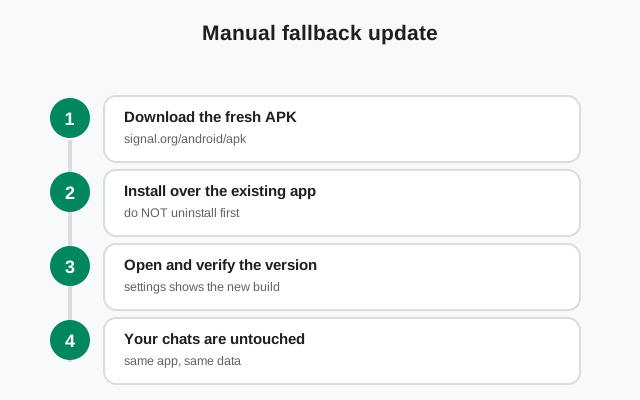
When the in-app updater won't cooperate, skip it. This is the reliable path:
- Download the current APK from Signal's official download page (currently 8.29.3).
- Open the file and install it over your existing Signal. Do not uninstall first.
- Because it's the same build signed with the same key, Android treats it as an update: your chats, media, and registration survive untouched.
This works precisely because you're staying within one build family. It will not work across builds. Trying to install the website APK over the Play version (or reverse) gives you the signature-conflict "App Not Installed" error instead. That's covered in the install-failure guide. After the manual install, open Signal once and confirm your chats are intact before assuming everything is fine. It takes thirty seconds and it is the cheapest insurance in this whole guide.
Backup note: installing over the top is data-safe, but "data-safe" is not "backup." If anything in this process ever pushes you toward an uninstall or a clear-data step, confirm your Secure Backup and 64-character recovery key first. See how Secure Backups work. The one destructive step is always the one you take without a backup.
The update loop: same version offered repeatedly
Sometimes the updater downloads, claims to install, and then offers the same update again: a loop. This means the install step is failing silently after a successful download. Don't keep feeding the loop; go straight to the manual fallback above. One clean over-the-top install from the official page breaks the cycle, and future in-app updates usually resume normally afterward.
Staged rollouts: when "update available" lags behind
Signal rolls updates out gradually, so the version offered in-app can lag the newest release by a bit. That's normal, not a failure. If you need the newest build immediately (a security fix, say), the manual fallback gets you there today instead of whenever your rollout slot arrives. Check the latest-version page to see wfailure checklist, in order
- Confirm your build: website build (self-updating) vs Play build (Play-updated). Fix the right one.
- Connection: stable Wi-Fi, VPN off, phone awake during the download.
- Storage: free a few hundred MB and retry.
- Battery: exempt Signal from battery optimization so the updater survives.
- Manual fallback: install the fresh official APK over the top. Same build, same key, data preserved.
- Still stuck? Restart the phone and retry once. Then check Signal's support pages with your build, version, and where exactly the update fails.
from Signal's official site, file hosted by Signal, not by us
Frequently asked questions
Will updating Signal delete my messages?
No. Updates, in-app or manual over-the-top, replace the app code and leave your data alone. Message loss only enters the picture with uninstalls or clear-data, which is why those always need a confirmed backup first.
The in-app update keeps failing. Can I just download the APK and install it?
Yes. That's the recommended fallback. Download the current APK from Signal's official page and install it over your existing website-build copy. Same build, same signing key, so Android treats it as an update and your data survives.
Why does the update keep restarting from zero percent?
The connection is dropping mid-download and each partial file gets discarded. Fix the connection first: stable Wi-Fi, VPN off, phone awake, and let one attempt finish without interruption.
Can the Play Store update my sideloaded Signal?
No. The website build is signed with a different key than the Play build, so Play can't update it and the two can't be mixed. The website build updates itself from Signal's servers; if that fails, use the manual APK fallback.
The app says an update is available but it's not the newest version. Is something wrong?
Probably not. Updates roll out in stages, so your slot may lag the newest release. If you need the newest build now, install it manually from the official page; otherwise wait a day or two.
Should I uninstall and reinstall to fix a stuck update?
No. That's the most destructive option and it's unnecessary here. Install the fresh APK over the top instead. Uninstalling wipes your data, and you'd need a confirmed backup with your 64-character recovery key to get it back.
Related: the full troubleshooting hub, Signal won't open after an update, fixing "App Not Installed", freeing space without losing chats, latest version and changelog, download problems and fixes, how Secure Backups work, and the main install guide.