
Signal call quality bad? Fix drops, lag and robotic audio
Published: October 7, 2026
Bad Signal call quality is a network problem far more often than a Signal problem. Choppy audio, robotic voices, lag, and dropped calls all trace back to the same root causes: weak or congested connections, VPNs adding latency, aggressive network switching, or relay mode adding an extra hop. This guide walks you through measuring your connection, choosing the right network, and tuning Signal's call routing, on any Android phone running the official build (Play Store or the website APK, current version 8.29.3).
Diagnose: what kind of bad quality?
Different symptoms point to different causes. Identify yours before changing anything:
| Symptom | Likely cause | Fix |
|---|---|---|
| Robotic, choppy, "underwater" voice | Packet loss or low bandwidth on your connection | Switch network, move closer to router, test speed |
| Noticeable delay (you talk over each other) | High latency, VPN, relay hop, or distant server path | Turn off VPN, test relay on/off |
| Call drops after a few minutes | Network switching (Wi-Fi to mobile), or aggressive power saving | Lock to one network, exempt Signal from battery limits |
| Fine for 10 minutes, then degrades | Network congestion or phone overheating/throttling | Close background apps, cool the phone, test at another time |
| Bad only on Bluetooth headset | Bluetooth codec or weak headset link | Test without Bluetooth; re-pair or move headset closer |
| Bad with one contact, fine with others | Their network, not yours | Send them this guide |
The fastest single test: call a different contact. If quality is bad with everyone, the problem is your phone or network. If it's bad with one person, it's theirs, and no setting on your phone will fix it.
Step 1: fix the network first
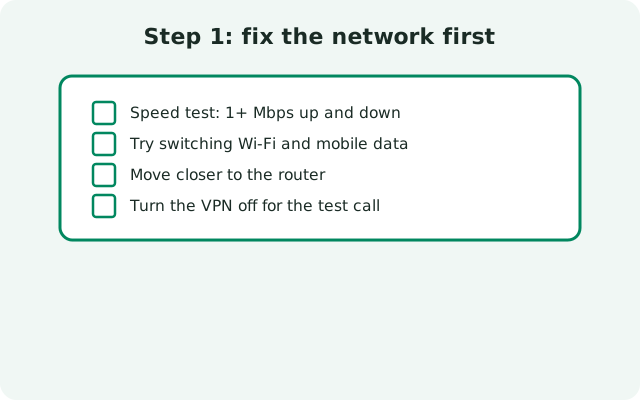
Voice calls need surprisingly little bandwidth (well under 1 Mbps) but they need it consistently, with low latency and minimal packet loss. A "fast" connection that stutters is worse for calls than a slower stable one.
-
Run a speed test during the problem
When a call sounds bad, immediately run a speed test on the same network. Note three numbers: download speed, upload speed, and ping. Calls suffer when upload is choked (common on asymmetric connections) or ping is high and jittery. If the numbers look bad, you've found it, the fix is the network, not Signal.
-
Try the other network
Switch between Wi-Fi and mobile data and compare. Home Wi-Fi with a weak signal or a congested router is a classic cause; switching to mobile data often fixes it instantly. Conversely, a throttled mobile connection may be worse than Wi-Fi, test both, don't assume.
-
Move closer to the router
On Wi-Fi, weak signal = packet loss = robotic audio. Move within a few meters of the router for the test. If quality jumps, the fix is positioning, a Wi-Fi extender, or switching to mobile data for calls.
-
Turn off the VPN
VPNs add latency and a potential congestion point on every call. Some VPN servers are fine; many are not. Disable the VPN and test, if quality improves, the VPN was the bottleneck. If you must use a VPN, try different servers and test call quality on each.
-
Stop network switching mid-call
Walking out of Wi-Fi range mid-call forces a handover to mobile data, and many phones drop the call during the switch. If your calls drop when you move around, stay on one network for the whole call, turn Wi-Fi off before leaving, or stay put.
Step 2: relay vs direct, pick the right path
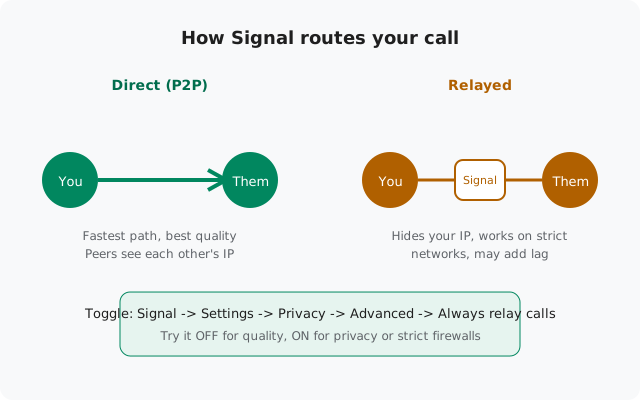
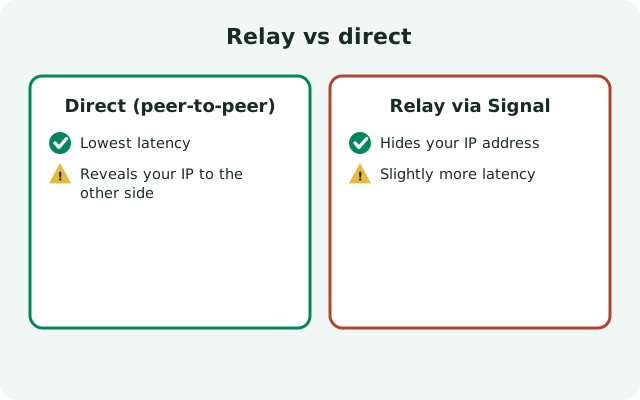
By default Signal connects calls directly between the two phones (peer-to-peer): the shortest path and usually the best quality. Always relay calls (Signal → Settings → Privacy → Advanced) routes every call through Signal's servers instead.
| Direct (relay off) | Relayed (relay on) | |
|---|---|---|
| Path | Phone to phone, shortest route | Via Signal's servers, extra hop |
| Quality on good networks | Best, lowest latency | Slightly higher latency |
| Strict networks (office/school firewalls) | May fail completely | Works, bypasses the block |
| Privacy | The other person can see your IP address | Your IP is hidden from the other person |
| Encryption | End-to-end | End-to-end (servers can't hear audio) |
The practical rule: leave relay off for the best quality on normal networks; turn it on if calls fail on strict networks or you want IP privacy. If quality is bad with relay on, try turning it off, the extra hop may be adding the lag you're hearing. If calls won't connect at all on a particular Wi-Fi network, try turning it on. Test both; the right answer depends on your network.
Step 3: phone-level fixes
- Close bandwidth hogs: cloud photo uploads, app updates, and video streaming on the same phone compete with your call. Pause uploads and updates during important calls.
- Turn off data saver for Signal: Settings → Network → Data saver can throttle real-time traffic. Add Signal to the unrestricted list.
- Cool the phone down: an overheating phone throttles its CPU and radio, which degrades call quality after several minutes. Take the case off, move out of direct sun, and close heavy apps.
- Exempt Signal from battery restrictions: aggressive power saving can throttle background network activity mid-call. Set Settings → Apps → Signal → Battery → Unrestricted, plus your brand's exemptions (see our Samsung, Huawei, and BBK brand guides).
- Restart before important calls: a fresh reboot clears stuck network states and audio services. It's the simplest quality fix there is.
- Update Signal: call-quality bugs get fixed in updates. The official website build (currently 8.29.3) self-updates, but verify you're current if problems started recently.
Video and group calls need more bandwidth
Voice calls are light; video and group calls are not. Each video stream adds bandwidth, and group calls multiply it per participant. If one-to-one voice calls are fine but video or group calls fall apart, you don't have a Signal problem, you have a bandwidth ceiling.
- Drop to voice-only when video stutters. The call stays up and the audio stays clear.
- Reduce participants' video: in group calls, ask others to turn cameras off if quality collapses, fewer streams means a stable call for everyone.
- Use Wi-Fi for video: mobile data works, but video calls eat data fast and congested cell towers throttle sooner than home broadband.
Calls that drop mid-conversation
Drops have their own shortlist beyond general quality issues:
-
Check for network handover
Did you move between Wi-Fi and mobile data, between rooms, or into an elevator? Handovers drop calls. Stay on one network.
-
Disable aggressive battery features during calls
Power saving modes and brand-specific "optimizations" can suspend network activity even mid-call on some phones. Turn power saving off before long calls.
-
Test with relay mode both ways
Some carrier NAT setups drop direct peer-to-peer connections after a few minutes but hold relayed connections fine, and vice versa. Try the opposite of your current setting.
-
Check the other person's side
If every call with one contact drops at the same point, their network is timing out the connection. They should run through this same checklist.
from Signal's official site, file hosted by Signal, not by us
Frequently asked questions
Why does Signal sound worse than a normal phone call?
A normal phone call uses the carrier's dedicated voice channel; Signal uses your internet connection. If your internet is congested, lossy, or high-latency, Signal calls suffer while carrier calls don't. Fix the connection and Signal matches or beats carrier quality.
Does relay mode make call quality worse?
It can add a small amount of latency because of the extra hop through Signal's servers. On good networks, direct calls sound slightly better. But on networks that mangle direct connections, relayed calls work where direct calls fail, working beats perfect.
How much data does a Signal call use?
Voice calls use very little, roughly tens of megabytes per hour, far less than streaming music. Video calls use much more, scaling with quality and participants. If you're on a tight data plan, prefer voice calls and Wi-Fi for video.
Why is there a delay where we talk over each other?
That's latency, usually from a VPN, a relayed path, or a congested connection. Turn off the VPN, test relay on versus off, and run a speed test, high ping confirms a network cause.
Do I need 5G for good Signal calls?
No. A stable 4G or Wi-Fi connection beats a flaky 5G signal every time for real-time calls. Consistency and low latency matter; raw speed beyond a megabit or two doesn't.
Call quality got worse after a Signal update. What now?
First rule out coincidence: test your network with a speed test and try another contact. If it's genuinely the update, check Signal's settings for anything that reset (relay mode sometimes toggles), and report specifics, network type, relay on/off, symptom, so it can be investigated. Reverting to an old APK is not recommended; old builds miss security fixes.
Related: master call-failure diagnosis, microphone problems on calls, incoming calls not ringing, and the troubleshooting hub.