
Install Signal Desktop on Windows and link it in minutes
Published: October 7, 2026 · Updated: October 8, 2026
Signal Desktop for Windows is the official computer companion to the Signal app on your phone. You download it from signal.org/download, install it in about a minute, and link it to your phone by scanning a QR code. After that it works as an independent linked device, so it keeps sending and receiving messages even when your phone is switched off. Your phone stays the primary device; the Windows PC becomes one of up to 5 linked devices on your account.
Before you start (checklist)
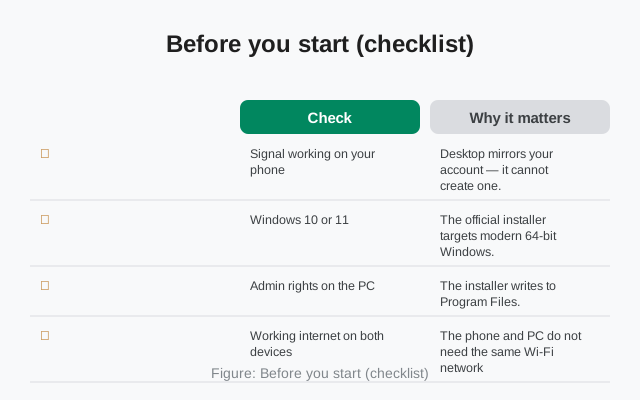
Signal Desktop is not a standalone account. It always links to the Signal app on your phone, so get the phone side ready first:
| Check | Why it matters |
|---|---|
| Signal working on your phone | Desktop mirrors your account. It cannot create one. Set up and verify Signal on Android or iPhone first. |
| Windows 10 or 11, 64-bit | The official installer targets modern 64-bit Windows. On a Snapdragon X or other ARM-based PC, read our ARM Windows notes first. You may want the ARM64 build. Very old or 32-bit systems are not supported. |
| Admin rights on the PC | The installer writes to Program Files. On a work computer, you may need IT's help. |
| Working internet on both devices | The phone and PC do not need the same Wi-Fi network. They just both need to reach the internet. |
| A few minutes of phone battery | Linking takes under a minute, but do it before your phone dies. The first link needs the phone. |
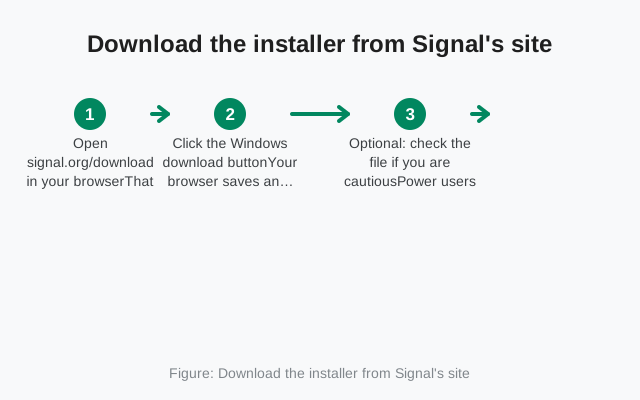
Download the installer from Signal's site
Get Signal Desktop only from Signal's own download page. We do not host installers, and neither should any third-party site you find through a search. Repackaged "Signal installers" from random download portals are a classic malware vector.
Open signal.org/download in your browser
That is the single official source for every desktop platform. The page detects your OS and offers the right file automatically.
Click the Windows download button
Your browser saves an installer file. Do not run "speed booster" or "driver updater" pop-ups. The file you want comes from signal.org.
Optional: check the file if you are cautious
Power users can verify what they downloaded. Signal publishes verification guidance on its site; our walkthrough for checking SHA-256 on Windows, Mac, and Linux shows the exact steps.
Install it on Windows
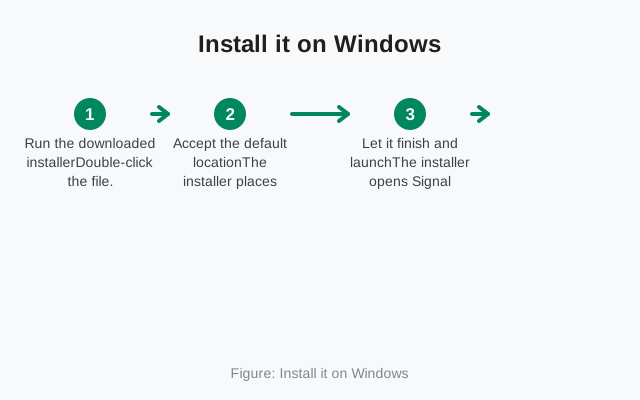
The install is the standard Windows flow. There are no choices to get wrong:
Run the downloaded installer
Double-click the file. If Windows SmartScreen shows a blue warning, that is normal for a freshly downloaded app. Click "More info" then "Run anyway", but only if you downloaded it from signal.org/download yourself.
Accept the default location
The installer places Signal Desktop in Program Files and adds a Start menu shortcut. There is nothing to configure here.
Let it finish and launch
The installer opens Signal Desktop automatically at the end. On first launch you will see a QR code, not your chats. That is expected.
from Signal's official download page — installers are hosted by Signal, not by us
Link it to your phone with the QR code
The QR code on your screen is how your phone hands its identity to the PC. The scan must happen inside Signal on your phone, not with the camera app:
Keep the QR code visible on your PC
Do not close or minimize Signal Desktop. The code is short-lived. Scan it promptly rather than leaving it open for ten minutes.
On your phone: Settings → Linked devices → Link a new device
This opens Signal's own built-in scanner. The app may ask for your fingerprint or PIN first; that is normal.
Point the scanner at the code
Hold the phone 15–30 cm from the screen and keep it steady. When it reads the code, your phone shows a confirmation with the new device's name.
Choose the history transfer option
Signal asks whether to move your existing chat history to the PC. Say yes if you want old conversations there. This is the only moment it is offered. More on this below.
Confirm on your phone
Approve the link. Within a minute your chats appear on the PC and new messages arrive on both devices.
For the full detailed version of this flow (camera permissions, expired codes, version mismatches), see our QR linking walkthrough.
What transfers at link time
This is the part most people misunderstand. By default, Signal Desktop only receives messages sent after linking. It does not backfill your old chats on its own. During the linking flow, though, Signal offers a one-time history transfer:
- If you accept the transfer: your full chat history moves to the PC, including media from roughly the last 45 days. After that, everything stays in sync.
- If you skip it: the PC starts with an empty chat list and only shows new messages from that moment on. Old messages stay on your phone only.
- If you skipped it by accident: there is no "transfer later" button. The fix is to unlink Desktop and link it again, this time accepting the transfer.
Group memberships, contacts, and your profile carry over automatically either way.
Day-to-day on Windows
Once linked, Signal Desktop on Windows behaves like a native chat app, not a web wrapper:
- Notifications arrive through the Windows notification center, with quick-reply on supported versions. If they go silent, check Windows Settings → System → Notifications → Signal. Windows-level blocks override anything inside the app.
- Calls work from the PC using your headset, webcam, and speakers. Grant the microphone/camera permission the first time Signal asks; Windows may ask again at the system level.
- It can start with Windows if you enable that in the app's settings. Handy if the PC is your main messaging screen during work hours.
- Closing the window does not quit the app. Signal keeps running in the system tray so messages keep arriving. To quit fully, right-click the tray icon and choose Quit.
- Keyboard shortcuts cover the usual ground: new chat, search, jump between conversations. Power users will find the full reference in our desktop shortcuts guide.
- Storage grows over time. The local message database lives on your drive; if disk space gets tight, see managing Desktop storage.
One habit worth building: glance at your phone's Linked devices list every few months. It shows every computer and tablet tied to your account with the date each was linked. If you spot a machine you no longer own, unlink it there.
If something goes wrong
Three problems cover almost every failed Windows setup:
- No QR code appears: the PC cannot reach Signal's servers. Check your internet, quit Signal Desktop fully (right-click its tray icon → Quit), and relaunch.
- The phone will not scan the code. Nine times out of ten it is the phone's camera permission or an expired code. Work through our QR code fixes in order.
- Linked, but messages do not arrive: that is a sync issue, not a linking issue. See linked device not syncing.
Once it is running, Desktop is refreshingly low-maintenance: it updates itself, and it keeps working even when your phone is off or dead. The one rule to remember is the 30-day rule. Your phone needs to come online at least once every 30 days, or linked devices stop working. We explain the whole arrangement in using Desktop without your phone nearby.
from Signal's official site — file hosted by Signal, not by us
Frequently asked questions
Is Signal Desktop for Windows free?
Yes. It is free and open source, with no account, subscription, or payment. You only need the free Signal app on your phone to link it.
Do I need my phone nearby after the first link?
No. After linking, the PC works independently. Your phone can be off, dead, or in another country. The phone only needs to come online at least once every 30 days to keep linked devices active.
Will my old messages appear on the PC?
Only if you accept the history transfer during linking. Otherwise the PC shows only messages sent after the link. To fix a skipped transfer, unlink and re-link.
Can I install Signal Desktop without admin rights?
The standard installer needs admin rights because it installs for all users. On a locked-down work PC, ask your IT department rather than hunting for unofficial portable builds. Those are a common malware trick.
How many computers can I link to one Signal account?
Up to 5 linked devices per account, and they can be a mix of desktops and tablets.
Keep reading
- Link your phone to Desktop: the full QR linking walkthrough in detail
- QR code won't scan: every fix for linking failures
- Desktop without your phone: how it keeps working when the phone is off
- Desktop guides hub: every Windows, Mac, and Linux guide in one place