
How to Check the Signal APK's SHA-256 File Hash on Windows, Mac, and Linux
Published: October 7, 2026 Updated: October 8, 2026
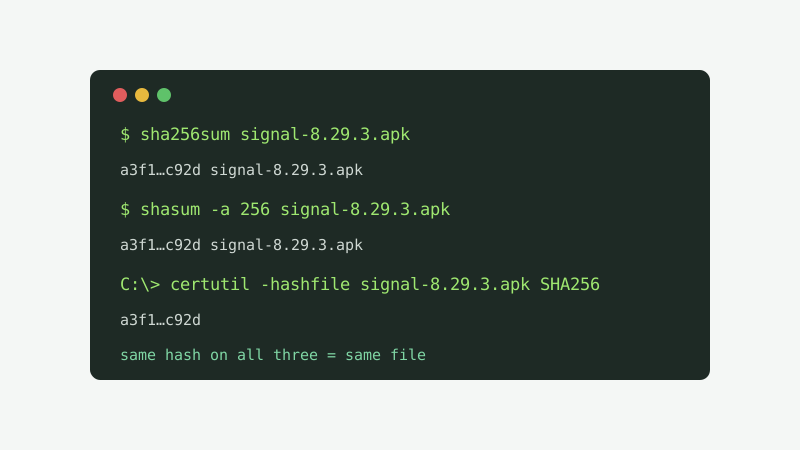
certutil -hashfile file SHA256, on macOS run shasum -a 256 file, on Linux run sha256sum file. This gives you the SHA-256 hash of the downloaded file, which proves it downloaded without corruption. To prove the file really came from Signal, you also need to compare the signing certificate fingerprint on signal.org/android/apk with apksigner, because a file hash alone cannot prove who made the file.Before you install any sideloaded app, it pays to spend two minutes checking what you actually downloaded. Signal's download page publishes a SHA-256 fingerprint you can compare against, and every desktop operating system ships with a built-in tool that computes file hashes. No extra software, no accounts, no uploads to a random website.
from Signal's official site — file hosted by Signal, not by us
File hash vs certificate fingerprint: do not mix these up
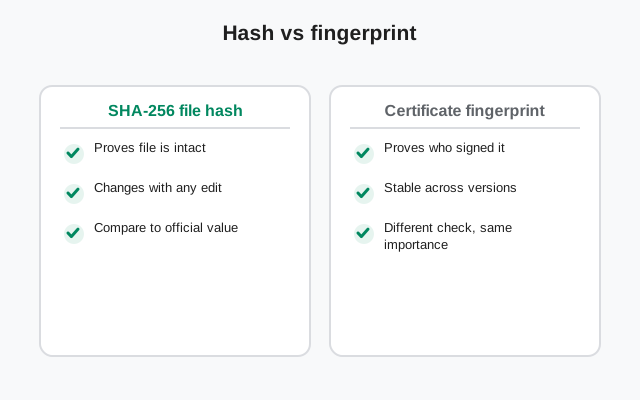
This distinction decides whether your check is meaningful, so let us get it out of the way first. When you run one of the commands on this page, you compute the SHA-256 hash of the APK file. That is a fingerprint of the bytes. Two identical files always produce the identical hash, and even a one-byte change produces a totally different one.
What Signal publishes on its download page is different: it is the SHA-256 fingerprint of its signing certificate, which we verified against Signal's page on October 7, 2026: 4B:E4:F6:CD:5B:E8:44:08:3E:90:02:79:DC:82:2A:F6:5A:54:7F:EC:C2:6A:BA:7F:F1:F5:20:3A:45:51:8C:D8. That fingerprint identifies who signed the app, and it stays the same across Signal updates because the signing key does not change per release.
Why it matters:
- File hash proves integrity: the file you have is byte-identical to the reference copy. It catches corrupted or interrupted downloads.
- Certificate fingerprint proves identity: the app was signed with Signal's private key. It catches repackaged fakes and tampered files.
A file hash cannot prove who made the file. If an attacker builds a fake Signal APK and you hash it, you get a perfectly valid hash of a perfectly malicious file. Keep both checks straight and run both: hash for integrity first, signature for identity second. The full side-by-side comparison is on our APK hash vs signature explainer.
Windows: certutil
Windows ships with certutil, a built-in certificate and hashing utility. You do not need to install anything.
- Open the Start menu, type
cmd, and press Enter. - Move to the folder with your APK, for example:
cd Downloads - Run:
certutil -hashfile Signal-Android-website-prod-universal-release-8.29.3.apk SHA256 - Windows prints a 64-character hex string plus a success line. Copy the hex string.
Tip: filenames are long, so type the first few letters and press Tab to auto-complete the filename instead of typing the whole thing. If the path has spaces, wrap it in quotes.
macOS: shasum
Every Mac ships with shasum. Open Terminal and run:
shasum -a 256 ~/Downloads/Signal-Android-website-prod-universal-release-8.29.3.apkThe -a 256 flag selects SHA-256. macOS prints the 64-character hash followed by the filename. Alternatively, openssl dgst -sha256 file gives the same result. Both tools are built in, so there is nothing to install and no third-party hash app to trust.
Linux: sha256sum
On any mainstream distro, sha256sum is already installed (it is part of GNU coreutils). In a terminal:
sha256sum ~/Downloads/Signal-Android-website-prod-universal-release-8.29.3.apkThe output is the 64-character hash plus the filename. If you want to compare against a reference hash later, save it to a file with sha256sum file.apk signal.sha256; running sha256sum -c signal.sha256 afterwards re-checks the file against the saved value automatically.
| System | Command | Built in? |
|---|---|---|
| Windows | certutil -hashfile file SHA256 | Yes |
| macOS | shasum -a 256 file | Yes |
| Linux | sha256sum file | Yes |
What to compare the hash against
A hash by itself is just a number. It becomes a check when you compare it to a reference you trust. Here are your honest options:
- Download the file twice, on two different networks (for example, once on your home Wi-Fi and once on mobile data), hash both copies, and compare. Identical files have identical hashes. This catches corrupted downloads and most network tampering, and both copies came from Signal's own servers.
- Keep the hash of a copy you verified once, and re-check it after any later re-download. If a future copy has the same hash, it is byte-identical to the one you already trusted.
- Compare against a hash published by a source you trust. Note carefully: Signal's download page does not publish a per-release file hash. It publishes the signing certificate fingerprint (
4B:E4:F6:CD:5B:E8:44:08:3E:90:02:79:DC:82:2A:F6:5A:54:7F:EC:C2:6A:BA:7F:F1:F5:20:3A:45:51:8C:D8), which is a different thing, compared with a different tool. Do not hash the APK and then wonder why the result does not match the fingerprint on the page. That mismatch is expected and means nothing.
What you should not do: Google "Signal APK SHA-256 hash" and compare against a hash posted on a random forum or third-party site. A hash from an untrusted source proves nothing; an attacker who can serve you a fake file can also post a fake hash.
What a mismatch means
If two copies of the same release give different hashes, or a re-download does not match the hash you saved, work through this list before installing:
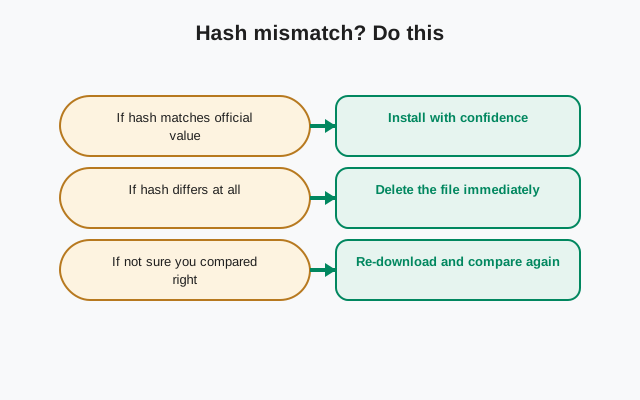
- Most likely: a corrupted or incomplete download. This is the boring cause and also the most common one. Delete the file, download it again from signal.org/android/apk, and hash the fresh copy.
- Possible: you are comparing different releases. Signal updates its website build, and each release has a different file hash. Make sure both hashes come from the same version.
- Worth ruling out: a proxy or network middlebox modifying downloads. Some corporate or public networks intercept traffic. Try a different network and compare.
- Unlikely but serious: deliberate tampering. If a fresh download from Signal's own page, on a clean network, still does not match a hash you previously verified, stop and investigate before installing.
Never install a file that fails a hash check on the assumption that it is "probably fine." The check takes seconds; the consequences of installing a tampered app last much longer.
A worked example: the full flow
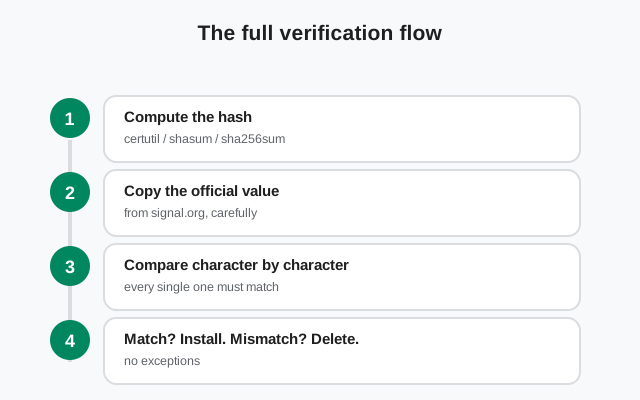
Here is what the whole process looks like end to end for the current website build (8.29.3):
- Download the APK from signal.org/android/apk on your home network.
- Transfer it to your computer and hash it with your OS command. Write down the 64-character result.
- Download the same release again on a different network (mobile hotspot works) and hash that copy. Same hash means both copies are byte-identical.
- Now run the signature check with
apksigner verify -v --print-certs --min-sdk-version 24and compare the certificate fingerprint with4B:E4:F6:CD:5B:E8:44:08:3E:90:02:79:DC:82:2A:F6:5A:54:7F:EC:C2:6A:BA:7F:F1:F5:20:3A:45:51:8C:D8on Signal's page.
Steps 1-3 took care of integrity; step 4 takes care of identity. If all of it checks out, you are installing a genuine, intact copy of Signal. Save the file hash in a text file next to the APK so future re-downloads can be compared in seconds.
Next step: the certificate check that proves it's really Signal
Hashing proves the file is intact. It does not prove the file came from Signal. For that, compare the signing certificate fingerprint with apksigner:
apksigner verify -v --print-certs --min-sdk-version 24 Signal-Android-website-prod-universal-release-8.29.3.apkThe --print-certs output includes the SHA-256 certificate fingerprint. Compare it character by character with the value on Signal's download page (4B:E4:F6:CD:5B:E8:44:08:3E:90:02:79:DC:82:2A:F6:5A:54:7F:EC:C2:6A:BA:7F:F1:F5:20:3A:45:51:8C:D8). A match means only the holder of Signal's private signing key could have produced that APK. Our full walkthrough of that step is in how to verify the Signal APK SHA-256 fingerprint, and APK hash vs signature explains which check catches which threat.
Frequently asked questions
Is certutil safe to use for this?
Yes. certutil is a built-in Windows tool, so nothing extra to install and no third-party software to trust. Run certutil -hashfile followed by the file path and SHA256, and Windows prints the file's hash.
What is the difference between the file hash and the fingerprint on Signal's page?
The file hash identifies the exact file you downloaded. The fingerprint published on signal.org/android/apk is the fingerprint of Signal's signing certificate, which identifies who signed the app. Hashing the file checks integrity; comparing the signing fingerprint checks identity.
Can the file hash prove the APK is really from Signal?
No. A file hash only proves a file is intact and matches whatever reference hash you compare it to. A fake file copied perfectly has a perfectly valid hash too. To prove the APK really came from Signal, compare the signing certificate fingerprint with apksigner.
Related guides
- Signal APK safety hub: every safety and verification guide in one place
- Verify the Signal APK signing certificate fingerprint: the identity check that proves the file came from Signal
- APK hash vs signature: what each proves: which check catches which threat
- Using apksigner to verify Signal: the identity check in detail
- Is the Signal APK safe?: the full safety assessment