
Yes, Signal Desktop keeps working when your phone is off
Published: October 7, 2026 · Updated: October 8, 2026
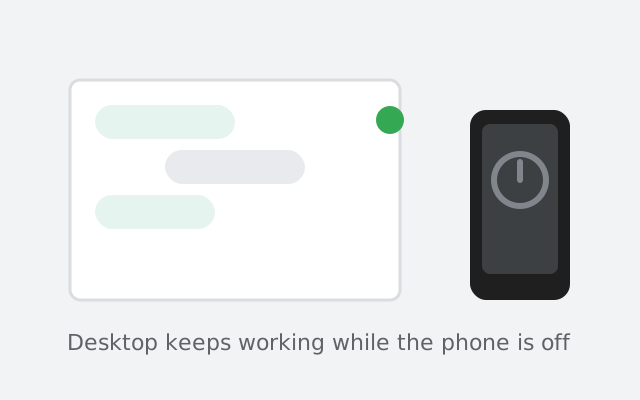
Yes. Once Signal Desktop is linked, it sends and receives messages with your phone switched off, dead, or left at home. That surprises people who assume the computer is just a remote screen for the phone. It is not. Since the multi-device architecture, each linked computer holds its own encryption keys and talks to Signal's servers directly. The phone is still the primary device, and two standing rules keep the arrangement honest: the phone must come online at least once every 30 days, and a linked device idle for 45 days gets unlinked automatically.
The short answer
Think of it like this: after the one-time QR linking, your computer is a full member of your Signal account, not a puppet of your phone. Messages addressed to you are delivered to every linked device independently. Your phone can be off, in airplane mode, out of battery, or in a drawer. The computer keeps working. Plenty of people run their whole workday on Desktop with the phone untouched, and everything they do syncs back to the phone whenever it next connects.
The only ongoing obligation is on the phone: it needs to connect to Signal's servers at least once every 30 days. Miss that window and your linked devices stop working until the phone comes back online.
Why it works: your computer becomes a separate device
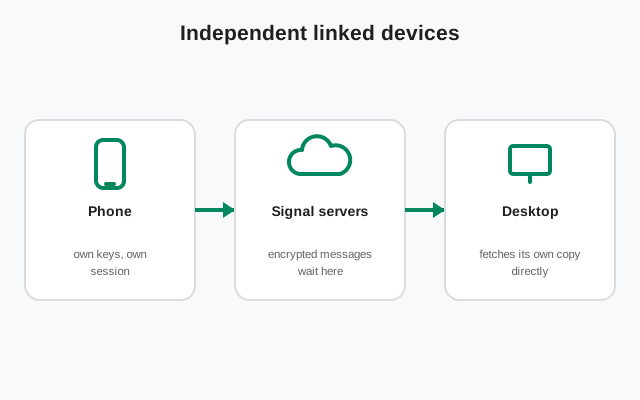
In the old days of some chat apps, the desktop app was a mirror: no phone, no messages. Signal moved away from that with its multi-device architecture:
- Each linked device gets its own encryption keys during the QR linking. That is what the scan is really doing: securely handing the new computer its own identity on your account.
- Messages are encrypted separately for each device. When someone messages you, their app encrypts a copy for your phone, a copy for your computer, and so on. Each device fetches its own copy from the server.
- No relay through the phone. The computer does not ask the phone for messages; it collects them itself. That is the whole reason it survives the phone being off.
This is also why the first link needs the phone: only the primary device can authorize a new device's keys.
What works with the phone off
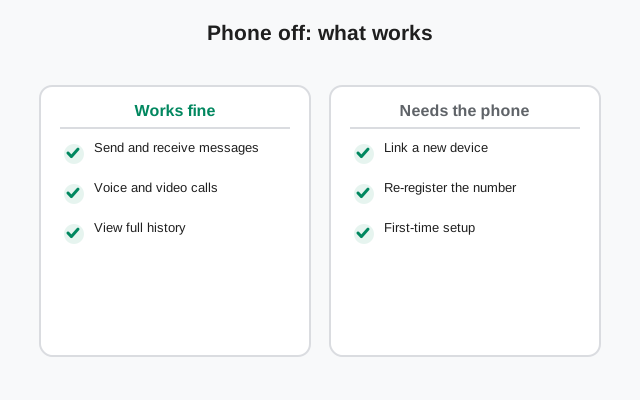
| With the phone off or dead | Status |
|---|---|
| Sending and receiving messages | Works: one-to-one and groups |
| Voice and video calls | Works, using the computer's mic, camera, and speakers |
| Starting new conversations | Works |
| Disappearing messages | Works. Timers are per-device and keep running |
| Reading and replying to everything new | Works. Read states sync to the phone when it returns |
In practice, many people run Signal Desktop all workday with the phone silent in a bag, and never notice a difference.
from Signal's official download page — installers are hosted by Signal, not by us
What still needs the phone
Independence has limits. These actions require the primary device:
- Linking a new device. Only the phone can scan the QR code and approve new keys.
- Unlinking a device remotely. Done from the phone's Settings → Linked devices. (Our unlink guide covers it.)
- Changing your phone number or re-registering. Account-level changes happen on the phone. Re-registering your number on a new phone unlinks all linked devices as a security measure.
- The 30-day check-in. The phone must reach Signal's servers at least once every 30 days. That is the rule that keeps everything else working.
The two rules: 30 days and 45 days
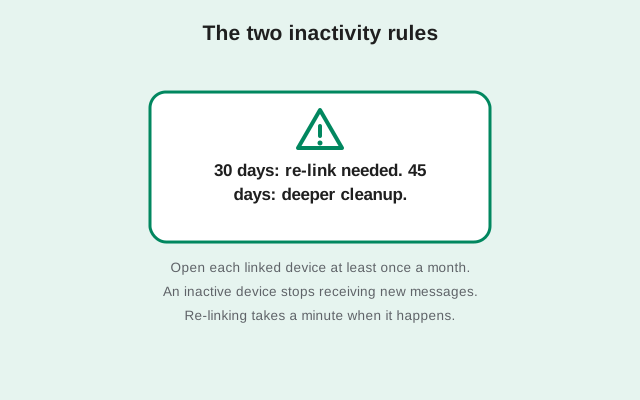
Two automatic housekeeping rules, and people mix them up constantly:
| Rule | What triggers it | What happens | How to recover |
|---|---|---|---|
| 30-day primary rule | Your phone hasn't connected to Signal for 30 days | Linked devices stop sending/receiving until the phone comes online | Bring the phone online once: open Signal with internet. Links resume. |
| 45-day auto-unlink | A linked device itself has been inactive for 45 days | Signal automatically unlinks that idle device | Link it again with the QR flow (walkthrough). |
Note the difference: the 30-day rule is about the phone going quiet; the 45-day rule is about the computer going quiet. A computer you use daily never hits the 45-day rule; a laptop in a cupboard for two months will need re-linking.
Myths about Desktop and the phone
| Myth | Reality |
|---|---|
| "Desktop is just a mirror of my phone screen" | No. It is an independent device with its own keys, which is exactly why it works with the phone off. |
| "Both need to be on the same Wi-Fi" | Never required, not even during linking. Each device just needs its own internet connection. |
| "Uninstalling Desktop deletes my chats" | Uninstalling removes the local copy on that computer. Your account, phone, and other devices are untouched. |
| "Linking gives the computer my PIN" | The QR flow authorizes device keys; it does not hand over your registration PIN or phone unlock code. |
| "I can keep Desktop alive forever without the phone" | No. The 30-day primary-online rule is hard: the phone must check in monthly or linked devices pause. |
Try it yourself: the airplane-mode test
Do not take our word for it. Verify in two minutes:
Put your phone in airplane mode
Wi-Fi and mobile data off. The phone is now fully cut off, the strictest version of "phone is off."
Ask a friend to message you, or message yourself from a second account
The message should arrive on your computer within seconds, phone untouched.
Reply from the computer
Send normally. Your friend receives it like any other message.
Turn the phone's radios back on
Open Signal on the phone. Everything you sent and received on the computer syncs over, read states included.
This is also the drill to run before a trip where the phone stays home: airplane-mode the phone for five minutes, confirm the computer sends and receives, and travel with confidence. Just remember the calendar: if the trip stretches past 30 days without the phone connecting once, the computer pauses until the phone checks in.
If your phone is lost or broken
This is the scenario people actually worry about. Here is the honest picture:
- Your computer keeps working as long as the phone's 30-day window has not expired. A dead phone in a drawer is fine for weeks.
- You cannot link new devices until you have a working phone again. No way around the QR approval.
- On a replacement phone, re-register your number. That creates a fresh primary device and, as a security measure, unlinks all old linked devices, including the computer. You then re-link the computer with the normal QR flow.
- Worried someone has your old phone? The moment you re-register your number on the new phone, the old phone's Signal is deactivated. Your messages stay encrypted throughout. Nobody reads them off the server.
The bottom line: treat the computer as a genuinely independent device with one monthly obligation on the phone. Do that, and the "phone off" scenario (dead battery, forgotten phone, long flight) is a non-event. For the linking steps themselves, see the QR walkthrough; for setup on each OS, our Windows, Mac, and Linux guides.
from Signal's official site — file hosted by Signal, not by us
Frequently asked questions
Can I set up Signal Desktop without ever having a phone?
No. The phone is required for the initial QR linking. Only the primary device can authorize a new linked device. After that one step, the computer works on its own.
My phone died. Can I still message from my computer?
Yes. A dead, switched-off, or missing phone does not stop a linked computer from sending and receiving. The 30-day clock only becomes a problem if the phone stays offline for a full month.
What happens if my phone is offline for more than 30 days?
Linked devices pause until the phone connects to Signal again. Bring the phone online once (open the app with internet) and everything resumes. Nothing is deleted.
Will my computer unlink itself if I don't use it?
Yes, after 45 days of inactivity Signal automatically unlinks idle devices. Just link it again with the QR code when you return to it.
Does my computer have my full message history?
It has everything from the moment it was linked, plus whatever came over in the one-time history transfer at link time, if you accepted it. Messages from before the link that you skipped transferring stay on the phone only.
- the QR linking walkthrough: how to connect a new computer
- how to unlink a device: removing computer access from your phone
- Signal Desktop on Windows: installing the PC app
- desktop guides hub: every desktop guide in one place