
Signal Desktop keyboard shortcuts worth learning
Published: October 7, 2026 · Updated: October 8, 2026
Signal Desktop has a small, stable set of keyboard shortcuts that cover most daily use: opening a new conversation, searching your chats, and moving through the conversation list without touching the mouse. This guide lists only the shortcuts we are confident are real, with no padded list of invented key combos, and it includes the honest caveat that shortcuts can shift between versions. If one below ever stops working, check the app's own menus and Preferences for the current binding.
The shortcuts that matter
Signal Desktop's shortcut list is short. That is a feature, not a gap. You can learn the whole useful set in two minutes:
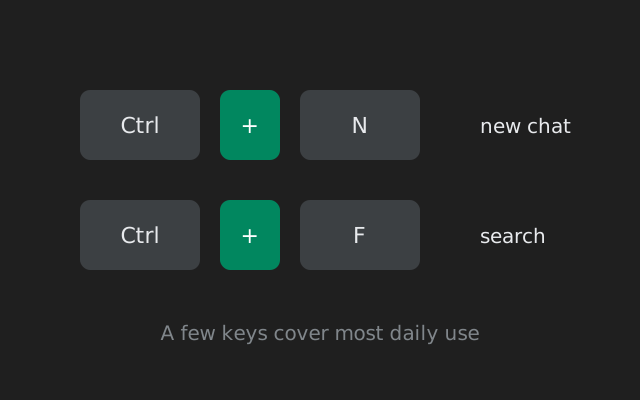
- Ctrl+N starts a new conversation. Opens the new-chat picker so you can start typing a contact's name. This is the single most-used shortcut on desktop.
- Ctrl+F jumps to search. Jumps to search across your conversations and messages. Type a few letters and the matching chats appear.
- Ctrl+P opens Preferences. Opens the app's settings directly, no menu-hunting.
- ↑ / ↓ move through the conversation list. With the list focused, the arrow keys walk up and down your chats.
- Esc closes the dialog or takes you back. Closes search, settings, and other overlays, returning you to the conversation view.
The version caveat, stated plainly. These shortcuts are well-established and have been stable for a long time, but Signal can rebind or change them in any release. We are not inventing a long list to look comprehensive. If you want more than the set above, the app's menus and Preferences screen are the authoritative list for your version. Trust those over any web page, including this one.
One-page cheat sheet
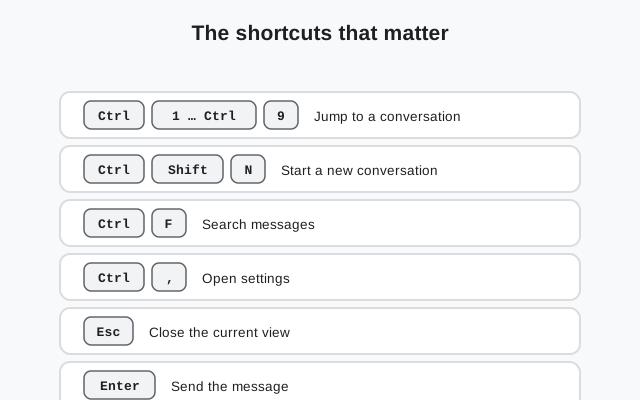
| Shortcut | Action | When it helps |
|---|---|---|
| Ctrl+N | New conversation | Starting a chat without reaching for the mouse |
| Ctrl+F | Search conversations and messages | Finding an old chat or a message you half-remember |
| Ctrl+P | Open Preferences | Tweaking notifications, appearance, or privacy settings |
| ↑ / ↓ | Move through the conversation list | Scanning unread chats quickly |
| Esc | Close dialog / return to chats | Backing out of search, settings, or a picker |
| Enter | Send the message | In the compose box (see the note below) |
| Shift+Enter | New line without sending | Writing multi-line messages |
How to actually use them
The fastest daily loop on Signal Desktop is three keys: Ctrl+F to find the chat, arrow keys to land on it, type your message. Ctrl+N covers starting new threads. That is most of desktop efficiency right there.
A practical habit: keep the conversation list focused when you are triaging messages. Arrows move, Enter opens the highlighted chat, Esc drops you back to the list. You can work through a dozen unread conversations without the mouse leaving your hand off the keyboard, which is handy during a busy morning.
Ctrl+F deserves a second mention because search is genuinely good: it matches conversation names and message text, so "that address someone sent last week" is usually two keystrokes and a few letters away.
Typing and sending
- Enter sends. In the message box, pressing Enter sends the message. That is the default behavior.
- Shift+Enter inserts a line break without sending, so multi-paragraph messages are easy.
- Paste works as expected for text, links, and images. Ctrl+V drops clipboard content into the compose box as an attachment where supported.
If you ever find yourself fighting the Enter-to-send behavior, that is just how the app is built. There is no toggle for it in Preferences.
from Signal’s official site — file hosted by Signal, not by us
Learn them in ten minutes
Seven shortcuts is a small list, but the way to make them stick is to add them one at a time rather than memorizing the table:
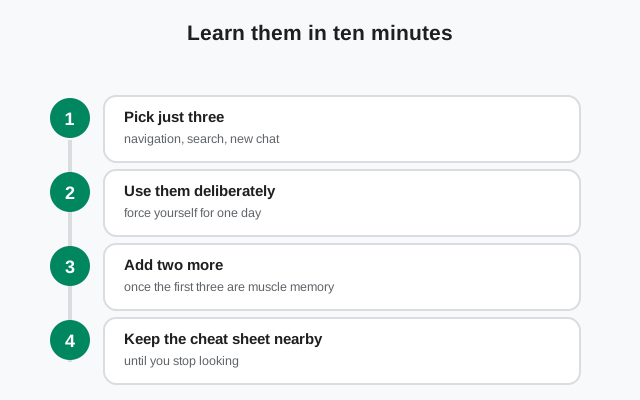
Day one: Ctrl+N only
Every time you start a conversation today, force yourself to use Ctrl+N instead of clicking the compose button. By the end of the day it is muscle memory.
Day two: add Ctrl+F
Whenever you catch yourself scrolling the chat list looking for someone, stop and press Ctrl+F instead. Search is almost always faster than scrolling.
Day three: arrows and Esc
Use the arrow keys to move through the conversation list and Esc to back out of search. This is the triage combo: find, open, read, escape, next.
Later: Ctrl+P and the compose keys
Preferences and the Enter/Shift+Enter pair round out the set. By now your hands know the important ones.
This sounds trivial, but the payoff is real: the average desktop user opens and searches chats dozens of times a day, and each mouse round-trip costs a second or two. Shortcuts pay for their ten minutes of practice within the first week.
Pairing shortcuts with search
Ctrl+F is the shortcut that keeps giving, because search is the fastest navigation tool in the app. A few habits that multiply it:
- Search people, not just words. Typing a contact's name jumps straight to that conversation. It is faster than scrolling a long list, even with the arrow keys.
- Search message content. Looking for an address, a link, or a tracking number someone sent? A distinctive word from the message finds it without opening five chats.
- Search then arrows. Ctrl+F, type, arrow down to the right result, Enter to open it. The whole flow stays on the keyboard.
- Esc is your undo. Searched the wrong thing or changed your mind? One Esc drops you back to the conversation list, no mouse needed.
If you learn exactly one habit from this page, make it the Ctrl+F-then-arrows flow. It replaces the two slowest things people do in messaging apps: scrolling long lists and hunting through open chats.
What shortcuts cannot do
- No custom shortcut editor. Signal Desktop does not let you rebind keys or create your own shortcuts. What ships is what you get.
- No jump-to-unread or mark-all-read shortcut. If you manage a flood of chats, the mouse still does that job.
- Call controls are clickable. Mute, camera, and hang-up in voice/video calls are buttons, not keys.
- Platform quirks. On macOS, the Cmd key replaces Ctrl in these combos (Cmd+N, Cmd+F, Cmd+P): standard Mac convention, same actions.
For the things shortcuts cannot reach (calls especially), our desktop calling setup guide covers the buttons and settings involved.
When a shortcut does nothing
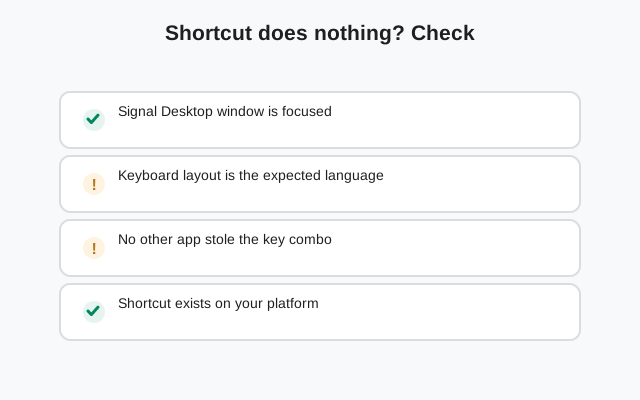
- Focus is in the wrong place. Arrow keys move through the conversation list only when the list has focus; click a chat first, then try again. Ctrl+N and Ctrl+F work globally within the app.
- Another app grabbed the key. Global hotkeys from other software (screen capture tools, launchers) can swallow combos before Signal sees them. If Ctrl+F opens your screenshot tool instead, that is the conflict. Change the other app's binding.
- A version changed the binding. Rare, but possible. Check Preferences and the app menus for the current shortcuts rather than trusting memory or an old guide.
- The window is not active. Obvious but common: shortcuts only work when the Signal Desktop window has focus.
Shortcuts not working?
- None of the keys respond: click inside the Signal window once to give it focus, then retry.
- One key works, another does not: suspect a conflict with another app's global hotkey. Disable or rebind the other app's shortcut.
- Shortcuts differ from this page: check your version's Preferences and menus, which are authoritative. See also how Desktop differs from the phone app for feature gaps that no shortcut can bridge.
- Keyboard layout issues on Linux. Some input methods and layouts remap modifier keys, so test with a standard layout to isolate the problem.
from Signal’s official download page — installers are hosted by Signal, not by us
Frequently asked questions
What is the shortcut for a new conversation on Signal Desktop?
Ctrl+N (Cmd+N on macOS) opens the new-conversation picker so you can start typing a contact's name.
How do I search messages on Signal Desktop with the keyboard?
Press Ctrl+F (Cmd+F on macOS) to jump to search, then type to match conversation names and message text.
Can I create custom keyboard shortcuts in Signal Desktop?
No. Signal Desktop does not include a shortcut editor. You cannot rebind keys or create your own; the built-in set is what ships.
Why do the arrow keys not move through my chats?
The conversation list needs focus first. Click any chat in the list, then the up/down arrows will move through it.
Do the shortcuts differ on macOS?
The actions are the same but the modifier key follows Mac convention: Cmd+N, Cmd+F, and Cmd+P replace the Ctrl versions.
Keep reading
- how Desktop differs from the phone app: feature gaps shortcuts can't bridge
- the desktop calling setup guide: mic, camera, and call buttons
- our QR linking walkthrough: connecting your phone step by step
- the desktop guides hub: all 24 desktop guides in one place