
Running Signal Desktop on ARM Windows (Snapdragon X)
Published: October 7, 2026 · Updated: October 8, 2026
If your laptop runs on a Snapdragon X chip (or any ARM64 processor), you have two paths to Signal Desktop. First, check signal.org/download for a native ARM64 build. That is the ideal option. If none is listed, the standard Windows installer still works through Windows' built-in x64 emulation. Messaging, calls, and linking are identical either way; the difference is performance and battery use.
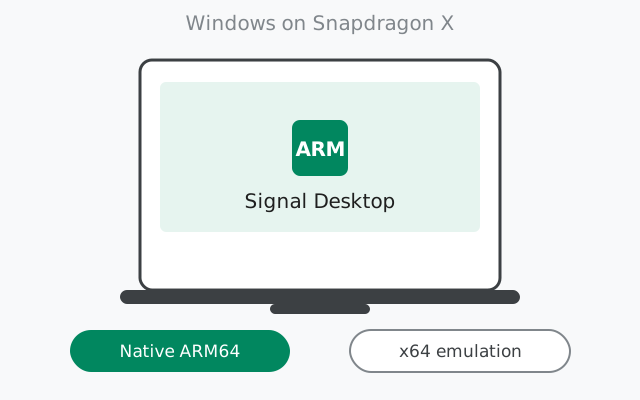
What ARM Windows means here
Most Windows PCs run on x86_64 processors (Intel/AMD). ARM64 Windows machines (Copilot+ PCs with Snapdragon X Elite/Plus chips, older Surface Pro X devices, and similar) use a different processor architecture. Apps compiled for x86_64 do not run natively on them.
Windows handles this with two mechanisms: native ARM64 apps (compiled for the chip, fastest and most efficient) and x64 emulation (Windows translates x86_64 apps on the fly so they still run). Signal Desktop can land in either bucket depending on which installer you use. Both are usable for messaging.
The honest status. Signal's desktop release process has produced ARM64 Windows builds, but availability can vary by version, so we will not guarantee a native build exists for every release. The only source of truth is signal.org/download: if it lists an ARM64/Windows-on-ARM build, that is what you want. If it does not, use the standard installer via emulation.
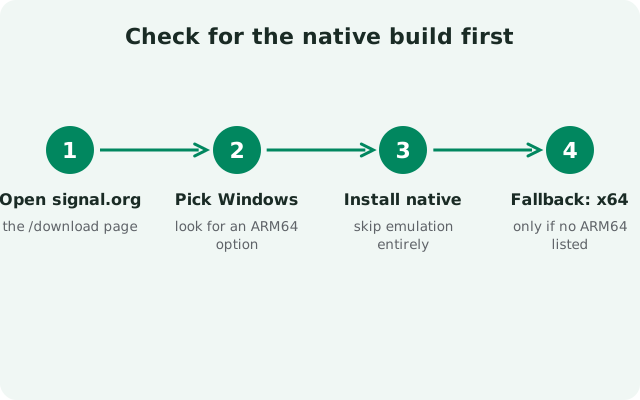
Check for the native ARM64 build first
Open Signal's official download page on your Snapdragon X machine and look at the Windows download options. What you want is a build explicitly labeled for ARM64 (sometimes worded as "Windows (ARM64)" or similar). Download it from there and nowhere else.
- Why native matters: it runs directly on the chip: faster launch, lower CPU usage, better battery life. On a laptop, that is the whole point of the ARM chip.
- Verification: after installing, Task Manager's Details tab shows the app architecture. If it says ARM64, you are running native. If it says x64 on an ARM machine, emulation is doing the work.
- Updates: a native build updates like any other install. Check whether the updater keeps you on the ARM64 line rather than silently switching you to x64.
from Signal’s official download page — installers are hosted by Signal, not by us
The fallback: x64 emulation
If no ARM64 build is listed, download the standard Windows installer from signal.org/download and install it normally. Windows on ARM detects x86_64 apps and runs them through its built-in emulation layer automatically. There is nothing extra to install or configure.
- It works on first try. Emulation is system-level; you double-click the installer and the app just runs. No settings, no compatibility modes.
- First launch is slower. The emulation layer has to translate the app's code the first time it runs; subsequent launches are faster as cached translations kick in. Expect the app to feel sluggish for the first minute or two after install.
- Everything functional. Messaging, QR linking, voice and video calls, notifications: none of this depends on the processor architecture. An emulated app does the same things, just with more CPU overhead.
Native vs emulated, side by side
The practical differences in one table:
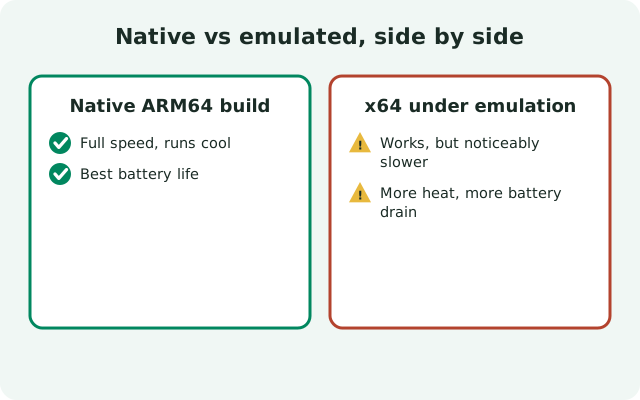
| Native ARM64 build | x64 build under emulation | |
|---|---|---|
| Where to get it | signal.org/download, if an ARM64 build is listed | signal.org/download, standard Windows installer |
| Launch speed | Fast | Slower, especially the first launch |
| CPU & battery use | Low: the app runs directly | Higher: emulation adds overhead |
| Features | Full Signal Desktop | Full Signal Desktop, identical |
| QR linking | Same | Same |
| When to use | Always, when available | When no ARM64 build is published |
Installing on a Snapdragon X machine
Go to Signal's download page
Open signal.org/download in your browser and find the Windows section.
Pick the ARM64 build if offered
If an ARM64 option is listed, download it. Otherwise take the standard Windows installer. Windows will run it through emulation automatically.
Run the installer
Double-click the downloaded file and follow the prompts. Installation needs administrator approval, same as any app.
Launch and check the architecture (optional)
If you want to confirm which bucket you landed in, Task Manager's Details tab shows the app's architecture column.
Link by QR code
Scan the on-screen code from Signal on your phone (Settings → Linked devices → Link a new device), choose the one-time history transfer, and you are done.
The standard Windows install guide covers these steps in more detail; the only ARM-specific part is step 2.
Honest performance notes
Kept generic on purpose, because the numbers move with each release and chip generation:
- Native feels like any modern laptop app. If you have the ARM64 build, there is nothing to note. It behaves like Signal Desktop on any other machine.
- Emulated feels fine for messaging. Sending texts, scrolling chats, and even voice calls are not demanding workloads; emulation overhead shows up as slower cold starts and slightly higher CPU during heavy use, not as broken functionality.
- Video calls are the heaviest workload. If anything will show the difference between native and emulated, it is sustained video calls. Test one early; if quality suffers on the emulated build and no native build exists, that is a real limitation to know about.
- Do not "optimize" it away. There is no legitimate third-party "ARM-optimized Signal" to download. Anything claiming to be one is unofficial. At best it is a repack of the same files; at worst something tampered with. Stay on signal.org.
Battery and heat
The main reason to prefer the native ARM64 build is battery life. Emulation costs extra CPU cycles for the same work, and extra CPU cycles mean extra heat and faster drain. In practice:
- Light messaging: barely noticeable difference. Signal Desktop mostly idles in the background waiting for messages.
- Hours of calls or heavy media: this is where the gap shows. A native build keeps the fan-quiet efficiency that Snapdragon X laptops are known for; an emulated build chips away at it.
- Sleep behavior: close the app window rather than leaving it open if battery matters. Signal keeps delivering messages to your phone regardless, and the desktop app catches up when reopened. Our guide to using Desktop without your phone nearby explains the independent-device model.
Linking and day-to-day use
None of the ARM specifics touch the account model. Your phone is still the primary device; the desktop app is a linked device that works independently once linked; the 30-day rule still applies (your phone must come online at least once every 30 days). Message history transfers at link time: full history plus roughly 45 days of media. Only new messages sync afterward.
Day-to-day, the app is the same Signal Desktop: same conversations, same shortcuts, same settings. If you already used Signal Desktop on an Intel machine, nothing to relearn.
If something goes wrong
- Installer says it cannot run: you may have grabbed the wrong architecture build. Re-download from signal.org/download and double-check the label.
- App launches but shows a blank window: the usual Electron graphics quirk, not ARM-specific. See our not-opening fixes.
- QR code will not scan: regenerate it and check the phone's camera permission. Our QR fixes cover the rest.
- Slow first launch on the emulated build is expected. Let it finish the first run; later launches are faster.
- Want the full requirements? See the system requirements guide for OS versions and hardware notes.
from Signal’s official site — file hosted by Signal, not by us
Frequently asked questions
Does Signal Desktop work on Snapdragon X laptops?
Yes. Check signal.org/download for a native ARM64 build first. If none is listed, the standard Windows installer runs through Windows' built-in x64 emulation with full functionality.
Is the emulated version slower?
Launch is slower and CPU/battery use is higher than a native ARM64 build, especially on first run. Messaging and calls work identically; the difference is efficiency, not features.
How do I know if I am running the native ARM64 build?
Open Task Manager's Details tab and look at the app's architecture column. ARM64 means native; x64 on an ARM machine means emulation is handling it.
Are there third-party ARM-optimized Signal builds I should use?
No. Anything claiming to be an ARM-optimized Signal build from a third party is unofficial and should not be trusted. Use only installers from signal.org/download.
Does linking or syncing differ on ARM Windows?
No. The phone is the primary device, QR linking works the same, the 30-day primary-online rule applies, and history transfers at link time like every other platform.
Keep reading
- the Windows install guide: full PC install walkthrough
- our QR linking walkthrough: connecting your phone step by step
- the system requirements guide: OS versions and hardware notes
- the desktop guides hub: all 24 desktop guides in one place