
How to Restore Signal from a Backup: Step-by-Step
Published: October 7, 2026 Updated: October 8, 2026
.backup files). Keep local backup folders in place before installing.Restoring Signal is a one-shot operation: the offer appears during the first setup after a fresh install, and if you skip it, it does not come back without a reinstall. That single fact causes more lost history than any bug ever has. This guide covers both restore paths: the hosted Secure Backup and the current on-device backup (both unlocked by the same 64-character recovery key; only old legacy .backup files still need the 30-digit passphrase), in the exact order that works, plus a troubleshooting table for every common failure.
from Signal's official site file hosted by Signal, not by us
Before you restore: the checklist
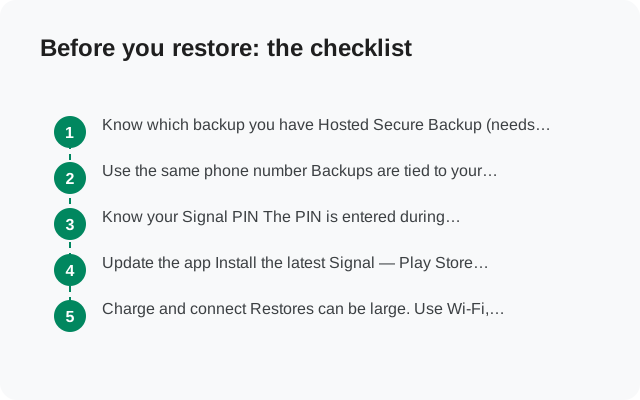
Know which backup you have
Hosted Secure Backup (needs the 64-character recovery key), or a current on-device backup (needs the same 64-character recovery key and the backup folder in place before installing). An old legacy
.backupfile is the one exception: it needs the 30-digit passphrase instead. If you are unsure, read the backup key guide first. Using the wrong key is the number-one restore failure.Use the same phone number
Backups are tied to your account. Registration on the new install must use the number the backup was made with, and you must be able to receive the verification code.
Know your Signal PIN
The PIN is entered during registration and restores your profile, contacts, and group memberships separately from the message archive.
Update the app
Install the latest Signal: Play Store or the official APK from Signal's own site. Restoring with mismatched versions is asking for trouble.
Charge and connect
Restores can be large. Use Wi-Fi, plug the phone in, and do not interrupt the process once it starts.
Path 1: restore from a hosted Secure Backup
This is the path for a lost, broken, or wiped phone. The old device is not needed. Only your number, your PIN, and your recovery key.
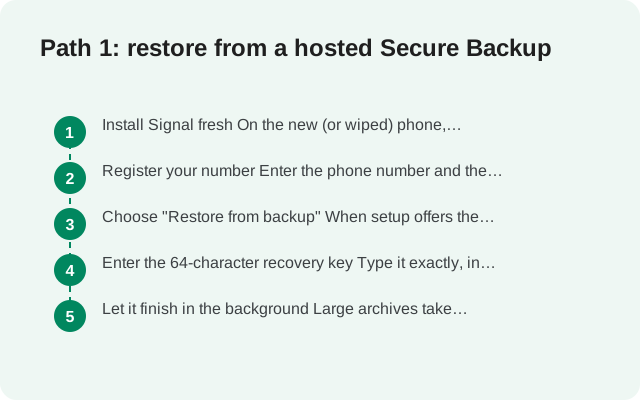
Install Signal fresh on the new or wiped phone
On the new (or wiped) phone, install the official app. If Signal was already installed and set up, uninstall it first. The restore prompt only appears during initial setup.
Register your number
Enter the phone number and the verification code. Enter your Signal PIN when asked; this pulls back your profile, contacts, and groups.
Choose "Restore from backup"
When setup offers the choice, pick the backup restore option. Do not tap "skip". There is no later.
Enter the 64-character recovery key (hosted backup)
Type it exactly, in order. Signal decrypts the archive on your device; the key never leaves the phone.
Let it finish in the background
Large archives take time. Signal finishes setup while the restore continues. Leave the app open and the phone on Wi-Fi until your recent conversations look complete.
Path 2: restore from an on-device backup
Use this when the backup folder lives on this phone's storage, either because you never switched phones or because you copied the folder over manually from the old one (a USB drive or even a NAS works, since the folder is just files you can copy anywhere). A current on-device backup is a folder holding a message archive plus a separate media folder. It is not a single .backup file. If instead you have one file named like signal-2024-03-15-09-30-00.backup, that is the legacy format: it needs the 30-digit passphrase, not the recovery key, and the steps below still apply.
Put the backup folder in place first
Before installing Signal, copy the backup folder onto the phone's internal storage (USB from a computer is the reliable route). Signal only scans for local backups during its first launch.
Install Signal fresh and grant file access
Install the official app and start setup. Grant the storage/file permissions it asks for. Without them it cannot see the backup folder.
Register and choose restore
Verify your number, enter your PIN, and when offered, choose to restore from the local backup instead of skipping.
Enter the 64-character recovery key (on-device backup)
Current on-device backups are unlocked by the 64-character recovery key. Not the 30-digit passphrase. The keys are not interchangeable: the recovery key opens current on-device folders and hosted Secure Backups, while the 30-digit passphrase opens only legacy single-file
.backuparchives. Enter the key exactly as written, in order, and let the restore run.
Troubleshooting failed restores
| "Wrong passphrase" / key rejected | Cause: a digit mistyped, or the wrong key for the backup type: the 64-char recovery key unlocks current backups (hosted Secure Backups and current on-device folders), while the 30-digit passphrase unlocks only legacy single-file .backup archives. Fix: re-enter slowly, in order. Check paper copies for lookalike characters. Confirm which system your backup came from before deciding which key to type. |
|---|---|
| No restore prompt at all | Cause: Signal was already set up (the prompt is first-launch only), or the local backup folder was not in place before install. Fix: uninstall, place the folder, reinstall. Do not skip the prompt this time. |
| Restore starts, then fails or the app crashes | Cause: corrupted backup file (bad copy, interrupted transfer) or a version mismatch. Fix: re-copy the file and verify its size matches the original; update Signal to the latest version on both ends; try the spare copy. |
| Media is missing after restore | Cause: usually the free hosted tier's 45-day media window. Older media was never in the archive. Fix: this is by design, not a bug. The paid tier keeps full media history; see why old media doesn't restore. |
| Messages after a certain date are missing | Cause: the backup is older than you think. Fix: check the backup's date before restoring; if the old phone still works, make a fresh backup first. |
| Registration fails during setup | Cause: wrong number, no access to the verification code, or registration lock without the PIN. Fix: use the exact number the backup belongs to; make sure you can receive the code; have your PIN ready. |
| Disappearing messages didn't restore | Cause: by design. Messages set to disappear within 24 hours are never backed up. Fix: none; this is intentional privacy behavior. |
After the restore: verify, then protect
- Spot-check conversations. Open long threads, group chats, and a few media-heavy conversations. Confirm recent photos and files open correctly, and open your most important contacts' chat info to confirm their safety numbers match what you had before. Re-verify in person any that look changed.
- Re-enable backups. A restore does not automatically turn future backups back on. Go to Settings → Backups and confirm both your plan and the last-backup timestamp.
- Keep the old backup for two weeks. Missing data usually surfaces days later, not minutes. Do not delete the old backup folder or throw away the key until the new setup has proven itself in daily use.
- Confirm the key still works. While you are logged in and everything is healthy, verify your recovery key is stored correctly. This is also the moment to rotate it if it was ever exposed.
FAQ
Can I restore a backup without the old phone?
Yes. With a hosted Secure Backup you only need your number, PIN, and the 64-character recovery key. The old phone is not involved at all.
I skipped the restore prompt. What now?
Uninstall Signal and reinstall it. The restore offer appears during the initial setup only. Make sure everything (backup folder, key, PIN) is ready before you start setup again.
Can I restore an Android backup on an iPhone?
Yes. With a hosted Secure Backup: install Signal on the iPhone, register the same number, and restore with the 64-character recovery key during first setup. Only legacy .backup files (30-digit passphrase) are Android-only; the cross-platform restore guide has the full matrix.
Why does Signal say my passphrase is wrong when I'm sure it's right?
The most common cause is mixing up the two key formats: a 64-character recovery key will never satisfy a 30-digit passphrase prompt, and vice versa. The second most common cause is a single mistyped or misread character. Verify against your written copy, character by character.
Does restoring delete anything on the new phone?
A restore happens on a fresh install, so there is nothing to delete yet. Never restore "on top of" an active Signal hoping to merge. It does not merge; start from a clean install.
Keep reading
- Moving Signal to a new phone: the full switch walkthrough
- Secure Backups explained: the hosted service in detail
- Backup troubleshooting hub: every failure mode in one place
- Lost your key? Read this: the honest limits