
How to install the Signal APK on a Google Pixel
Published: October 7, 2026 · Updated: October 8, 2026
Sideloading Signal on a Pixel is almost embarrassingly simple: stock Android, standard menus, no surprises. The interesting part is not the how but the why: on a Pixel you already have the Play Store, so choosing the website APK from signal.org/android/apk (current website build 8.29.3) is a deliberate decision. This guide helps you make it: Play build vs website build, Play Protect's behavior, and the one rule about mixing builds.
from Signal's official site — file hosted by Signal, not by us. signal.org/android/apk
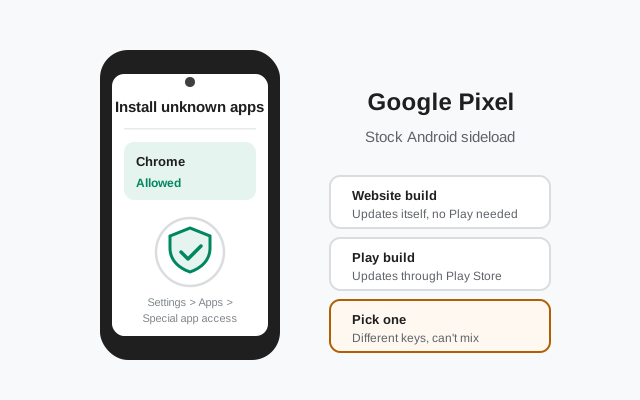
Why sideload on a Pixel at all?
Honest question, honest answers. Pixel owners sideload the website build for a few real reasons:
- A de-Googled Pixel. Pixels are the reference hardware for GrapheneOS and other privacy ROMs. Without Play services, the website APK is the supported install route.
- Play Store problems. Account lockouts, regional restrictions, or a broken Play install: the direct APK sidesteps all of it.
- Self-updating without Google. The website build checks for updates itself. Some owners prefer that independence even with Play available.
- Testing. Developers and the curious sometimes run the website build to compare behavior.
If none of these describe you, the Play Store version is the path of least resistance: same app, same encryption, less work. There is no privacy advantage to the APK itself; the code is identical.
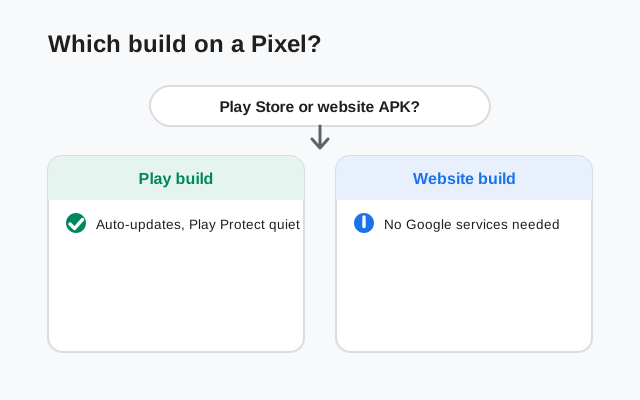
Play build vs website build: decide first
| Play Store build | Website APK build | |
|---|---|---|
| Get it from | Google Play Store | signal.org/android/apk |
| Updates via | Play Store | Self-updating (in-app prompts) |
| Needs Google account | Yes | No |
| Signing key | Play signing key | Signal's website key (different) |
| Can install over the other | No: different keys, Android refuses | |
| The app itself | Identical: same code, same encryption, same features | |
Pick one and commit. Switching later is possible but requires a backup, an uninstall, and a reinstall. Our build-switching checklist covers it.
Sideload steps on stock Android
-
Download the official APK
In Chrome, open signal.org/android/apk and download the file. Current website build: 8.29.3, package
org.thoughtcrime.securesms. Chrome will warn that APKs "can harm your device." That is a generic warning for all APK downloads, addressed below. -
Allow installs from Chrome
Open the downloaded file. Go to Settings → Apps → Special app access → Install unknown apps → Chrome → Allow from this source.
-
Verify the fingerprint
Compare Signal's published SHA-256 fingerprint against the file. How to verify. On a Pixel this is quick.
-
Install and open
Tap Install, then Open. Play Protect will scan it. Expected.
-
Register
Number → SMS code → profile → PIN (details below).
One Play Protect setting worth knowing: "Improve harmful app detection" (Play Store → profile → Play Protect → settings) optionally sends unknown apps to Google for analysis. Leaving it on is fine. It does not block the install, and the genuine Signal APK is a known-good file that passes. Turning it off is also fine. Either way it changes nothing about whether you should install: that decision rests on the fingerprint check, which you already did. Do not confuse "sent to Google for scanning" with "reported as malware." The first is routine telemetry; the second would be a verdict you would see plainly.
Chrome saves APK downloads to the Downloads folder by default. Open the Files app and look there if the browser's open prompt vanishes. And a small tip for the fingerprint check on a Pixel: you can verify without a computer by installing a reputable checksum app, or simply do it on any PC with built-in tools and compare against the fingerprint shown on signal.org/android/apk. Either way, the check takes under two minutes and it is the single step that makes the whole sideload trustworthy.
Play Protect on a Pixel
Pixels run Play Protect front and center, so you will meet it twice:
- Chrome's download warning. "This type of file can harm your device." Generic: Chrome says this about every APK. Keep the file only if it came from signal.org and the fingerprint matches.
- Play Protect's install scan. "Unknown app" / "Play Protect doesn't recognize this app." Also generic for sideloads. After a clean scan you can install. Our Play Protect guide explains what each message actually means.
The key discipline: warnings describe the delivery method, the fingerprint proves the file. Never install an APK that fails the fingerprint check, no matter how reassuring the screens look, and never let a scary-sounding generic warning stop you from installing a file you have verified.
A related Pixel scenario: work profiles. If your Pixel has a work profile (set up by an employer), apps installed in your personal profile are invisible to the work profile and vice versa. Sideload Signal in the profile where you will actually use it. Installing the APK in your personal profile does not make it appear at work. Some work profiles also restrict sideloading entirely via device policy; if the "Install unknown apps" toggle is greyed out with a message about your administrator, that is your employer's policy, and only they can change it. Personal Pixels never have this restriction.
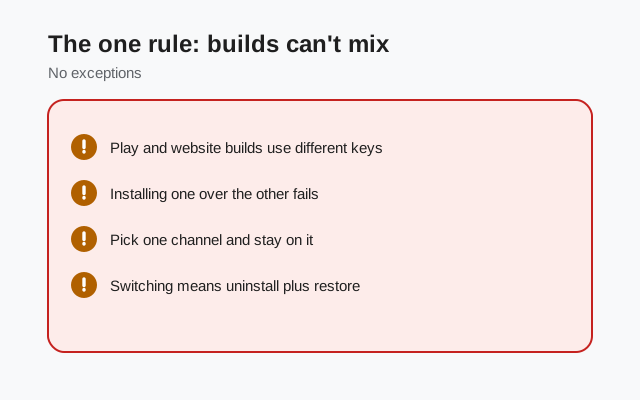
The one rule: the builds can't mix
If Signal from the Play Store is already on your Pixel, the APK will fail with "App not installed." This is Android's signature check doing its job: the two builds carry different signing keys:
- Back up: enable Secure Backups, save the recovery key.
- Uninstall the Play Store version.
- Install the APK, register the same number, restore.
Going the other direction (APK → Play) is the mirror image. Every other cause of install failure is covered in the error guide.
Pixel housekeeping notes: the monthly Pixel Feature Drops update the OS but never touch sideloaded apps. Signal rides through them untouched. If you ever cannot find the downloaded APK, open the Files app → Downloads; Chrome saves it there by default. And if you use Private Space (Android 15+), note that apps hidden there are paused when the space is locked. Do not install your daily Signal inside Private Space unless you understand that locked means no notifications. Keep your messenger in the main profile where it can run normally.
Updates, battery, and notifications
- Updates: the website build prompts you in-app when an update is ready. APK update guide. You can also watch the latest-version page.
- Battery: Settings → Battery → Battery optimization → Signal → Don't optimize. Pixels are well-behaved here; this is belt and suspenders.
- Notifications: allowed by default; confirm at Settings → Apps → Signal → Notifications.
- Registration: number → SMS code (or voice call) → profile → PIN. SMS troubleshooting if the code stalls.
- After setup: first-run guide, security checklist, and install verification.
Frequently asked questions
Is the website APK the ‘real’ Signal on a Pixel?
Yes. It is built and published by Signal Foundation, same code as the Play version. ‘Website build’ only describes where you got it, not what it is.
Will I lose anything by not using the Play Store version?
No features are missing. The differences are delivery (self-updating vs Play updates) and signing key. Message history, calls, and media all work identically.
Can I switch back to the Play Store version later?
Yes: back up, uninstall the APK build, install from the Play Store, restore. Our build-switching checklist walks through it.
Does sideloading void my Pixel warranty or trip any flag?
No. Installing apps from unknown sources is a supported Android feature. It does not void warranties, trip Knox-style flags (Pixels do not have Knox), or affect updates.
Why does my Pixel warn me so much about this file?
Because Pixels surface Play Protect prominently and Chrome warns on all APKs. The warnings are about the method (sideloading), not this file. The fingerprint check is what actually answers ‘is this file genuine?’
Will the APK work on the Pixel Tablet?
Yes. The same APK installs on the Pixel Tablet. Tablets cannot receive the registration SMS themselves, so use the linked-device route with your phone's number. See our tablet install guide for the setup options.
Does sideloading affect carrier features like Fi or Visual Voicemail?
No. Sideloading one app changes nothing about your carrier services, eSIM, or network features. Signal registration uses a standard SMS, which works on any carrier connection including Google Fi.
Next steps: download from the official Signal APK page, compare delivery options in our build flavors guide, and read what sideloading safety really depends on.