
Getting the official Signal APK on your Android tablet
Published: October 7, 2026 · Updated: October 8, 2026
Signal FoundationYes, the official Signal APK works on Android tablets. There is no separate tablet edition to hunt for. You download the exact same file that phone users download, straight from signal.org/android/apk, install it on your tablet, and then choose one of two setups: link the tablet to your phone as a companion device so both share one account, or register the tablet as its own device with a phone number so it gets a separate account. Most people want the first option.
Everything below walks through both paths honestly: what syncs, what doesn't, how notifications behave on tablets, and the small gotchas (like large-screen layout quirks) that nobody warns you about. We are an independent guide, not Signal, and we never host APK files. Every download button on this page goes to Signal's own site.
from Signal's official site — file hosted by Signal, not by us
- One APK, two ways to set it up
- Option 1: link the tablet to your phone
- Option 2: register the tablet as its own device
- Linked vs standalone: which should you pick?
- Notifications on tablets: what people get wrong
- Large-screen layout, calls, and daily use
- Step-by-step: download and install on a tablet
- Common tablet problems and fixes
- Frequently asked questions
One APK, two ways to set it up
Let's clear up the biggest confusion first. Signal does not publish a "tablet version" of its APK. The universal website build (currently v8.29.3, package org.thoughtcrime.securesms) is one file that runs on phones, tablets, and foldables alike. If a site offers you a "Signal tablet APK" as a separate download, that is a red flag. The real publisher never splits it that way. Our mirror warning guide explains why those offers are dangerous.
So the download part is simple: same file, same official page, same fingerprint check. The part that actually needs a decision is the setup. After installing, the app will ask you to either link the tablet to an existing Signal account on your phone, or register fresh with a phone number. These two choices lead to very different results, and picking the wrong one is the most common tablet mistake we see.
Think of it this way. Linking means "this tablet is a second screen for my phone's Signal." Registering means "this tablet is its own Signal user." Neither is wrong, but they answer different needs, and switching between them later means starting the setup over. Read the next two sections, pick deliberately, and you'll save yourself a reinstall.
Option 1: link the tablet to your phone
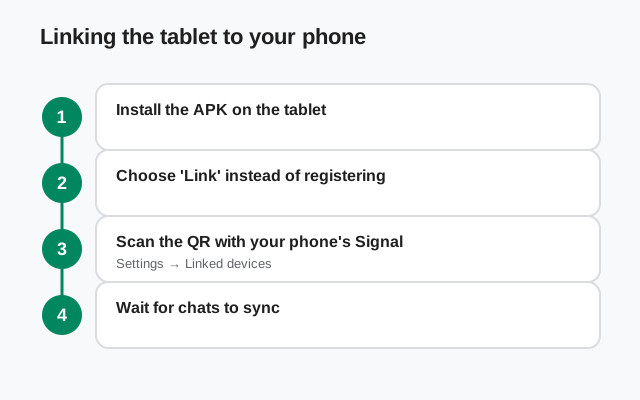
Linked-device mode treats your tablet the way Signal Desktop treats your computer: it attaches to the account that already lives on your phone. Your profile, contacts, and groups appear on the tablet, and messages you send or receive show up on both devices. Your phone stays the primary device. It is the one that holds the full account.
Signal has been rolling out tablet linking over recent releases, so the exact wording on the setup screen may vary. During setup, look for an option like "link as a companion device" (as opposed to registering a new number). If you see it, choose it. The app will show a QR-style linking flow or a pairing code; you confirm on your phone, and the tablet joins your account. If your installed version doesn't offer linking yet, update to the latest website build first. The update guide covers how.
-
Install the official APK on the tablet
Download from signal.org/android/apk on the tablet itself, open the file, and allow the install. Keep your phone nearby. You'll need it in a minute.
-
Choose the linking option on the setup screen
When Signal asks how to set up, pick the companion/link path instead of entering a phone number. This is the choice that keeps one account on both devices.
-
Confirm the link on your phone
Your phone will ask you to approve the new device. Check that the device name and the safety details shown match what you expect, then approve. Never approve a linking request you didn't start yourself.
-
Let the first sync finish
The tablet pulls your contacts, groups, and profile over the next few minutes. Leave both devices on and connected to the internet until it settles. Message history on the newly linked tablet may be limited. Your phone remains the complete archive, so don't delete anything from the phone expecting the tablet to hold it.
Option 2: register the tablet as its own device
Standalone registration gives the tablet its own Signal account, tied to a phone number you provide during setup. That number needs to receive the SMS verification code, so it has to be a real, reachable number: a second SIM, a spare phone, or in some cases a landline that can take a voice call. The tablet then behaves like an independent Signal user: its own profile, its own chats, no connection to your phone's account.
Who is this for? People who want a genuinely separate Signal identity on the tablet: a work account apart from a personal one, a tablet given to a family member, or a household device where each person has their own number. It is also the fallback if linking isn't offered by your app version or your tablet.
The trade-offs are real. You now have two accounts to manage: two sets of contacts to build, two profiles, and contacts will see the tablet's number as a separate person. If someone messages "you" they need to know which number to use. And just like a phone, the standalone tablet is now a primary device. If you lose it without a backup, that account's history is gone. Our transfer guide explains how Signal backups work before you need them.
One more honest note: a phone number can only be the primary number on one Signal account at a time. Registering your existing number on the tablet would move your account off your phone. That is almost never what tablet users want. Use a different number for standalone mode, full stop.
Linked vs standalone: which should you pick?
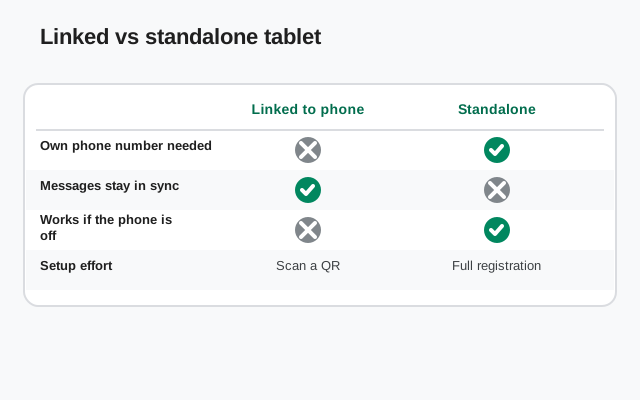
Use this table to decide in thirty seconds:
| Question | Linked (companion) | Standalone (own number) |
|---|---|---|
| How many Signal accounts? | One: shared with your phone | Two: tablet has its own |
| Phone number needed? | No: your phone's number is already registered | Yes: a second reachable number |
| Contacts see… | The same "you" they already know | A new, separate contact |
| Message history | Synced going forward; old history may be limited on the tablet | Starts empty; independent from your phone |
| Best for | Reading and replying on a bigger screen at home | Work/personal split, family members, shared devices |
| If the tablet is lost | Unlink it from your phone; your account is safe | That account is at risk until you re-register the number |
| Switching later | Unlink and re-register: setup starts over | Unregister and link: setup starts over |
If you read that table and thought "I just want my chats on a bigger screen," linked mode is your answer. If you thought "I want the tablet to be its own thing," standalone is. When in doubt, start linked. It's the setup most tablet owners actually use day to day.
Notifications on tablets: what people get wrong
The number one tablet complaint is "I don't get Signal notifications on my tablet." This is rarely a Signal bug. Tablets, especially Samsung, Xiaomi, and Huawei models, ship with aggressive battery management that kills background apps, and a tablet spends most of its life asleep on a table, which makes the problem worse than on a phone.
Fix it the same way phone users do. Open the tablet's battery settings, find Signal, and exempt it from battery optimization (the exact menu name varies: "unrestricted" on stock Android, "never sleeping apps" on Samsung, autostart plus no restrictions on Xiaomi). Grant notification permission when asked, and check that Do Not Disturb schedules on the tablet aren't silently swallowing alerts.
There's a second, subtler issue: on tablets without Google Play services, common on Huawei tablets and some Chinese-market models, push notifications can't arrive through Google's channel. Signal handles this with its own fallback notification path, but it needs the app to stay alive in the background to work. That makes the battery exemption above even more important on those devices. Our Huawei guide goes deeper on Google-free devices.
Finally, set expectations for linked mode. Notifications arrive on both devices, and dismissing on one usually clears the other. But a tablet in deep sleep may still lag a few minutes behind the phone. If instant alerts matter (on-call work, for example), keep the phone as your primary notification device and treat the tablet as a convenience screen.
Large-screen layout, calls, and daily use
Signal adapts to larger screens reasonably well: chats get a two-pane layout with the conversation list beside the open chat, similar to what you'd see on a desktop app. It's not a dedicated tablet interface, but it's comfortable for reading long threads and typing with a keyboard case. Our foldables and large screens guide covers the layout in more detail.
Calls are where tablets genuinely shine. A big screen is great for video calls. The catch is hardware: many tablets have mediocre front cameras and speakers, and some budget tablets have no rear camera worth using. Test a call with a friend before an important one. Also note that some tablets route call audio oddly through Bluetooth; if your earbuds misbehave, try the tablet speaker once to isolate the problem.
Storage is the other daily-use consideration. Tablets often have less free space than people assume, and Signal's media can grow quietly. If your tablet is a 32 GB model, check Signal's storage usage every few months and clear old media you don't need. The website build updates itself automatically when it has room to download. A full storage partition is one of the few things that silently breaks auto-updates.
Step-by-step: download and install on a tablet
This is the same safe procedure as on a phone. Do it on the tablet's own browser so the file lands directly where you need it.
-
Open Signal's official download page
In the tablet's browser, go to signal.org/android/apk. Check the address bar: it must read signal.org, exactly. Lookalike domains are a known scam. Our safety guide shows what to watch for.
-
Download the APK file
Tap the download button and let the file finish. The current website build is v8.29.3; the filename includes the version number. If the download stalls, see our download fix guide before trying sketchy alternatives.
-
Allow installs from your browser
When you open the downloaded file, Android will ask for permission to "install unknown apps" from that browser. Grant it for the browser only. Don't make it a blanket permission for everything. This is normal for sideloading and our unknown-sources guide shows the per-brand steps.
-
Install and verify
Open the APK and install. Before you invest time in setup, compare the app's signing certificate against the SHA-256 fingerprint published on Signal's download page. Our fingerprint guide walks through it. This one check is what separates "I hope this is genuine" from "I know it is."
-
Choose linked or standalone, then finish setup
Follow the linking steps or the standalone registration from the sections above. After setup, send a test message to a contact and confirm it arrives on both devices (linked mode) or from the new number (standalone).
Common tablet problems and fixes
| Problem | Likely cause | Fix |
|---|---|---|
| No notifications when the screen is off | Battery optimization killing Signal in the background | Exempt Signal from battery optimization; enable autostart on Xiaomi/Huawei |
| "App not installed" error | Play Store version already installed, or corrupt download | Back up, uninstall the Play version, reinstall; re-download if the file is corrupt |
| Setup offers no linking option | Outdated app version | Update to the latest website build, then retry setup |
| Video calls look bad | Weak tablet front camera or poor lighting | Use good lighting; consider a Bluetooth headset for audio |
| Tablet can't receive the SMS code (standalone) | Wi-Fi-only tablet with no number attached | Register with a number from a phone that can receive the SMS, then use the tablet |
| Layout looks stretched or cramped | Display size / font scaling set to an extreme | Reset display size to default in the tablet's display settings |
Frequently asked questions
Is there a separate Signal tablet APK?
No. Signal publishes one universal Android APK, and it runs on tablets as-is. Any site offering a special "tablet edition" is not offering anything official. Get the file from signal.org/android/apk instead.
Can I use Signal on a tablet without a phone?
Yes, with standalone registration. But you still need a phone number that can receive the SMS verification code during setup. The tablet itself doesn't need a SIM afterward if it has Wi-Fi.
Will my chats transfer to the tablet?
In linked mode, your contacts, groups, and profile sync, and new messages appear on both devices. Older message history may not fully transfer to the newly linked tablet, so keep your phone as the archive. In standalone mode, the tablet starts with an empty history.
Do voice and video calls work on tablets?
Yes, calls work on tablets with a microphone and speaker, which is nearly all of them. Quality depends on the tablet's hardware. Test before relying on it for important calls.
Does the tablet version update itself?
The website build auto-updates on tablets exactly like on phones, as long as it has storage space and a network connection. You can also update manually by downloading the latest APK from Signal's page.
Related guides
- Download guides hub
- Download Signal APK (official page)
- Signal APK on foldables and large screens
- Linked phones and tablets explained
- Transfer Signal to a new phone