
How to update the Signal APK without the Play Store
Published: October 7, 2026 · Updated: October 8, 2026
Signal FoundationYou do not need the Play Store to update the Signal APK. The website build checks for new releases on its own and offers to install them: you see an update prompt, tap it, and the new version installs over the old one with your chats untouched. This page explains how that self-update works and the manual steps for the rare cases when it stalls.
This guide is about the website build, the APK from signal.org/android/apk. If your Signal came from the Play Store, the Play Store handles your updates and nothing here applies. We are an independent guide, not Signal, and we never host APK files.
from Signal’s official site — file hosted by Signal, not by us.
How the website build updates itself
The website build was made for phones without the Play Store, so depending on Play for updates was never an option. Instead, the app carries its own updater. When you use Signal, it periodically asks Signal's servers whether a newer website build exists. When one does, you get a clear prompt inside the app offering the update.
Tapping the prompt downloads the new APK and hands it to Android's installer, the same installer screen you saw the first time. You confirm once, using the "install unknown apps" permission you already granted. Because the new file carries the same Signal website-build signing key as your installed copy, Android treats it as an update, not a new app: it installs over the old version, and your chats, settings, and linked devices stay exactly as they were. You do not re-register your number and you do not restore from backup.
Two honest caveats. First, detection is automatic but installation needs your tap. The app will not update itself silently in the middle of the night the way Play does; you approve each update. Second, the updater needs the basics to work: an internet connection, enough free storage for the download, and the install permission still granted. Take any of those away and updates stall quietly, which is what the troubleshooting section below is for.
Which update path are you on?
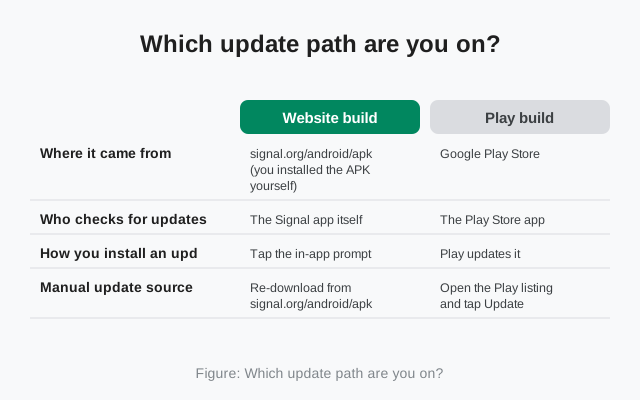
Update instructions depend on which build you have. This table settles it in seconds:
| Website build | Play build | |
|---|---|---|
| Where it came from | signal.org/android/apk (you installed the APK yourself) | Google Play Store |
| Who checks for updates | The Signal app itself | The Play Store app |
| How you install an update | Tap the in-app prompt, confirm the install | Play updates it, usually automatically |
| Manual update source | Re-download from signal.org/android/apk | Open the Play listing and tap Update |
| Do your chats survive an update | Yes, on both builds; updates install over the existing app | |
Not sure which build you have? If you remember downloading an APK file and tapping through an install screen, it is the website build. If Signal simply appeared through the Play Store, it is the Play build. The rest of this page is for the website build.
Manual update, step by step
Manual updating is rarely needed, but it is good to know. Use these steps when the in-app prompt has not appeared and you know a newer version exists, for example after checking the file name on the official page against your installed version:
-
Back up your chats first
Updates preserve your data, but a backup turns a bad day into a minor annoyance. In Signal, open settings and create a backup before you touch anything. This takes a few minutes and is the single most valuable step on this page.
-
Download the current APK from the official page
Open signal.org/android/apk in your phone's browser and download the APK. Do not get it from anywhere else: a "newer version" from a mirror is not an update, it is a risk, as our mirror warning explains.
-
Open the downloaded file
Tap the download notification, or find the file in your browser's downloads or your file manager. Android will show the installer screen for the Signal package.
-
Tap Install (or Update)
Because the file is signed with the same website-build key as your installed copy, Android offers it as an update to the existing app. Confirm. The install takes under a minute on most phones.
-
Open Signal and check the version
Open the app and confirm the version number in settings matches the file you downloaded. Your chats should be exactly where you left them. If anything looks wrong, you have the backup from step one.
That is the whole procedure. Notice what you did not do: you did not uninstall Signal first, you did not re-register, and you did not touch the Play Store.
If an update stalls: causes and fixes
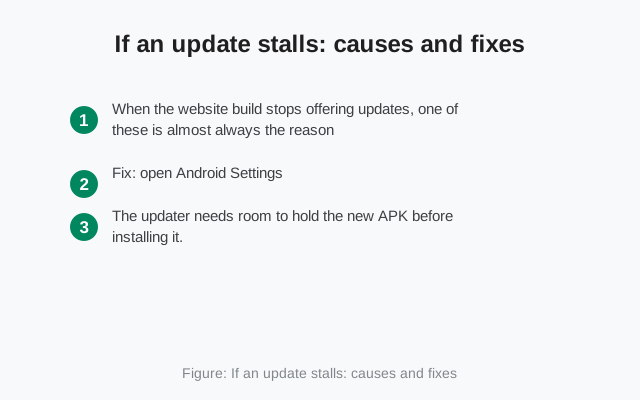
When the website build stops offering updates, one of these is almost always the reason:
The install permission was revoked
Many people grant "install unknown apps" once and later revoke it during a security tidy-up. Without it, the updater can download the new version but cannot install it, and the process dies silently at the last step. Fix: open Android Settings, find the "install unknown apps" (or "install unknown applications") setting, and re-allow it for your browser or for Signal's updater, depending on which app handles the install on your phone.
Not enough free storage
The updater needs room to hold the new APK before installing it. If your phone is nearly full, downloads fail or the install aborts. Fix: free up a few hundred megabytes. Clearing cached data from heavy apps is usually enough; you do not need to delete photos or chats.
Battery optimization is killing the check
On some phones, especially Xiaomi, Oppo, Vivo, and Huawei, aggressive battery savers prevent apps from doing background work, which can include update checks. Fix: in Settings, exempt Signal from battery optimization (usually under Battery, then App battery usage or a similar menu) so it can check on schedule.
No connection when the check ran
The updater needs the internet at the moment it checks. Long offline stretches, metered-data restrictions that block background downloads, or a VPN that interferes with Signal's servers can all break the check. Fix: connect to Wi-Fi, open Signal, and give it a few minutes. If you suspect the network, the manual steps above bypass the problem entirely.
You are actually on the Play build
Sometimes "the APK won't update" turns out to be "this isn't the APK build". If your Signal came from the Play Store, no in-app updater exists because Play owns updates. Fix: open the Play Store listing for Signal and update there. If you want to switch to the website build instead, read our build comparison and back up first: the keys differ, so switching means uninstall and reinstall.
What not to do
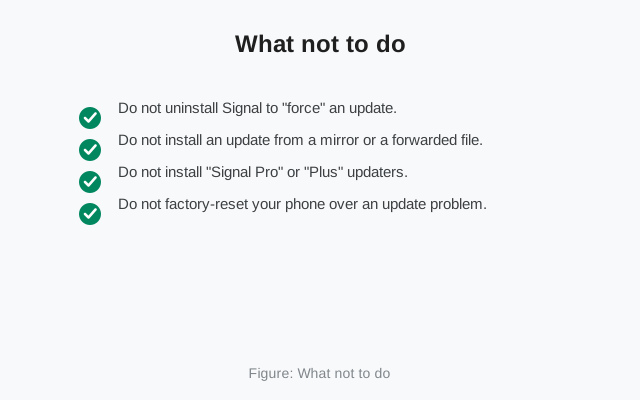
- Do not uninstall Signal to "force" an update. Uninstalling deletes the app and its local data. Without a backup, your message history is gone. Updates never require uninstalling first.
- Do not install an update from a mirror or a forwarded file. The official page and the app's own updater are the only legitimate update sources. See the mirror warning.
- Do not install "Signal Pro" or "Plus" updaters. Those editions do not exist. Anything offering them is malware with good marketing.
- Do not factory-reset your phone over an update problem. Every cause above has a five-minute fix. A reset is never the answer to a stalled update.
If you have tried the fixes and updates still fail, our download page covers fresh-install requirements, and a clean reinstall with a backup in hand resolves the stubborn cases.
Frequently asked questions
Does the Signal APK update automatically without the Play Store?
Partly. The website build detects new releases itself and prompts you, but you tap to approve each install. It is not fully silent like Play Store auto-updates, and that is by design: you stay in control.
Will updating delete my chats?
No. An update installs over the existing app because both versions share the same signing key, so chats, settings, and linked devices are preserved. Still, keep a backup: it is cheap insurance.
How often should I update?
Promptly, whenever the app offers one. Signal's updates routinely include security fixes, and the cost of tapping the prompt is about a minute.
Can I go back to an older version after updating?
Downgrading is not supported and not recommended: old builds miss security fixes, and installing an older build over a newer one can fail or misbehave. Signal's page only offers the current build for this reason.
The app never shows me update prompts. Is something broken?
Not necessarily. Check the install permission, free storage, and battery optimization settings described above, then compare your installed version with the file name on signal.org/android/apk. If they match, there is simply nothing new yet.
Related guides
- Download guides hub
- Download Signal APK (official)
- Latest Signal APK version
- Signal APK file details
- Website build vs Play Store build