
The full lockdown checklist: every setting, in impact order
Published: October 7, 2026 · Updated: October 8, 2026
Signal ships with good defaults, but about a dozen settings take it from "private by default" to genuinely locked down. Most of them sit in the privacy settings, untouched, because nobody told you they exist. This checklist walks you through every one, ordered by impact: hiding your phone number and setting a registration PIN first (the two that protect your identity), then disappearing-message timers, screen lock, and the presence settings that quietly broadcast your habits. Most people finish the whole thing in about fifteen minutes. Each item has the "why" next to the "what," so you can skip what does not fit your life and still know what you skipped.
One honest framing before you start: settings are the second layer of privacy. The first layer is encryption, which Signal handles for you automatically. Your messages are sealed end to end whether you touch a single setting or not. Everything below tightens what surrounds the encryption: who can find you, what your phone reveals, and how much history sits on your device.
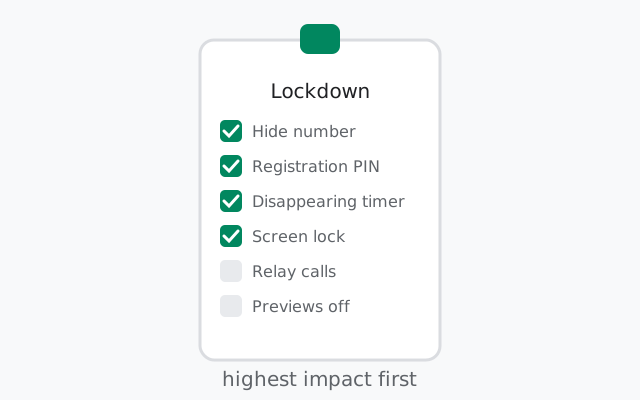
How to use this checklist
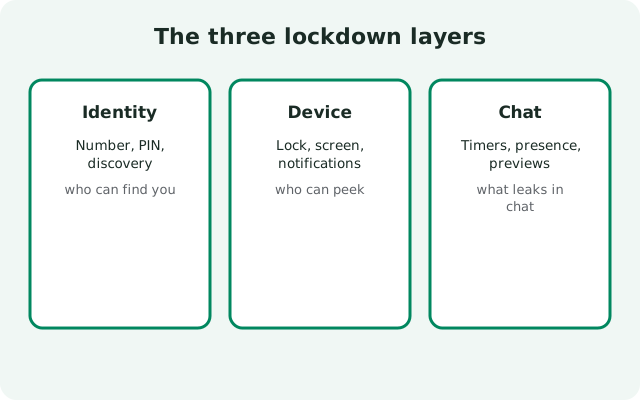
Work top to bottom. The order is deliberate: the first items protect your identity (who can find and impersonate you), the middle ones protect your device (what someone holding your phone can see), and the last ones protect your behavior (what your habits reveal). If you only have five minutes, do the identity section. It is the highest-impact part of the page by far.
A note on menu paths: I am deliberately not giving exact tap-by-tap paths, because Signal renames and reshuffles settings between versions and a memorized path that is wrong is worse than a general direction. For each item I tell you what the setting is called and which area of settings it lives in. Open Signal's settings, go to the privacy area, and look for the label. The labels are plain English and easy to find. One more note on the numbers below: each one is that item's rank in the master table, not the reading order. The page is grouped by layer, the table by impact.
Finally: sealed sender is on this list as the one item that needs no action. It is automatic. It is included so you know what is already protecting you without a toggle, and so you do not waste time hunting for a switch that does not exist.
The master list: every setting by impact
The whole checklist in one table, impact-rated. Details for each item follow below.
| # | Setting | What to do | Impact | Time |
|---|---|---|---|---|
| 1 | Phone number visibility | Hide your number; use a username for new contacts; limit who can find you by number | High | 5 min |
| 2 | Registration lock PIN | Set the PIN that blocks re-registering your number elsewhere | High | 2 min |
| 3 | Default disappearing timer | Set a default timer so new chats auto-expire | High | 1 min |
| 4 | Screen lock | Require your phone's lock (PIN/biometrics) to open Signal | High | 1 min |
| 5 | Screen security | Block Signal's content in the recent-apps switcher and screenshots there | Medium | 1 min |
| 6 | Relay calls | Route calls through Signal's servers to hide your IP from the other party | Medium | 1 min |
| 7 | Typing indicators | Turn off. Stops broadcasting when you are typing | Medium | 1 min |
| 8 | Read receipts | Turn off. Stops the "seen" record of your attention | Medium | 1 min |
| 9 | Link previews | Turn off if you share sensitive links or use monitored networks | Medium | 1 min |
| 10 | Story & profile visibility | Narrow your story audience; review who sees your photo and about text | Medium | 3 min |
| 11 | Safety numbers | Verify with your most important contacts | Medium | 2 min each |
| 12 | Sealed sender | Nothing to do. Automatic; know it is there | Low effort | 0 min |
That is the whole program. Now the "why" for each, in the same order.
Identity first: number, PIN, discovery
- 1. Hide your phone number. Signal registers with a phone number, but since usernames arrived, the number does not have to be your identity. In the privacy settings you can hide your number from everyone, and separately control who is allowed to find you by typing your number. The practical setup: hide the number, create a username, and give new contacts the username. Never the number. The number becomes a login credential, not a public handle. Why this is #1: your phone number is the single most linkable fact about you. It connects your Signal to every database, leak, and directory that has ever seen it. Our hide-your-number guide walks the full setup, and the usernames privacy guide explains the model.
- 2. Set a registration lock PIN. This is the PIN that stops someone else from re-registering your phone number on their device and taking over your Signal account. Without it, anyone who can receive your SMS verification code (a SIM-swap attacker, someone with access to your carrier account) can register as you. With it, they need the PIN too. It is not the same as your phone's screen lock; it is Signal-specific. Why #2: account takeover is the single most damaging thing that can happen to a messenger account, and this one setting is the entire defense. Two minutes, done forever. The full explanation lives in our registration lock guide.
After these two, review who can find you by number: a separate discovery control. Even with the number hidden from profiles, number-based discovery can still let strangers who know your number reach you. Decide whether "anyone with my number can message me" fits your life, or whether you want that door narrower.
Device layer: lock, screen, notifications
- 4. Screen lock. This requires your phone's own unlock (PIN, fingerprint, or face) before Signal opens. Without it, anyone who picks up your unlocked phone opens your chats in one tap. With it, your chats get the same protection as the rest of your phone. Why it matters so much: the unlocked phone in someone else's hands is the threat most privacy setups actually face: the curious partner, the borrowed phone, the phone left on a table. Encryption protects messages in transit; screen lock protects them at rest, on the device, where they live. This is one toggle and it is the highest-impact device setting on the page.
- 5. Screen security. A separate Android option that blanks Signal's content in the recent-apps switcher (the screen you see when you swipe between apps) and blocks screenshots of that switcher view. Without it, your last-opened chat sits visible as a thumbnail every time you switch apps. Anyone glancing at your screen during multitasking can read it. It does not stop screenshots inside chats (nothing can; see our screenshot guide), but it closes the switcher loophole. If you share a device or often show your phone screen to people, this one earns its place. Our shared-device guide covers the full shared-phone setup.
Notifications. Not numbered above because it is a phone-level setting, but do it: set Signal's notifications to hide message content (and ideally sender names) on the lock screen. A locked-down app with chatty notifications is a locked door with the windows open. Anyone glancing at your lock screen reads your messages without unlocking anything. This lives in your phone's notification settings for the Signal app, not inside Signal.
from Signal's official site — file hosted by Signal, not by us
Chat layer: timers, presence, previews
- 3. Default disappearing timer. Set a default timer and every new conversation starts with disappearing messages on. You never have to remember to enable it per chat. Pick a duration that fits your life; shorter is safer, longer is more convenient, and the right answer is the shortest you can live with. Why it is high impact: it shrinks the archive of your life sitting on every device in every chat. Yours and theirs. It does not stop screenshots (nothing does), but it means a stolen phone or a compromised contact's device holds days of history instead of years. Our disappearing-messages limits guide is the honest companion read: what timers do and do not protect.
- 6. Relay calls. Voice and video calls normally connect peer-to-peer, which means the other party's device learns your IP address (and you learn theirs). The relay option routes calls through Signal's servers instead. Slightly lower call quality in some conditions, but neither side sees the other's IP. Why it matters: your IP address roughly locates you, and in a call with a stranger, an employer, or anyone you do not fully trust, that is information you did not mean to share. For calls with people you trust, peer-to-peer is fine. The setting is per your comfort; our call privacy guide goes deeper.
- 7 & 8. Typing indicators and read receipts off. The three dots while you type and the "seen" marks on messages are a live feed of your presence and attention: when you are awake, when you read something, how fast you reply. Both have simple toggles in the privacy settings, and both are mutual: turning yours off hides everyone else's from you too. Why bother: in work chats and tense relationships, the documented record of "read but not replied" starts arguments and leaks your schedule. Most people find the mutual quiet calmer, not just more private. Full reasoning in our typing indicators guide.
- 9. Link previews. When you send a link, your phone fetches the page to build a preview card. That is a real visit from your device to that site's server, before the message even sends. For ordinary links this is harmless; for sensitive links (a secret-URL document, a page you do not want timestamped to your network) it is a real leak. The toggle stops your phone from fetching pages for previews. Keep it on for casual use; turn it off if you handle sensitive links or live on a monitored network. Our link preview privacy guide covers the trade-off.
- 10. Story and profile visibility. Two independent settings people constantly confuse: your story audience (who sees your 24-hour posts) and your profile visibility (who sees your photo, name, and about text). Narrow the story audience to selected people, and separately decide who sees your profile. Changing one does not change the other. Details in our story privacy guide and profile privacy guide.
- 11. Verify safety numbers. With your most important contacts (the five or ten people whose conversations actually matter), verify safety numbers once. This confirms no one is intercepting your encrypted session (a "man in the middle"). It is the only item on this list that involves another human, which is why most people skip it. Do not skip it for the contacts where it counts; a two-minute check, usually by scanning a code in person or reading numbers over a separate trusted channel, buys certainty that encryption alone cannot give you.
- 12. Sealed sender: nothing to do. Included so you know: Signal automatically hides who sent a message from Signal's own servers where both sides support it. There is no toggle to hunt for. It is the quiet metadata protection running underneath everything else on this list. Our sealed sender explainer has the details.
The last step: verify it worked
Settings you cannot see are settings you cannot trust. Do a two-minute audit:
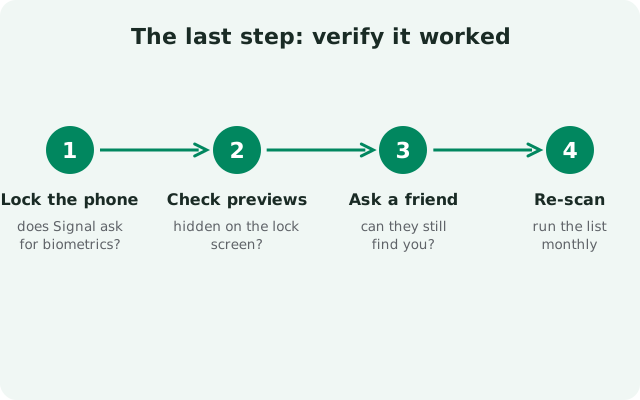
- Ask a friend to check. Have a trusted contact look at what they can see: your profile photo, your number (or lack of it), your story audience. What they see is the truth; what the settings screen implies is a guess.
- Check your own lock screen. Send yourself a message from another device (or ask someone to message you) and look at the notification. If you can read the message content without unlocking, your notifications are not locked down yet.
- Open the recent-apps switcher. With Signal open, swipe to the app switcher. If your chat is readable as a thumbnail, screen security is not on.
- Revisit quarterly. Settings survive app updates, but your life changes: new contacts, new relationships, new devices. Fifteen minutes, four times a year, keeps the lockdown honest.
And the honest closing: this checklist hardens the settings layer. It does not fix the human layer: the contact who screenshots, the unlocked phone you hand to a friend, the backup that copies your chats somewhere weaker. For that, read the honest assessment of Signal's limits and the threat-model guide. Settings are necessary; they were never sufficient.
Frequently asked questions
What are the most important Signal privacy settings?
Hide your phone number (use a username), set a registration lock PIN, enable a default disappearing-message timer, and turn on screen lock. Those four deliver most of the lockdown; the full checklist adds relay calls, presence toggles, and visibility reviews.
Where are Signal's privacy settings?
Open Signal's settings on your phone and look for the privacy section. Setting labels are plain English; exact menu paths change between versions, so look for the setting name rather than a memorized path.
Is sealed sender a setting I need to turn on?
No. Sealed sender is automatic. It hides who sent a message from Signal's own servers where both sides support it. There is no toggle; it is already protecting you.
How often should I review my Signal privacy settings?
A quick quarterly review is enough: check your story audience and profile visibility, confirm screen lock is still on, and re-verify safety numbers with key contacts if anything about your situation changed.
Do these settings stop screenshots?
No. No setting stops a recipient from screenshotting a chat or photographing the screen with another device. Screen security only blanks Signal in the Android recent-apps switcher. Inside chats, the recipient can always capture what they see.
Keep reading
- Hide your phone number: the full settings tour for number hiding
- Registration lock PIN: account-takeover protection, explained
- Disappearing messages — limits: what timers can and cannot do
- Privacy guides hub: every Signal privacy guide in one place