
Screenshot risks on Signal: what you should know
Published: October 7, 2026 Updated: October 8, 2026
Yes. People can screenshot your Signal chats, and Signal will not notify you about it. What Signal can limit: on Android, a screen-security setting blocks screenshots inside the app and hides your chats from the recent-apps switcher; on Windows 11, Signal Desktop blocks screenshots by default. That is the entire extent of it. Neither does anything on the recipient's phone, nothing protects macOS or Linux desktops, and nothing stops a second phone held up to photograph the screen. Disappearing messages delete content on a timer. They are not screenshot-proof either. If a conversation's safety depends on nobody capturing it, Signal cannot guarantee that, and no messenger can.
This guide is the honest version of the screenshot question: what the app technically prevents, what it never could prevent, and how to think about risk when the other person holds a camera. Read it once and no "screenshot-proof messenger" claim will fool you again.
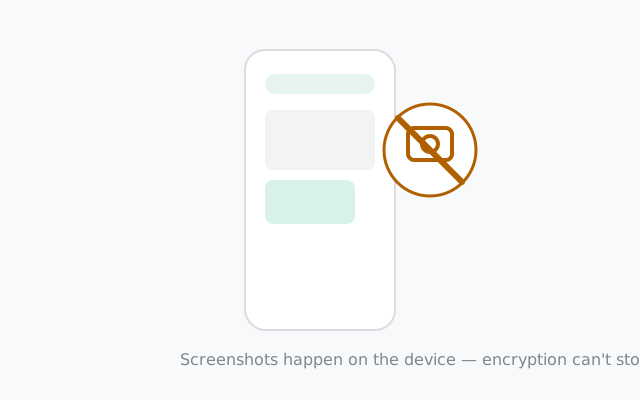
The one-line truth about screenshots
Screenshots happen on the device, not inside Signal's encrypted tunnel. Encryption protects your messages while they travel between phones; it has no say in what the receiving phone's operating system does with pixels once they are displayed. That is why no amount of encryption can produce a screenshot-proof messenger: the OS always lets the device owner capture their own screen, and Signal cannot overrule the OS.
With that understood, here is exactly what Signal does and does not do about screenshots. No myths, no marketing.
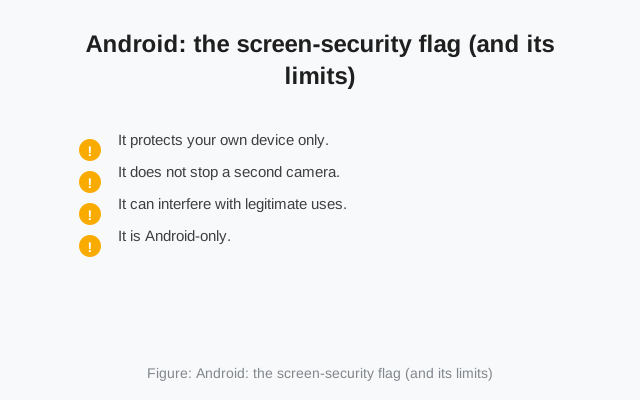
Android: the screen-security flag (and its limits)
On Android, Signal offers a screen security setting. When it is on, Android's screen-security flag blocks screenshots inside Signal on that device. Importantly, it also blocks the app's content from appearing in the recent-apps switcher, so your chats do not show up as a thumbnail when you swipe between apps. That switcher protection is the genuinely useful part: it stops a casual shoulder-surfer from reading your chats in the app carousel.
Now the limits, stated plainly:
- It protects your own device only. Turning it on changes nothing about what the other person's phone can do. If they screenshot the chat, your setting is irrelevant.
- It does not stop a second camera. Another phone photographing your screen bypasses every software flag ever invented.
- It can interfere with legitimate uses. With the flag on, you cannot screenshot your own chats either. No saving a confirmation message, no capturing an address someone sent you. Some people toggle it on and off around that.
- It is Android-only. iPhone users do not get this control at all. iOS handles screenshots its own way and Signal does not add a block there.
Turn it on if you like the switcher protection; just do not mistake it for a guarantee about the other end of the conversation. Our screen security setup guide walks through the toggle and the tradeoff of losing your own screenshots too.
Desktop: Windows 11 blocks screenshots; macOS and Linux do not
Signal Desktop's answer depends on your operating system. On Windows 11, Signal Desktop ships a Screen security setting that is on by default. It uses the same DRM-style protection that stops screenshots of streaming video, so screenshot tools and background capture apps (including Microsoft Recall) get a blank image instead of your chats. You can turn it off in Settings \u2192 Privacy if you genuinely need screenshots, with a warning first.
On macOS and Linux there is no equivalent. Anyone with access to the computer, or with remote access to it, can screenshot, screen-record, or photograph the chat window freely, and Signal will not warn you. No notification is sent to anyone when it happens.
This matters more than people expect, because Desktop chats sit on a bigger screen in shared spaces: offices, internet cafés, family computers. A chat window left open on a work PC is readable by anyone walking past and capturable by the company's own screen-monitoring software. If you use Signal Desktop, lock the computer when you step away. On macOS and Linux the OS lock screen is your entire screenshot protection, not anything inside Signal.
from Signal's official site — file hosted by Signal, not by us
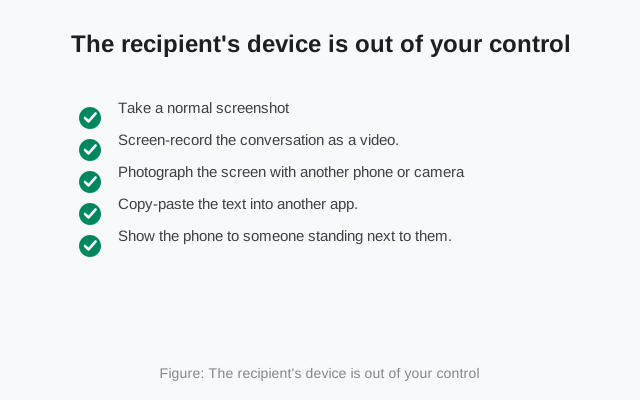
The recipient's device is out of your control
This is the part no setting can fix. Once your message is displayed on someone else's phone, that person can:
- Take a normal screenshot. Signal sends you no notification about it, unlike some other apps.
- Screen-record the conversation as a video.
- Photograph the screen with another phone or camera. Undetectable by any software.
- Copy-paste the text into another app.
- Show the phone to someone standing next to them.
Any guide that implies otherwise is selling comfort, not security. The recipient is a person you chose to talk to; the trust question is about them, not about the app. Signal's job is making sure nobody between you and them can read or capture the messages. At that job it is excellent. What the person on the other end does with their own screen was never in the app's power to decide.
This is ordinary: every messenger works this way, including the ones that do send screenshot notifications. A notification tells you a screenshot happened. It does not unsend it, delete it, or stop the second camera. Notifications are a social signal ("I know you captured that"), not a technical barrier. Signal's choice to skip them is honest about that reality rather than a missing feature.
Disappearing messages aren't screenshot-proof
Disappearing messages are one of Signal's best privacy features and also one of its most misunderstood. They delete messages from both devices after the timer you set. Great for reducing the trail your chats leave behind. But they do not prevent screenshots. A recipient can capture the message any time before it vanishes, and the timer gives them a generous window to do it.
The same applies to view-once media: it is designed to be seen once in the normal flow of the app, not to survive a determined recipient with a second camera. Treat disappearing messages as what they are: automatic cleanup of old content, not as a vault. Our disappearing messages guide covers timers and troubleshooting if yours are misbehaving.
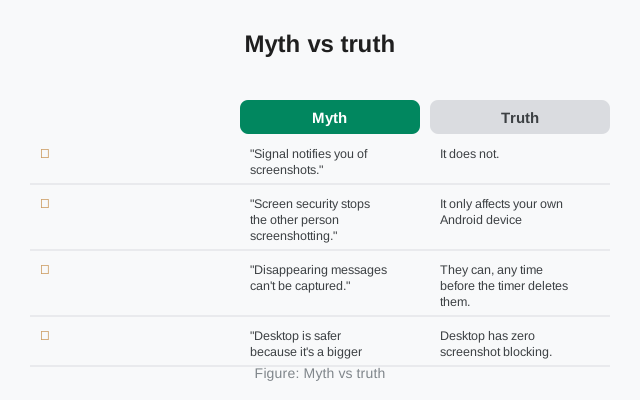
Myth vs truth
| Myth | Truth |
|---|---|
| "Signal notifies you of screenshots." | It does not. There is no screenshot detection or notification on any platform. |
| "Screen security stops the other person screenshotting." | It only affects your own Android device: the app switcher and in-app screenshots there. The recipient is unaffected. |
| "Disappearing messages can't be captured." | They can, any time before the timer deletes them. They are cleanup, not capture-proofing. |
| "Desktop is safer because it's a bigger, private screen." | Only Windows 11 Desktop blocks screenshots, and only while the setting stays on. macOS and Linux have no blocking at all. A work PC with monitoring software captures everything on screen. |
| "Encryption prevents screenshots." | Encryption protects messages in transit. Screenshots happen after decryption, on the device, outside encryption's reach. |
Lowering your real risk
You cannot make screenshots impossible, but you can shrink the damage they do. This is the practical checklist:
- Match the message to the trust. The single most effective screenshot defense is not sending capturable-forever content to people you would not trust with it. Obvious, unpopular, true.
- Use disappearing messages as hygiene. Short timers mean less content sitting on both phones waiting to be captured. Automatic cleanup still beats a permanent archive.
- Turn on Android screen security if you worry about your own device: the app-switcher protection is real and useful against casual exposure.
- Lock your computer. On Desktop, the OS lock screen is the entire defense. Set a short auto-lock and use it.
- Think before forwarding-sensitive chats. Every extra device that has seen a message is another screen it can be captured from.
- Review your linked devices. Each linked computer or tablet is another screen showing your chats. A forgotten old laptop at a relative's house is a screenshot waiting to happen. Check Settings → Linked devices on your phone and unlink anything you no longer control.
- Talk about consent, briefly. In sensitive conversations (journalism, activism, personal matters), a one-line "please don't screenshot this" sets an expectation. It is not enforcement, but social agreements work where software cannot, and violating them has consequences software never will.
Frequently asked questions
Does Signal notify you when someone screenshots?
No. Signal has no screenshot detection or notification on Android, iPhone, or Desktop.
What does Android screen security actually block?
With it on, screenshots are blocked inside Signal on your own device, and your chats don't appear in the recent-apps switcher. It does nothing on the recipient's phone or on Desktop.
Can Signal Desktop block screenshots?
On Windows 11, yes. By default. Signal Desktop's Screen security setting blocks screenshots and background capture tools like Recall; you can disable it in Settings \u2192 Privacy. On macOS and Linux, no. There is no screenshot blocking there.
Do disappearing messages prevent screenshots?
No. They delete messages on a timer, but a recipient can capture the message any time before it disappears.
Can someone photograph my Signal screen with another phone?
Yes, and no software can prevent or detect that. Treat the recipient's trustworthiness as the real variable.
Keep reading
- Disappearing messages guide: timers, troubleshooting, and what they actually do
- What metadata Signal keeps: the honest picture beyond message content
- Is Signal really private?: the full privacy assessment
- Privacy guides hub: every privacy guide in one place