
Installing Signal where it is blocked
Published: October 7, 2026 Updated: October 8, 2026
Signal Foundationfrom Signal's official site — file hosted by Signal, not by us. signal.org/android/apk
In some countries (Iran and Russia are the prominent examples), Signal is blocked at the network level: the app is pulled from local app stores, and connections to Signal's servers are interfered with. The good news is that Signal was built for exactly this situation. The official APK is distributed outside any app store, and the app ships with built-in censorship circumvention plus TLS proxy support.
This guide walks through the full sequence: getting the genuine APK (version 8.29.3, package org.thoughtcrime.securesms) before you need it, installing it normally, switching on circumvention, and setting up a TLS proxy as the stronger fallback. Read it as a checklist, in order. Each step assumes the previous one.
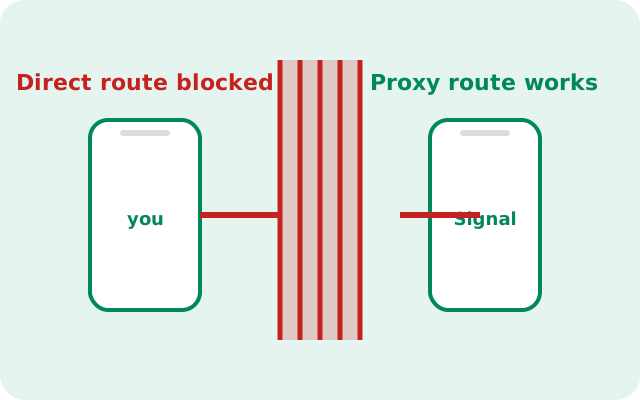
Heads up. Download the APK before you travel to or while you still have unrestricted access. Once you are inside a blocked network, reaching signal.org/android/apk itself may require the circumvention tools this guide describes: a chicken-and-egg problem you avoid by preparing early.
What blocked actually means for Signal
"Blocked" can mean three different things, and it helps to know which one you are dealing with:
- Store removal. Signal is pulled from the local Play Store / App Store, so you cannot install or update it normally. The direct APK from signal.org/android/apk bypasses this completely. No store involved.
- Connection interference. The network blocks or throttles connections to Signal's servers, so even an installed app cannot connect. This is what the censorship-circumvention toggle and TLS proxies address.
- SMS interference. Registration codes fail to arrive because SMS from international short codes is filtered. There are workarounds (covered below), but this is the hardest of the three.
Signal's circumvention features exist because the developers expect this fight. The app does not phone home to a blocklist or give up when the direct connection fails. It has alternate routes built in. Your job is simply to switch them on, which the steps below cover.
Step 1: get the APK before you need it
The single most important step happens before anything else: get a genuine copy of the APK while you have clean internet access. If you wait until you are inside the blocked network, you may find the download page itself unreachable or, worse, be tempted by a mirror site serving a tampered file.
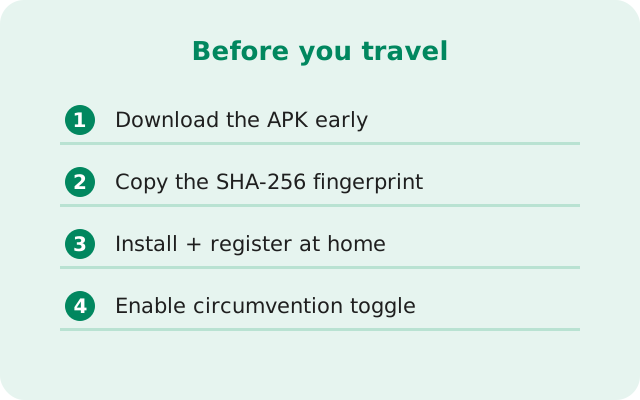
The checklist:
- Download from the official page. signal.org/android/apk: on unrestricted Wi-Fi, before you travel.
- Verify the SHA-256 fingerprint. Compare the fingerprint printed on that page with your download's signing certificate. Our verification guide shows how. In a blocked region, a tampered messenger is not just an annoyance. It is a safety risk.
- Keep a spare copy. Save the APK on the phone, on a laptop, on a USB stick. If the installed app ever needs reinstalling and the network is hostile, the spare copy is gold. You can also share the APK phone-to-phone with trusted contacts.
- Optionally download on a computer and transfer. If the phone's connection is already restricted, transfer the APK from a PC over USB. No network needed on the phone at all.
Do not install the APK from any "Signal download" site, Telegram channel, or forwarded file unless you have verified its fingerprint character by character. The official page is the only source you can trust blindly.
Step 2: install it like normal
Installation in a blocked region is the same as anywhere else. The network block affects Signal's servers, not Android's installer:
Allow the install
Open the APK file and allow your browser (or file manager) under Settings → Apps → Special app access → Install unknown apps. Allow only the app you are installing from.
Install
Tap Install. If you have a Play Store version of Signal installed, the APK will refuse to install over it (different signing keys). migrate with a backup instead.
Do not register yet
Open Signal but pause before entering your number. Read the next two sections first, because you want circumvention switched on before the app tries (and fails) to reach the servers. Actually, the circumvention toggle lives inside the app's settings, which you can only reach after the initial setup screens. So proceed through setup, and the moment you are in, enable it before relying on the connection.
Step 3: switch on censorship circumvention
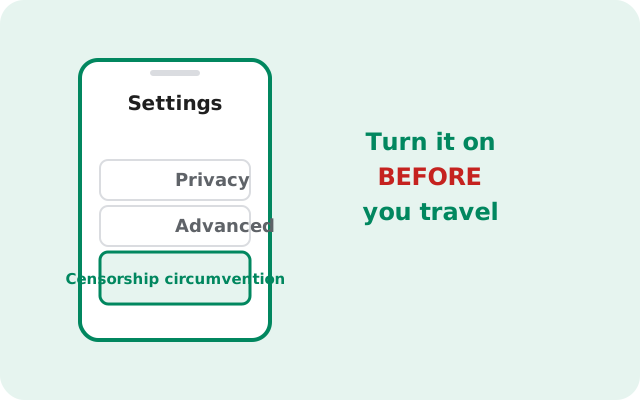
Signal ships with a censorship circumvention setting designed for exactly this situation. When enabled, the app routes its connection through alternate infrastructure that is harder to block than the direct endpoints.
To switch it on: open Signal → Settings → Privacy → Advanced → enable Censorship circumvention. (Menu paths can shift slightly between versions; look under Privacy → Advanced if it moved.)
What it does in practice: instead of connecting to Signal's well-known servers directly (the addresses a censor blocks first), the app uses domain-fronted and alternate routes that blend in with ordinary encrypted web traffic. For many users in Iran and Russia, this single toggle is enough to restore a working connection with no proxy needed.
Leave it on permanently while you are in the region. It costs nothing when the network is clean, and it is already in position when interference starts. If the toggle alone does not restore connectivity, move to the TLS proxy in the next section. The two can be used together.
Step 4: the TLS proxy option
If circumvention alone is not enough, the stronger tool is a TLS proxy: a relay server that forwards your Signal traffic inside ordinary TLS-encrypted web traffic. To a network observer, it looks like you are browsing a normal HTTPS website; inside, it is your Signal connection.
How to set it up:
- Get a proxy address from someone you trust. TLS proxies are run by volunteers and organizations; proxy addresses circulate through trusted contacts and public lists. Treat a proxy address like a password. A proxy run by an adversary can see metadata (who connects, when), though not message contents, which stay end-to-end encrypted.
- Enter it in Signal. Settings → Privacy → Advanced → Proxy → enable "Use proxy" and enter the address (host and port).
- Test it. Send a message to a contact and confirm delivery. If it connects, you are done. Keep the censorship-circumvention toggle on as well. Layered defenses beat single ones.
Proxies can go down or get blocked themselves, so keep two or three addresses handy and know how to switch. And remember the limit of what a proxy protects: it hides that you are using Signal from the local network and restores connectivity. Your messages remain end-to-end encrypted regardless. No proxy operator can read them.
Heads up. Never enter a proxy address from an untrusted forward or a random channel without considering who runs it. A malicious proxy cannot read your messages, but it learns your IP, your usage times, and your contact graph metadata. Get proxies from people or organizations you trust.
Blocked regions: what users report
Field notes from users in affected regions: the patterns that come up repeatedly:
- Install before you need it. Nearly every "I can't get Signal working" story starts with trying to download the app after arriving. The APK-in-advance rule avoids most pain.
- Circumvention toggle first, proxy second. Most users report the built-in toggle suffices; the proxy is the backup for heavier interference.
- Updates keep working. The website build updates itself through the same circumvention routes. You do not need the Play Store for updates (more below).
- Calls are the most sensitive. Messaging usually recovers first; voice/video calls need more bandwidth and more stable routes, so they are the first thing to degrade under heavy throttling. If calls fail but messages work, that is the network, not your setup.
- Keep the app updated. Circumvention techniques evolve as censors adapt. Each Signal release can include improved routes. An old build may stop circumventing effectively while a current one works.
When the SMS code never arrives
Registration needs a phone number that can receive an SMS code. In some blocked regions, international SMS is filtered. If the code never arrives:
- Wait and retry. Codes can be delayed by filtering; Signal lets you request a new code after a cooldown. Do not hammer the resend button. Too many attempts can temporarily rate-limit the number.
- Use the voice-call option. Signal offers to deliver the code by automated voice call instead of SMS. Voice calls often get through where SMS filtering is aggressive.
- Register before you travel. The cleanest solution: install and register Signal on unrestricted internet before entering the region. Once registered, the account works. Only the connection needs circumvention, not the registration.
- A foreign number works too. If you have a number from another country (a second SIM, a travel eSIM), register with that. The number is just an identifier; it does not need to match your location. See dual-SIM notes and SIM-less options.
What does not work: registering with a fake or VoIP number from a sketchy "free SMS" site. Signal blocks most VoIP ranges for registration, and those numbers are a security risk anyway. Whoever controls the number can hijack the account.
Will updates still work?
Yes: this is one of the website build's quiet advantages in blocked regions. It checks Signal's servers for updates itself and installs them through the same routes as your messages, circumvention included. You never need a store.
Two things matter here:
- Keep circumvention on. The updater uses the app's connection settings, so with the toggle (and proxy, if needed) enabled, updates flow.
- Do not let the build go stale. As noted above, circumvention improves with releases. If updates are failing, check manually: the current website build is 8.29.3. Compare with your installed version and update via our update guide if you have fallen behind.
If the in-app updater cannot reach the network at all, the manual fallback is the same as step 1: get the new APK through whatever channel still works (a trusted contact, a computer transfer) and install it over the existing app. Same signing key, so it updates in place without losing data.
Is using Signal where it is blocked legal?
That depends on the country, and it can change. Signal itself is legal software, but some governments restrict or ban encrypted messaging apps, and the penalties differ by place. We are not lawyers and this is not legal advice: if you are unsure, look up the local law yourself and weigh the risk before you connect. The technical steps on this page work regardless; the decision to use them is yours.
Should I just use a VPN instead?
A VPN is a reasonable alternative, and many people in restricted regions use one. The trade-off is scope: a VPN routes all of your phones traffic through the VPN provider, which can then see your connection metadata. Signals built-in circumvention and TLS proxy only carry Signals own traffic, and your message contents stay end-to-end encrypted either way. Signals own guidance is to try the built-in circumvention toggle first, since it is designed for exactly this situation and needs no third party. If you do use a VPN, choose one you trust as carefully as you would a proxy.
Frequently asked questions
Can I use Signal in Iran or Russia?
Yes. Install the official APK from signal.org/android/apk (download it before you travel), then enable censorship circumvention in Settings → Privacy → Advanced. If that isn't enough, add a TLS proxy from a trusted source.
What is Signals censorship circumvention setting?
A built-in option (Settings → Privacy → Advanced) that routes Signal's connection through alternate infrastructure designed to resist network blocking. It's the first thing to switch on in a restricted region.
What is a Signal TLS proxy and is it safe?
A relay that carries your Signal traffic inside ordinary-looking HTTPS. Message contents stay end-to-end encrypted. The proxy operator can't read them, but it can see connection metadata, so only use proxies from sources you trust.
What if the SMS verification code never arrives?
Try the voice-call code option, register before entering the region, or use a foreign number. Don't use free SMS-site numbers. Signal blocks most VoIP ranges and they're insecure.