
Move from the Play build to the website build
Published: October 7, 2026 · Updated: October 8, 2026
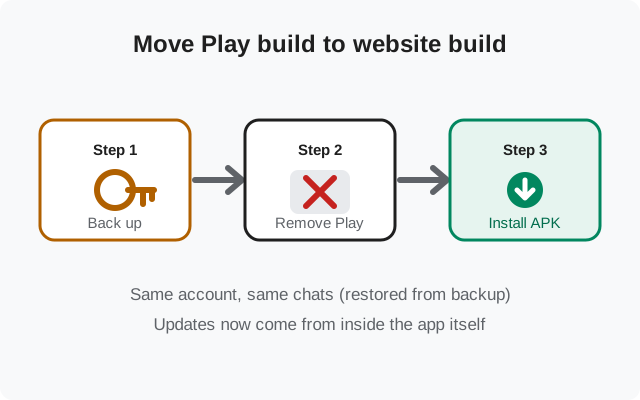
Maybe your phone lost the Play Store. Maybe you de-Googled. Maybe you just prefer updates that don't route through Google. Whatever the reason, moving Signal from the Play Store build to the website APK build is a well-trodden path. It requires an uninstall in the middle, because the two builds are signed with different keys and can't install over each other. Follow these four steps in order and your chats come with you.
Why people make this switch
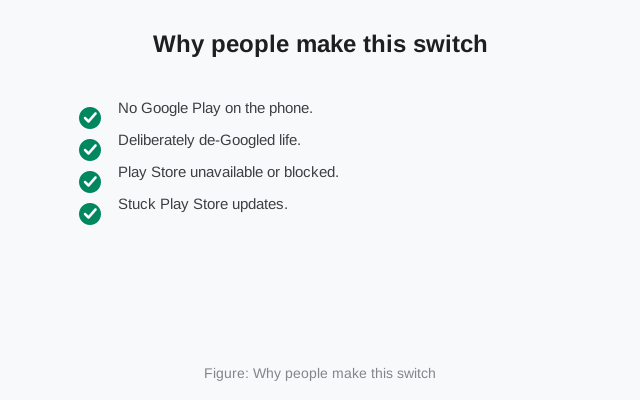
- No Play Store on the phone. Huawei phones, GrapheneOS, LineageOS without GApps, Fire devices: the Play build was never an option there.
- De-Googling in progress. People removing Google services from their phone move their apps off Play one by one; Signal's website build is designed for exactly this.
- Update independence. The website build checks for and installs its own updates directly from Signal, with no Google account or Play Store involved.
- One APK for many devices. Download once from signal.org/android/apk, install on every phone you manage.
What you're not getting: different features. Both builds run the same Signal code. This switch is about distribution channel, not about the app itself.
Before you start: the non-negotiables
- Your phone number must still be active. You'll re-register it on the new build and receive an SMS code. Migrating with a dead number mid-process strands you.
- An encrypted backup with its recovery key. This is the whole migration in one file. Without the backup, the uninstall step wipes your history permanently.
- The APK downloaded from signal.org. Get signal.org/android/apk on the phone (or a computer) before you uninstall anything. You don't want to be hunting for the file with no Signal on the phone.
- Your Signal PIN. You'll need it during re-registration. If you've forgotten it, sort that out in the current app first.
- Charged phone, stable connection. The restore downloads your profile and re-syncs; don't do this on 5% battery in a dead zone.
- Free storage. You briefly need room for the old app, the backup file, and the new install at the same time. If the phone is nearly full, clear space first. A migration that runs out of disk halfway is how restores fail.
- Know your Google account state (if any). The migration doesn't need Google at all, but if your contacts are synced through Google, they'll simply reappear. Nothing about the switch touches your Google account.
Step 1: back up with the recovery key
Create the backup
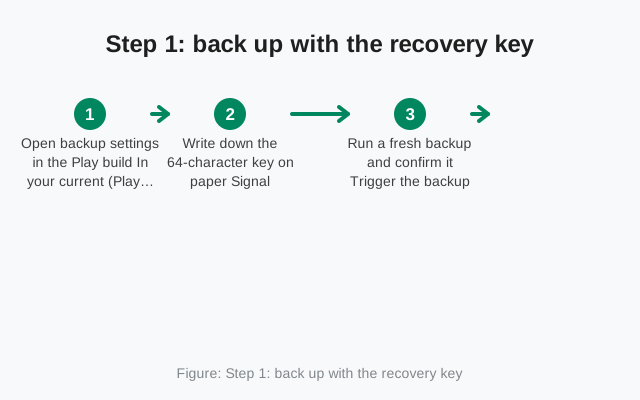
In Signal: Settings → Chats → Chat backups → Turn on. Signal creates an encrypted backup file on your phone.
Save the recovery key
Signal shows a long recovery key. Write it down on paper or save it in your password manager. This key is the only way to open the backup. Screenshots in your gallery are better than nothing, but paper or a password manager is better than a screenshot.
Confirm the backup is fresh
Check the backup's date and time in the same screen. It should say just now. An old backup restores old chats.
Where does the backup file live? Signal shows the location on the Chat backups screen. Confirm it with your file manager before going further. For extra safety, copy the backup file to a computer or cloud storage you control. The migration only needs the file on the phone, but a second copy means a failed restore is an inconvenience instead of a disaster. (Signal's backups are encrypted with your recovery key, so the copy is useless to anyone without it.)
Our backup checklist covers edge cases like moving the backup file somewhere safe before the uninstall.
Step 2: uninstall the Play Store version
Long-press the Signal icon → Uninstall, or Settings → Apps → Signal → Uninstall. Confirm. Your account itself is untouched. Registration lives on Signal's servers tied to your number, and your history lives in the backup file.
Step 3: install the website build
Open the APK you downloaded
From your browser's downloads or your file manager. The sideloading walkthrough covers this tap by tap.
Allow the install permission
Approve "Install unknown apps" for whichever app holds the file (per-brand paths).
Install and open
Confirm the installer screen says Signal, tap Install, then Open. Because the Play version is fully gone, there's no signature conflict.
If the installer still says "App not installed" at this point, the Play version wasn't fully removed: check for a disabled copy, a work-profile copy, or a second user profile holding it (the conflict guide covers the hiding spots). The website build installs cleanly the moment no trace of the Play build remains.
Step 4: restore and verify
Register the same number
Enter your phone number, receive the SMS code, enter it. Enter your Signal PIN when asked.
Restore from backup
Signal detects the backup file and offers to restore. Accept, and enter your recovery key when prompted. The restore takes a few minutes on large histories.
If the restore prompt doesn't appear, don't register and start chatting. Stop. The fresh install couldn't find the backup file, usually because scoped storage put it somewhere unexpected. Go back with a file manager, locate the backup, move it where the new install expects it (the same relative location the old install used), then reinstall once more. Registering first and restoring "later" isn't an option. The restore only happens at first launch.
Verify
Check: recent conversations present, group memberships intact, profile name and photo correct, linked devices still listed (Settings → Linked devices). Send a test message. Our post-install verification checklist runs through all of this.
Two things that sometimes surprise people after a restore: disappearing-message timers are per-conversation settings and come back with the backup, but double-check your most sensitive chats; and group avatars and names re-sync from the server, which can take a few minutes on large groups. Don't panic if a group looks bare for a bit. If a conversation is genuinely missing after an hour on Wi-Fi, restore once more from the backup before assuming it's gone. The first restore occasionally skips media on slow connections.
Then re-verify notifications: send yourself a message from a linked desktop or ask a contact to message you, with the phone screen off. If nothing arrives, the battery-optimization exemption didn't carry over (it never does across an uninstall). Re-apply it in Settings → Battery → Battery optimization → Signal → Don't optimize, plus your maker's own background-app whitelist.
Finally, give the new build a day before judging it. Right after a migration, Android is still learning the app's usage patterns, and the first few hours of battery and notification behavior aren't representative. If messages are instant on day two, the migration is done. The day-one jitters were just the OS calibrating.
Housekeeping for the week after: keep the old backup file, keep the recovery key written down, and don't delete the downloaded APK yet. If anything feels off (a missing chat, a linked device that won't reconnect), you want all three within reach. After a calm week, clean them up.
What changes vs. what stays the same
| Stays the same | Changes |
|---|---|
| Your account, number, PIN, and contacts | Updates now come from Signal directly, not the Play Store |
| Your chat history (via the backup restore) | The app's signing key (invisible to you, but it's why the uninstall was required) |
| Groups, profile, settings | No more Play Store listing page for Signal. Check your version inside the app instead |
| Message security: same Signal protocol | You can turn off the browser's install permission; updates don't need it |
One thing that does not change and confuses people: your contacts still see the same you. The switch is invisible to everyone you talk to: same number, same profile, same safety numbers. Nobody needs to re-verify you, and your groups don't get a "changed devices" notice for a build switch the way they might for a genuinely new phone.
If you want to go back to the Play build
The reverse trip works exactly the same way: back up, uninstall the website build, install from the Play Store, restore. The signature rule cuts both directions. The full reverse procedure is written up in our website-to-Play migration guide. The build-switching backup guide covers the backup side in depth.
from Signal's official site — file hosted by Signal, not by us.