
Install Signal on Android 14 the right way
Published: October 7, 2026
Signal Foundationfrom Signal's official site — file hosted by Signal, not by us. signal.org/android/apk
Android 14 tightened the screws on background work and refined photo access, but for Signal the story is mostly continuity: the website build (version 8.29.3, package org.thoughtcrime.securesms) installs on 14 exactly like it does on 13, and every feature works. The differences are in the details: which photo-access option to pick, how call notifications behave, and one battery setting that matters more than ever.
This guide assumes you are sideloading because the Play Store is unavailable or unwanted. If Signal is already installed from the Play Store, read our APK vs Play conflict guide first. The two builds are signed with different keys and Android will not let one replace the other.
One Android 14 quirk to know up front: sideloaded apps face restricted settings: the system blocks granting accessibility services and notification-listener access to apps installed outside a store. Signal needs neither, so this does not affect a normal install. It only matters if some third-party "Signal booster" app asks for accessibility access. Deny it and delete the app.
Install steps on Android 14
Download from Signal's page
Open signal.org/android/apk and download the APK. Check the file name ends in
.apk. If you want proof it is genuine, compare the SHA-256 signing fingerprint on that page with your download. Our verification guide walks through it.Allow the install
Open the file and, when prompted, go to Settings → Apps → Special app access → Install unknown apps and allow it for your browser only. Android 14 keeps this strictly per-app. Do not enable it globally.
Install and launch
Tap Install, then Open. Read the permission prompts as they come. The notification permission prompt is the one people dismiss too fast (next section).
Register and restore
Enter your number, enter the SMS code, restore your backup when offered. The full sequence is in our first-run setup guide.
Photo access: choose "select photos"
Android 14 kept 13's partial photo access and polished the flow. When you send a photo from Signal's gallery picker and the app asks for access, you get the choice that matters: "Select photos and videos". Pick it, choose the specific files, and Signal sees only those.
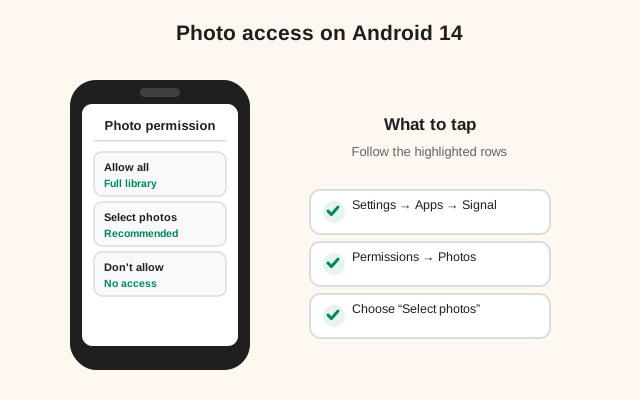
Why this is the right default for a messenger: your camera roll is one of the most sensitive datasets on your phone: IDs, documents, kids' photos. "Allow all" hands every one of those to the app permanently. "Select photos" hands over exactly what you chose, for that session. The privacy gain costs you one extra tap.
Managing it later: Settings → Apps → Signal → Photos and videos. You can switch between full and partial access, or update your selection. Note that media you already sent stays sent. Changing the permission does not unsend anything, it only controls future access.
Separate from this is the camera permission (taking photos inside Signal) and media notifications. Our permissions guide maps every permission Signal asks for and which ones you can safely deny.
Notification permission at first run
Like Android 13, Android 14 requires apps to request notification permission at runtime. Signal asks on first launch. Tap Allow. This single prompt controls message notifications, incoming-call ringing, and failure alerts.
If you denied it by reflex, fix it at Settings → Apps → Signal → Notifications → All Signal notifications on. Then check the individual channels below it: Signal separates message notifications from call notifications, and it is possible to have one on and the other silenced.
Android 14 added one more wrinkle worth knowing: full-screen intent permissions are now gated. Incoming Signal calls can show as full-screen incoming-call screens. If calls only appear as quiet heads-up banners instead of the full ringing screen, check Settings → Apps → Special app access → Full-screen notifications (wording varies by skin) and make sure Signal is allowed. On most phones this is granted sensibly by default, but some aggressive skins turn it off.
Call behavior on Android 14
Calls on Android 14 behave the way you expect, with two details worth knowing. First, the mic/camera indicators from Android 12 are still there. The green dot during a call is normal, and the quick-settings chip lets you see exactly which app holds the microphone.
Second, Android 14 is stricter about apps starting activities from the background. In practice this means an incoming call must come through the notification system rather than the app launching itself, which is exactly how Signal does it. If incoming calls are not ringing, the problem is the notification permission or battery optimization, not the call system itself.
Bluetooth headsets, wired headsets, and speakerphone all work as normal. These are handled by Android's audio routing, not by anything Signal-specific. If the other side cannot hear you, check the quick-settings mic toggle (Android 12+) before blaming the app: a surprising number of "Signal call bug" reports are the system-wide microphone toggle sitting off.
Screen sharing during calls is available in the Android app on recent versions. Both sides need a current build. It is handy for walking someone through a phone problem without a separate screen-sharing app.
Battery: keep Signal unrestricted
Android 14 continues the trend of stricter background execution, so exempting Signal is non-negotiable if you want real-time messages. Settings → Apps → Signal → Battery → Unrestricted.
The tell-tale symptom has not changed across versions: messages arrive the moment you open the app, never before. That is the OS dozing Signal's connection. Twenty seconds in settings fixes it permanently.
Skin-specific checks on Android 14:
- Samsung (One UI 6): Settings → Battery → Background usage limits: keep Signal out of sleeping/deep-sleeping lists.
- Xiaomi (HyperOS): Autostart enabled for Signal; battery saver set to "No restrictions."
- OnePlus/Oppo (OxygenOS/ColorOS 14): App info → Battery usage → allow background activity.
- Pixel: stock Unrestricted is enough.
Verify with the lock-screen test: lock the phone, message yourself from another device, and confirm it arrives within seconds. Still slow? Our battery troubleshooting guide covers the rest.
Smaller notes: PIN privacy, big fonts
Signal PIN privacy
Your Signal PIN is not a login password. It protects your account recovery data (profile, settings, contacts) stored encrypted on Signal's servers, and it enables registration lock. On Android 14 nothing about the PIN flow changed, but it is worth setting a PIN you will remember and storing it in a password manager. If you forget it, recovery is deliberately slow. That is the security design, not a bug.
Big fonts and display size
Android 14 expanded font scaling up to 200%, and Signal respects the system text size. If you have cranked the font up and Signal's chat bubbles look cramped, that is the app following your system setting. Reduce it slightly under Settings → Display → Font size if the layout bothers you. The app itself does not have an independent text-size control; it follows the OS.
Per-app language still applies
The Android 13 per-app language setting (Settings → System → Languages → App languages → Signal) works the same on 14. Useful if your phone is in one language and you want Signal's menus in another.
Updates and the signing-key warning
The website build updates itself. No Play Store needed. It checks for new versions and prompts you to install them; the current build is 8.29.3. Approve the unknown-source confirmation during updates; that is normal for sideloaded apps.
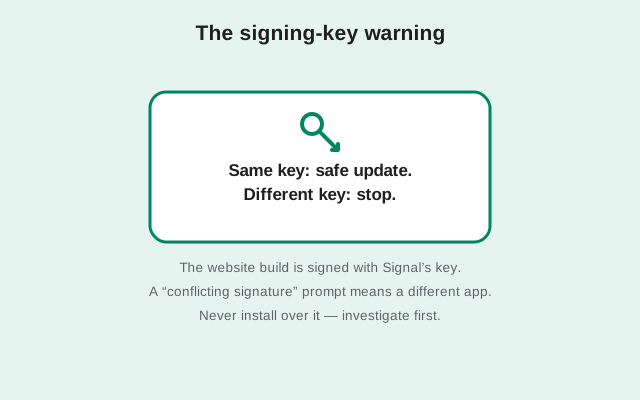
The signing-key warning: if an update fails with "App not installed" or a conflicting-signature error, a differently-signed build tried to replace yours. Never force it, never "fix" it with a mirror APK. Uninstall, re-download from signal.org/android/apk, and restore from backup. Our auto-update guide and version check guide cover the details.
Heads up. A signature conflict is Android protecting you. The only safe source for the replacement file is Signal's own download page.
Is Android 14 still supported?
Yes. Android 14 is fully supported, and it is squarely in the middle of Signal's support window. Every current feature works: registration, calls, stories, usernames, the refined photo-access flow, per-app language.
Comparing with the neighbors: our Android 13 guide covers the notification-permission introduction, and the Android 15 guide covers what is next. For Signal specifically, 13→14→15 is an evolution, not a break. The install steps are essentially identical, and the differences are all in permission and battery details.
Frequently asked questions
Does the Signal APK install normally on Android 14?
Yes. Download from signal.org/android/apk, allow your browser under Settings → Apps → Special app access → Install unknown apps, and install. Signal needs no accessibility or notification-listener permissions, so Android 14's restricted-settings rules don't affect it.
Which photo access should I choose for Signal on Android 14?
Choose "Select photos and videos" (partial access). Signal then sees only the files you pick. You can change it anytime at Settings → Apps → Signal → Photos and videos.
Incoming calls don't show full-screen on Android 14. Why?
Check that Signal has notification permission and, on some skins, the full-screen notification privilege (Settings → Apps → Special app access). Also confirm battery usage is set to Unrestricted so the call signal isn't dozed.
Can I install the website APK over the Play Store version on Android 14?
No. Different signing keys mean Android blocks it on every version. Back up, uninstall the Play version, then install the APK. See our migration guide.