
Install Signal on Android 13 the right way
Published: October 7, 2026
Signal Foundationfrom Signal's official site — file hosted by Signal, not by us. signal.org/android/apk
Android 13 is where the permission model got serious about notifications: for the first time, apps have to ask before they can buzz you. It also brought per-app language settings and a photo picker that lets you share two photos without handing over your whole gallery. All of it touches Signal directly, so this guide is built around those changes.
The install itself is the familiar sideload flow for Signal's website build (version 8.29.3, package org.thoughtcrime.securesms): download from signal.org/android/apk, allow the install, register. What is new is everything around the first launch. That is what most of this page covers. If you are switching from the Play build, start with our APK vs Play conflict guide so you do not hit the signature wall.
Quick reminder of the one hard rule: the website build and the Play Store build are signed with different keys, so one cannot be installed over the other. Decide which build you want, back up if you are switching, and then follow the steps below.
Install steps on Android 13
Download from Signal's own page
Open signal.org/android/apk in your browser and tap download. Verify the file name ends in
.apkand, if you want to be thorough, compare its SHA-256 signing fingerprint with the one printed on that page. Our verification guide shows how.Allow the install
Open the file; Android 13 will route you to Settings → Apps → Special app access → Install unknown apps. Enable it for your browser only. This is a per-app permission now, not a global switch, which is exactly how it should be.
Install and open
Tap Install, then Open. The very first thing you will see is covered in the next section. Do not dismiss it without reading.
Register and restore
Enter your phone number, enter the SMS code, and restore from a backup when offered. Full walkthrough: first-run setup.
The new notification permission
This is the big Android 13 change, and it is also the number one cause of "Signal is installed but never notifies me" on this OS. On Android 13, apps must ask for permission to send notifications. Signal asks on first launch.
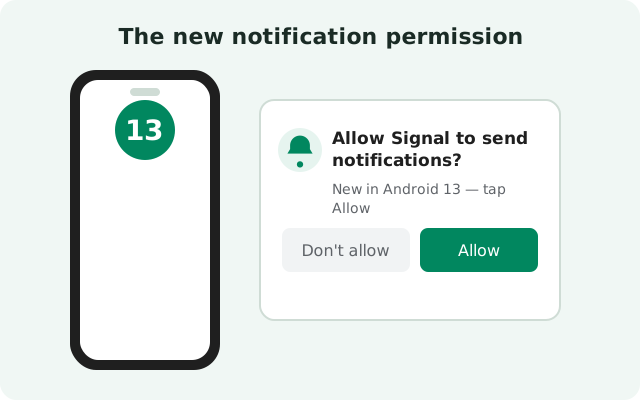
When the prompt appears ("Allow Signal to send you notifications?"), tap Allow. It sounds obvious, but a surprising number of people tap "Don't allow" out of reflex (we have all been trained to deny prompts), and then spend a week wondering why calls do not ring. If you already denied it, the fix is Settings → Apps → Signal → Notifications → switch on All Signal notifications.
The permission covers every channel: message notifications, incoming-call ringing, and failure alerts. Denying it does not break Signal's ability to receive messages; they will be waiting when you open the app. But it completely silences real-time alerts, which defeats the purpose of a messenger.
One subtlety: on Android 13 the notification permission is separate from battery optimization. You need both for reliable real-time notifications: permission granted and background activity unrestricted. Granting the permission while leaving battery optimization on "Optimized" still gives you late messages. Both settings are covered here; do both.
Per-app language: new in 13
Android 13 added per-app language settings, and this one is genuinely useful for Signal users. Maybe your phone is set to English but you want Signal's interface in Urdu, Spanish, or Arabic. Or the reverse. Previously that meant changing the whole phone's language.
The path: Settings → System → Languages → App languages → Signal → pick your language. Signal restarts with the new language applied to its menus, settings, and system strings. Your chats are untouched. Message content is whatever people typed, obviously.
Two things to know:
- Not every string is translated in every language. Signal is translated by volunteers, and coverage varies. If a menu item shows in English inside your chosen language, that string simply has not been translated yet. It is not a bug.
- This is an OS-level setting, not a Signal setting. You will not find it inside Signal's own settings screen. If your phone's skin (some older MIUI or ColorOS 13 builds) hides the App languages menu, it may be under Settings → Additional settings → Languages instead.
If you run Signal in a right-to-left language like Urdu or Arabic, the whole interface mirrors correctly. Signal has supported RTL layouts for years.
Partial photo access: new in 13
Android 13 changed how apps access your photos. Instead of all-or-nothing gallery access, apps can now use the system photo picker, and when an app asks for photo access directly, you can grant partial access ("Select photos and videos") instead of the whole library.
For Signal this is a meaningful privacy upgrade. When you tap the gallery button in a chat and Signal asks for photo access, choose Select photos and videos and pick just the ones you want to send. Signal gets those files and nothing else. No more "allow access to all 4,000 photos so I can send one screenshot."
A few practical notes:
- The picker is per-session. If you grant partial access for today's photos, tomorrow's new photos are not included. You will pick again. That is the point: the access stays minimal.
- You can change it later. Settings → Apps → Signal → Photos and videos lets you switch between "Allow all" and "Select photos and videos," or re-pick the selection.
- Camera is separate. Taking a photo inside Signal uses the camera permission, not photo access. The two are independent, and our permissions guide explains each.
If you are the kind of person who sends a lot of media, partial access adds one extra tap per session. The privacy trade is worth it. Your full camera roll is one of the most sensitive things on the phone.
Battery: keep Signal unrestricted
Android 13 did not relax background restrictions, so the battery setting is as important here as on 12. Go to Settings → Apps → Signal → Battery and set it to Unrestricted.
The symptom of getting this wrong is unmistakable: messages arrive the instant you open Signal, and never before. The cause is the system dozing Signal's background connection. The fix takes twenty seconds and survives reboots.
Skin-specific paths on Android 13:
- Samsung (One UI 5): Settings → Battery → Background usage limits: keep Signal out of the sleeping/deep-sleeping lists, and set the per-app battery usage to Unrestricted.
- Xiaomi (MIUI 14): Autostart on for Signal, battery saver set to "No restrictions."
- OnePlus/Oppo/Realme: App info → Battery usage → Allow background activity, plus auto-launch enabled.
- Pixel: the stock Unrestricted setting is sufficient.
Test it the honest way: lock the phone, send yourself a message from another device, and time it. Seconds, not minutes, is the pass mark. If it is still slow, our battery troubleshooting guide covers the rarer causes.
Updates and the signing-key warning
Signal's website build updates itself without the Play Store. It checks for new releases and prompts you to install them. The current build is 8.29.3; when the next one ships, the in-app updater handles it end to end.
Two things to expect on Android 13: first, the update install will ask you to confirm the unknown-source install. Normal, approve it. Second, Android 13 blocks apps from using accessibility and notification-listener permissions in sideloaded apps by default ("restricted settings"), which can surprise people. But Signal does not need either of those, so it does not affect you.
The signing-key warning is the one that matters: if an update ever fails with "App not installed" or a signature-conflict message, something tried to install a differently-signed build over yours. Do not work around it. Re-download from signal.org/android/apk and restore from backup if needed. Details in our auto-update guide; to check what you are running, see how to check your version.
Is Android 13 still supported?
Yes. Android 13 is fully supported by the current website build: registration, calls, stories, usernames, the photo picker integration, per-app language, everything. A 2022-era OS is well within Signal's support window.
If anything, Android 13 is a sweet spot for Signal: new enough for all the modern privacy controls, old enough that every skin has matured past its early-13 bugs. The only age-related concern is the usual one: phones that stopped getting security patches. Signal's encryption does its job regardless, but an unpatched OS is a weaker foundation, so install the phone's own updates wherever they are still offered.
Android 13 vs 14 vs 12: what actually differs for Signal
Since these three versions get compared constantly, here is what actually differs for Signal across 12, 13, and 14:
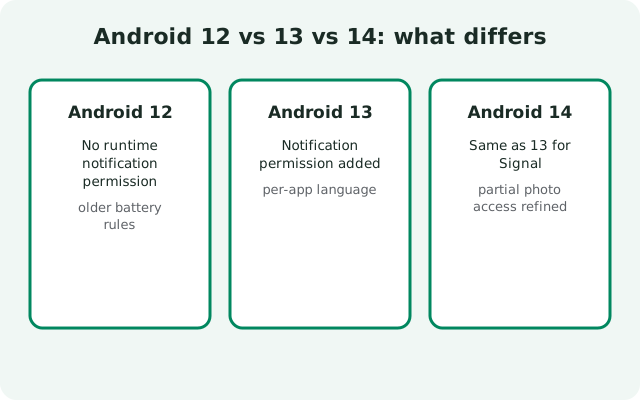
| Android 12 | No notification permission prompt (granted by default); app hibernation can disable Signal on unused phones; mic/camera dot and privacy dashboard introduced. |
|---|---|
| Android 13 | Runtime notification permission: the big one; deny it and Signal goes silent. Per-app language arrives. Photo picker with partial access arrives. |
| Android 14 | Photo access refined further ("select photos" flow improved); notification permission prompt continues; stricter background-work rules make the battery exemption even more important. |
The through-line: each version adds one more permission decision at install time, and each one is easy to get wrong by tapping too fast. Slow down on the first-launch prompts. The thirty seconds you spend reading them saves hours of debugging silent notifications later.
Moving between versions? Our Android 14 guide and Android 12 guide cover the version-specific details, and phone-to-phone transfer covers moving your chats when you upgrade devices.
Frequently asked questions
Do I need to allow notifications when installing Signal on Android 13?
Yes. Tap Allow on the notification permission prompt at first launch. Without it, Signal cannot ring for calls or buzz for messages. If you denied it, re-enable it at Settings → Apps → Signal → Notifications.
Can I use Signal in a different language than my phone on Android 13?
Yes. Go to Settings → System → Languages → App languages → Signal and pick a language. Signal's interface switches; your chat content is unaffected.
How does partial photo access work with Signal on Android 13?
When Signal asks for photo access, choose "Select photos and videos" and pick only the files you want to send. Signal never sees the rest of your gallery. You can change the selection later in the app's permission settings.
Is Android 13 still supported by Signal?
Yes, fully. All current features work on Android 13, and the website build (8.29.3) installs and updates normally.