
How to Transfer Signal to a New Phone (Without Losing Chats)
Published: October 7, 2026 · Updated: October 8, 2026
Signal is private by design, and that design has one sharp edge: your messages live on your device, not on Signal's servers in readable form. The upside is that no breach or subpoena can expose your chats. The downside is that a careless phone switch can wipe years of history in one tap. Nobody, not even Signal's support team, can bring it back. This guide makes sure that doesn't happen to you. Follow the order: back up first, then switch, then restore.
from Signal's official site — file hosted by Signal, not by us
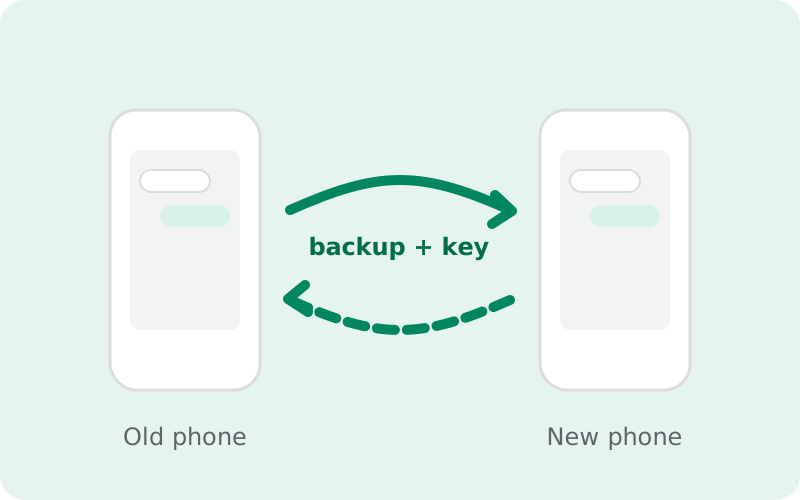
Switching phones is the moment most Signal users learn the hard truth about private messaging: your chats live on your device, not in a readable pile on a server. Get the order wrong and years of conversations vanish in one tap. No support desk, not even Signal's, can bring them back. The good news is that Signal finally has proper tools for this. Since the arrival of Signal's hosted backup service and the unified backup format that rolled out with version 8.30, moving to a new phone is a predictable, repeatable process. This walkthrough covers both paths, restoring from a backup and transferring directly between two phones, plus what to do when the old phone is gone.
Before you start: the 5-minute checklist
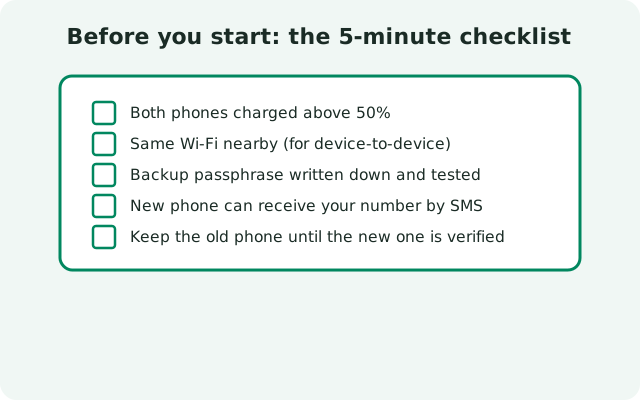
Do these on the old phone before you touch the new one. Skipping this step is how every lost-history story begins.
Turn on backups
Open Signal → Settings → Backups → Setup. Follow the prompts to create a backup. Your phone builds a fresh encrypted archive every day while backups stay on, so one manual backup right now is enough to cover the switch.
Save your recovery key
During setup Signal shows you a 64-character recovery key. This key, not your PIN, is what unlocks the backup. Write it on paper or store it in a password manager. Our backup key guide explains why screenshots and notes apps are a bad home for it.
Check your PIN
Make sure you know your Signal PIN (Settings → Account → Signal PIN). The PIN is separate from the recovery key: it verifies you during registration and restores your profile, contacts, and group memberships.
Confirm the phone number
Your backup is tied to your account, and restoring means registering the same number on the new phone. If you are also changing numbers, finish the transfer first, then change the number inside Signal afterwards.
Charge both phones and keep them close
A transfer over Wi-Fi or a large restore can take a while. Plug both phones in, keep them within a few meters of each other, and do not factory-reset the old phone until the new one is fully working.
The two ways to move your chats
You have two honest options. They are not the same, and picking the right one saves you an hour of confusion.
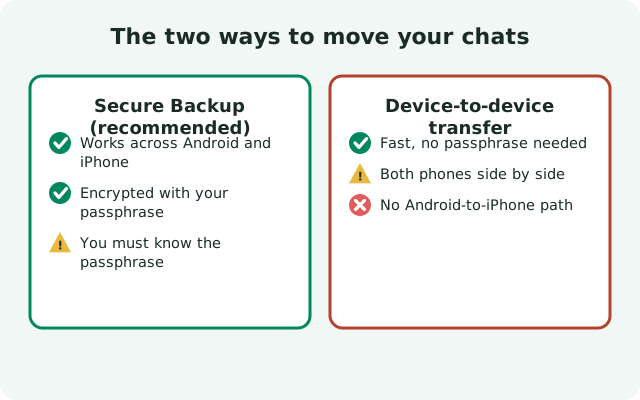
| Best when | Backup restore: old phone is lost, broken, or already wiped, or you just want the simplest path. | Device transfer: both phones are in your hands, powered on, and working. |
|---|---|---|
| Needs old phone? | No. Only the recovery key. | Yes, and it must run Signal. |
| Key you must have | The 64-character recovery key. | Physical access to both phones (no key needed). |
| Media included | Depends on your backup plan: free covers the last 45 days of media; the paid plan covers your full media history. | Everything on the old phone moves over. |
| Speed | Depends on your connection and backup size. | Usually faster. It runs over a direct local Wi-Fi link. |
| Cross-platform? | Yes. The backup format is now unified across Android, iOS, and desktop. | Android-to-Android only (iPhone has its own equivalent). |
Our recommendation: if the old phone is in your hands, run the device transfer. If it is not, the backup restore is your lifeline, provided you set up backups while you still could.
Path 1: restore from a Secure Backup (recommended)
This is the path that works even when the old phone is at the bottom of a river. It only needs three things: your phone number, your recovery key, and an internet connection.
On the old phone: confirm a fresh backup exists
Go to Settings → Backups and check the last backup time. If it says "today," you are covered. If backups were never turned on, turn them on now and wait for the first backup to finish before continuing.
Install Signal on the new phone
Install the official app, from the Play Store, or via the official APK from Signal's own site if your phone has no Play Store. Never install a "modded" or "plus" build for this job; a tampered build can silently steal the very key you are trying to protect.
Register the same phone number
Enter the number, receive the verification code, and enter it. If you set a Signal PIN, enter it when asked. This pulls back your profile, contacts, and group memberships.
Choose "Restore from backup"
During setup Signal asks whether you want to restore. Choose the backup option and enter your 64-character recovery key exactly as written. The restore runs in the background while Signal finishes setting up.
Wait and verify before wiping the old phone
Do not rush this. Open a few long conversations, check that photos and files from recent weeks are there, and confirm your groups look right. Only then should you sign out of or wipe the old phone. Keep the old backup file or key for a week or two after the move, in case something turns up missing later.
Path 2: direct device-to-device transfer
When both phones are in your hands, Signal can copy everything directly between them over an encrypted local Wi-Fi link. No cloud, no recovery key. The phones authenticate each other with a 7-digit pairing code you match on both screens, and everything on the old phone moves over, including media older than your backup plan's window. The requirements are simple: both phones powered on and close together, Signal working on the old phone, location permission granted on both (Android requires it for discovering nearby devices over Wi-Fi; nothing about your location leaves the phones), Wi-Fi on, and every VPN turned off, because VPNs are the number-one cause of failed transfers. The full six-step procedure, with a symptom-by-symptom fix table for every common failure, lives in our direct Wi-Fi transfer guide.
What moves with you (and what does not)
No transfer method carries absolutely everything. Here is the honest inventory:
| Moves with you | Text messages, your contacts, your profile, settings, and media, subject to your backup plan's media window (last 45 days on the free tier, full history on the paid tier). Group chats return, with memberships restored through your PIN. |
|---|---|
| Does not move | Disappearing messages set to vanish within 24 hours are never backed up, by design. View-once messages are ephemeral and do not survive. Anything sent after your last backup is not in the backup. That is why step one of the checklist is a fresh backup. |
| Restored separately | Your profile, contacts, and group memberships are restored through your Signal PIN (Secure Value Recovery), not through the backup file itself. That is why the checklist asks you to confirm your PIN. |
Transferring while switching builds
Moving from the Play Store build to the website APK build (or the reverse) adds one wrinkle: the two builds are signed with different keys, so Android treats them as different apps and you cannot install one over the other. The safe sequence is: back up → uninstall the old build → install the new build → restore from backup during setup. Do the backup first, while the old build is still installed. After uninstalling, there is nothing left to back up. If you are on a phone without the Play Store, grab the official APK from Signal's own servers and verify it before installing. The full checklist and the exact flow in both directions are in our build-switching backup guide.
Your PIN and registration lock during the move
Two features guard your number while you move. Your Signal PIN is the one you type during registration. It proves you are you, and it restores your profile, contacts, and group memberships. Registration lock (an optional setting) blocks anyone else from re-registering your number without the PIN; if it is on and you cannot provide the PIN, you may face a waiting period before the number can be re-registered. Practically: know your PIN before you start, keep registration lock on, and never share either with anyone who messages you claiming to be support.
Old phone lost, stolen, or broken?
This is where honesty matters most. Signal cannot recover your chats from your number alone. There is no cloud copy it can hand you. Your options are exactly these:
- Backups were on and you have the key: you are fine. Install Signal on the new phone, register the same number, and restore from the hosted backup during setup. The old phone is not needed at all.
- Backups were on but the key is lost: the backup cannot be decrypted. Not by you, not by Signal. There is no reset flow. You will start fresh on the new phone; your contacts and groups come back through your PIN, but message history is gone.
- Backups were never on: the message history is gone. Register on the new phone, enter your PIN to restore your profile and groups, and turn on backups immediately this time so it never happens again.
If the phone was stolen, also consider your number at risk: contact your carrier about SIM security, and re-register Signal on the new phone as soon as you have the number back so the old device cannot keep receiving your messages.
FAQ
Can I transfer Signal without the old phone?
Yes, if you had Secure Backups enabled and saved the 64-character recovery key. Install Signal on the new phone, register the same number, and restore from backup during setup. Without a backup, message history cannot be recovered.
Do I need the same SIM card in the new phone?
You need the same number, not the same physical SIM. Registration sends a verification code to the number. As long as you can receive it (SIM, eSIM, or the carrier's app), the transfer works.
Will the old phone still receive my messages after the transfer?
No. Signal allows one primary device per number. Once the new phone registers, the old phone's Signal session is deactivated and stops receiving anything.
How long does a transfer take?
A direct device transfer over Wi-Fi typically finishes in minutes for most users; very large media libraries take longer. A backup restore depends on your connection speed and the size of your backup. Plug the phone in and let it run.
Can I move from Android to iPhone and keep my chats?
The backup format is now unified across platforms, so cross-platform restore is supported where Signal offers it. But the direct device-to-device transfer is Android-to-Android only. Check our cross-platform restore guide before attempting an Android-to-iPhone move.
Keep reading
- Signal Secure Backups explained: the hosted backup service in detail
- Your backup passphrase and recovery key: how to store it so you never lose it
- Restore Signal from a backup: step-by-step for every restore path
- Lost your passphrase? Read this: the honest limits