
Installing the Signal APK on Foldable Phones
Published: October 7, 2026
Signal Foundationfrom Signal's official site — file hosted by Signal, not by us. signal.org/android/apk
Foldables (Galaxy Z Fold and Z Flip, Pixel Fold, and their cousins) are just Android phones with unusual screens, and Signal treats them that way. There is no special "foldable APK": the same website build (version 8.29.3, package org.thoughtcrime.securesms) from signal.org/android/apk installs and runs, and Android's large-screen support does the rest.
What this guide covers is everything around that simple install: what changes when you unfold, how Signal behaves in multi-window, the quirks specific to folding phones (continuity, aspect ratios, cover-screen use), and whether the website build or Play build matters here. If you are switching builds, the usual rule applies. Different signing keys, so migrate with a backup rather than installing over.
Installing: same as any phone
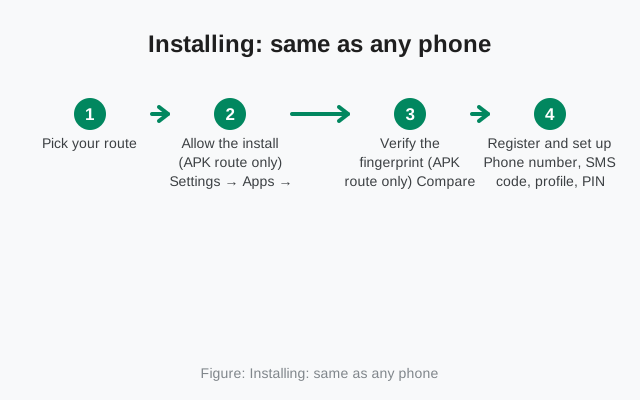
Installing on a foldable is the same as installing on any phone. The folding screen changes nothing about sideloading:
Download from Signal's page
Open signal.org/android/apk in your browser and download the APK. Verify the SHA-256 fingerprint if you like. Our verification guide shows how.
Allow the install
Open the file and allow your browser under Settings → Apps → Special app access → Install unknown apps (Samsung: Settings → Apps → Special access → Install unknown apps; Pixel Fold: the stock AOSP path).
Install and register
Tap Install, open Signal, register your number, restore your backup when offered. Full sequence: first-run setup.
Unfold and check
Open Signal unfolded once. Confirm the layout looks right (it should show a two-pane layout on book-style foldables) and that notifications arrive with the phone both folded and unfolded.
What changes when you unfold
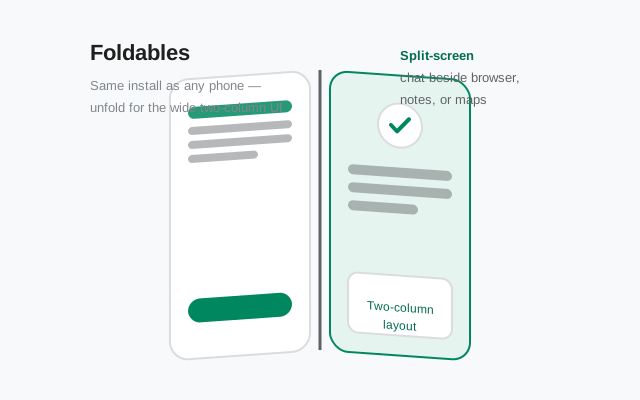
Unfold a book-style foldable (Z Fold, Pixel Fold) with Signal open and the app should continue without interruption. Android's activity-continuity hands the app the new screen size and Signal re-lays-out. In practice you get the large-screen treatment:
- Two-pane layout. On the big inner screen Signal shows the conversation list beside the open chat, like a tablet or desktop app. This is the single best part of Signal on a foldable: triaging messages without constant back-and-forth.
- Media shines. Photos, videos, and shared documents are genuinely nicer on the 7–8 inch canvas. Video calls use the space well too.
- Rotation and flex mode. Half-folded (flex mode) on a Z Fold props the phone up for hands-free video calls. Signal's call UI adapts to the half-screen like any video app.
On clamshell foldables (Z Flip and similar), unfolding just gives you a normal tall phone screen. Signal looks exactly like it does on any phone. The fold is about pocketability there, not screen real estate, so there is nothing special to configure.
One continuity caveat: if Signal ever restarts instead of continuing when you fold/unfold, that is the OS killing and recreating the activity under memory pressure. Check the battery exemption (Settings → Apps → Signal → Battery → Unrestricted) rather than blaming the fold mechanism.
Folded vs unfolded: the honest comparison
| Folded (cover screen) | Compact phone UI. Great for quick replies and triage; cramped for long reads. The narrow cover screen on book foldables makes the keyboard tight. Fine for short replies. |
|---|---|
| Unfolded (inner screen) | Two-pane layout, comfortable reading, good media viewing, proper video-call framing. The way Signal is meant to be used on this hardware. |
The honest comparison: folded is for glances, unfolded is for sessions. Nobody writes long messages on a Z Fold cover screen by choice. The foldable's superpower for messaging is the jump from "check quickly" to "settle in" without switching devices.
Battery note: the big inner screen draws more power, and Signal video calls unfolded will drain noticeably faster. That is physics, not a Signal issue. For long calls, stay plugged in or stay folded.
Multi-window and multitasking tips
Foldables are multitasking machines, and Signal plays well with that:
- Split screen: long-press Signal's icon in recents (or use the taskbar on Z Fold) to open it beside another app: chat on one side, browser/maps/document on the other. Genuinely useful for "what was that address again" moments.
- Pop-up view (Samsung): run Signal as a floating window over another app for quick replies without leaving what you are doing.
- Drag and drop: on the inner screen you can drag photos from the gallery/file manager into a Signal chat in split-screen. Faster than the share sheet.
- App pairs (Samsung): save a Signal + browser split as a taskbar pair if it is a combo you use daily.
Multi-window has one Signal-specific behavior to know: when Signal is in a small window, Android may treat it as backgrounded more aggressively. If you live in split-screen with Signal on one side, the battery exemption (Unrestricted) matters even more. Otherwise messages can pause while you are literally looking at the chat.
Foldable-specific quirks
The quirks that actually show up on folding phones:
- Cover-screen notifications vs inner-screen state. Notifications arrive on the cover screen normally; opening them unfolds into the chat. Occasionally the app opens folded-layout first and re-lays-out a beat later. Cosmetic; ignore it.
- Camera continuity. On foldables with cover-screen camera previews, Signal's in-app camera uses whichever camera Android exposes. It will not do anything clever with the foldable's unique camera tricks. For the fancy flex-cam selfies, use the stock camera app and share the photo into Signal.
- Aspect-ratio letterboxing. On the nearly-square inner screen, photos and videos letterbox normally. No stretching. If an old build ever stretches media weirdly, update; large-screen layout bugs get fixed quickly.
- Flex-mode keyboard. Half-folded typing puts the keyboard on the bottom half. Comfortable on a table, odd in the hand. Fine for video calls, not for typing marathons.
- Do not install "foldable optimizer" apps. Third-party apps claiming to optimize other apps for foldables are unnecessary. Android handles it, and some request accessibility access they should not have.
Website build or Play build?
For foldables, it does not matter. Pick whichever build fits your philosophy:
| Play build | Auto-updates through the Play Store. Right choice if your foldable has full Google services and you want zero maintenance. |
|---|---|
| Website build (this guide) | Direct from signal.org/android/apk, self-updating, no store needed. Right choice if you de-Google, if the Play Store is unavailable, or if you just prefer Signal's own distribution. |
The app itself is identical: same features, same large-screen layout, same everything. The only difference is distribution and signing key, which is why the two cannot be installed over each other. Our download guide compares the builds in detail; the current website build is 8.29.3.
One foldable-adjacent consideration: if you run your foldable without Google services (some users de-Google even premium phones), the website build is the natural fit, and our GrapheneOS guide covers the notification setup you will want.
Registration and moving from your old phone
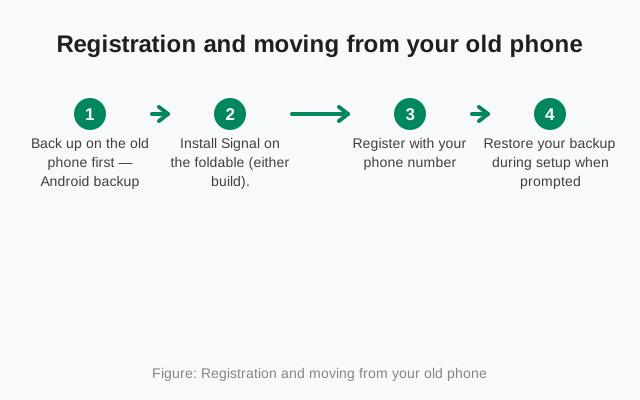
Moving Signal to your foldable from an old phone is the standard transfer:
- On the old phone: Signal → Settings → Chats → Chat backups → turn on and run a backup. Note the passphrase.
- Copy the backup file to the foldable (USB, nearby share, cloud drive; any method works, and the file is encrypted).
- On the foldable: install Signal, and at first-run setup choose restore from backup before registering. The option only appears during initial setup.
- Register with your number and enter the SMS code.
Critical detail: the backup file must be in the foldable's Signal/Backups folder before you start registration, or the restore option will not appear. And register with the same number. A new number is a new account, not a transfer.
Full walkthrough with troubleshooting: transfer Signal to a new phone. If you instead want the foldable as a second device alongside your phone, use linked-device mode rather than transferring.
Keeping it updated
Website build: it updates itself. Checks Signal's servers, prompts you to install, done. Current build 8.29.3. Approve the unknown-source confirmation; normal for sideloaded apps.
Play build: updates through the Play Store automatically.
Either way, keep the app current. Large-screen layout fixes and new features (like improved foldable continuity) ship in regular releases. If an update ever fails with a signature conflict, do not force it: re-download from signal.org/android/apk and see our auto-update guide. Check what you are running with the version check.
Frequently asked questions
Is there a special Signal APK for foldable phones?
No. The standard website APK from signal.org/android/apk works on foldables. Android's large-screen support gives you the two-pane layout on the inner screen automatically.
Does Signal show two panes on the Galaxy Z Fold?
Yes. On the unfolded inner screen, Signal shows the conversation list beside the open chat, like a tablet layout. Folded, it's the normal phone UI.
Can I use Signal in split-screen on a foldable?
Yes. Open Signal in split-screen or pop-up view alongside another app. Keep battery usage Unrestricted so messages keep arriving while multitasking.
Should I use the Play build or website build on my foldable?
Either. The app is identical. Use the Play build for automatic store updates, or the website build (8.29.3) if you prefer direct distribution without a store. They can't be installed over each other.