
Signal Desktop won't open? Here's how to fix it on Windows, Mac, and Linux
Published: October 7, 2026 · Updated: October 8, 2026
If Signal Desktop won't open, you almost never need to uninstall it or re-link your phone. On Windows, running the latest installer over the top fixes most launch failures in two minutes. On Mac, the usual culprits are security prompts and stale permissions. On Linux, it is usually the package repo or a corrupted local config. This guide walks through each operating system in order, from the fastest fix to the last resort. It also explains the honest difference between repairing an install and wiping your local data, so you don't delete your chat history by accident.
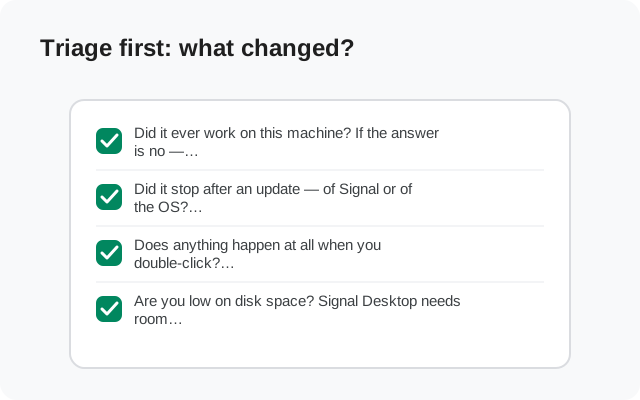
Triage first: what changed?
Launch failures have causes, and the cause is usually whatever changed most recently. Run this two-minute triage before you touch anything:
- Did it ever work on this machine? If the answer is no (a brand-new install that never opened), you are probably looking at a permissions problem, a graphics driver conflict, or an incomplete download. Skip straight to your OS section below.
- Did it stop after an update: of Signal or of the OS? Windows feature updates and macOS upgrades routinely reset permissions or break the auto-updater's state. This is the single most common "worked yesterday" cause.
- Does anything happen at all when you double-click? Watch for a one-second icon bounce (Mac), a flicker in the taskbar (Windows), or a brief spinning cursor. A flicker-then-nothing points at a corrupted config or a graphics conflict. Absolutely nothing, not even a flicker, points at a blocked or broken executable: antivirus on Windows, Gatekeeper on Mac.
- Are you low on disk space? Signal Desktop needs room for its local database. A disk with only a few hundred megabytes free can stop it launching with no useful error message. Check this before anything fancy.
Don't re-link your phone to fix a launch problem. Unlinking and re-linking is a sync fix, not a launch fix. Your chats on the computer are stored locally on the computer. Re-linking from scratch just gives you an empty chat list. Fix the app itself first.
Reinstall vs repair: the decision table
The fear with any fix is losing chats. Here is the honest map: which actions touch your local message database and which don't:
| Action | Your chats | Use it when |
|---|---|---|
| Install the latest version over the top | Untouched: your data stays put | Almost always; this is the first fix on Windows and Mac |
| Repair from antivirus quarantine | Untouched | Antivirus blocked or moved the executable |
| Reset permissions / re-approve the app | Untouched | Mac security prompts, or Windows "blocked by SmartScreen" |
| Launch with graphics acceleration disabled | Untouched | App flashes and dies: GPU/driver conflict |
| Rename the config folder (with a backup) | Temporarily hidden: restored if the backup returns | Everything else failed; corrupted local database suspected |
| Full uninstall + delete config | Gone from this computer: re-link to get new messages only | Last resort, only after backing up what you can |
The key insight: installing over the top is a repair, not a reset. It replaces the program files and leaves your local database alone. You only lose Desktop chats when you delete the config folder. Anything that doesn't touch that folder is safe to try.
from Signal's official download page — installers are hosted by Signal, not by us
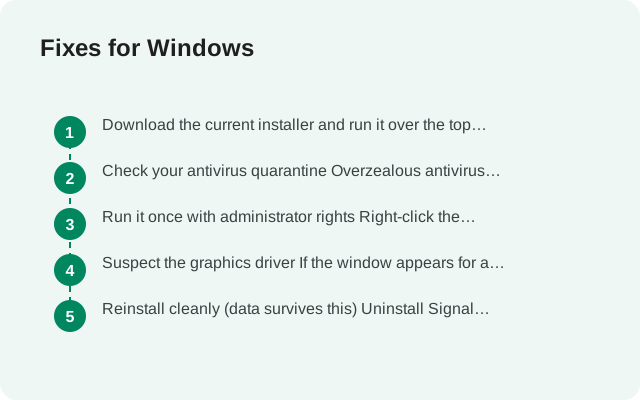
Fixes for Windows
Work through these in order. Stop at the first one that gets Signal opening again:
Download the current installer and run it over the top
Get the latest Windows installer from signal.org/download and run it without uninstalling first. This repairs or replaces damaged program files while keeping your linked account and local database. On a typical machine this takes under two minutes.
Check your antivirus quarantine
Overzealous antivirus tools sometimes flag or quarantine the Signal executable after a definition update. Open your antivirus, look in quarantine or blocked items, and restore anything Signal-related. Then add the Signal install folder to exclusions so it stops happening.
Run it once with administrator rights
Right-click the Signal icon and choose "Run as administrator." You don't need to do this forever. One elevated launch is often enough to fix a broken auto-update state or locked files, after which the app opens normally. (On a work computer with no admin rights, skip to step 5 and ask IT.)
Suspect the graphics driver
If the window appears for a split second and vanishes, or the app opens to a blank white window, the graphics stack is the prime suspect. Signal Desktop lets you launch with hardware acceleration switched off through its launch options. Check Signal's support pages for the current procedure. If it opens cleanly with acceleration off, update your GPU driver, then turn acceleration back on.
Reinstall cleanly (data survives this)
Uninstall Signal Desktop from Settings → Apps, then reinstall from the official download page. A normal uninstall keeps your local data folder, so your account stays linked and your chats remain. Only if you explicitly delete the app-data folder does the local database go away.
Still stuck after all five? Jump to the last-resort checklist before you do anything destructive.
Fixes for macOS
Mac launch failures are almost always one of three things: the system's app-verification gate, a permissions reset after a macOS upgrade, or a stale install. In order:
Re-approve the app once
If macOS says the app "can't be opened" or was downloaded from the internet, don't drag it to the trash. Open your Applications folder, right-click Signal, and choose Open: the prompt that appears has an Open button that a double-click never shows. One approval is permanent.
Check the verification state
Sometimes the app gets stuck mid-verification after an update ("Verifying Signal..." forever). Force-quit the verification dialog, re-download the macOS installer from signal.org/download, and install over the top. Signal's download page provides a build that runs on both Apple silicon and Intel Macs, so grab the right one for your machine.
Repair permissions after a macOS upgrade
macOS upgrades frequently reset app permissions. Open System Settings → Privacy & Security and confirm Signal still has the access it needs (notifications, and anything else you granted). A missing notification permission won't stop the launch, but a revoked disk or accessibility permission can make the app misbehave on startup.
Check disk space
Open About This Mac → Storage. If you're down to your last few hundred megabytes, free space first. A starved disk is a classic silent-launch-failure cause, and it masquerades as a Signal bug.
Install the latest version over the top
Same as Windows: download the current installer and run it. Your linked account and message database live in your user Library and survive an over-the-top install untouched.
Apple-silicon note, kept short: if you migrated from an Intel Mac with Migration Assistant, an older install can carry the wrong helper binaries. An over-the-top install of the current build replaces them.
Fixes for Linux
On Linux the failure modes split by how you installed it. The officially supported route is Signal's own Debian/Ubuntu repository. If you installed from anywhere else (a random PPA, a repackaged flatpak, an AppImage from a forum), step 1 is to switch to the official repo. Our Linux install guide covers the repo setup.
Refresh the repository state
A failed or half-applied update is the top Linux cause. Refresh your package lists and re-run the install for the signal-desktop package: this repairs missing files and picks up the current repo signing key. If the repo key itself expired or the package manager complains about signatures, re-adding the repository per the official instructions fixes it.
Launch from a terminal once
Open a terminal and run
signal-desktop. Unlike double-clicking an icon, this shows you the actual error: a missing library, a sandbox complaint, or a database error will print right there and tell you which of the remaining steps applies.Reset the config folder (backup first)
If the terminal shows a database or profile error, the local config is likely corrupted. Copy the folder first, don't delete it: back up
~/.config/Signalto a safe location, then move the original aside and launch the app. Signal will create a fresh profile. You'll need to link your phone again with the QR code. Keep the backup: if the fresh profile doesn't help, restoring the folder returns your old state exactly.Check sandbox permissions on non-repo installs
Third-party-packaged builds sometimes ship with broken sandbox or GPU flags. The official repository build is the reference. If a repackaged version won't start, the packaging is the prime suspect, not your system.
Protecting your chats while you fix things
A quick word on what actually holds your messages, because the fix advice only makes sense with it:
- Your Desktop chats live in a local database on the computer: in the Signal config folder for your OS. They are not "in the cloud" and re-downloading the app doesn't re-download them.
- Installing over the top never touches that folder. It is always safe to try.
- Deleting the config folder is what deletes Desktop history. Do it only as a last resort, only with a backup, and know that after re-linking you get new messages only. Plus whatever comes over in the one-time history transfer at link time.
- Your phone is unaffected by all of this. Nothing you do to the Desktop app changes the messages on your phone. The phone is the primary device; it keeps working throughout.
When nothing opens: the checklist
If every OS-specific step failed, run this before giving up:
- Reboot the computer. Genuinely. Locked files and half-dead updater processes are cleared by a restart more often than anyone admits.
- Try a different user account (or a guest session). If Signal opens there, the problem is your user profile's config. That points straight back at the config-folder reset above.
- Check for a second copy of the app. Two installs fighting over one config folder produce exactly this symptom on Windows and Linux.
- Ask what changed: a new VPN, a corporate firewall policy, an antivirus update. Network-level blocks can stop the app's first-run checks and look like a launch failure.
- Last resort: back up the config folder, wipe it, reinstall from signal.org/download, and re-link with the QR walkthrough. You will lose the Desktop-side history that wasn't on your phone. You get a working app.
Once it's opening again and you hit the next problem, the update-failure guide covers the other classic Desktop headache.
from Signal's official site — file hosted by Signal, not by us
Frequently asked questions
Will reinstalling Signal Desktop delete my chats?
No. A normal reinstall keeps your local data folder, so your linked account and chat history survive. Only deleting the config folder removes Desktop-side history.
Signal Desktop shows a white screen then closes. What is that?
Usually a graphics driver conflict. Launch with hardware acceleration disabled through the app's launch options; if it opens, update your GPU driver.
My antivirus deleted the Signal executable. Is that normal?
It happens after antivirus definition updates. Restore it from quarantine and exclude Signal's install folder so it doesn't recur.
Do I need to re-link my phone after fixing a launch failure?
No. Re-linking is only needed if you wiped the config folder. Every other fix in this guide keeps your existing link intact.
Signal Desktop won't open after a macOS update. Why?
macOS upgrades reset app permissions and sometimes the app-verification state. Re-approve the app with right-click → Open and check Privacy & Security permissions.
Nothing works. What is the true last resort?
Back up the config folder, delete it, reinstall from signal.org/download, and re-link with the QR code. You'll lose Desktop-side history not on the phone, but the app will work.
Keep reading
- fixing stuck Desktop updates: the other classic Desktop problem
- the QR linking walkthrough: re-linking after a config reset
- installing Desktop on Windows: the full Windows setup guide
- the Desktop guides hub: every Desktop guide in one place