
Install Signal Desktop on your Mac and link it to your phone
Published: October 7, 2026 Updated: October 8, 2026
Signal Desktop for macOS comes as a standard DMG from signal.org/download. You open it, drag the app into Applications, approve it once in Gatekeeper, and link it to your phone by scanning a QR code. After that it runs as an independent linked device. Your phone stays the primary device, and the Mac keeps messaging even when the phone is off.
Before you start (checklist)
Same rule as every platform: Desktop links to your phone, it does not replace it.
| Check | Why it matters |
|---|---|
| Signal set up on your phone | The Mac app cannot create an account. It links to the one on your phone. |
| A recent macOS version | Keep macOS reasonably up to date. On a very old release the installer may refuse to run. |
| An admin password | Copying into the shared Applications folder usually needs admin rights. |
| About 500 MB of free disk space | The app plus its local message database grows over time; do not install on a full disk. |
| Internet on both devices | Phone and Mac just need internet. Not the same network. |
Download the DMG from Signal's site
Open signal.org/download on your Mac
The page detects macOS and offers the Mac build. This is the only source you should use. Never a third-party "Mac apps" site.
Download the disk image
You get a .dmg file. If Safari warns you about the download, that is its standard caution for disk images, not a problem with the file.
Install it: drag to Applications
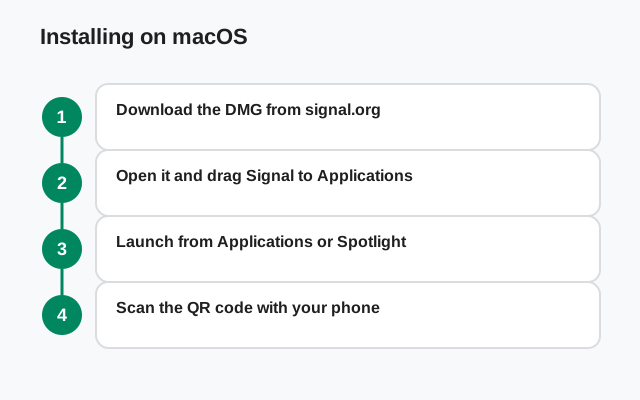
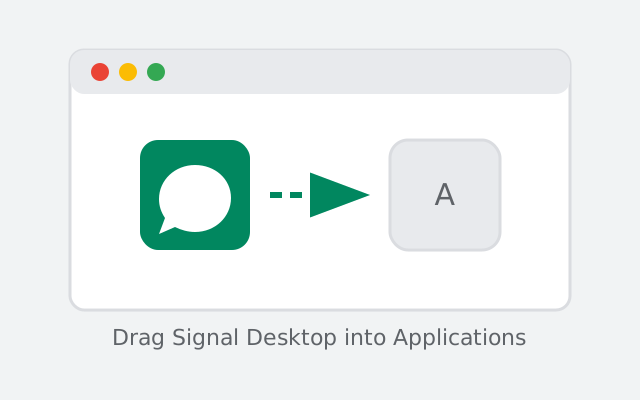
macOS installs are refreshingly simple. There is no installer wizard:
Open the DMG
Double-click the downloaded file. A Finder window opens showing the Signal Desktop icon next to an Applications shortcut.
Drag Signal Desktop onto Applications
That copies the app. Wait for the copy to finish. Do not run it from inside the disk image, or macOS will nag you every launch.
Eject the disk image and delete the DMG
Drag the mounted image to the trash to eject it. The downloaded .dmg can be deleted; the app now lives in Applications.
Launch from Applications or Spotlight
Open it like any Mac app. First launch shows the QR linking screen.
from Signal's official download page installers are hosted by Signal, not by us
If macOS blocks the app (Gatekeeper)
On first launch macOS may show "Signal Desktop can't be opened" or complain it cannot verify the developer. This is Gatekeeper doing its job, and the fix takes seconds:
| What macOS says | What it means | What to do |
|---|---|---|
| "Can't be opened because Apple cannot check it for malicious software" | Standard warning for apps downloaded outside the App Store | Right-click the app Open, then click Open in the dialog. macOS remembers your choice. |
| "The app is damaged and can't be opened" | Usually a corrupted or incomplete download, not actual damage | Delete the app, re-download the DMG from signal.org/download, and install fresh. |
| Nothing happens on double-click | macOS may be silently blocking it | Open System Settings Privacy Security, scroll down, and click "Open Anyway" next to the Signal Desktop notice. |
Do not disable Gatekeeper system-wide to make an app run. The right-click method above approves just this one app.
What the first launch looks like
Once Gatekeeper is satisfied, Signal Desktop opens to the linking screen: a large QR code and nothing else. First-timers often think something is missing. Nothing is: the app is waiting for your phone to claim it.
- No login screen, no username, no password. Signal accounts live on phone numbers, and the number is verified on the phone. The Mac never asks for it.
- The window is intentionally sparse. Until the phone scans the code, there is no account attached, so there is nothing to show.
- Do not leave it sitting. The code expires after a few minutes. If you got distracted, quit (Cmd+Q) and reopen for a fresh one before scanning.
If instead of a QR code you see a chat list, this Mac was linked before, perhaps by a previous owner of the machine, or by you on an earlier install. Treat it as untrusted until you verify: check your phone's Linked devices list, and unlink anything you do not recognize.
Link it to your phone with the QR code
With the QR code showing on your Mac:
On your phone: Settings Linked devices Link a new device
This opens Signal's built-in scanner. Do not use the iPhone camera app. Only Signal's own scanner understands the linking code.
Scan the code on your Mac's screen
Hold the phone 15–30 cm away and keep it steady until the phone shows the confirmation.
Choose whether to transfer chat history
This one-time offer moves your existing conversations to the Mac, including recent media. Skip it and the Mac starts empty, showing only new messages.
Approve on your phone
Your chats appear on the Mac within a minute.
The detailed version (permissions, expired codes, what syncs) is in our QR linking walkthrough.
Apple Silicon vs Intel Macs
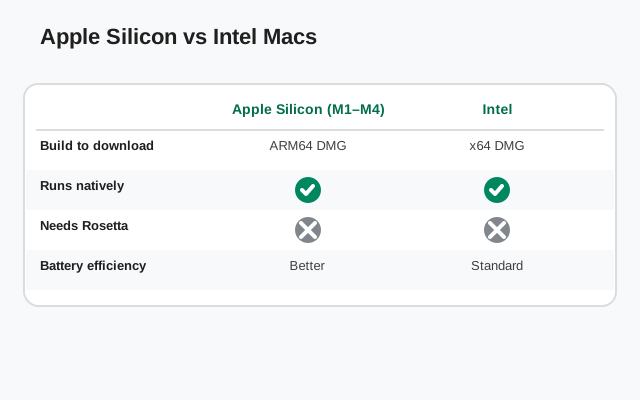
People ask whether they need a different download for M1/M2/M3/M4 Macs. Short answer: no. One download covers both. Here is what actually differs:
| Apple Silicon (M-series) | Intel | |
|---|---|---|
| Installer | Same DMG from signal.org/download | Same DMG from signal.org/download |
| Performance | Runs natively; fast and cool | Runs natively; normal |
| Install steps | Identical: drag to Applications | Identical: drag to Applications |
| Linking | Identical QR flow | Identical QR flow |
| Notifications | Native macOS notifications | Native macOS notifications |
If an old guide tells you to install Rosetta for Signal Desktop, it is outdated. Ignore it.
Day-to-day on Mac
A few macOS-specific behaviors worth knowing:
- Closing the window does not quit the app. Like most Mac apps, Signal keeps running with its dot in the Dock, so messages keep arriving. Quit fully with Cmd+Q or right-click Quit in the Dock.
- Notifications come through Notification Center with reply actions. If they stop, check System Settings Notifications Signal Desktop. Also check Focus modes, which silently swallow alerts on a schedule.
- Calls use your Mac's built-in mic and camera or any external devices you prefer; pick them in the in-call settings if macOS defaulted to the wrong one.
- Updates are automatic. The Mac app checks for updates itself and prompts you to restart. No re-downloading DMGs.
- Menu bar and Dock: unread counts show as a Dock badge, and you can keep the app in the Dock for one-click access.
Every few months, audit your devices from your phone (Settings Linked devices). It lists each linked computer with its link date. Unlink anything you no longer recognize.
If something goes wrong
- QR code will not scan: phone camera permission, expired code, or outdated apps. Our QR fixes guide covers all of them.
- Messages do not arrive after linking: see linked device not syncing.
- App bounces in the Dock and quits: re-download a fresh DMG; if it persists, remove the app from Applications and reinstall rather than running it from the disk image.
Day to day, the Mac app updates itself and keeps messaging with your phone off. The one standing rule: bring your phone online at least once every 30 days, or linked devices stop working (explained in Desktop without your phone).
from Signal's official site file hosted by Signal, not by us
Frequently asked questions
Does Signal Desktop work on Apple Silicon Macs?
Yes. The same download from signal.org/download runs natively on M1, M2, M3, and M4 Macs as well as Intel Macs. You do not need Rosetta.
macOS says the app is damaged. What do I do?
Delete the app and re-download the DMG from signal.org/download. The 'damaged' message almost always means an incomplete download, not a broken app.
Can I install it without an admin password?
Copying to the shared Applications folder usually needs admin rights. As an alternative you can keep the app in your personal ~/Applications folder, which does not need admin.
Will my iPhone need to stay nearby?
Only for the first link. After that the Mac works independently, even with the phone off. Bring the phone online at least once every 30 days to keep the link alive.
Does it support macOS notifications and calls?
Yes. Native macOS notifications, and voice/video calls with your Mac's mic and camera. See our desktop calls setup guide for tuning audio devices.
Keep reading
- how the QR linking step works: the full walkthrough in detail
- fixes for QR scanning failures: when the phone won't read the code
- the Windows install guide: setting up Signal Desktop on a PC
- all desktop guides: Windows, Mac, and Linux in one hub