
Signal Backup Passphrase: The 30-Digit Key and Its Successor
Published: October 7, 2026 · Updated: October 8, 2026
Every Signal backup is locked by a key that only you hold. For years that key was a 30-digit numeric passphrase shown once when you turned on Android's local backups. Today, current backups, hosted and on-device alike, use a 64-character recovery key instead. Both keys do the same job, both are unrecoverable if lost, and confusing the two is the most common reason restores fail. This page explains what each key is, how to store yours so you never lose it, how to replace it while you still can, and what honestly happens when it is gone.
from Signal's official site — file hosted by Signal, not by us
Every Signal backup is locked by a key that only you hold. For years that key was a 30-digit numeric passphrase shown once when you turned on Android's local backups. Today, current backups, hosted and on-device alike, use a 64-character recovery key instead. Both keys do the same job, both are unrecoverable if lost, and confusing the two is the most common reason restores fail. This page explains what each key is, how to store yours so you never lose it, how to replace it while you still can, and what honestly happens when it is gone.
Two keys from two eras
Signal's backup system changed underneath long-time users, and the key changed with it. If your backup is from 2024 or early 2025, it is probably a legacy backup: a single encrypted .backup file in a Signal/Backups/ folder, unlocked by a 30-digit number like 12345 67890 12345 67890 12345 67890. If your backup is current, it uses the unified format that arrived with Secure Backups and was extended to on-device backups in version 8.30: a folder of encrypted files unlocked by a 64-character alphanumeric key shown in groups of four.
The critical rule: the keys are not interchangeable. A 64-character key will never satisfy a 30-digit passphrase prompt, and 30 digits will never satisfy a 64-character prompt. Backup tools and the app itself enforce the exact length. "passphrase too short" means you are holding the wrong era's key for that file. Match the key to the backup it was created with.
The three keys, compared
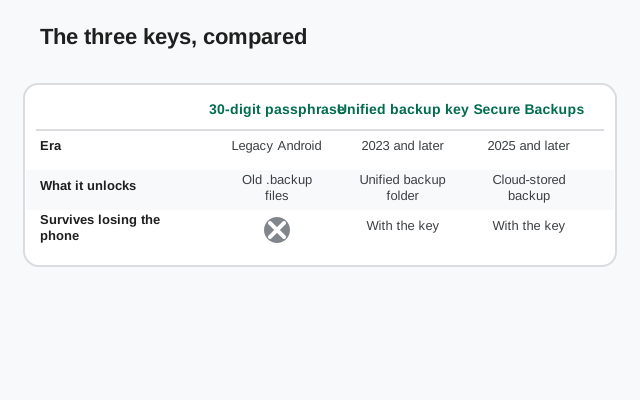
Signal asks you to remember several secrets. Here is what each one actually unlocks, so you never mix them up:
| Signal PIN | Unlocks: your account during registration; restores your profile, contacts, and group memberships (Secure Value Recovery). Does not: decrypt message backups. If lost: you can reset it while logged in; registration lock may impose a waiting period otherwise. |
|---|---|
| 30-digit passphrase (legacy) | Unlocks: old-format .backup files from Android's retired local backup system. Does not: unlock current-format backups. If lost: unrecoverable, by you and by Signal. The file stays encrypted forever. |
| 64-character recovery key (current) | Unlocks: Secure Backups archives and current on-device backups. Does not: unlock legacy .backup files. If lost: unrecoverable. You can generate a new key while logged in, but it will not open archives encrypted with the old one. |
How to save your key properly
Signal forces you to confirm the key during setup for a reason: an unconfirmed key is a key you will lose. Do the confirmation properly, then store the key in a place that survives losing your phone, because the phone is exactly what you will have lost when you need the key most.
Write it by hand, or use a password manager
Paper in a safe place and a reputable password manager are the two good answers. Paper cannot be hacked; a password manager syncs to your other devices. Doing both is best.
Copy it character by character
Transcribe the full key: all 30 digits or all 64 characters, in order. Then read it back against the screen once. One wrong character is the same as no key at all.
Keep it off the phone it protects
A key stored only on the phone it backs up dies with the phone. Screenshots in the gallery, notes in a synced notes app, and pasted chat messages all fail this test. Each of them is also a theft risk, since attackers specifically hunt for these keys.
Confirm it in the app
Signal makes you re-enter or confirm the key before finishing setup. Do not rush past this screen. If you cannot confirm it, you do not actually have it saved.
Replacing your key while you are still logged in
If your key was ever exposed, pasted somewhere careless, seen by someone else, stored in a breached notes app, replace it now, while you are logged in and everything works:
Open Settings → Backups
On the device where Signal is currently working, open Settings and go to Backups.
Generate a new key
Choose the option to view or rotate the recovery key and generate a new one. Save it using the method above and confirm it.
Understand what rotation does and does not do
The new key protects future backups. Archives already encrypted with the old key cannot be opened with the new one. Rotation limits future damage; it does not retroactively re-lock old archives.
Rotation is free, instant, and unlimited. There is no reason to keep using a key you no longer trust.
Lost the passphrase? The honest answer
This is the section nobody wants to read, so here it is plainly: a lost backup key cannot be recovered. Not by you, not by Signal, not by anyone. The encryption is designed so that no reset flow exists. That is the same property that keeps your messages private from everyone else. Anyone promising to recover it for a fee is running a scam.
What you can still do depends on your situation:
- Still logged in on your phone? Your chats are safe right now. They live on the device, not in the backup. Immediately generate a new key (see above), save it properly, and let a fresh backup complete. You have converted a disaster into a scare.
- Locked out with a hosted backup waiting? Without the key, the archive cannot be decrypted. Register fresh on the new phone with your number and PIN: your profile, contacts, and group memberships come back through the PIN, but message history is gone. Turn on backups immediately and save the new key.
- Legacy .backup file but no 30-digit passphrase? Same verdict. The file cannot be opened. Keep the file anyway (storage is cheap and cryptography sometimes gets kinder with time, though you should not count on it), and move on with a fresh setup.
The lesson is boring and absolute: the key is the backup. Save it before you need it, because afterwards is too late. Our lost-passphrase page goes deeper into each scenario.
A 60-second key health check
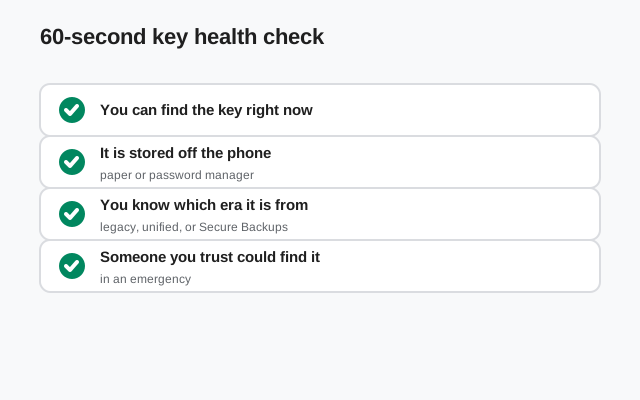
Do this once, today, while everything works: open Settings → Backups, confirm a recent backup exists, open wherever you stored the key, and verify the stored copy matches what the app shows. If it matches, you are done. Your future self thanks you. If it does not match, or you cannot find the stored copy, rotate the key now and store the new one properly. Sixty seconds, once, buys you immunity from the most common way people lose years of Signal history.
FAQ
Is the 30-digit passphrase still used?
Only for legacy backups: old-format .backup files made before the unified system. New backups (hosted Secure Backups and current on-device backups) use the 64-character recovery key instead.
Can I change my recovery key?
Yes, anytime, while logged in: Settings → Backups → generate a new key. The new key protects future backups; it cannot unlock archives encrypted with the old key.
Is the recovery key the same as my Signal PIN?
No. The PIN verifies your account and restores your profile, contacts, and groups. The recovery key (or legacy passphrase) decrypts your message backup. They do different jobs and neither substitutes for the other.
Someone is asking for my key in a chat. Is that legitimate?
No. Signal staff will never ask for your recovery key or passphrase, in chat or anywhere else. Anyone asking is attempting to steal your message history. Block and report them.
Can I store the key in my email or cloud drive?
You can, but weigh it honestly: anyone who breaches that account gets your entire message history along with the key. A password manager with a strong master password, or paper in a safe place, is the safer choice.
Keep reading
- Secure Backups explained: the hosted backup system
- Local backups on Android: the on-device alternative
- Restore Signal from a backup: putting the key to work
- Lost your key? Read this: every scenario, honestly