
When Your Old Phone Can No Longer Carry Signal
Published: October 7, 2026 · Updated: October 8, 2026
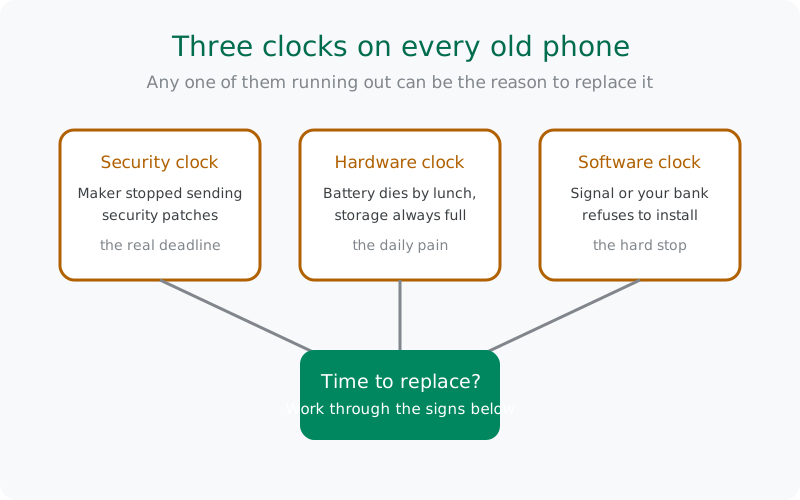
The honest signs it is time
Nobody needs a new phone because an advert said so. But phones do wear out on several independent schedules, and most people replace theirs years after the first schedule already expired. Here are the signs that actually matter, roughly in order of seriousness:
1. Security updates stopped
This is the big one, and the least visible. Once the manufacturer stops shipping patches, every vulnerability discovered after that date stays open on your phone forever. For a messaging app that holds your private conversations, photos, and contacts, that is the real deadline: not a slow app, not a dull camera. Check it in Settings under Software update or Security: if the last patch is more than a year old and no more are coming, the security clock has run out.
2. The battery is done
Dies by mid-afternoon, shuts off at 30 percent, or the back cover is bulging. A phone that cannot stay on cannot reliably receive your messages or calls. And take swelling seriously: a swollen battery is a fire risk, not an inconvenience. Replace the phone (or at minimum the battery) rather than living with it.
3. Storage is permanently full
You delete photos to install updates. Signal cannot download the video your friend sent, and backups fail for lack of space. Occasional triage is normal; constant triage is the sign.
4. The ecosystem moved on without you
Your bank's app refuses to run, the browser warns about old security protocols, and one day Signal's installer refuses too. Each refusal is a small announcement that your Android version is now history.
5. Physical decay
A cracked screen over the touch area, a charging port held together by hope, dead buttons. Cosmetic wear is fine; functional decay is not.
Notice what is not on the list: "it feels a bit slow." Slowness alone is an annoyance, and a factory reset often buys another year. The list above is about safety and capability, not vibes.
Signal's minimum Android floor, right now
Signal declares a minimum Android version for each build, and (like every serious app) it raises that floor over time as old Android releases stop being patchable. Two honesty notes, because numbers move:
- Check the live number, not this page. We track the current requirement on our minimum-version tracker, and Signal documents it on its own support pages. If those say something different from what you remember reading here, they are right and our memory is stale. Signal publishes no dated end-of-support calendar, so the floor moves quietly, not by announcement.
- The floor belongs to the app, not the download source. The website APK and the Play Store build are the same app with the same requirement. Switching download sources does not change which Android versions can run it.
How to check where your phone stands:
- Read your Android version. Settings, then About phone. The Android version is listed there. Compare it with the tracker above.
- Run the install test. Download the current build from Signal's official APK page and try to install it. If the installer refuses with a compatibility message, the floor has moved past your phone. That test is definitive: support is ultimately a fact about what installs, not what a page claims.
- Note the self-updating detail. The website build updates itself without the Play Store, so once it is installed on a supported phone, staying current is automatic. The hard part is only the first install on an old device.
If your phone is on Android 7 or 8 specifically, read the Android 7 and 8 plan-ahead guide and the support timeline: that era is exactly where the floor will do its work next.
The decision table: which clock ran out
Match your symptom to the clock, then to the fix. This table is the information-gain core of the page: most "should I upgrade" advice never separates these.
| What you notice | Which clock ran out | Try this first |
|---|---|---|
| No OS or security update in over a year | Security (the dangerous one) | Check for a custom ROM, otherwise plan the replacement now |
| Battery dies by mid-day or is swelling | Hardware | Battery replacement if the phone is otherwise current; replacement if not |
| Storage always full despite cleaning | Capacity | Move photos and videos off the phone; if the phone itself is tiny, it is hardware |
| Signal will not install or update | Software floor | Confirm against the minimum-version tracker, then custom ROM or replacement |
| Banking and browser apps refuse to run | Ecosystem | Replacement: this only moves one direction |
| Everything works but feels slow | None: annoyance, not danger | Factory reset and a lighter setup; often buys a year |
The row that matters most is the first one. People upgrade for cameras and speed; they should upgrade for patches. An unpatched phone running a messenger is a contradiction you can now put a date on.
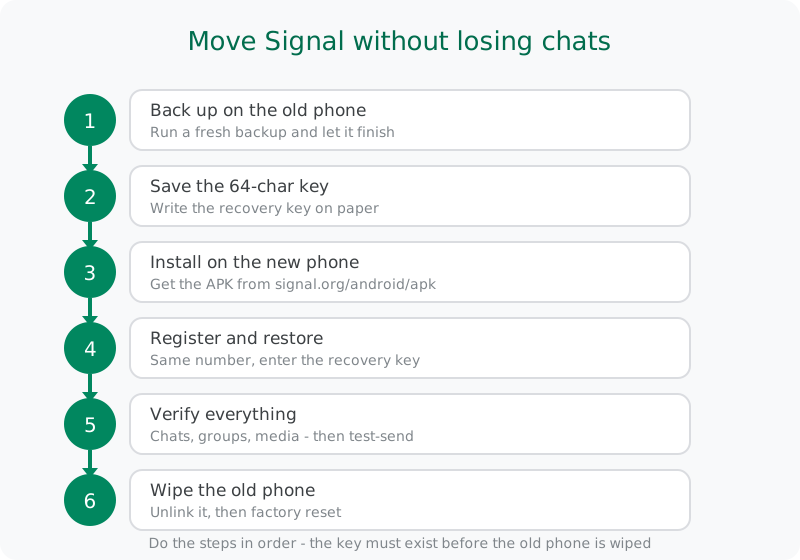
Move Signal over without losing anything
The fear that keeps people on dying phones is losing their chats. The fix is a boring checklist, done in order. Do not skip steps and do not reorder them. Step 2 must exist before step 6 happens.
- Run a fresh backup on the old phone. Open Signal, go to Settings, then Chats, and make sure Secure Backups are enabled and a backup has just completed. Check the timestamp: "last week" is not "just now."
- Write down the 64-character recovery key. This key decrypts your Secure Backup. Write it on paper, store the paper somewhere safe, and double-check every character. A screenshot on the same dying phone is not a backup of the key. This is the single most important step on this page.
- Install Signal on the new phone. Get it from Signal's official APK page (package org.thoughtcrime.securesms, current website build 8.29.3) or the Play Store. Never from a random APK site, and never the seller's preinstalled copy if the phone is used.
- Register with the same number and restore. Enter your phone number, verify it, then choose to restore from your Secure Backup and enter the 64-character key from step 2.
- Verify before you celebrate. Scroll through chats, open groups, check that media and attachments came through. Send a test message to someone. Only when everything is visibly present is the move done.
- Retire the old phone properly. Remove it from your linked devices, sign out of your accounts, then factory reset it. Removing accounts first avoids lock headaches later.
Moving between two Android phones is the smooth case. Our phone-transfer guide walks through it screen by screen, moving a backup file covers the manual-file route, and if the old phone is already dead, restoring without the old phone explains what is still possible.
Buying a used phone safely
A used phone is the smartest way to upgrade on a budget, but only if it still has patch life left. A cheap phone whose security updates already ended is not a bargain; it is the first row of the decision table wearing a discount sticker.
Before money changes hands:
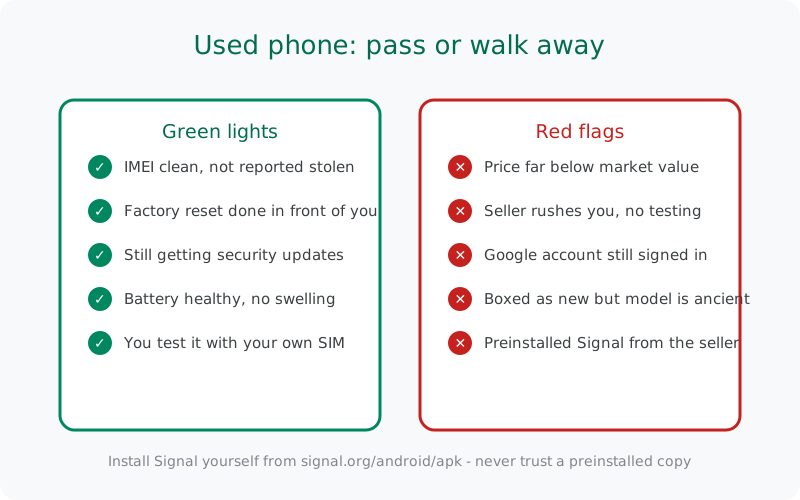
- Check the IMEI. Run it through your carrier's or region's stolen-phone checker. A phone reported stolen can be blacklisted from networks at any time.
- Confirm the update runway. Look up the model on the manufacturer's support page: how many more years of security patches are promised? Prefer a mid-range phone with four years of patches ahead over a three-year-old flagship with six months left.
- Watch a factory reset happen. Have the seller reset it in front of you and go through setup cleanly. If a previous Google account is still locking it, walk away. That lock is not yours to solve.
- Inspect the battery. Check battery health in settings and look for any swelling or a lifting screen. Ask about the phone's age honestly.
- Test with your SIM. Calls, mobile data, and the camera take two minutes to verify and catch most lemons.
Red flags (walk away): price far below market, sealed-box "new" unit of an ancient model, seller rushes you or refuses testing, a Google account still signed in, or a "helpful" preinstalled Signal. Install Signal yourself afterward from the official page.
from Signal's official site, file hosted by Signal, not by us
Frequently asked questions
Will I lose my chats if I just sign in on the new phone?
Message history does not follow the phone number by itself. You need a restore: enable Secure Backups on the old phone, save the 64-character recovery key, and restore on the new phone. See the phone-transfer guide for the full walkthrough.
Can I keep the same phone number?
Yes. Signal accounts are tied to the number, so move your SIM or eSIM to the new phone (or port the number) and register with it there.
Is the 64-character recovery key the same as my Signal PIN?
No. The PIN protects your account recovery settings; the 64-character key decrypts your Secure Backups. You need the key for the move. Keep both, but do not confuse them.
My old phone is dead and I never backed up. Is everything gone?
Probably, yes. Signal keeps no cloud copy to pull from. If you ever enabled Secure Backups, that backup is your rescue: restoring without the old phone explains the options.
Should I buy new or used?
Honest answer: buy patch runway. A mid-range phone with four or five years of promised security updates beats a former flagship with six months of patches left, every time.
Can I move Signal to a phone without Google Play?
Yes. The website APK from Signal's official APK page installs directly and updates itself without the Play Store: the same build, same requirement, no Google account needed.
Related guides: all version guides · the minimum-version tracker · the phone-transfer guide · secure backups and the recovery key · the Android 7 and 8 guide · the support timeline