
Transfer Chats to a Linked Tablet or Phone
Published: October 7, 2026 · Updated: October 8, 2026
from Signal's official site — file hosted by Signal, not by us
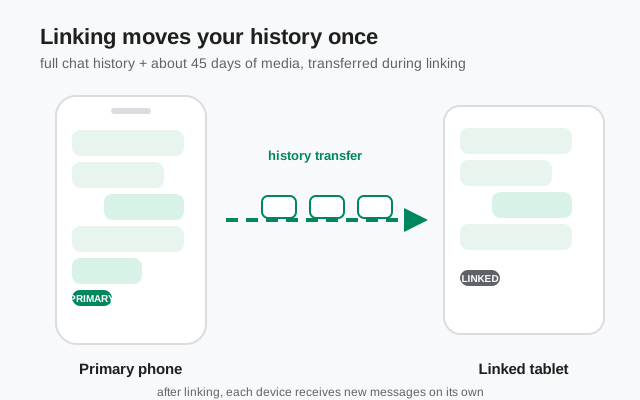
A linked tablet feels like a second copy of Signal, and that is exactly the trap. It looks like a backup, it reads like a backup, but it is not one. Linking is a one-time history transfer followed by independent message delivery on each device. Understand that split and you will never be surprised by what shows up, or what doesn't, on the linked device.
What actually transfers during linking
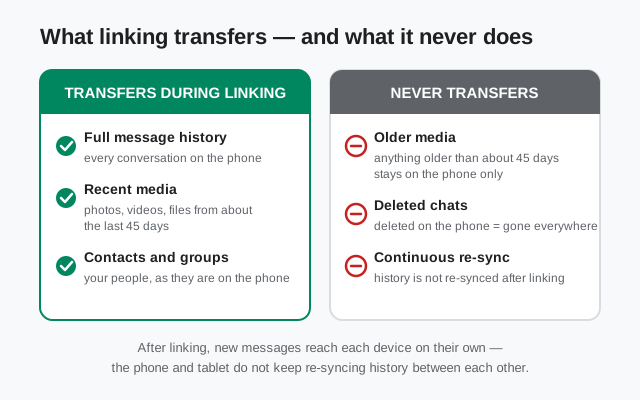
The moment you link a device, Signal copies your world onto it. Here is the exact split:
| What | Transfers? | Details |
|---|---|---|
| Message history (all chats) | Yes. During linking | Every conversation on the phone is copied to the new device. |
| Photos, videos, files (last ~45 days) | Yes. During linking | Recent media comes along with the history. |
| Older media | No | Anything older than about 45 days stays on the phone only. |
| Messages sent after linking | Delivered separately | Each device receives new messages on its own. Nothing is "re-synced" from the phone later. |
| Chats deleted before linking | No | What you deleted on the phone is gone everywhere. There is nothing to transfer. |
| Contacts and groups | Yes | Your people come along as they are on the phone. |
Two things people ask about: disappearing messages keep their timers on each device. Linking neither freezes nor extends them. And the transfer itself happens over your connection between the two devices, so a huge history on a slow connection takes patience, not troubleshooting.
The single most important row in that table is the fourth one. After linking, the phone and the tablet do not keep syncing history between each other. If the tablet is in a drawer for three months, it will not magically fill in the gap when you open it, except for new messages, which do arrive when it comes back online.
The limits, stated plainly
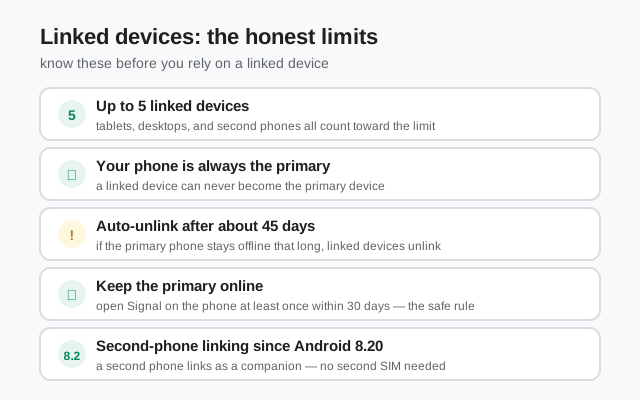
- One primary phone. The phone with your registered number is the account. Tablets, desktops, and second phones are companions. Useful, but they borrow the account from the phone.
- Up to five linked devices. That is five companions on top of the primary phone. If you hit the cap, unlink a device you no longer use (on the phone: Settings → Linked devices) before adding a new one.
- Auto-unlink after about 45 days offline. If the primary phone stays offline that long, Signal automatically unlinks your linked devices. This is a security feature, not a bug.
- Keep the primary online: the 30-day rule. Open Signal on the primary phone at least once within 30 days. That one habit keeps you safely clear of the auto-unlink window.
- A second phone can be linked since Android 8.20. A second Android phone links as a companion device, exactly like a tablet. It does not need the SIM and it does not become the primary. The number still lives on your registered phone.
- A linked device can never become the primary. This is the limit people discover too late. If the primary phone is lost, the tablet keeps working for a while, but it cannot take over the account.
Read that last point twice. The tablet is a companion screen, not a spare phone. The moment you start depending on it as one, you are one lost phone away from learning the difference.
How to link a tablet or second phone
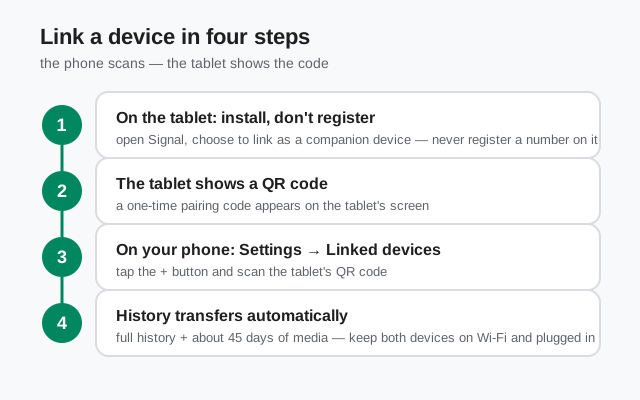
Install Signal on the tablet, but do not register
Get Signal on the tablet or second phone (from Signal's own site if there is no Play Store). Open it and choose the option to link it as a companion device. Do not register a phone number on it. Registering a number makes it a separate, empty account. The opposite of what you want.
The tablet shows a QR code
After choosing to link, the tablet displays a one-time QR pairing code on its screen. Keep the tablet awake; if the screen sleeps, the code may need refreshing.
On your primary phone: Settings → Linked devices
Open Signal on your primary phone, go to Settings, then Linked devices, and tap the + (add) button. This opens the phone's camera.
Scan the tablet's code and approve
Point the phone at the tablet's QR code. Confirm the link on the phone when asked, and give the device a name you will recognize later (like "Kitchen tablet").
Wait for the history transfer
Full history plus about 45 days of media now transfers to the tablet. Big histories take a while. Keep both devices on Wi-Fi and plugged in, and do not close the apps mid-transfer.
Life after linking
Once linked, each device lives its own life:
- New messages arrive everywhere, independently. When someone messages you, every linked device gets it on its own. The tablet is not "syncing from" the phone. The Signal service delivers to each device.
- Offline is fine, within reason. If the tablet is offline for a week, the messages from that week arrive when it comes back online. But nothing from before the link will ever appear. The one-time transfer is the only history it gets.
- Unlink and relink to refresh. If a linked device falls hopelessly behind or acts strangely, unlink it (on the phone: Settings → Linked devices → tap the device → unlink) and link it again. The fresh link re-transfers the current history.
- Calls work on linked devices too. You can answer calls on the tablet. The primary phone still holds the account, so keep it alive.
One habit worth building: once a month, glance at Settings → Linked devices on your phone. If you see a device you no longer recognize or use, unlink it. Old linked devices are a security loose end. Anyone holding one can read your new messages.
When to use Secure Backups instead
Here is the sentence that saves people: a linked device is not a backup. It mirrors your chats; it does not protect your account. Reach for a real backup, the hosted Secure Backups explained in our guide, in these situations:
- The primary phone is lost, stolen, or dead. The tablet keeps receiving messages for a while, but it cannot become the primary and it cannot move your account to a new phone. Only a backup restore can do that.
- You are switching to a new primary phone. Transfer or restore your account onto the new phone first, then relink the tablet to it. Our full new-phone walkthrough covers both methods.
- You want history to survive device loss. A backup with its 64-character recovery key written down somewhere safe is the only setup that survives losing every device at once.
Think of it this way: linked devices are for convenience (chatting from the tablet on the couch). Backups are for survival (a new phone after the old one dies). They solve different problems, and this page is about the first one.
Mistakes that cost people their chats
- Registering the tablet with its own number. The tablet then has a separate, empty Signal account. The fix is to uninstall Signal on the tablet and start over with the link flow. But any chats made on the wrong account stay there.
- Wiping the phone because "the tablet has everything." The tablet has a copy of history and a borrowed account. Wipe the phone and the auto-unlink clock starts ticking; lose the tablet too and there is nothing left. Back up first, always.
- Letting the primary sit offline for months. A phone in a drawer for two months means auto-unlinked companions. If you park the primary phone, open Signal on it once a month.
- Linking on someone else's device and forgetting to unlink. The moment you link, your full history transfers to that device. Borrowed tablets, hotel iPads, a friend's spare phone: unlink the moment you are done, and check the linked-devices list afterward.
- Linking over mobile data with a huge history. The transfer stalls, people assume it is broken, and they start tapping things. Wi-Fi and patience.
Linked devices are one of Signal's best features once you respect the model: one transfer at link time, independent delivery after, five companions max, and the phone is always the boss. Set it up on Wi-Fi, keep the primary online, and never confuse a linked tablet with a backup.
FAQ
Does linking give the tablet my old chats?
Yes. During linking, your full message history plus photos, videos, and files from about the last 45 days transfers to the new device. Nothing transfers after that moment; the transfer happens once.
Can I link a second phone to Signal?
Yes. Since Signal Android 8.20, a second Android phone can be linked as a companion device. It works like a tablet. It does not become the primary, your registered phone stays the primary, and the second phone needs no SIM for Signal.
What happens if I don't open Signal on my phone for a month?
Linked devices automatically unlink after about 45 days of the primary phone staying offline. The safe rule is to open Signal on the primary phone at least once within 30 days. One open a month keeps everything linked.
Can a linked tablet replace my phone?
No. A linked device is a companion, not a replacement. It cannot become the primary device. If you lose your phone, the tablet keeps working for a while, but moving your account to a new phone requires a backup restore (hosted Secure Backup with your recovery key, or a local backup).
Do linked devices get messages sent while they were offline?
Yes. Messages sent while a linked device is offline are delivered when it comes back online. What never appears is history from before the device was linked; that only transfers at link time.
Keep reading
- Hosted Secure Backups, explained: the backup that survives a lost phone
- Moving everything to a new phone: the full transfer walkthrough
- Every restore path in one place: local and hosted restores compared
- Direct Wi-Fi transfer between Androids: when both phones are in your hands