
Installing the Signal APK on an Android TV Box
Published: October 7, 2026 · Updated: October 8, 2026
Signal Foundationfrom Signal's official site — file hosted by Signal, not by us. signal.org/android/apk
Putting Signal on an Android TV box is possible, but it sits firmly in "enthusiast project" territory rather than "supported use case." Signal is a phone app: it expects a touchscreen, a portrait screen, a camera and microphone, and a phone number that can receive SMS. A TV box has none of those by default. This guide gives you three sideload methods that work, the fixes for the launcher and input problems you'll hit, and, just as important, an honest account of what won't work, so you can decide whether the project is worth your evening.
The file is the same official APK as always: signal.org/android/apk, website build 8.29.3, package org.thoughtcrime.securesms. If your goal is simply having Signal on a big screen, consider whether Signal Desktop on a computer, or a linked Android tablet, solves your problem with far less friction.
A quick decision check before you start: if you only want to read messages on the big screen, go ahead. Sideloading is quick and reading works fine. If you need to type regularly, only proceed if you will pair a keyboard; remote typing gets old within a week. If you need calls, stop here and keep them on your phone. And if the TV is shared, read the privacy note in the checklist below before registering anything.
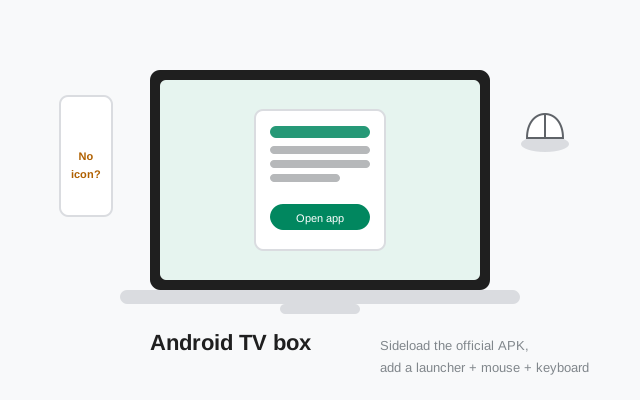
Know your box: certified vs uncertified
Android TV boxes fall into two camps, and which one you own changes the difficulty. Certified Android TV / Google TV devices (Nvidia Shield, Chromecast with Google TV, certified boxes from major brands) run Google's TV operating system with the Play Store. On these, you could install Signal from the Play Store, but you'd still hit every usability problem below, because the problems are about the form factor, not the install source.
Generic AOSP boxes (the no-name boxes sold online running plain Android with a TV launcher) usually have no Play Store at all. For these, the APK is the only route, and sideloading is a normal part of owning the device. These boxes also vary wildly in Android version and hardware; check that yours runs a supported Android version per our minimum-version guide before investing time.
Either way, verify the APK the same way you would on a phone: SHA-256 fingerprint of the signing certificate against Signal's own page. A TV box is a worse place than a phone to run an unverified app: it's always on, always networked, and rarely updated. Our verification guide covers the computer-based check, which is the natural method here since you'll likely download the file on a PC anyway.
Three sideload methods that work
Method 1: a downloader app. On the box, install a file-downloader app (the well-known one is "Downloader by AFTVnews," available on certified devices). Enter the URL https://signal.org/android/apk/, download the APK through it, and open the file when prompted. This is the simplest method when the box has a working browser or downloader and an internet connection.
Method 2: ADB from a computer. Enable Developer options on the box (usually by tapping the build number in Settings > About), turn on USB or network debugging, then from a computer on the same network run adb connect <box-ip> followed by adb install signal.apk. This is the most reliable method for uncertified boxes with clumsy on-screen browsers, and our PC transfer guide covers the same ADB mechanics for phones.
Method 3: USB drive. Download the APK on your computer, copy it to a USB stick, plug the stick into the box, and open it with a file manager app on the box. Enable "install unknown apps" for the file manager when prompted. Low-tech, dependable, and useful when the box's networking is the problem.
All three methods end at the same Android installer screen. Whichever you use, the file must come from signal.org. Never from a "TV box APK pack" on a forum.
The launcher problem (and the fix)
After installing, Signal may not appear in your TV launcher. TV launchers only show apps that declare themselves as TV-compatible ("leanback" apps); Signal doesn't, because it isn't one. The app is installed and working. It's just invisible in the menu.
The fix is a sideload launcher: apps like "Sideload Launcher" list every installed app regardless of TV compatibility. Install one from the Play Store (on certified boxes) or sideload its APK the same way you sideloaded Signal. Pin Signal in it and the problem is solved permanently.
Some boxes also let you create a home-screen shortcut through their settings. Either approach works; the point is that a missing icon is a launcher filter, not a failed install. Don't re-download the APK five times chasing an icon. Check the sideload launcher first.
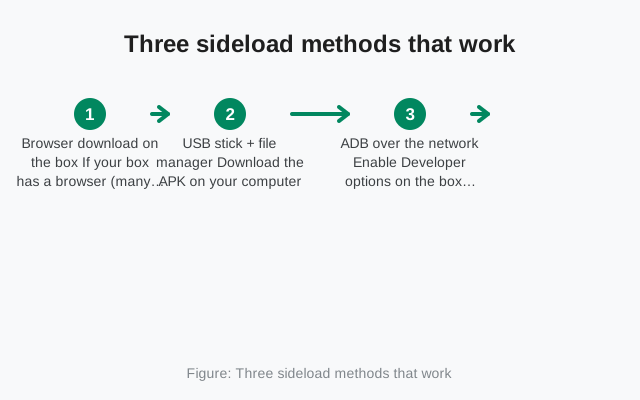
Input: mouse and keyboard are mandatory
Signal is designed for touch. Registration fields, chat lists, and settings all assume fingers. A TV remote's directional pad can navigate some of it, but you will get stuck. Text entry in particular is miserable with an on-screen keyboard driven by arrow keys.
Before you start, connect a mouse and keyboard to the box. USB works on nearly every box; Bluetooth works on most. An inexpensive wireless keyboard with a built-in trackpad is the ideal tool and costs less than the time you'd waste without one. With a mouse, Signal on a TV box becomes navigable: you can click through registration, type with a real keyboard, and scroll chats normally.
Plan to keep the keyboard around, too. Signal will need text input for the registration code, your PIN, and everyday messaging. If your use case is "read incoming messages on the TV," a mouse alone suffices after setup. If you intend to chat, the keyboard stays.
The portrait-app-on-landscape-TV issue
Signal's interface is a portrait phone layout. On a landscape TV it renders as a narrow column in the middle of the screen, or stretched awkwardly, depending on the box. Messages are readable; the layout just looks odd and wastes most of the display.
Orientation-control apps (like "Set Orientation") can force landscape, but Signal's UI doesn't have a real landscape layout. Forcing it usually produces a cramped, cut-off interface that's worse than the pillar-boxed portrait view. The pragmatic answer: accept the narrow column. It looks strange for a week and then you stop noticing.
This is also worth weighing before you begin. If the TV is meant to be a shared family display, a portrait messenger column is a poor fit. A desktop install on a connected computer gives you a proper landscape interface on the same screen with none of these compromises.
Registering: the phone-number catch
Signal registration requires a phone number that can receive an SMS or voice call. A TV box has no cellular radio and usually no number of its own. You have three options, in order of sanity:
- Register with your mobile number on the box. Type your phone number into Signal on the box, receive the SMS on your phone, and type the code into the box. But note: a Signal number can only be active on one primary device. Registering your number on the box moves your account there. Your phone gets logged out. This is rarely what people want.
- Link the box as a secondary device. The far better option: keep Signal on your phone, and link the box the way you'd link a tablet: install Signal on the box, choose the link option, and scan the QR code with your phone. The box then mirrors your account without stealing the number.
- Use a second number. If the box is meant to be its own Signal identity (a household device, a shop counter), register it with a separate number: a spare SIM in a phone just long enough to receive the code, or a landline via voice call per our no-SIM guide.
Option 2 is the right answer for almost everyone. It keeps your phone as the primary device, and the box just becomes another screen for the same account.
Calls, cameras, and microphones
Voice and video calls are where the TV-box project usually dies. Most boxes have no camera and no microphone. USB webcams sometimes work on AOSP boxes and usually don't on certified Android TV; Bluetooth headsets pair for audio on many boxes but the mic routing is unreliable.
Even when hardware cooperates, Signal's call interface assumes a phone held to an ear or a handset on a desk. Echo cancellation tuned for a living room with TV speakers is a real problem. Expect feedback and echo unless you use a headset.
The honest summary: treat Signal on a TV box as a messaging screen, not a calling station. Text chats, photos, and group messages work fine. Calls belong on your phone. If calls on the big screen are the actual goal, a computer running Signal Desktop with a proper webcam and mic is the setup that works.
TV-box sideload checklist
| Item | Status to confirm |
|---|---|
| APK source | signal.org/android/apk; build 8.29.3; fingerprint verified |
| Sideload method | Downloader app, ADB, or USB, whichever your box supports |
| Launcher | Sideload Launcher installed; Signal pinned and visible |
| Input | Mouse and keyboard connected and tested |
| Registration | Linked as secondary device (preferred) or registered with its own number |
| Calls | Expectations set: messaging works, calls usually don't |
| Privacy | Notifications on a shared screen (see below) |
One last warning that matters more on a TV than anywhere else: a TV is a shared screen. Signal notifications showing message previews on the family television is a privacy disaster waiting to happen. Either disable notification content on the box, keep the app closed when not in use, or restrict this setup to a TV nobody else watches. The box that seemed like a fun project becomes a problem the first time a private message pops up during movie night.
from Signal's official site — file hosted by Signal, not by us. signal.org/android/apk
Frequently asked questions
Is there an official Signal app for Android TV?
No. Signal publishes one Android app, built for phones. Anything on a TV box is that phone app running outside its intended environment, which is why the experience has the limits described on this page.
Will Signal update itself on my TV box?
Maybe, maybe not. The website build tries to auto-update, but boxes that sleep deeply may never run the check. Every month or two, open Signal on the box and check for updates, or re-download the latest APK from Signal's page and install over the existing app.