
Signal Screen Lock: Lock the App Itself, Not Just the Phone
Published: October 7, 2026 Updated: October 8, 2026
Your phone's lock screen is one gate. Signal screen lock adds a second one: even with your phone unlocked, opening Signal asks for your fingerprint, face, or device PIN again. It lives alongside two quieter settings, incognito keyboard and notification content control, that together cover the three ways your chats leak to shoulder surfers: the app itself, your keyboard's memory, and your lock screen. This guide covers all three.
from Signal's official site — file hosted by Signal, not by us
What screen lock actually does
Hand your unlocked phone to someone (a friend showing you a photo, a kid borrowing it for a game, a colleague checking a map), and everything on it is one tap away. Screen lock changes that for Signal: the moment someone opens the app, it asks for your fingerprint, face, or device PIN before showing a single chat.
Two design choices make it painless:
- It reuses your device's own unlock. Signal does not make you memorize a separate app password. If your phone unlocks with a fingerprint, Signal unlocks with the same finger.
- It is app-level, not chat-level. You lock the whole app once. You do not lock individual conversations, and you do not enter a PIN per chat.
The threat model is narrow and honest: this protects against someone who has your phone in their hands while it is unlocked. It does nothing against someone who knows your device PIN, and it does nothing about your messages once you have unlocked the app and set the phone down. That is what the timeout is for.
How to turn screen lock on
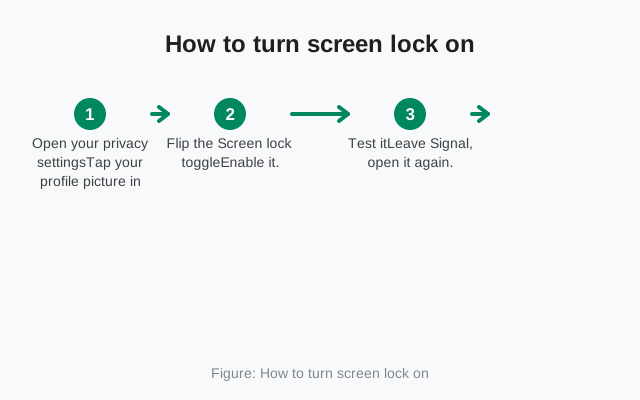
Open your privacy settings
Tap your profile picture in Signal and go to the privacy section of the settings. On Android the path is short; on iOS it sits under Settings then Privacy.
Flip the Screen lock toggle
Enable it. Signal will ask you to authenticate once (fingerprint, face, or PIN) to confirm the setup.
Test it
Leave Signal, open it again. You should see your device's unlock prompt before any chat appears. If your phone has no device lock set up at all, screen lock has nothing to build on. Set a device lock first.
One quirk worth knowing: biometrics can fall back to your device PIN. That is fine. The fallback is still a gate a casual snooper cannot cross.
The inactivity timeout: how fast it re-locks
Turning screen lock on is step one. Step two is deciding how long Signal stays unlocked after you stop using it. This is the setting people get wrong in both directions.
- Lock immediately. Maximum protection: every time you leave Signal, the next open asks for authentication. Slightly annoying if you switch apps constantly, and exactly right if other people handle your phone.
- A short grace period. A few minutes of idle time before the lock engages. You can jump to another app and back without re-authenticating, but a phone left on a table locks itself soon after.
- A long grace period. Convenient, and nearly pointless as a privacy control. Anyone picking up your phone within the window walks straight in.
The sane default for most people: a short timeout. Long enough that switching to your camera and back does not nag you, short enough that a forgotten phone locks itself within minutes. The related screen security setting covers what the app switcher shows while you are between those two moments.
Incognito keyboard: stop your keyboard learning
Your keyboard remembers things. Modern keyboards learn your vocabulary, your names, your slang. Some sync that learned data to a server to "improve predictions." Everything you typed in Signal, a chat app, can quietly end up in your keyboard's dictionary.
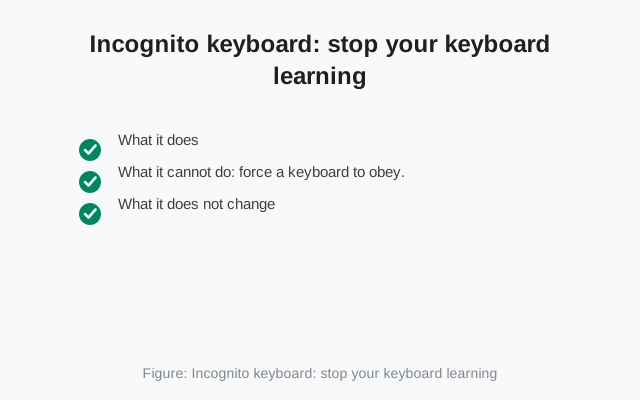
Incognito keyboard is Signal's answer: when you type inside Signal, the app tells your keyboard to disable personalized learning. In practical terms:
- What it does: asks the keyboard to not learn new words, not store what you type, and not offer personalized predictions while you are in Signal. It is an Android setting found in the privacy section.
- What it cannot do: force a keyboard to obey. The flag is a request, and a malicious or careless keyboard app could ignore it. Incognito keyboard raises the bar for well-behaved keyboards; it does not fix a keyboard you do not trust.
- What it does not change: your encryption, your messages, or how Signal itself handles text. It only concerns the keyboard layer between your fingers and the app.
Honest advice: if you take this seriously, pair the setting with a keyboard you actually trust. The setting plus a reputable keyboard is a strong combination; the setting plus a shady free keyboard with network permissions is theater. For the keyboard question specifically, the Signal privacy checklist has the wider setup.
Notifications: the other half of the lock screen
Screen lock guards the app. But your chats also appear outside the app: as notifications on your lock screen, in your notification shade, on your smartwatch. A locked app with chatty notifications is a locked front door with the windows open.
Signal's notification settings let you choose exactly how much of a message shows up before you unlock:
- Name and message. Full preview: who wrote and what they said. Convenient, and readable by anyone who glances at your phone.
- Name only. You see who messaged, not what they said. A reasonable middle ground. You know it is worth unlocking for.
- Neither name nor message. Just "new message." Maximum discretion; you unlock to learn anything.
The interplay with screen lock is the point. Set screen lock to "short timeout" and notifications to "name only" or "nothing," and a phone sitting on a table reveals almost nothing: no content in notifications, and the app itself locked behind your biometrics. If lock-screen notification privacy matters to you, the lock-screen notification guide covers the platform quirks too.
Three layers, three different jobs
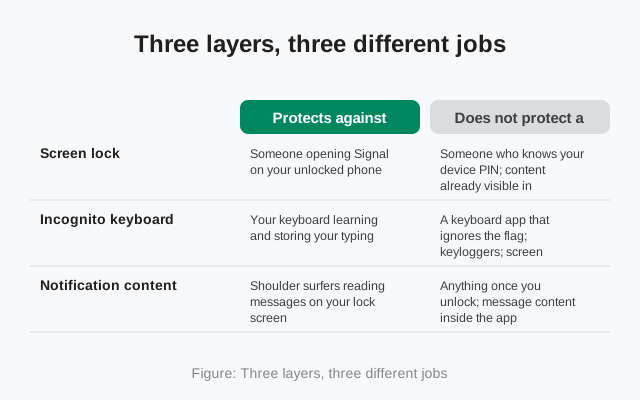
Screen lock, incognito keyboard, and notification control are often confused with each other. They are three separate tools with three separate jobs. There are gaps between them.
| Setting | Protects against | Does not protect against |
|---|---|---|
| Screen lock | Someone opening Signal on your unlocked phone | Someone who knows your device PIN; content already visible in notifications |
| Incognito keyboard | Your keyboard learning and storing your typing | A keyboard app that ignores the flag; keyloggers; screen recording |
| Notification content | Shoulder surfers reading messages on your lock screen | Anything once you unlock; message content inside the app |
Notice the pattern: each layer covers the gap the others leave. Screen lock guards the app, notification control guards the lock screen, and incognito keyboard guards the typing layer underneath both. Turn on all three and a borrowed or lost phone gives up almost nothing at a glance.
The 5-minute setup that covers everything
Do these in order, once, and the whole page is done:
Turn on screen lock
Profile, privacy settings, Screen lock toggle, authenticate once. The gate is now in front of the app.
Set a short timeout
Right under the toggle, choose how fast it re-locks. Short enough that a forgotten phone locks itself within minutes. Immediate is fine if you rarely multitask.
Turn on incognito keyboard
Same privacy section. Your keyboard stops learning your Signal typing from this moment on. It cannot un-learn what it already picked up before you flipped it.
Tame your notifications
Back in settings, open Notifications and set the preview level. Name only is the sweet spot for most people; nothing at all if your lock screen is ever visible to strangers.
Run the borrowed-phone test
Hand your unlocked phone to someone you trust and ask them to try three things:
- Open Signal (should hit the lock).
- Read a notification on the lock screen (should reveal little).
- Check the app switcher (consider adding screen security if the preview bothers you).
Whatever they can see, a stranger could see.
That last step is the one people skip, and it is the one that finds the misconfigurations: the work profile with different notification rules, the smartwatch mirroring full previews, the old phone where the timeout never applied. Five minutes of testing beats five months of assuming.
When screen lock won't help
- Someone who knows your PIN. If a partner, child, or colleague knows your device unlock, screen lock is not a secret from them. Biometrics help here. A fingerprint is harder to borrow than a PIN is to overhear.
- An unlocked app on a desk. If you open Signal, set the phone down, and walk away during the grace period, the app is open. Short timeouts exist for this exact scenario.
- Linked devices. Screen lock is per-device. Your phone can be locked down while your linked desktop sits open on your desk. Lock your computer too.
- Screenshots and photos. Screen lock stops people from opening the app; it does not stop someone photographing your screen while you are using it. For that, look at screen security, which hides content in the app switcher and blocks screenshots on your own device.
- It is not encryption. Screen lock is an access control, not cryptography. Your messages are already end-to-end encrypted whether screen lock is on or off. See how Signal encryption works for that layer.
FAQ
How do I lock Signal with my fingerprint?
Tap your profile picture, open the privacy settings, and enable the Screen lock toggle. Signal uses your device's own fingerprint, face, or PIN. Authenticate once to confirm, and the app will ask for it every time you open Signal after the timeout expires.
What is incognito keyboard in Signal?
It is an Android setting that asks your keyboard app not to learn, store, or personalize based on what you type inside Signal. It is a request the keyboard is expected to honor, not a force field. Pair it with a keyboard you trust.
How do I hide message content from my lock screen?
Open Signal's notification settings and reduce what each notification shows: name and message, name only, or neither. Name only or neither keeps message content off your lock screen.
Does screen lock use a separate password?
No. Signal screen lock uses your device's own unlock method: the same fingerprint, face, or PIN that unlocks your phone. There is no separate Signal password to remember.
Will screen lock log me out or delete anything?
No. It only gates access to the app. Your chats, settings, and linked devices are untouched. You just authenticate to get back in.
Is screen lock available on Signal Desktop?
No. Screen lock is a mobile feature built on your phone's biometrics and device PIN. Lock your computer's user account to protect the desktop app the same way.
Keep reading
- hide chats in the app switcher too: Signal screen security
- the complete privacy setup in one pass: Signal privacy checklist
- who can screenshot your chats: screenshot privacy on Signal
- notification quirks on the lock screen: lock-screen notifications guide