
How to Delete or Edit a Signal Message: For Everyone, Explained Honestly
Published: October 7, 2026 · Updated: October 8, 2026
Everyone has sent a message to the wrong chat or spotted a typo the second after hitting send. Signal gives you two tools: delete and edit. This guide covers exactly what each one does, what the other person sees, the honest limits of deletion, and what you can never take back.
from Signal's official site — file hosted by Signal, not by us
The two ways to delete
Signal's delete menu offers two distinct choices, and picking the wrong one is the most common mistake here:
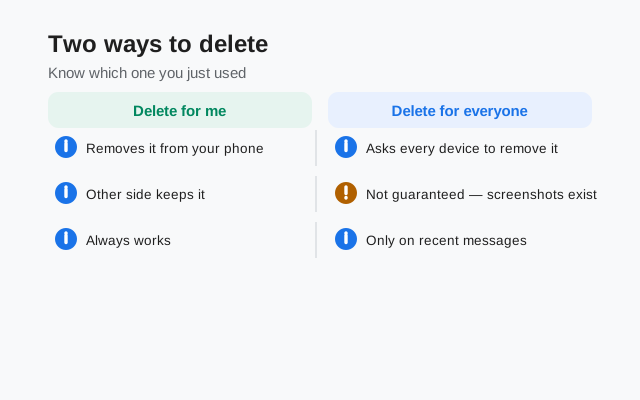
- Delete for everyone. Removes the message from every device in the chat: yours and all recipients'. This is the one you want for "wrong chat" and "should not have sent that" moments.
- Delete for me. Removes the message only from your device. Everyone else still sees it exactly as before. This is for tidying your own chat history, not for taking things back.
The names are literal, so read them twice before tapping. "Delete for me" on a message you regret sending does nothing for the regret. The other person still has it.
How to delete, step by step
Long-press the message
Press and hold the message you sent until the menu appears.
Tap Delete
Choose the Delete option from the menu.
Choose the scope
Pick Delete for everyone or Delete for me, depending on what you need.
Confirm
Confirm your choice. There is no undo after this point.
You can only delete messages you sent yourself. Other people's messages are theirs to delete. You cannot remove them from the chat, only from your own view with "delete for me" on your side where the app allows it.
What "delete for everyone" really removes
Here is the honest version, because this is where expectations and reality diverge:
- What it removes: the message content (text, photos, voice notes, files) from the chat on every recipient's device that receives the deletion. In its place, the chat shows a small notice that a message was deleted.
- What it cannot remove: anything that already escaped the message. If someone already read it, the knowledge is in their head. If they quoted it in a reply, the quote keeps a copy of the text. If they screenshotted it or saved the photo to their phone, that copy lives outside Signal entirely.
- Timing matters. Deletion has to reach the other person's device. If their phone is off or offline, the deletion waits and applies when they come back online. But anything they saw before that point stays seen.
Think of "delete for everyone" as recalling unsent mail, not as erasing history. It works best in the seconds after a mistake, before anyone has opened the chat. The longer a message sits, the less deletion can do about it.
That is the short version. The full inventory of what deletion cannot undo (screenshots, quotes, notification previews, backups, and offline devices) is in our delete-for-everyone limits guide.
How to edit a message
For typos and small fixes, editing beats deleting: the message stays in place and the conversation keeps its flow:
Long-press your message
Press and hold the sent message until the menu appears.
Tap Edit
Choose Edit. The message text opens back up for changes.
Fix it and save
Make your corrections and confirm. The updated message replaces the old one in the chat.
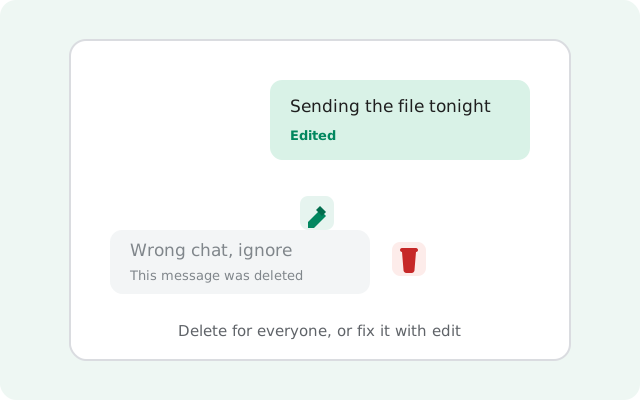
Two honest limits on editing. First, it only works for a limited time after sending. You cannot rewrite a message from last week. If the edit option is gone, the window has closed and your choices are delete or a follow-up correction. Second, edited messages are marked. Signal shows an "Edited" indicator on the message so recipients know the text changed after sending. Editing is transparent by design, not stealthy.
What the other person sees
Neither action is invisible, and you should know what shows up on their screen:
- After delete-for-everyone: the message is replaced by a notice that a message was deleted. They know something was there and is now gone. They do not see what it said (unless they already saw it).
- After an edit: they see the corrected text with an "Edited" label. They know the message was changed, but the chat does not show them a museum of every earlier version. What they see is the current text, marked as edited.
- After delete-for-me: they see nothing different at all. The message is untouched on their device.
Notifications deserve a mention: if the recipient's phone already showed a notification preview of your message, deleting the message does not pull that preview back from their lock screen. The notification shade is outside Signal's reach.
Delete vs. edit vs. disappearing messages
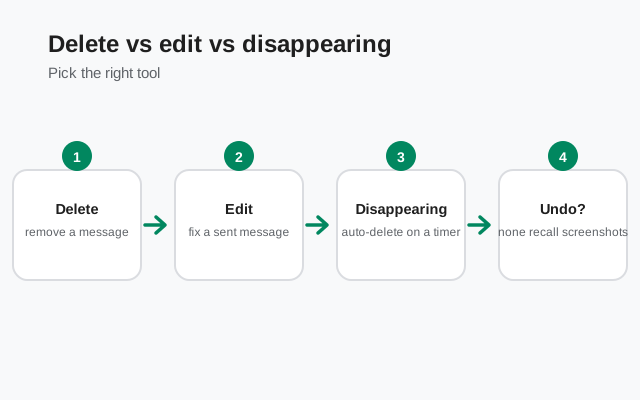
Three tools, three jobs. Picking the right one saves trouble:
| Tool | Use it when |
|---|---|
| Edit | Typo or small fix, caught quickly. Message stays, marked "Edited". Only available for a limited time after sending. |
| Delete for everyone | Wrong chat, wrong file, message should not exist. Leaves a deletion notice. Cannot undo, cannot unsee. |
| Delete for me | Cleaning up your own view. Changes nothing for anyone else. |
| Disappearing messages | You want everything to auto-expire going forward. Set a timer once instead of deleting one by one; see the message timers guide. |
If you find yourself deleting often, the real fix is usually the timer: set disappearing messages on the chats where it fits, and manual deletion becomes the exception instead of the routine.
What you cannot undo
A short list, because it matters:
- Delete-for-everyone cannot be undone. Once confirmed, the message is gone from the chat. There is no trash bin, no restore.
- You cannot delete what already left Signal. Quotes in replies, screenshots, saved files, notification previews: all outside the reach of the delete button.
- You cannot edit someone else's message, and you cannot silently rewrite your own. The "Edited" mark is always there.
- You cannot delete for everyone after the window closes. Like editing, deletion-for-everyone is a soon-after-sending tool. Old messages are history.
The practical habit: send carefully, fix fast with edit, delete fast when it is truly wrong. For chats where messages should never linger, let timers do the work. More message mechanics in the reply and quote guide and the Signal features hub.
FAQ
How do I delete a Signal message for everyone?
Long-press the message, tap Delete, and choose Delete for everyone. The message is removed from all recipients' devices and replaced with a deletion notice.
What is the difference between Delete for everyone and Delete for me?
Delete for everyone removes the message from every device in the chat. Delete for me removes it only from your own device; everyone else still sees it.
Can I edit a message after sending it on Signal?
Yes, within a limited time after sending. Long-press the message and choose Edit. The edited message shows an Edited indicator so recipients know it changed.
Does the other person know I deleted a message?
Yes. A deleted-for-everyone message leaves a notice in the chat saying a message was deleted; it does not vanish silently.
Can I undo deleting a message for everyone?
No. Once a message is deleted for everyone, it cannot be brought back. Delete carefully.
Does deleting a message remove it if someone already saw it?
No. Deletion removes the message going forward; it cannot unsee what someone already read, quoted, or screenshotted.
Keep reading
- reply and quote guide: why quotes survive deletion
- message timers: auto-expiry so you delete less
- view-once media guide: photos that vanish after one view
- stories guide: 24-hour posts with audience controls
- delete-for-everyone limits: what deletion can't undo