
How to Reply to a Specific Message on Signal (Quotes Explained)
Published: October 7, 2026 · Updated: October 8, 2026
In a fast-moving chat, a bare "yes" or "haha" means nothing. Nobody knows which of the last twenty messages you mean. Quotes fix that by attaching the exact message you are answering. This guide covers replying with a quote, jumping to the original, answering several messages, reply vs. forward vs. copy, and what happens to quotes when the original message is deleted.
from Signal's official site — file hosted by Signal, not by us
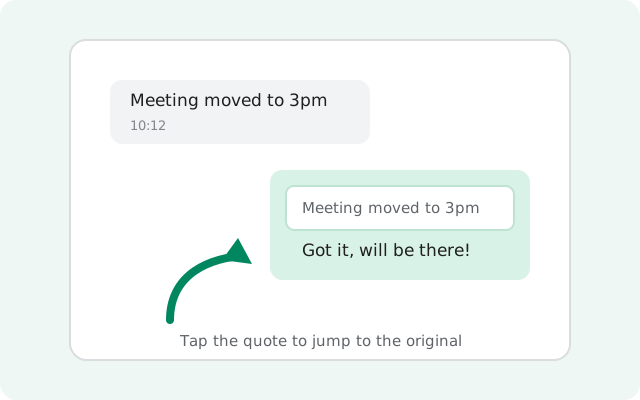
How to reply with a quote
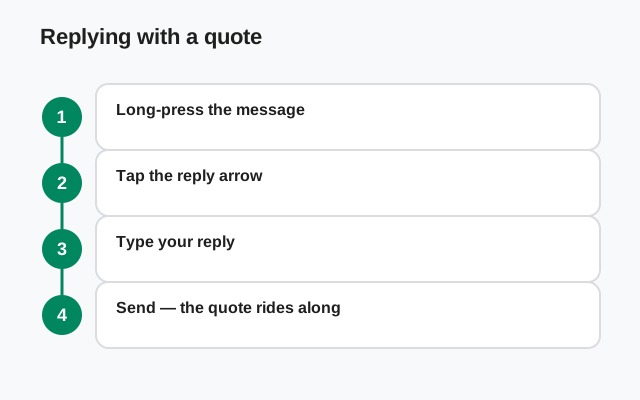
The flow is the same for text, photos, voice notes, and links:
Long-press the message
Press and hold the message you want to answer until the menu appears.
Tap Reply
Choose Reply. The message now sits quoted above the text box, with a preview of its content.
Type your answer
Write your reply below the quote. You can still attach a photo or a file to a quoted reply.
Send
Send normally. Everyone in the chat sees your message with the quoted message shown above it.
You can reply to your own messages too. Handy for continuing a thought from an hour ago, or correcting yourself with the original right there for context.
Jumping to the original message
A quote is not just decoration. It is a link. Tap the quoted part of any reply and Signal jumps you straight to the original message in the chat, scrolled to exactly where it was sent.
This is the fastest way to recover context in a long conversation: someone replies "agreed" with a quote, you tap the quote, and you are looking at the proposal they agreed with. It also works on your own quotes when you want to re-read what you were answering.
If the original message is far back in history, the jump still works as long as the message is still in the chat. Which brings us to the edge cases.
Answering several messages at once
Here is the honest limitation: Signal attaches one quote per reply. There is no multi-quote that bundles three messages into a single reply.
The workaround is simple: send one reply per message. Each reply carries its own quote, and the set of them reads naturally in order: quote, answer, quote, answer. It looks like more messages, but each one is self-explanatory, which is the whole point of quoting.
If you find yourself quoting five messages in a row, consider whether a voice call would settle it faster. Quotes are for clarity, not for essays.
Reply vs. forward vs. copy
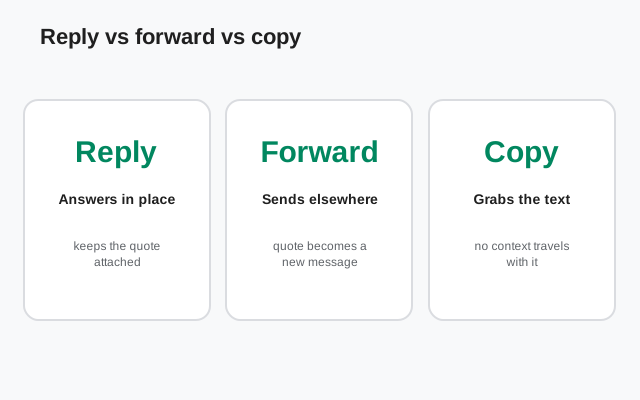
Three features move existing messages around, and they do different jobs:
| Action | What it does |
|---|---|
| Reply (quote) | Answers a message inside the same chat, showing the original above your text. Keeps context where the conversation already is. |
| Forward | Sends a copy of a message to a different chat. Moves content somewhere new; the original chat sees nothing. |
| Copy | Puts the message text on your clipboard so you can paste it anywhere, inside or outside Signal. No attribution, no link back. |
Rule of thumb: answering something here → reply. Showing something to someone elsewhere → forward. Reusing the text yourself → copy. Mixing them up is how quotes end up in the wrong chat.
What happens to quotes when the original is deleted
This is the subtle one, so here it is plainly: a quote carries a copy of the original text inside your reply. Your reply is its own message that happens to contain that copy.
That means deleting the original message later does not reach back into your reply and erase the quoted copy. If someone wrote something, you quoted it, and then they deleted their message, your quote still shows what they wrote. Deletion removes the original; it does not rewrite history in other people's messages.
Two practical consequences:
- Think before quoting something sensitive. Once you quote it, the text lives in your message too, under your control, and under the chat's disappearing-message timer, if one is set.
- Do not rely on deletion to unsay things. If your words were quoted before you deleted them, the quote preserves them. The delete guide covers the full limits of deletion.
Replying to photos, voice notes, and files
Quotes are not text-only. Long-press a photo, video, voice note, or file and hit Reply the same way. The quote shows a thumbnail or a preview of the media, so everyone knows exactly which attachment you mean.
This solves real confusion. In a chat full of photos, "this one is great" means nothing. A quoted reply to the photo means everything. Replying to a voice note with a quote also signals that you actually listened to that recording, not just the latest one. And when someone shares a document, quoting it keeps your question attached to the right file.
Media quotes behave like text quotes in every other way: one per reply, tappable to jump to the original, and they follow the chat's disappearing timer.
Common quoting mistakes
Quotes are simple, but a few habits make them backfire:
- The empty quote. Sending a reply with a quote and no text, just the quoted message floating alone, confuses everyone. It looks like an accident. Always add at least a few words.
- Quoting in the wrong chat. Copy a thought from one chat, paste it as a "reply" in another, and the quote points nowhere. Quotes only link within their own chat. Re-type or forward instead.
- Quoting ancient history for new members. Tapping a quote jumps to the original, but someone who joined the group yesterday cannot jump to a message from last month if history was cleared. A one-line summary helps newcomers more than a bare quote.
- Quote-stacking arguments. Replying to every line of someone's message with its own quote turns a disagreement into a wall of boxes. Quote the one point you are actually answering.
Quoting in groups
Quotes earn their keep in groups, where several conversations run at once. A quoted reply tells everyone exactly which thread you are continuing. No "which question?" follow-ups needed.
One group-specific note: when you quote someone's message, the quote shows their profile name. In a large group, that is public attribution. Fine for normal chat, worth a thought if you are quoting something the person might not want spotlighted. And if the group has a disappearing-message timer, quoted replies disappear on the same schedule as everything else. More group mechanics in the group chat guide and the Signal feaaq">FAQ
Long-press the message, tap Reply, and type your answer. The original message appears quoted above your reply. Signal attaches one quote per reply. To answer several messages, send one reply per message so each keeps its own quote. Tapping the quote jumps you to the original message in the chat, so you can see its full context. No. A quote carries a copy of the original text inside your reply, so deleting the original later does not erase the copy in your quote. Yes. Quoting your own earlier message is a handy way to continue a thought or correct yourself with context. Reply quotes a message inside your current chat; forward sends a copy of the message to a different chat. Reply keeps context, forward moves content. Yes. Just type in the message box normally. But in a busy chat a quoteless reply can be ambiguous about which message you are answering. Make sure you long-press the message bubble itself, not the empty area around it. The Reply option appears in the menu for the message you pressed.How do I reply to a specific message on Signal?
Can I quote more than one message in a single reply?
What happens if I tap a quoted message?
If the original message is deleted, does my quote disappear too?
Can I reply to my own messages?
What is the difference between reply and forward?
Can I reply without quoting?
Why can't I find the Reply option?
Keep reading