
How Signal Disappearing Messages Work: Timers, Defaults and Limits
Published: October 7, 2026 · Updated: October 8, 2026
Disappearing messages are one of Signal's signature privacy features: instead of your chat history piling up forever, messages vanish automatically after a time you pick. This guide walks through setting timers per chat, the default timer for new chats, the real timer options, what changes mid-conversation, how backups treat disappearing messages, and the honest limits you should know.
from Signal's official site — file hosted by Signal, not by us
How disappearing messages work
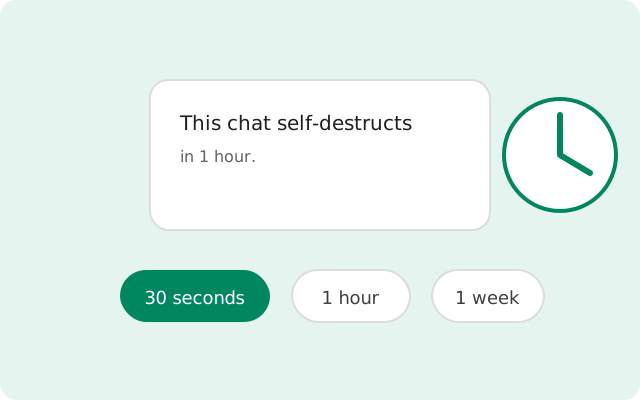
When a disappearing timer is on in a chat, every new message deletes itself from both phones after the chosen time. Not just yours. Your contact's copy disappears too. The timer for the recipient starts when they actually view the message, not when you send it. Your own copy starts its countdown when you send it.
This applies to text, photos, videos, voice notes, and files. Media sent with a timer disappears like everything else. Replies and quotes follow the same rule with one nuance. A quoted disappearing message disappears along with the message that quoted it only if the quoting message is itself a disappearing message. If you quote a disappearing message in a chat without a timer, the quoted text can stick around. Keep that in mind before quoting.
Signal itself frames this feature honestly: it is for keeping conversation history to a minimum (saving storage and reducing what lingers on devices), not for sending secrets to someone you do not trust. If your contact is your adversary, a timer will not protect you.
Set a timer for one chat
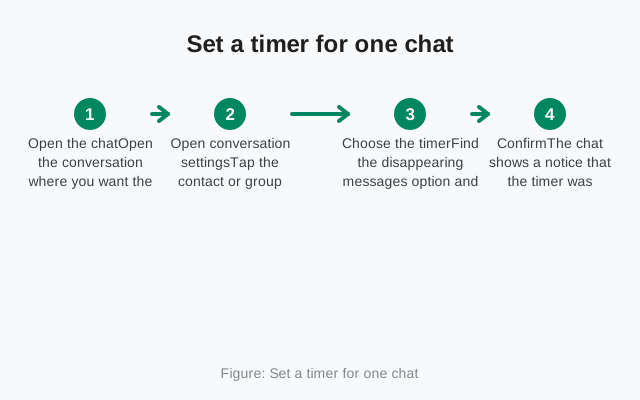
To turn disappearing messages on in a single conversation:
Open the chat
Open the conversation where you want the timer.
Open conversation settings
Tap the contact or group name at the top to open the conversation settings screen.
Choose the timer
Find the disappearing messages option and pick a duration from the list (the full list is below).
Confirm
The chat shows a notice that the timer was changed, so both sides know the rule is now active.
Both people in the chat can change the timer at any time. It is not a sender-only setting. In group chats, any member can change it too, and the change notice appears for everyone.
Set a default timer for new chats
Setting a timer chat by chat is easy to forget. The default timer for new chats (Settings > Privacy > Default timer for new chats) fixes that: every new conversation you start is preconfigured with your chosen timer, so you never begin a chat unprotected by accident. It applies to new chats only: existing conversations keep whatever they had until you set them individually. Our default timer guide covers where the setting lives, the exact scope rules, how it behaves in groups, and how it interacts with backups.
The real timer options
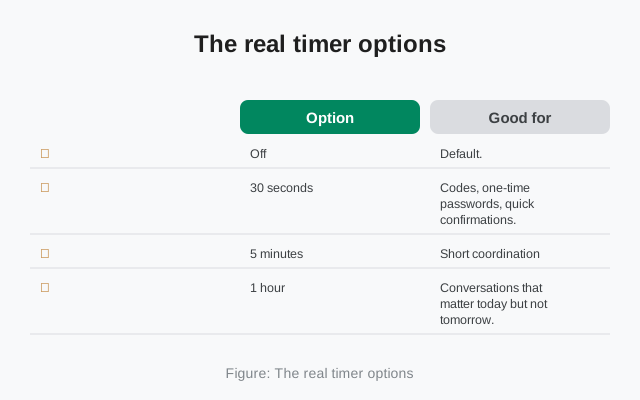
Signal offers these standard timer durations, plus a custom option:
| Option | Good for |
|---|---|
| Off | Default. Messages stay until you delete them. |
| 30 seconds | Codes, one-time passwords, quick confirmations. |
| 5 minutes | Short coordination: "I'm outside", parking spots, meeting points. |
| 1 hour | Conversations that matter today but not tomorrow. |
| 8 hours | A workday's worth of chat; gone by morning. |
| 1 day | Daily chats that should not accumulate for weeks. |
| 1 week | Project chats where a week's history is useful. |
| 4 weeks | Long threads you still want to self-clean monthly. |
| Custom time | Anything in between: can go as short as 1 second. |
The range is wide on purpose: a one-time code needs seconds, a project chat needs weeks. Most people land on 1 day or 1 week as a sensible default and use shorter timers for sensitive one-off chats.
What happens when the timer changes mid-chat
Changing the timer mid-conversation only affects new messages sent after the change. Old messages keep the timer they were sent with. So if your chat was on 1 week and you switch to 5 minutes, last week's messages still follow the old schedule. They do not suddenly speed up.
Two more things to know:
- Both sides see a notice. When anyone changes the timer, a message appears in the chat announcing the new duration. Nobody can change it silently.
- Turning it off does not delete history. If you switch the timer off, the existing messages stay. The chat simply stops deleting new ones.
Disappearing messages and backups
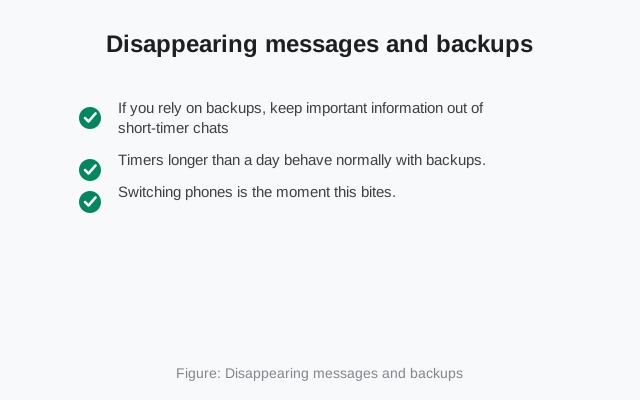
Here is a verified behavior that surprises people: messages with a disappearing timer of 24 hours or less are not included in chat backups. If you back up your chats and restore on a new phone, those short-timer messages do not come back. This is by design: a message meant to live for an hour should not survive in a backup for a year.
Practically, that means:
- If you rely on backups, keep important information out of short-timer chats, or accept that it will not transfer.
- Timers longer than a day behave normally with backups.
- Switching phones is the moment this bites. Plan for it if your chats are timer-heavy.
For the full backup picture, see our guides on Signal Android backups and secure backups.
The honest limits: screenshots and more
Disappearing messages remove messages from the app's interface. They do not, and cannot, guarantee the message is gone from the world. Be honest with yourself about these:
- Screenshots. Signal has no screenshot detection or blocking for disappearing messages. Your contact can screenshot anything before it vanishes.
- Photos of the screen. A second phone taking a photo of the first phone's screen defeats every disappearing feature ever built.
- Copy and forward before expiry. Until the timer fires, the message is fully readable and shareable like any other message.
- Notification previews. Depending on your notification settings, message text can appear in notifications outside the app.
This is not a flaw unique to Signal. No app can control what happens outside its own screen. Signal's own guidance says it plainly: disappearing messages are best for saving storage and keeping conversation history minimal, not for situations where your contact is your adversary. Our disappearing messages limits guide walks through every escape one by one: screenshots, second cameras, forwards, notification previews, backups, and linked devices.
Which timer to pick
A simple decision framework:
- Default for everything: set the default timer to 1 week. History stays useful, but nothing accumulates for months.
- Sensitive one-off chats: drop to 5 minutes or 30 seconds for codes, addresses, and things that should not outlive the errand.
- Groups: use 1 day for active groups so the thread self-cleans, and leave announcement-style groups off the timer entirely.
- Note to Self: keep it off. That chat is your personal notepad, and timers would fight the point.
Whatever you choose, review your default once in a while. Habits change, and a timer you set a year ago might not match how you use the app today. More privacy guides live in the Signal feaaq">FAQ
Yes. When the timer fires, the message is deleted from both the sender's and the recipient's devices. For the recipient, when they view the message. For the sender, when the message is sent. Off, 30 seconds, 5 minutes, 1 hour, 8 hours, 1 day, 1 week, 4 weeks, plus a custom time that can go as short as 1 second. No. The default timer only applies to new conversations you start. Existing chats keep their current setting until you change them individually. Messages with a timer of 24 hours or less are not included in chat backups. They will not transfer to a new phone. Yes. Signal does not block or detect screenshots of disappearing messages. Assume anything you send could be captured. No. Messages that already disappeared are gone. Turning the timer off only stops new messages from disappearing.Do disappearing messages delete for both people?
When does the disappearing timer start?
What are the timer options in Signal?
Does the default timer apply to my existing chats?
Are disappearing messages included in backups?
Can someone screenshot a disappearing message?
If I turn off the timer, do old messages come back?
Keep reading