
apksigner is the strongest check you can run: here's the command
Published: October 7, 2026 · Updated: October 8, 2026
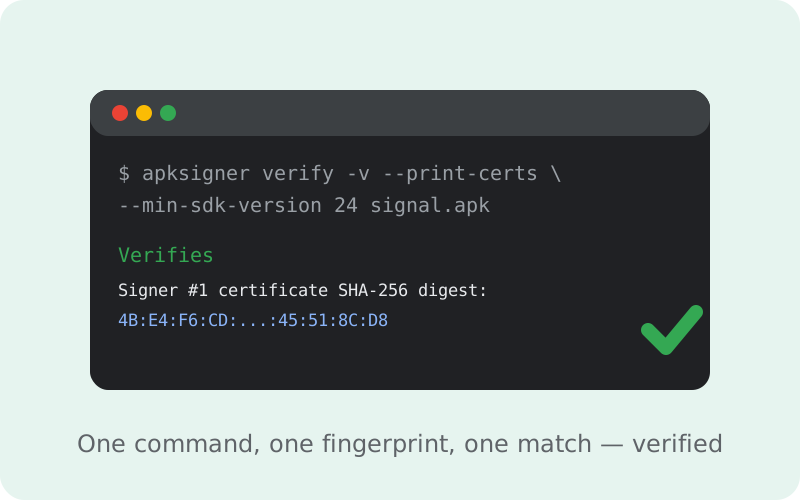
Yes. One command settles the question of whether your Signal APK is genuine. apksigner is Google's official APK verification tool, shipped with the Android SDK Build Tools, and Signal's own download page prints the exact command to use: apksigner verify -v --print-certs --min-sdk-version 24. Run it against your downloaded APK, find the SHA-256 digest line in the output, and compare it character-by-character with the fingerprint Signal publishes on the same page. If it matches, the file was signed by Signal's private key. That is math, not trust. No repackaged fake with malware inside can produce that match. This guide covers installing the tool, running the command on every major OS, reading the output, the keytool alternative, and what to do when something looks off.
Why this beats every other check
Most "is this APK safe" advice is really advice about trust: trust the site, trust the uploader, trust the scanner's opinion. Signature verification is different: it is a mathematical check.
Every APK is signed with the developer's private key, and Android records the signature when the app is installed. apksigner verify --print-certs shows you the signing certificate inside the file. If that certificate's fingerprint matches the one Signal publishes, the file could only have been signed by whoever holds Signal's private key.
A fake can't fake it: anyone who modifies the APK (to add spyware, ads, or anything else) breaks the original signature, and re-signing produces a different certificate with a different fingerprint. So the whole security question collapses to one comparison: does this string match that string? Play Protect scanning, antivirus apps, and "the site looked legit" are all weaker signals than this one check. Do this, and you have done the strongest thing a user can do.
What you need
You need a computer running Windows, macOS, or Linux (the commands below work on all three) and the Android SDK Build Tools, which is where apksigner lives. You do not need Android Studio and you do not need an Android device: this check runs on the APK file itself, before anything is installed.
- Easiest path: install the Android SDK command-line tools from Google's developer site and then install a Build Tools package. Signal's own page notes that you should update to the latest Build Tools for the best experience. Older versions may not understand the newest APK signature schemes.
- Finding the binary: it lives at
$ANDROID_HOME/build-tools/<version>/apksigneron macOS/Linux, orapksigner.batin the same folder on Windows. If you already have Android Studio installed, the build-tools folder is inside its SDK directory. - Alternative without Build Tools:
keytool, which ships with any Java JDK, can also print the certificate fingerprints (covered below). If you have Java but not the Android SDK, start there. - The APK file: download it from Signal's official APK page. The current website build is v8.29.3, package
org.thoughtcrime.securesms. Keep the file somewhere you can find it from the terminal.
The command
Signal's download page gives this exact command for retrieving and verifying the certificate before installation:
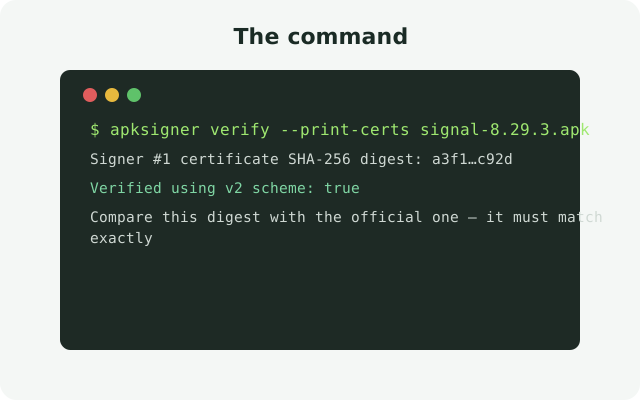
apksigner verify -v --print-certs --min-sdk-version 24Run it with your APK file as the argument:
apksigner verify -v --print-certs --min-sdk-version 24 Signal-Android-website-prod-universal-release-8.29.3.apkWhat each flag does, in plain language:
verify: check the APK's signatures instead of signing it.-v(verbose): print detailed results, including the certificates. Without this you get a one-line "verified" that tells you the signature is valid but not whose it is. Validity alone isn't enough. You need identity.--print-certs: show the signing certificates and their fingerprints. This is the flag that gives you the string to compare.--min-sdk-version 24: verify using the signature schemes appropriate for the app's minimum Android version. Use the value Signal's page gives; it keeps the check consistent with how the app is actually signed.
Reading the output
A successful run prints a "Verifies" confirmation followed by per-signer details. The lines you care about look like this:
Verifies
Verified using v1 scheme (JAR signing): true
Verified using v2 scheme (APK Signature Scheme v2): true
...
Signer #1 certificate SHA-256 digest: 4be4f6cd5be844083e900279dc822af65a547fecc26aba7ff1f5203a45518cd8
...
Two things to know about reading it. First, the fingerprint in the terminal is usually printed without colons and in lowercase, while Signal's page prints it with colons and uppercase (4B:E4:F6:CD:...). That is the same value in two formats. Strip the colons and compare case-insensitively, or reformat one side to match the other. Second, "Verified using v1/v2 scheme: true" tells you the signature is structurally valid. That's necessary but not sufficient: a perfectly valid signature from someone else's key also verifies. The fingerprint comparison is what ties the file to Signal.
Comparing the fingerprint
This is the moment of truth. Signal publishes the SHA-256 fingerprint of its 4096-bit signing certificate on its download page. At the time this guide was written (re-verified live from that page on 2026-10-07), it reads:
4B:E4:F6:CD:5B:E8:44:08:3E:90:02:79:DC:82:2A:F6
5A:54:7F:EC:C2:6A:BA:7F:F1:F5:20:3A:45:51:8C:D8
Compare every character of your terminal output against this value (ignoring colons and case). Match: the APK was signed by Signal's key. Install with confidence. Mismatch: the file is not Signal's build. Delete it and re-download from the official page.
Always cross-check against the live page
One standing rule: always cross-check against the live page, not against this guide or any other copy. We verified this value on October 7, 2026 and will re-check it, but Signal can rotate keys, and a value copied from anywhere, including this page, is a value you didn't verify. The live page is the authority; everything else is a convenience. Signal's page also notes that very old versions of apksigner may show a different fingerprint for a legacy 1024-bit certificate. If you see that, update your Build Tools and run again rather than trusting the old output.
Why this guide quotes the fingerprint
Why does this page quote the fingerprint while our other guides just say "published on Signal's page"? Because this guide is specifically about performing the comparison, and showing the real format (colon-separated, uppercase) helps you recognize it. The build brief's rule stands: the value is quoted only because it was re-verified live at build time, and you should still confirm it on the live page before trusting a download.
from Signal's official site — file hosted by Signal, not by us
The keytool alternative
No Android SDK handy? keytool ships with every Java JDK and can extract the same fingerprints:
keytool -printcert -jarfile Signal-Android-website-prod-universal-release-8.29.3.apkThe output lists the certificate's owner and a "Certificate fingerprints" section with SHA1 and SHA256 values. Take the SHA256 line and compare it to Signal's published fingerprint the same way: strip colons, ignore case, match every character. The security guarantee is identical. You're reading the same signing certificate through a different tool. One caveat: keytool shows you the certificate but doesn't verify the APK's signature schemes the way apksigner verify does. For a pre-install authenticity check it's fine; apksigner remains the more complete tool.
The full verification checklist
| Step | Action | Expected result |
|---|---|---|
| 1 | Download the APK from signal.org/android/apk | File named like Signal-Android-website-prod-universal-release-8.29.3.apk |
| 2 | Confirm the package name is org.thoughtcrime.securesms | Exact match: impostor apps use look-alike names |
| 3 | Run apksigner verify -v --print-certs --min-sdk-version 24 <file> | Output starts with "Verifies" |
| 4 | Read the "Signer #1 certificate SHA-256 digest" line | A 64-hex-character fingerprint |
| 5 | Open the live download page and compare | Every character matches (colons and case aside) |
| 6 | Only then install | A genuine, Signal-signed APK on your phone |
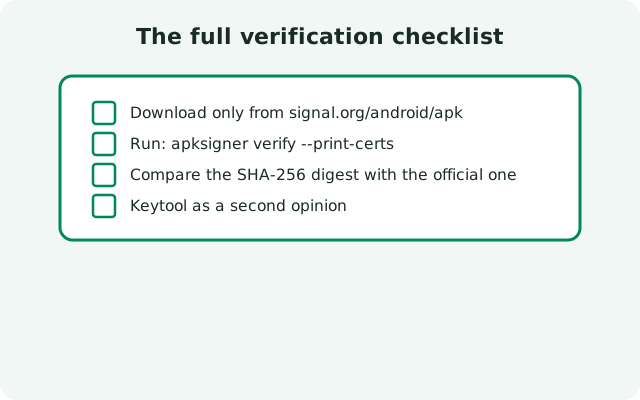
Do these six steps in order every time you download a fresh APK (updates included). It takes about two minutes once you've done it once, and it is the single highest-value security habit in sideloading. Our SHA-256 verification walkthrough covers the same check from the non-technical side if you want the conceptual version first.
Troubleshooting
- "command not found." The Build Tools folder isn't on your PATH. Either
cdinto the build-tools version folder first, or add it to your PATH. On Windows useapksigner.bat. - Output shows the legacy 1024-bit fingerprint. Your Build Tools are too old to read the current signature scheme, so apksigner fell back to an older certificate view. Update to the latest Build Tools and re-run. Compare against the current 4096-bit fingerprint on the live page.
- "DOES NOT verify." The file's signature is broken or missing. Don't install it. Re-download from the official page and try again. A second failure on a fresh download means something is interfering with your downloads (rare, but it happens on some networks).
- Multiple signers listed. The official APK has one signer. Extra signers mean the file was re-signed by someone else after Signal. Treat it as untrusted.
- Fingerprint matches but Play Protect still warns. Expected, and harmless. Play Protect doesn't recognize the website build's certificate (different key from the Play build). See our Play Protect guide for how to read that warning.
- keytool shows a SHA256 that doesn't match. Same rule as apksigner: mismatch means the file isn't Signal's. Delete, re-download from the official page, verify again.
Frequently asked questions
What is the exact apksigner command to verify the Signal APK?
apksigner verify -v --print-certs --min-sdk-version 24
Where do I get apksigner?
It ships with the Android SDK Build Tools. No Android Studio required. Look in $ANDROID_HOME/build-tools/
What should the output look like?
It starts with 'Verifies', confirms the v1/v2 signature schemes, and lists a 'Signer #1 certificate SHA-256 digest' line. Compare that fingerprint character-by-character with the value published on signal.org/android/apk. A match proves the file was signed by Signal's key.
Can I verify without the Android SDK?
Yes: keytool -printcert -jarfile
My fingerprint doesn't match. What do I do?
Don't install the file. Delete it and re-download from signal.org/android/apk, then verify the fresh copy. A persistent mismatch means the file is not Signal's build.
Why does Play Protect still warn after a successful verification?
Play Protect doesn't recognize the website build's signing certificate because it differs from the Play Store build's key. A verified signature is stronger evidence than the scanner's caution. See our Play Protect guide for the details.
Keep reading
- Signal APK safety hub: all safety guides in one place
- Verify the Signal APK signing certificate fingerprint: the non-technical walkthrough
- Play Protect flags the Signal APK?: reading the scanner's warnings
- Can the official APK contain malware?: the supply-chain reality
- Download the Signal APK: the official download path