
Download the Signal APK only over HTTPS, every time
Published: October 7, 2026 · Updated: October 8, 2026
Always download the Signal APK over HTTPS, and only from Signal's own page at signal.org/android/apk. On an HTTP connection, anyone between you and the server (your operator, coffee-shop Wi-Fi, or a compromised router) can see the download and swap the APK for a tampered one. The lock icon is the only guarantee the file came from Signal unaltered.
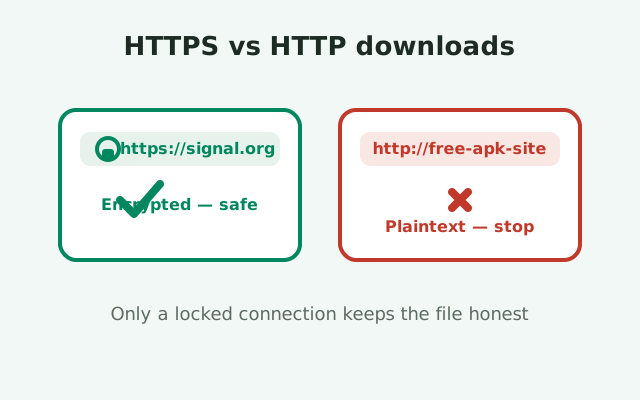
Why HTTPS matters for a file download
HTTPS does three things for a download that most people lump together:
- It encrypts the transfer so nobody in the middle can read it.
- It authenticates the server so you know you are really talking to signal.org and not an impostor.
- It guarantees integrity so the file that arrives is byte-for-byte the file that left the server.
Lose any one of those and the download is not trustworthy.
For a messaging app this matters more than for a video file, because the app will hold your private conversations, your contacts, and your call history. A tampered messenger is the perfect spyware: it looks identical, it works, and everything you type passes through it. The download step is the one moment where you decide whether that app is the real one. HTTPS is what makes that decision meaningful.
Think of it this way: HTTP is a postcard and HTTPS is a sealed envelope delivered by a verified courier. Anyone along the postcard's route can read it, copy it, or rewrite it. The sealed envelope can only be opened at the destination, and the courier's identity is checked at the door. When you install an app outside the Play Store, there is no store clerk checking anything for you; the HTTPS connection is your entire supply chain.
What can happen on plain HTTP
An attacker who controls part of your network path can perform what is called a man-in-the-middle attack on a plain HTTP download. In practice this is simpler than it sounds. On a public Wi-Fi network, a compromised router, a shady ISP, or a hotel network with injected ads, your request for an APK file travels in the open. The attacker does not need your password or your phone; they just need to be in the middle of the route.
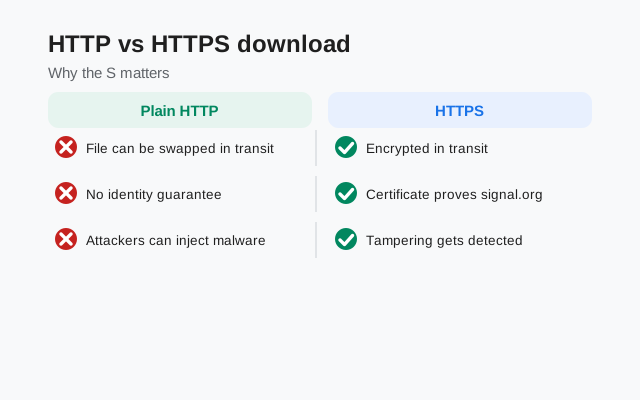
The classic move: a file swap
The classic move is a file swap. You click a download link for the Signal APK. The attacker intercepts the request and sends you back a different file. It is a modified APK that looks and behaves like Signal but carries extra code: a keylogger, a screen recorder, something that forwards your messages to a server you have never heard of. Your browser shows a completed download. The filename looks right. The icon looks right. Everything proceeds normally until your private chats are not private anymore.
Injecting content into the download page
Less dramatic but still real: on HTTP, an attacker can also inject content into the download page itself, adding fake "update" banners, redirecting your click to a different file, or inserting warnings designed to push you toward their mirror site. None of this requires any sophistication on your end; it works precisely because HTTP trusts the network, and on public or compromised networks that trust is unearned. This is also why so many fake Signal APK pages sit on sketchy HTTP mirrors: they need the connection to be tamperable, or at least they want you accustomed to ignoring security signals.
Signal's own download is HTTPS
Signal serves its official APK download page over HTTPS, and the file itself downloads over HTTPS. When you visit signal.org/android/apk, your browser establishes an encrypted connection directly to Signal's servers, verifies that the certificate really belongs to signal.org, and then transfers the file inside that encrypted channel. That is the chain of trust: you verify the site, the site's certificate verifies the server, and the encrypted channel verifies the file's integrity in transit.
This is one of the simplest checks in the entire safety silo and one of the most skipped. Glance at the address bar before you click download. The URL should start with https:// and the domain should be signal.org, spelled exactly. Homoglyph tricks, where a domain looks like signal.org but swaps a letter for a lookalike character, are exactly the kind of thing scammers rely on, and the HTTPS lock on the wrong domain protects you from exactly no one. For a walkthrough of everything that should look right on that page, see our guide to whether the Signal APK is safe to download.
Note that this guarantee ends at Signal's servers. If you found the same file on a random mirror site that happens to use HTTPS, the encryption only means nobody tampered with it in transit from that mirror. It says nothing about whether the mirror uploaded the genuine file. HTTPS answers "did this arrive intact from this server," not "is this server trustworthy." That distinction leads directly to the next two sections.
Certificate warnings mean stop, not continue
Sometimes your browser throws a full-page warning: the connection is not private, the certificate is invalid, someone may be trying to steal your information. The correct response is to stop, every time. These warnings exist for the exact situation described above: they fire when the browser cannot verify that it is talking to the real server, which is precisely when a man-in-the-middle attack might be in progress.
The temptation to click through is real. You are in a hurry, you want the app, the "advanced" link is right there. Do not. A certificate warning on signal.org is either a genuine attack on your connection or a broken network setup, and in both cases the download is not trustworthy right now. Some corporate and school networks intercept HTTPS traffic with their own certificates. The file will still be there later from a safe network.
A related signal: if your browser shows HTTP instead of HTTPS on a page that should be secure, or the lock icon is missing, treat it like a warning even without the scary page. Attackers sometimes downgrade connections silently. Modern browsers make this obvious enough that you will notice if you look. So look. Thirty seconds of attention at the download step is the cheapest security habit in this entire guide.
Why a VPN does not fix a bad source
This is the honest correction most download guides skip. A VPN encrypts your traffic between your phone and the VPN server, which protects you from snooping on your local network. What it does not do is make an untrustworthy source trustworthy. If you download a tampered APK from a shady mirror while on a VPN, the VPN faithfully encrypts the delivery of malware to your phone. It protected the transport; the cargo was still poison.
VPN marketing has blurred this line badly, so say it plainly. A VPN answers "can my ISP see this," not "is this file genuine." It does not verify file signatures, vet download mirrors, or stop you from installing a modified app. It is a privacy tool for your connection, not an authenticity tool for your downloads.
What actually establishes authenticity is the combination this guide keeps repeating: get the file from Signal's own HTTPS page, then verify the signature after downloading. Our SHA-256 verification guide walks through the full check. A VPN is fine to use in general; it just does not replace either step, and anyone who tells you it does is selling you something.
Verify the file after downloading
HTTPS protects the file in transit. Signature verification protects you against everything else: a compromised mirror, a swapped file on a shared computer, a download you are not quite sure about. Signal publishes the SHA-256 fingerprint of its signing certificate on its download page, and you can check the file you downloaded against it.
The check is straightforward. On a computer with Android's build tools, run apksigner verify -v --print-certs against the APK and compare the SHA-256 fingerprint it reports with the one on Signal's page. The fingerprint we verified live on Signal's download page (re-verified 2026-10-07) reads:
4B:E4:F6:CD:5B:E8:44:08:3E:90:02:79:DC:82:2A:F6:5A:54:7F:EC:C2:6A:BA:7F:F1:F5:20:3A:45:51:8C:D8
If the fingerprints match, the file was signed by Signal's website-distribution key and has not been tampered with. If they do not match, do not install it. Delete the file and download again from Signal's official page. One important nuance from the build brief: this is the website build's key, which differs from the Play Store build's key, so a file from the Play Store will not match this fingerprint. That is expected, not a red flag. The full command-by-command process is in our guide to verifying with apksigner.
Safe-download checklist
Here is the information-gain summary: the complete checklist, in order.
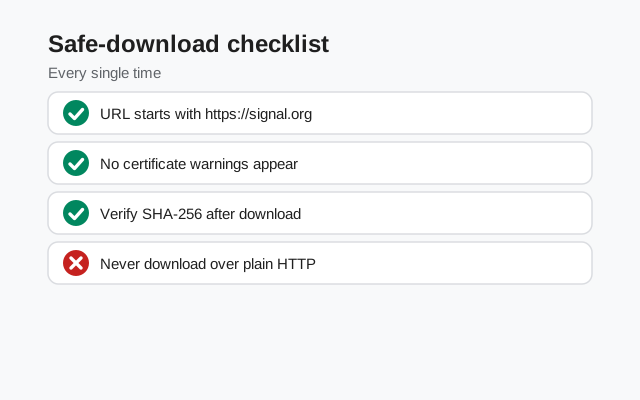
| Step | What to check | Why |
|---|---|---|
| 1 | URL is exactly https://signal.org/android/apk/ | Only Signal's own page is the trusted source |
| 2 | Browser shows https:// with a valid lock | Encrypted, authenticated, untampered transfer |
| 3 | No certificate warnings; if one appears, stop | Warnings mean the connection may be intercepted |
| 4 | Do not substitute a mirror because it "looks fine" | HTTPS on a bad server proves nothing about the file |
| 5 | Do not assume a VPN makes a mirror safe | VPNs encrypt transport; they do not verify files |
| 6 | Verify the SHA-256 fingerprint after downloading | Proves the file was signed by Signal's key |
| 7 | Back up your chats before installing over an existing build | Website and Play builds are signed differently and cannot cross-install |
That is the whole protocol. It takes five minutes, it costs nothing, and it closes every realistic attack on the download step. Most people skip it because nothing bad happened the last time they skipped it. Security habits are not about the last time; they are about the one time it matters. For the official file itself, the download button below goes to Signal's own HTTPS page, which is where step one starts.
from Signal's official site — file hosted by Signal, not by us
Frequently asked questions
Is it safe to download the Signal APK over HTTP?
No. On plain HTTP, anyone on your network path can intercept the download and swap the real APK for a tampered one. Always use HTTPS, and only from Signal's own page.
My browser showed a certificate warning on the download page. What should I do?
Stop and do not download. The warning means your browser could not verify the server, which can indicate interception. Try again from a trusted network.
Does a VPN make APK downloads safe?
No. A VPN encrypts your connection but does not verify that the file is genuine or that the source is trustworthy. A VPN cannot fix a tampered file from a bad mirror.
How do I know the downloaded APK is really from Signal?
Verify its signature: run apksigner verify --print-certs on the file and compare the SHA-256 fingerprint with the one published on Signal's download page. Matching fingerprints mean the file is genuine.
Is the official Signal download page HTTPS?
Yes. Signal serves its APK download page and the file itself over HTTPS. Check that the address bar shows https://signal.org/android/apk/ with a valid lock before downloading.
- verifying the SHA-256 fingerprint: the post-download check, command by command
- whether the Signal APK is safe to download: the full source-and-file safety walkthrough
- spotting fake Signal APK pages: the mirror sites this checklist protects you from