
Moving from Signal to Molly, step by step
Published: October 7, 2026 Updated: October 8, 2026
Yes, you can move from Signal to Molly and keep your chats: make a backup in Signal first (with your 64-character recovery key), install Molly only from molly.im or its official F-Droid repository, and restore that backup during Molly's setup. Your account and your message history carry over. There is one catch you must know about before you start: only one app can hold your number's registration at a time, so this migration ends with Signal uninstalled and Molly holding your number. Uninstalling Signal mid-move is also what Molly's own migration guide recommends, and it is exactly why the backup step is non-negotiable. This guide walks you through the whole migration: the backup, the install, the restore, and what does and does not come with you.
The one rule: back up before you touch anything
Everything in this migration depends on one thing: a working backup of your Signal chats. Do not uninstall Signal, do not clear its data, and do not factory-reset anything until you have a backup you have verified. Rushing this step is how chat histories get lost, and there is no undo.
Signal's current backups are protected by a 64-character recovery key. The old 30-digit recovery number is retired legacy, so if you see a very long key, that is the correct, current one. Open Signal's backup settings, create a fresh backup with a passphrase you will not forget, and save the recovery key somewhere you can find it again (a password manager is a good home). Note: the passphrase and the key are different things. You need both.
Then copy the backup file off your phone. Move it to a computer over USB or save a second copy somewhere safe. Phones get reset, storage gets wiped, and a backup that only exists on the phone you are about to wipe is not a backup. For the full walkthrough, see our backup guide. And if a passphrase ever goes missing, read what to do about a lost backup passphrase before you panic.
Pick your Molly build before you install
Molly ships in two builds: standard Molly and Molly-FOSS. On a normal phone with Google services, most people pick standard Molly, which uses the usual Google push service for notifications. Molly-FOSS is the fully open-source build with no proprietary bits: it replaces Google's push with UnifiedPush, which is what you want on Huawei phones, GrapheneOS, or any de-Googled setup. If you are unsure, our decision guide settles it in two minutes, and the full build comparison covers the technical differences.
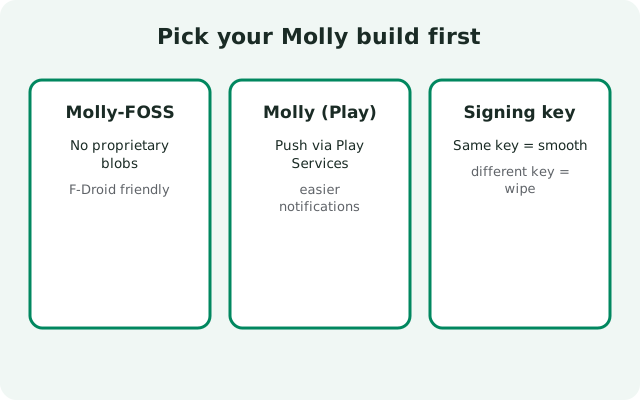
Pick one now, because the steps below are identical either way except for which file you download from molly.im and how notifications get set up afterwards.
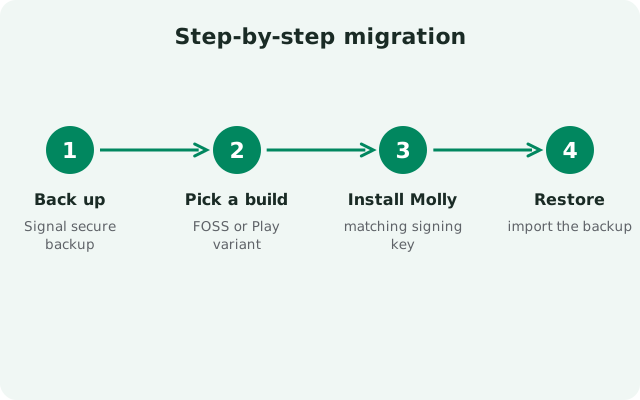
Step-by-step migration
- Create a fresh backup in Signal. Settings, chats, chat backups. Use a passphrase you will remember and confirm the 64-character recovery key is saved.
- Copy the backup file off the phone. USB it to a computer or store a second copy somewhere safe. Verify the file is actually there and has a sane size.
- Double-check your phone number. You will re-verify the same number in Molly, so make sure you know which number the account is registered to.
- Get Molly from a safe source. Download the APK from molly.im directly, or add the official F-Droid repository at molly.im/fdroid and install from there. Never grab a Molly APK from a random mirror site.
- Uninstall Signal. This is the step Molly's own migration guide recommends: it prevents losing any messages that arrive between your backup and the switch, and your Signal copy goes dead the moment you register the same number in Molly anyway. The backup you made in step 1 is your safety net.
- Install Molly. Open the APK and install it, allowing installs from your browser or file manager when Android asks.
- Open Molly and verify your number. Enter the same phone number, complete the SMS or call verification.
- Restore when setup offers it. Choose "Restore from backup," point Molly at your backup file (the Signal/Backups folder by default), and enter your recovery key carefully. Let the restore finish completely before you start tapping around.
- Check your chats. Scroll through a few conversations, especially ones with media, to confirm everything arrived.
Molly is distributed by its own developers. The only safe sources are the official site and its official F-Droid repository.
Open molly.imF-Droid users: add molly.im/fdroid as a repository instead.
Why uninstalling Signal is part of the move
Molly and Signal are separate apps with separate package names, so Android installs them side by side with no conflict. You can technically keep both on the phone. The uninstall in step 5 is not forced by Android; it is what Molly's own migration guide recommends, for two practical reasons. First, any messages that arrive between your backup and the switch land in the old app and would be lost, so the official guide has you uninstall before going back online. Second, only one app can hold your number's registration: the moment you register in Molly, the Signal copy goes dead anyway.
So uninstall Signal first, then install Molly cleanly. Your account lives on Signal's servers and your history lives in your backup, so neither is lost by the uninstall as long as step 1 was done properly.
What transfers and what doesn't
| Item | Comes with you? | Notes |
|---|---|---|
| Your account (phone number) | Yes | Re-verify the same number in Molly; it is the same Signal network. |
| Chat history | Yes, via backup | Only if you restored during setup. There is no later import. |
| Contacts | Yes | Contacts sync from your phone and the network as usual. |
| Group memberships | Yes | Groups re-sync from the server after restore. |
| Linked devices (e.g. Signal Desktop) | No. Re-link them | Molly sees itself as a new device. Remove old links and link again. |
| App settings | Mostly no | Plan to reconfigure notifications, appearance, and privacy options. |
| Profile (name, photo, about) | Yes | Your profile syncs from the server after number verification. |
The important mental model: your account and your messages move; your device setup starts fresh. Linked devices deserve a callout because it surprises people. Molly registers as a new primary device, so any desktop or tablet you had linked to Signal needs to be linked again to Molly. Budget five minutes for that.
After-migration checklist
Once your chats are in and you have sent a test message that actually delivers, run through this short list:
- Re-link Signal Desktop or any other linked devices.
- Check notifications arrive. If you installed Molly-FOSS, set up UnifiedPush notifications; this is the one setup step people forget.
- Consider turning on Molly's database encryption with a passphrase, one of the extras the fork adds over official Signal. Read what Molly is if you want the background on why it exists.
- Decide how you will get updates: the F-Droid repository notifies you automatically, while the direct APK needs you to check molly.im yourself.
- Delete the old backup copy from insecure places once you are confident, and keep one safe copy somewhere.
from Signal's official site (file hosted by Signal, not by us)
If something goes wrong
Restore asks for a passphrase you do not have. Stop and find it. The backup is encrypted; there is no reset option. Check your password manager, your notes, anywhere you might have saved it.
Molly says it cannot find a backup. The backup file may be in a different folder than Molly expects, or the copy on the phone is incomplete. Recopy the file from the safe copy you made on your computer.
"App not installed" when installing Molly. This is not caused by Signal being on the phone. The two apps coexist. It usually means the APK file is corrupt, you grabbed the wrong build, or storage ran out. Re-download the right build from molly.im and try again.
Number verification never arrives. Wait a few minutes, then request the call option instead of SMS. Make sure the SIM for that number is in the phone.
And remember: if you ever decide the fork life is not for you, moving back to official Signal uses the exact same backup-first discipline.
Frequently asked questions
Can I keep Signal and Molly installed at the same time?
Yes. Molly and Signal are separate apps and can sit on the same phone, but only one of them can hold your phone number's registration at a time. For a same-number migration, still uninstall Signal during the move: it avoids losing messages that arrive between your backup and the switch.
Will my contacts know I switched to Molly?
No. Molly connects to the same Signal network with the same protocol, so your contacts cannot tell which app you are using. Your number, profile, and messages look identical to them.
Do I lose my groups when I migrate?
No, as long as you restore your backup during Molly's setup. Group memberships re-sync from the server after the restore.
Does Molly need a Google account or Google Play services?
Standard Molly uses Google's push service for notifications, like official Signal does. If your phone has no Google services, install Molly-FOSS instead, which uses UnifiedPush.
Can I move back to official Signal later?
Yes. The process mirrors this one in reverse: back up in Molly, uninstall it, install official Signal, and restore. The two apps understand the same backup format.
Keep reading
- Molly to Signal: how to switch back: the reverse migration, same backup-first discipline
- Which Molly should you choose?: standard vs FOSS decision guide
- Molly UnifiedPush notifications: push setup for the Google-free build
- Signal chat backups, explained: the backup mechanics behind every migration