
Installing the Signal APK on a Sony Xperia
Published: October 7, 2026 · Updated: October 8, 2026
Signal Foundationfrom Signal's official site — file hosted by Signal, not by us. signal.org/android/apk
Sony's Xperia phones run close to stock Android, which makes the Signal APK install simple: there is no heavy skin renaming the settings you need. The main reason Xperia owners go the APK route is practical: older Xperia models fall out of Play Store support, some units are bought grey-market without Google apps, and a few people simply prefer not to tie their messenger to Google's store.
The file is the same for every phone: the official APK from signal.org/android/apk, currently website build 8.29.3 with package name org.thoughtcrime.securesms. Sony has scaled back its phone business in several regions, so many Xperias in circulation are older models. Check first that your phone meets Signal's minimum Android version before you start.
Why install the APK on an Xperia?
Three situations cover nearly every Xperia owner reading this page. First, your Xperia is old enough that the Play Store version of Signal no longer supports it. The Play Store simply refuses to show or update the app. Second, your phone was imported or flashed in a way that left it without Google Play Services; some grey-market Xperias and custom ROMs fall here. Third, you want Signal without a Google account attached to the install.
What you should not do is grab the APK from a mirror site because it was the first search result. Xperia forums and file-hosting links are full of repackaged APKs. The only safe source is Signal's own APK page, and the mirror warning guide explains exactly what can hide inside a repackaged file.
One honest caveat: the website build keeps its own connection alive for notifications instead of using Google's push channel. On a phone without Play Services that is the price of independence: slightly more battery use, and you need to keep the app exempt from battery optimization, covered below.
Step-by-step install
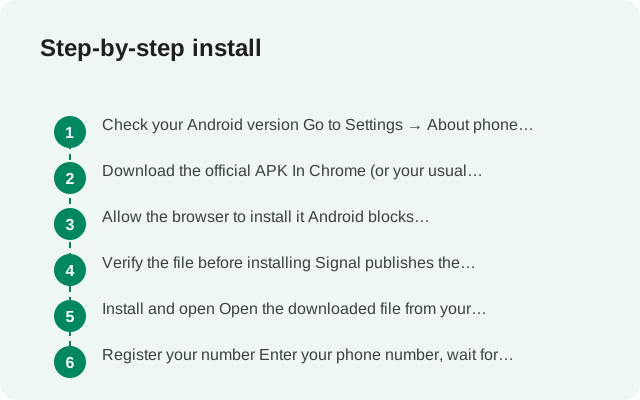
Download from Signal's page
Open signal.org/android/apk in your phone's browser and tap the download link. Confirm the download when the browser asks. The file name ends in
8.29.3.apk.Open the downloaded file
Tap the download notification. Android will block the install the first time and offer to take you to the permission screen. Follow it.
Turn on the install permission for your browser
Toggle the permission on for the browser you used (Chrome, or whichever browser downloaded the file). Details in the next section.
Install and open
Go back, tap the file again, then tap Install. When it finishes, tap Open.
Register
Enter your phone number, enter the SMS verification code (or use the voice-call option), set your Signal PIN, and restore a backup if you have one.
Xperia's near-stock Android means there are no extra Samsung-style screens hiding these steps. If the install button is greyed out or you get "App not installed," the cause is nearly always a leftover Play version of Signal. Uninstall it first (after backing up), because the two builds cannot coexist.
Allow your browser to install unknown apps
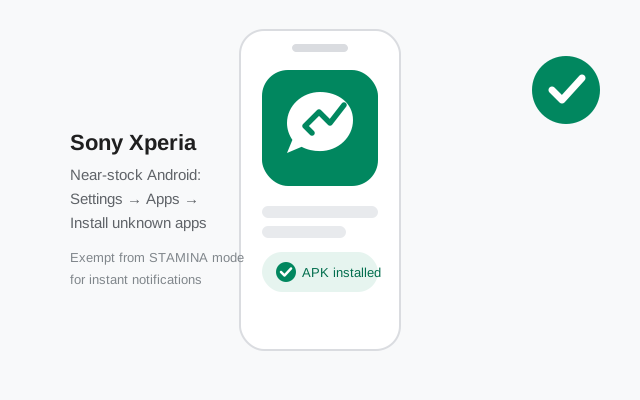
On Xperia phones the setting lives at Settings > Apps > Special app access > Install unknown apps. Tap your browser in the list and switch Allow from this source on. That's the whole setting. Android grants it per app, so your browser can install APKs while nothing else can.
Two things worth knowing. First, you only need this permission for whichever app actually handles the file: if you download in Chrome, Chrome needs it; if you move the file with a file manager and open it there, the file manager needs it instead. Second, once Signal is installed, you can turn the permission back off. It has no effect on the installed app. It only controls future installs from that source. Leaving it on is harmless but unnecessary, and turning it off is good hygiene.
If you downloaded the APK on a computer and moved it over USB, our PC-to-phone transfer guide covers the copy step, including how to verify the file survived the move intact.
Verify the APK fingerprint
Before tapping Install, verify the file. Signal publishes the SHA-256 fingerprint of its signing certificate on the download page itself. The check is: download the APK, inspect its signing certificate, and compare the fingerprint character by character with the one on signal.org/android/apk.
On a phone this takes an app that can read APK signatures; on a computer, Android's apksigner tool does it. Either way, the procedure is the same, and our full verification guide walks through both. Never copy a fingerprint from a blog, a forum post, or this page. The only fingerprint that proves anything is the one on Signal's own site, because Signal controls that site.
If even one character differs, delete the file and download it again from the official page. A mismatch means the file is not what Signal published, full stop.
Fix notifications: STAMINA and battery settings
Sony's STAMINA mode is the Xperia equivalent of every other brand's battery saver, and it is the number-one cause of delayed Signal messages on these phones. STAMINA restricts background activity aggressively; Signal's website build needs its background connection to receive messages promptly.
Open Settings > Battery > STAMINA mode. Either keep STAMINA off, or use its exception list to exempt Signal. Then go to Settings > Apps > Signal > Battery and set background restriction to unrestricted. On older Xperias the path may read Settings > Power management > STAMINA mode. Same setting, older name.
Test it honestly: ask a friend to send you a message while the phone sits untouched for twenty minutes with the screen off. If it arrives within seconds, you're done. If it only arrives when you wake the phone, something is still throttling the background connection. Re-check STAMINA and any third-party "optimizer" app you may have installed.
Xperia vs other brands: where the settings live
| Setting | On Xperia | On Samsung (for comparison) |
|---|---|---|
| Install unknown apps | Settings > Apps > Special app access > Install unknown apps | Settings > Security and privacy > Install unknown apps |
| Battery saver | Settings > Battery > STAMINA mode | Settings > Battery > Power saving mode |
| Per-app battery | Settings > Apps > Signal > Battery | Settings > Apps > Signal > Battery > Unrestricted |
| Play Protect warning | Same Android-wide behavior on all brands | Same Android-wide behavior on all brands |
The practical takeaway: Xperia owners have less digging to do. Stock-ish Android keeps these settings in the standard places, and there is no second app store, no Secure Folder, and no brand-specific installer scan to argue with. Our Samsung guide shows how much noisier the same process gets on One UI.
Register and first-run setup
Registration is identical on every phone: enter your number, receive the code, enter it. On an Xperia without Google Play Services, one detail matters. The SMS autofill that normally pastes the code for you may not work, so keep the messaging app handy and type the code manually. It's a minor inconvenience, not a blocker.
After the code, Signal asks you to set a PIN. This PIN protects your account against SIM-swap attacks via registration lock. Set one and store it somewhere safe. If you have a previous Signal backup, restore it now rather than later; restoring after you've already started chatting creates a mess of duplicated threads.
Grant the permissions Signal asks for as they come up: contacts (so you can find people), notifications (so messages alert you), and camera/mic (for calls and QR linking). You can review every one later under Settings > Apps > Signal > Permissions. Our permissions guide explains which are truly required.
Keeping the website build updated
The website build does not use the Play Store, so it updates itself: Signal checks for new versions and prompts you to install them. This only works if the app can run in the background and reach the network. That is exactly why the battery exemptions above matter for updates too, not just messages.
When an update prompt appears, install it the same way you installed the app: the updater downloads the new APK and Android asks you to confirm. Because it's the same signing key, updates install cleanly over the old version with no data loss. If an update ever stalls, the update troubleshooting guide covers the failure modes in order.
Keep an eye on the latest version page if you want to confirm what the current website build is. As of this writing it's 8.29.3, and Signal ships updates regularly.
Does the Signal APK work on old Sony Xperia phones?
Only if the phone meets Signal's minimum Android version (currently Android 5.0 and up, check Signal's support page for the current floor). The APK cannot make Signal run on a phone the app no longer supports.
Why does Play Protect warn when I install the APK on my Xperia?
It warns about every sideloaded app by policy. The warning is not a diagnosis. Verify the SHA-256 fingerprint against signal.org/android/apk yourself before installing.
My Xperia delays Signal messages. What fixes it?
Exempt Signal from STAMINA mode (Settings > Battery > STAMINA mode) and set the app's battery use to unrestricted. Test with the phone untouched for 20 minutes.
Can I install the APK over the Play Store version?
No. The two builds are signed with different keys and Android refuses to install one over the other. Back up your chats, uninstall the Play version, then install the APK.
from Signal's official site — file hosted by Signal, not by us. signal.org/android/apk