
Installing the Signal APK on a Chromebook
Published: October 7, 2026
Signal Foundationfrom Signal's official site — file hosted by Signal, not by us. signal.org/android/apk
Chromebooks run Android apps (most modern ones, anyway), which means Signal's Android APK can run on your Chromebook. The question is never really "can it" but "which route" and "with what limitations." This guide covers both routes (Play Store and direct APK sideload), how registration works when the Chromebook has no phone number, and the honest limits of Signal on a laptop-shaped device.
The APK in question is Signal's website build (version 8.29.3, package org.thoughtcrime.securesms) from signal.org/android/apk. Everything below assumes a Chromebook with Android-app support. The first section shows how to check.
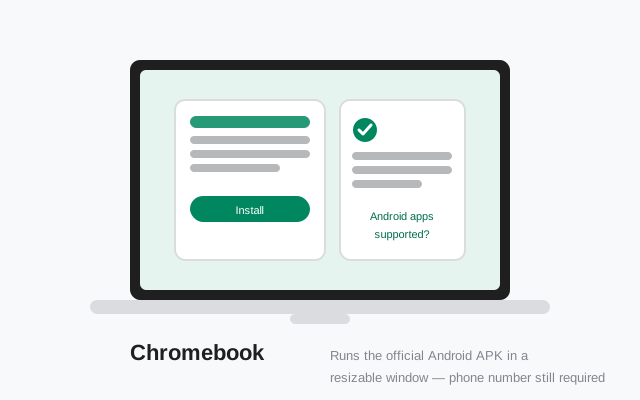
First: does your Chromebook run Android apps?
Not every Chromebook runs Android apps, so check first: open Settings on the Chromebook and look for Apps → Google Play Store. If it is there (even if not yet enabled), your Chromebook supports Android apps and you are good. If there is no Play Store section at all, your model predates Android-app support or has it disabled by policy. The sideload route below will not work either, because it uses the same Android container.
Quick rules of thumb:
- Most Chromebooks from 2017 onward support Android apps. Very old models (2015–2016 era) often do not.
- ChromeOS Flex devices (old PCs converted with Flex) generally do not support Android apps: no Play Store, no sideloading. If you are on Flex, use Signal Desktop instead.
- School/work Chromebooks may have the Play Store disabled by the administrator. That is a policy decision, covered in its own section below.
To enable: Settings → Apps → Google Play Store → Turn on, accept the terms, and the Play Store app appears. You do not need to install anything from it for the APK route. You just need the Android container it enables.
Two routes: Play Store vs the APK
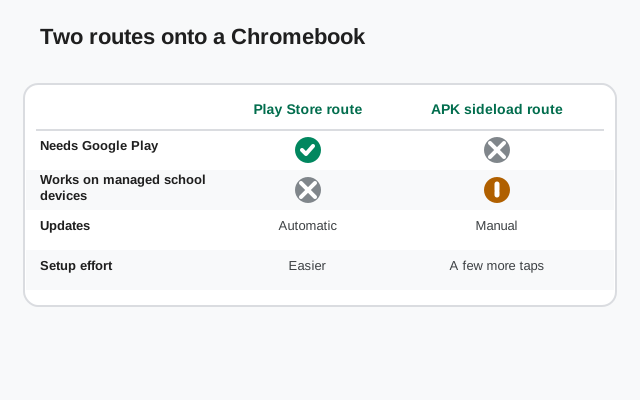
With Android apps enabled, you have two ways to get Signal:
| Play Store route | Open the Play Store app on the Chromebook, search Signal, install. Simplest, updates automatically. Use this unless you have a reason not to. |
|---|---|
| APK sideload route | Download the APK from signal.org/android/apk, open it in the Files app, and install. Use this if the Play Store is unavailable, if you want the website build specifically (it self-updates and is signed by Signal directly), or if your administrator blocked the Play Store but not sideloading (rare). |
The honest recommendation: use the Play Store if you can. On a Chromebook the website build's advantages (no Google dependency) matter less, because the Android container on ChromeOS is Google's either way. The APK route earns its keep when the Play Store is blocked or missing.
One important note: the two builds are signed with different keys and cannot replace each other. Pick one route and stay on it. Switching later means uninstalling and re-registering.
Sideloading the APK via the Files app
If you chose the APK route, here is the sideload flow on ChromeOS:
Download the APK
In the Chrome browser on the Chromebook, open signal.org/android/apk and download the file. It lands in your Downloads folder.
Open it in Files
Open the Files app, go to Downloads, and double-click the APK. ChromeOS will ask you to allow installs. Enable installing apps from Files (or from the browser, depending on which app you open it with). This is ChromeOS's version of the install-unknown-apps permission.
Install and launch
Click Install, then open Signal from the launcher. It appears alongside your other Android apps, in a phone-shaped window by default.
Verify if you care
The SHA-256 fingerprint on signal.org/android/apk should match your download. Our verification guide covers checking from a Chromebook via the Linux terminal or a transferred copy.
If the install option does not appear at all, the administrator has likely disabled sideloading (school/work devices). See the section below. On a personal Chromebook it should just work.
General sideloading background, if you are new to it: our sideloading guide and ADB install guide cover the concepts; ChromeOS's Files-app flow is the simplest variant of the same idea.
Registering without phone SMS on the Chromebook
Here is the catch everyone hits: Signal registers with a phone number that must receive an SMS (or voice-call) code. Your Chromebook has no phone number. You have two options:
- Option A: link as a companion device (recommended). Register Signal on your phone first, then on the Chromebook choose the link-device flow instead of entering a number: it shows a QR code, you scan it with your phone's Signal (Settings → Linked devices → +), and the Chromebook becomes a linked companion. No SMS needed on the Chromebook at all. This is the clean route. See linking a second device.
- Option B: register with your number directly. Enter your phone number on the Chromebook, receive the SMS code on your phone, and type it into the Chromebook. This works, but it registers the Chromebook as a primary device. Signal allows only one primary phone-style registration per number, so doing this will de-register Signal on your phone. Only choose this if the Chromebook is meant to replace the phone as your Signal device.
For almost everyone, Option A is correct: phone stays primary, Chromebook is the convenient big-screen companion. Option B is for the unusual case of a Chromebook as someone's only device.
If you have no phone at all, see using Signal without a SIM for the realistic options. But be aware a Chromebook alone, with no phone number anywhere, cannot complete registration.
What the experience is actually like
Set expectations correctly and the experience is pleasant:
- Messaging is full-featured. Chats, groups, voice notes, media, disappearing messages, stories: all work. The keyboard makes long conversations genuinely nicer than on a phone.
- Calls work with the Chromebook's mic, speakers, and camera. Quality depends on the Chromebook's mediocre webcam the way it does in any video app.
- Window management is phone-app-ish. Signal opens in a portrait phone-shaped window; you can resize it, and newer ChromeOS versions handle Android window resizing gracefully, but the layout is still the phone layout stretched, not a native desktop layout.
- Notifications arrive through ChromeOS's Android notification bridge. Keep the Android container awake (it sleeps when the Chromebook sleeps; nothing to configure, just know messages will not arrive with the lid closed).
- Copy-paste and files work between ChromeOS and the Android app for sharing screenshots and documents into chats.
If you want a truly native desktop experience instead, Signal Desktop (installed via the Linux container or as a web app) is the alternative. But it is also a linked companion, so the comparison is companion-vs-companion, and the Android app on Chromebook is the simpler install.
Honest limitations
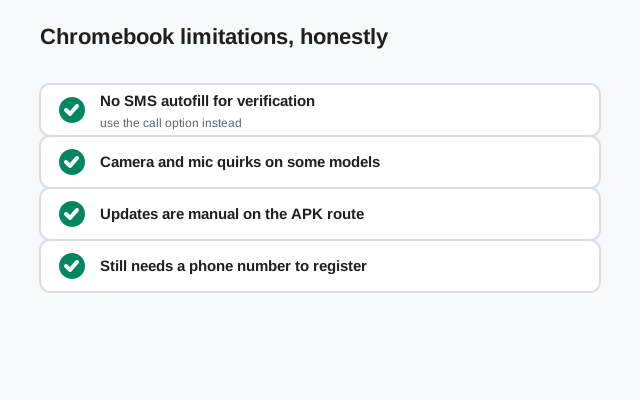
The honest limits, so nothing surprises you:
- No Android container, no Signal APK. Pre-2017 Chromebooks and ChromeOS Flex have no Android runtime. The APK cannot run, full stop.
- Lid closed = offline. Chromebooks sleep aggressively; Signal cannot receive messages with the lid shut. It reconnects on wake, but do not expect a Chromebook to be an always-on messaging hub.
- Camera/mic quality is Chromebook-grade. Fine for calls, not for anything demanding.
- Storage is shared. The Android container shares the Chromebook's storage; on a 32 GB school Chromebook with a full Downloads folder, keep an eye on space.
- Some Android features do not translate. Phone-specific things (SMS sharing intents, contact sync with the phone dialer) behave oddly or not at all. The container is not a phone.
School or work Chromebooks
School and work Chromebooks are usually managed: an administrator controls the Play Store, sideloading, and sometimes the entire Apps section in Settings. If the Play Store toggle is missing or sideloading is blocked, that is policy, not a technical problem. There is no legitimate bypass that does not violate the device's acceptable-use rules.
What you can do:
- Ask the administrator. Many schools allowlist specific apps on request. Signal for a student journalism club or a work team is a reasonable request.
- Use the web client? There isn't one. Unlike some messengers, Signal has no web version. This is deliberate (a web client cannot offer the same security guarantees). So "just use the browser" is not an option; it is Signal Desktop or the Android app.
- Use your personal device. If the managed Chromebook is locked down, the realistic answer is Signal on your phone, not on the Chromebook.
Do not try developer-mode or policy workarounds on a device you do not own. On a managed Chromebook, entering developer mode typically triggers a powerwash and an admin alert. A high price for a messaging app.
Keeping it updated
Play Store route: updates come through the Play Store automatically, like any app. Nothing to do.
APK route: the website build updates itself. It checks Signal's servers and prompts you to install new versions, no Play Store needed. The current build is 8.29.3; when the next one ships, the in-app updater offers it. Approve the install confirmation when it appears.
If the in-app updater ever stalls on ChromeOS (the Android container's background work can be throttled when the Chromebook sleeps a lot), the manual fallback is the same as the install: download the new APK from signal.org/android/apk and install it over the existing app. Same signing key, so it updates in place. Compare versions with our version-check guide if you are unsure what you are running.
Frequently asked questions
Can I install the Signal APK on a Chromebook?
Yes, if your Chromebook supports Android apps (Settings → Apps → Google Play Store exists). Download the APK from signal.org/android/apk and open it in the Files app to install. ChromeOS Flex devices and very old Chromebooks lack the Android container, so it won't work there.
How do I register Signal on a Chromebook without a phone number?
Link it as a companion device: register Signal on your phone, then use the link-device QR flow on the Chromebook. Registering the Chromebook directly with your number would de-register your phone.
Is it better to use the Play Store or the APK on a Chromebook?
The Play Store is simpler and updates automatically. Use the APK route if the Play Store is unavailable or you specifically want Signal's website build.
Will Signal notify me when the Chromebook lid is closed?
No. Chromebooks sleep with the lid closed and the Android container pauses. Messages arrive when you open the lid and the app reconnects.