
Sideloading an APK, explained for beginners
Published: October 7, 2026 · Updated: October 8, 2026
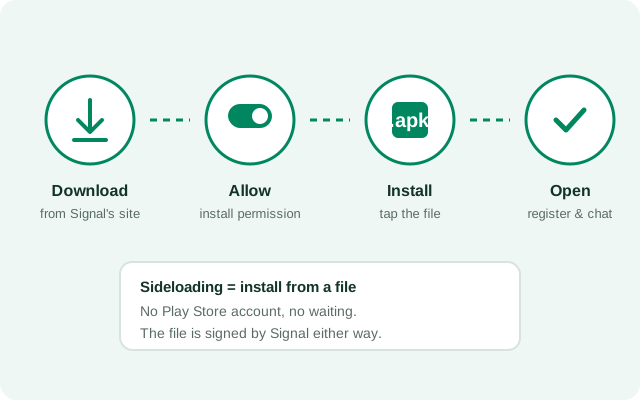
Sideloading just means installing an app from a file instead of from an app store. It's the normal way to get Signal on phones without the Play Store: Huawei phones, de-Googled phones, and anywhere else Google's store isn't available. If you can download a file and tap through two permission screens, you can sideload. This guide assumes zero experience and explains every prompt you'll see.
What "sideloading" really means
On Android, apps are distributed as APK files (Android Package). The Play Store is simply a shop that downloads the APK and installs it for you behind the scenes. Sideloading skips the shop: you download the APK file and you tap install. The end result is byte-for-byte the same kind of installation.
The term sounds technical, but the concept is ordinary. It's the phone equivalent of downloading a program's installer on a computer instead of getting it from the Microsoft Store. Signal officially supports it: the Signal Foundation publishes its own APK on signal.org/android/apk precisely for people who can't or won't use the Play Store. You're not hacking anything; you're using the front door Signal built for this purpose.
Before you start: the checklist
- A phone number that can receive SMS. Signal registers with a phone number and texts you a code. Without a working number, registration can't complete.
- About 300 MB of free space. The APK plus the installed app and its first-run data need breathing room.
- A browser on the phone. Chrome, Samsung Internet, or Firefox: anything that can download a file.
- Ten unhurried minutes. Nothing here is hard, but rushing through permission prompts is how mistakes happen.
Already have Signal from the Play Store on this phone? Stop. The APK cannot install over the Play version because the signing keys differ. Decide which build you want first.
One more practical note: the APK is a few dozen megabytes. On a metered mobile connection that's fine, but if your data is tight, wait for Wi-Fi. A download that keeps pausing and resuming on a weak signal is the most common cause of corrupted APK files, and a corrupted file just means starting over.
The walkthrough, step by step
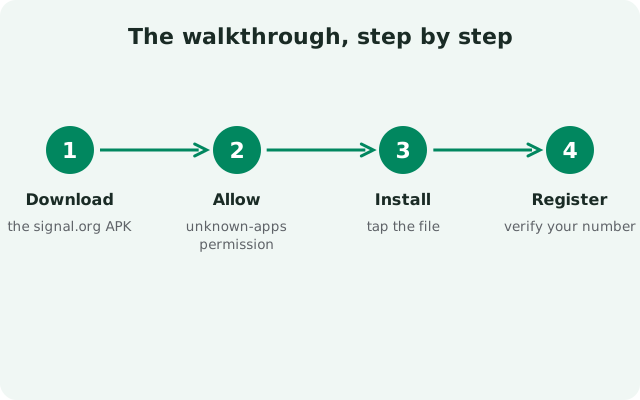
Open Signal's official APK page
In your phone's browser, go to signal.org/android/apk. Check the address bar shows exactly that. This is the only page we'll download from in this guide.
Download the APK
Tap the download button. Your browser will warn that the file "might be harmful". That's a generic warning browsers show for every APK, and our browser install guide explains why. Tap "Download anyway" / "Keep".
Open the downloaded file
Tap the download notification, or open Downloads in your browser or file manager and tap the
.apkfile.Allow "Install unknown apps" for your browser
Android will ask for permission to let your browser install apps. Allow it. Here's the exact path on every brand if the prompt doesn't take you there directly.
Tap Install on the installer screen
Android shows the app name, icon, and permissions. Check it says Signal, then tap Install. Wait for the progress bar. Don't lock the phone mid-install.
Open Signal and register
Tap Open, enter your phone number, and type the SMS code when it arrives. That's it. You're on Signal.
Optional but recommended, between downloading and installing: verify the file's SHA-256 fingerprint against the one printed on signal.org/android/apk. It takes two minutes with our verification guide and it's the strongest proof the file is genuinely from Signal. Beginners sometimes skip this. Don't: it's the one step that turns "probably fine" into "certain."
What each prompt on your screen means
| Prompt | What it means | What to do |
|---|---|---|
| "This type of file can harm your device" | Your browser's generic APK warning, shown for every APK from anywhere | Expected here since the file is from signal.org. Tap Download anyway / Keep |
| "Allow Chrome to install unknown apps?" | Android asking for the per-app install permission | Allow (only this app gets the right) |
| The installer screen listing permissions | Android showing what Signal will be able to request | Confirm it says Signal, tap Install |
| "App not installed" | Usually a signature conflict with an existing Signal install | See why the APK won't install over the Play version |
| "Do you want to install this application?" | The final confirmation from the package installer | Tap Install |
First launch: registering your number
Installing is only half the job. Signal needs to register your phone number before it works. Open the app, choose your country, and enter your number. Signal texts you a verification code; type it in (many phones auto-fill it from the SMS).
If you previously used Signal and made an encrypted backup, this first launch is when you restore it. Have your recovery key ready. Our first-run setup guide covers registration, backup restore, and the settings worth checking in your first ten minutes.
Right after registration, Signal asks for contacts permission. This is how it shows you which of your contacts already use Signal. Granting it is safe and makes the app immediately useful; denying it just means an empty contact list until you enable it later in Settings → Apps → Signal → Permissions. Our permissions guide walks through every permission Signal requests and what each one is actually for.
Beginner mistakes to avoid
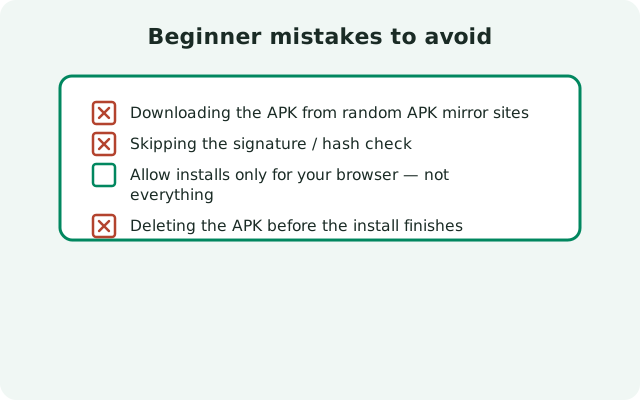
- Downloading from anywhere except signal.org. Random "APK download" sites are the single biggest source of tampered app files. The official page is the only source this guide trusts.
- Skipping the fingerprint check. Signal prints a SHA-256 fingerprint on its download page. Comparing it takes two minutes and proves the file is genuine. Here's how.
- Leaving "Install unknown apps" on forever. Turn it back off after installing. Future updates come through the app itself.
- Installing over the Play version. It will fail every time, by design. Uninstall-then-install is the only path between builds.
- Panicking at the "harmful file" warning. It's generic browser behavior, not a verdict on Signal's file. Worry only if the file came from somewhere other than signal.org.
- Deleting the APK before confirming the install worked. Keep the file until Signal is open and registered. If something fails mid-install, you won't have to re-download.
After installing: what to do with the APK file
The APK was only the delivery box. Once Signal is installed, open, and registered, the file sitting in your Downloads folder has finished its job, and you can delete it. Deleting it does not uninstall the app and does not touch your chats. It simply frees up roughly a hundred megabytes.
Two small habits worth keeping. First, wait until Signal is fully working before you delete the file, in case the install needs a second attempt. Second, if you downloaded the APK on a computer to move it to your phone, the copy on the computer is a handy spare: no rush to delete that one.
Frequently asked questions
Is sideloading legal and safe?
Yes. It's a normal Android feature, and Signal officially publishes its APK for this purpose. It's safe when the file comes from signal.org/android/apk and you verify the SHA-256 fingerprint.
Will sideloaded Signal update itself?
Yes. The website build checks for updates on its own and prompts you to install them. You never need the Play Store.
Do I need to root my phone to sideload?
No. Sideloading uses standard Android permissions. Never root your phone just to install an app.
Can I sideload on a phone with the Play Store?
Yes, though if Signal is already installed from the Play Store you'll need to switch builds (backup, uninstall, install) since the APK can't install over it.
Why does my browser say the file might be harmful?
Browsers show that warning for every APK download regardless of source. It's generic, not a judgment on Signal's file. It matters only if you downloaded from an unofficial site.
from Signal's official site — file hosted by Signal, not by us.