
Install an APK straight from your browser
Published: October 7, 2026 · Updated: October 8, 2026
For most people, this is the whole sideloading process: download the file in your phone's browser, tap the finished download, allow one permission, tap Install. But each browser puts the buttons in slightly different places and each shows its own flavor of scary warning. This guide covers Chrome, Samsung Internet, and Firefox: the three browsers on the vast majority of Android phones.
Chrome: the download flow
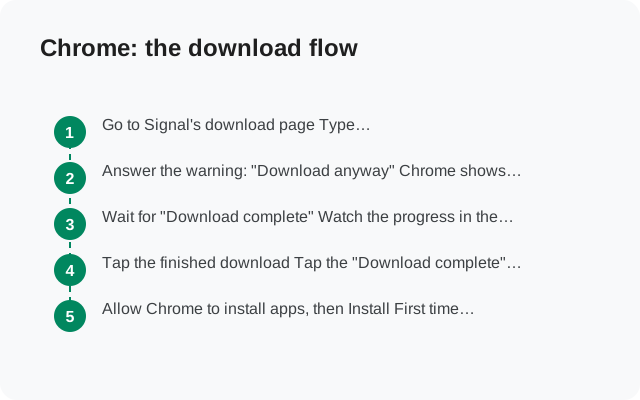
Go to the official APK page
Open signal.org/android/apk in Chrome and confirm the address bar shows exactly that domain.
Tap the download button
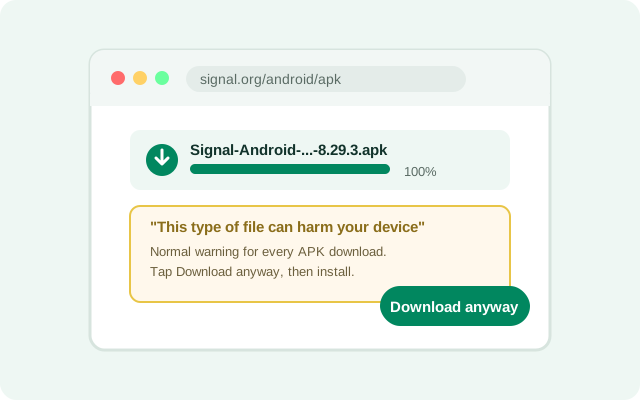
Chrome shows "This type of file can harm your device. Do you want to keep Signal-...apk anyway?" Tap Download anyway. (Why every browser says this is explained below.) On newer Chrome versions this takes two taps: "Keep" on the first dialog, then "Keep anyway" on the second. Both are the same generic warning restated; neither reflects anything about Signal's file specifically.
Open the finished download
Tap Open on the download-complete bar at the bottom, or open Chrome's menu → Downloads and tap the file.
Allow Chrome to install apps
The first time, Android asks "Allow Chrome to install unknown apps?" Tap Allow on the prompt or enable it in the Settings screen it opens. Our per-brand guide has the exact path if you need it.
Install
The system installer shows Signal's name, icon, and permissions. Tap Install, wait for completion, then Open.
A related Chrome behavior: downloads from HTTP (non-encrypted) pages get blocked outright in newer versions. You'll never hit this on signal.org/android/apk since it's HTTPS. But if a guide ever sends you to a mirror over plain HTTP and Chrome refuses, that's the browser protecting you from an unencrypted download, and you should thank it and leave.
Chrome tip: if you lose the download, Chrome's download manager (menu → Downloads) shows progress, file size, and lets you pause and resume. More control than the notification shade gives you. And if Chrome ever saves the file with a .bin extension instead of .apk, the file manager guide explains the rename fix.
Samsung Internet: the download flow
Download from the official page in Samsung Internet
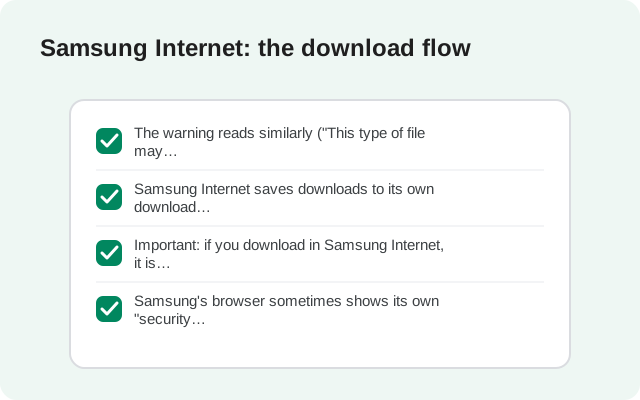
Open signal.org/android/apk in Samsung Internet and tap download. Samsung's browser may show its own security notice. Proceed; the file is from Signal's own domain.
Find the file
Tap the menu → Downloads. Samsung Internet keeps its download list here rather than a bottom bar.
Tap the APK
Allow "Install unknown apps" for Samsung Internet when asked (Settings → Apps → Special access on One UI), then confirm Install on the system screen.
One Samsung-specific note: Samsung Internet sometimes saves to a different folder than Chrome. If a later step can't find the file, check the browser's Settings → "Download location". The file manager guide covers tracking it down.
Firefox: the download flow
Download from the official page in Firefox
Open signal.org/android/apk in Firefox and tap the download button. Firefox asks "Download file?" Confirm.
Open it from Downloads
Tap the download notification, or menu → Downloads, then tap the APK file.
Allow and install
Allow "Install unknown apps" for Firefox when prompted, then tap Install on the system installer screen.
Firefox users: if the download notification's "Open" does nothing, don't fight the browser. Open your file manager, go to Downloads, and tap the file there. Same file, same installer.
The "harmful file" warning, explained honestly
Every browser warns about APK downloads: Chrome's "This type of file can harm your device", Samsung's security notice, Firefox's confirmation dialog. Here's what's actually happening: browsers can't verify what an APK does before it's installed, so they warn about all of them, from every source, every time. The warning carries zero information about this specific file.
There's a nuance worth knowing: browsers can check a file against known-malware lists (Google Safe Browsing does this for Chrome), and if a download matches a known-bad file the warning changes tone completely: from "this type of file" to "this file is dangerous." The generic wording you see for Signal's APK means it matched nothing; it's the default caution for an uncommon file type, not a detection. Learn to read the difference: generic type-warning versus specific file-warning.
That means the warning is not a reason to stop. It is not a reason to feel safe, either. Your safety comes from where the file came from (signal.org, which you typed yourself) and the SHA-256 fingerprint check (how to verify), not from whether a browser showed a generic dialog. If you downloaded from anywhere other than Signal's official page, the warning is the least of your concerns. Delete the file.
One more scenario: on a work-managed phone, your organization's browser policy can block APK downloads entirely. The download simply never starts, with no warning at all. That's your employer's device management doing its job, not a bug. On a managed device, the Play Store (if available) is the intended route.
Finding the file after downloading
- Chrome: menu (⋮) → Downloads. The list shows every file with its size and date.
- Samsung Internet: menu (☰) → Downloads.
- Firefox: menu (⋮) → Downloads.
- Any browser: the system notification shade shows the completed download until you dismiss it. Tap it to open the file directly.
- Last resort: open your file manager and look in Downloads, or search for "signal". The file manager guide has the full drill.
- Notification history: on Android 11 and newer, Settings → Notifications → Notification history shows recently dismissed notifications, including download-complete ones you swiped away. Tapping the entry re-opens the file.
Interrupted downloads: resume or re-download
Downloads die for ordinary reasons: a tunnel, a switched Wi-Fi network, an aggressive battery saver killing the browser. What to do depends on what you see:
- The browser offers "Resume": tap it. Resume continues where the download stopped and the result is a complete file.
- No resume option, or the file is tiny: delete the partial file and download again. A partial APK will fail with a "parse error" if you try to install it. That's the installer telling you the file is truncated, not that anything is wrong with Signal.
- Downloads keep dying: switch to Wi-Fi if you're on mobile data (or vice versa), keep the browser in the foreground during the download, and check you have a few hundred megabytes free. Our download fix guide covers stubborn cases.
After any resumed download, re-run the health checklist below before installing. A resume that silently truncated the file produces a complete-looking entry with a broken interior. The file-size check catches this: compare against the size shown on Signal's download page.
Download health checklist
Before you tap install, thirty seconds of checks:
- The file name ends in
.apk(not.bin, not.zip). - The file size is in the tens of megabytes. A few kilobytes means a failed download.
- The name matches Signal's website-build pattern:
Signal-Android-website-prod-universal-release-8.29.3.apk(version number changes over time). - You downloaded it from signal.org/android/apk. The address bar said so when you tapped download.
- Ideally: the SHA-256 fingerprint matches the one on Signal's page (verification guide).
Make this checklist a habit, not a one-time thing. Every update you sideload in the future deserves the same thirty seconds: the file name, the size, the source, the fingerprint. Security that depends on remembering "just this once" isn't security.
Frequently asked questions
Which browser is best for downloading the APK?
Whichever you already use: Chrome, Samsung Internet, and Firefox all handle it fine. The steps differ slightly per browser, which is why this guide covers each one.
Chrome says the file might harm my device. Should I worry?
It's a generic warning shown for every APK from every source. Since you're downloading from signal.org itself, proceed. Verify the SHA-256 fingerprint for certainty.
The download finished but I can't find the file.
Check the browser's menu → Downloads first, then your file manager's Downloads folder. Samsung Internet and Firefox can save to custom locations. Check their download settings.
Can I download the APK on my computer instead?
Yes. Download on the PC from signal.org/android/apk and install over USB with ADB, or copy it to the phone. The ADB guide covers the first option step by step.
Do I need to keep the browser's install permission on?
No. Allow it for the install, then turn it off in Settings → Apps → Special app access → Install unknown apps. Signal updates itself afterward.
from Signal's official site — file hosted by Signal, not by us.